


Connect Codex to Apollo
Connect Codex to Apollo in 3 steps: 1. Sign in to ApexGenius and connect Apollo. 2. Add the ApexGenius plugin. 3. Start using Apollo in Codex. Start in Plugins in the ChatGPT desktop app and authorize your connection.
1,000 free credits · No card required
How to connect Apollo to Codex
- 1Sign in to ApexGenius and connect Apollo
- 2Add the ApexGenius plugin to Codex
- 3Start using Apollo in Codex
FirstConnect Apollo to ApexGenius
ThenConnect ApexGenius to Codex
Apolloapexgenius.ai/connections/apollo1 of 3Connect Apollo. Apollo shows as connected in ApexGenius.
Then ask Codex:
Find the available Apollo account and workspace read tools. Do not enrich contacts, send messages, or spend credits.
Written setup, step by stepShow
Before you start
- An account with permission to use the Apollo resources you intend to connect.
1. Connect Apollo to ApexGenius
- Open Apollo in Connections. Choose Connect, or Add connection when offered. Give the connection a name if prompted. If Gateway setup pending appears, contact ApexGenius support before continuing.
- Choose the account and review access. Sign in to Apollo and review the requested workspace access. Apollo uses browser authorization; no Apollo API key is pasted into ApexGenius.
- Review the connected account and resources. Confirm the connected Apollo workspace. Open Tools to review its available actions. Enrichment and other paid actions use Apollo credits.
- Check the connection. Use Test connection or Check again and read the reported status. Add an AI agent from the AI agents page, choose Read only for the first test, and try the question below.
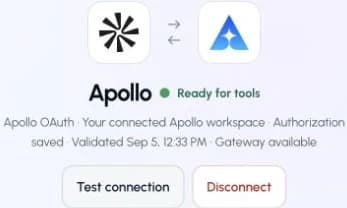
This captured Apollo connection reports ready. Check your own connection and its latest validation before using tools.Open full-size image (opens in a new tab)
2. Connect ApexGenius to Codex
- In the desktop app, open Settings, then MCP servers and Add server.
- Name the server ApexGenius, choose Streamable HTTP, and paste the MCP address above.
- Save, then select Restart. Choose Authenticate for ApexGenius and complete the browser sign-in.
- When ApexGenius asks what this AI client may use, choose Read only for the first test, or Custom to limit it to the tools you need.
- Start a new conversation and select ApexGenius from the available tools before asking for live data.
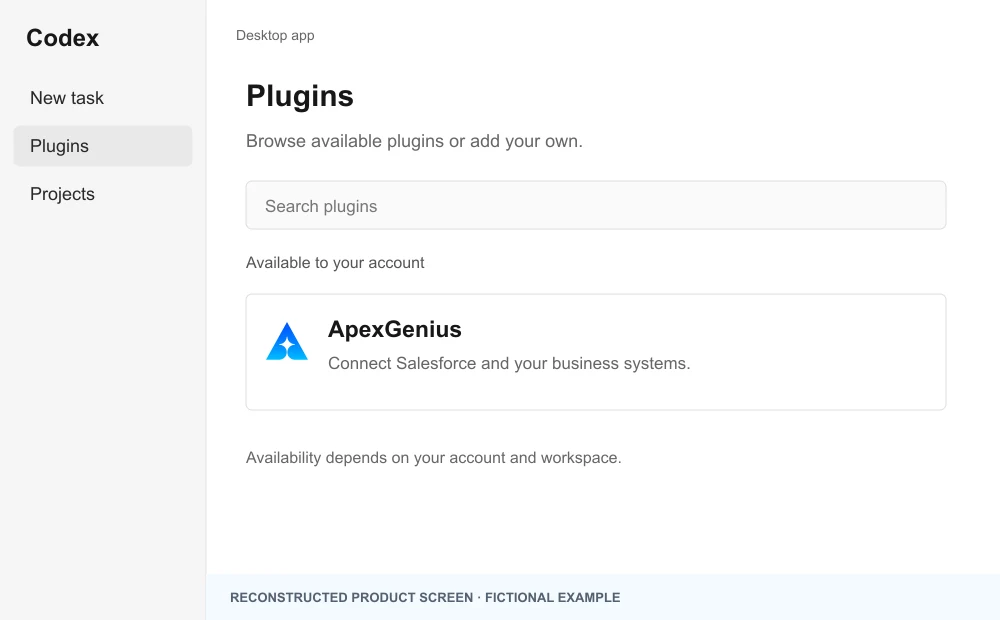
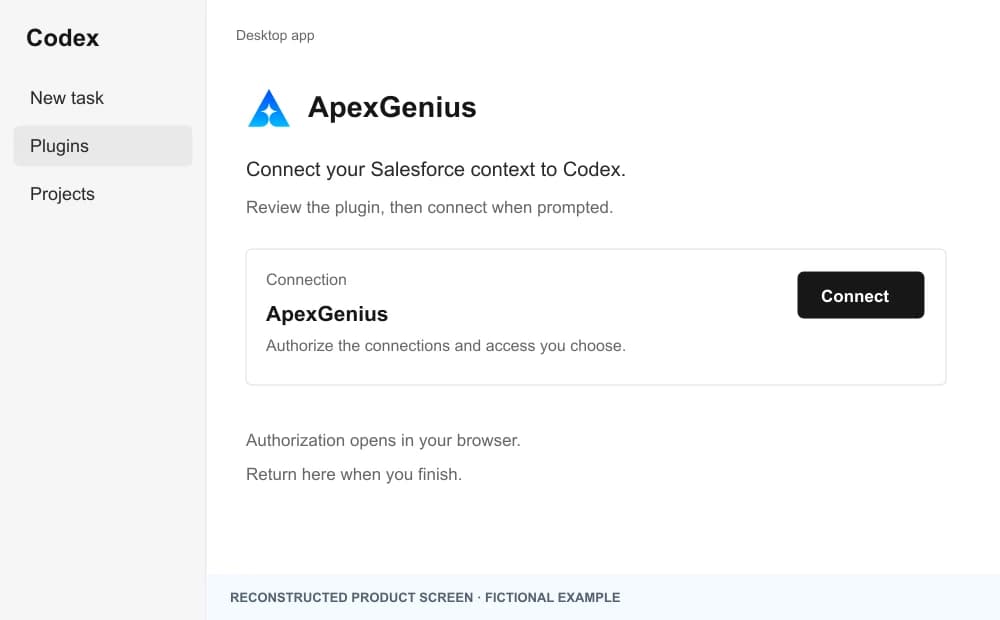
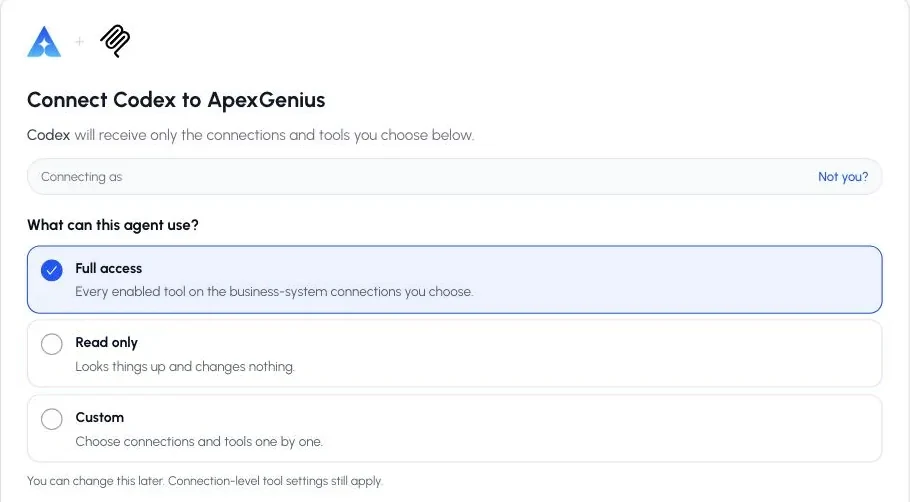
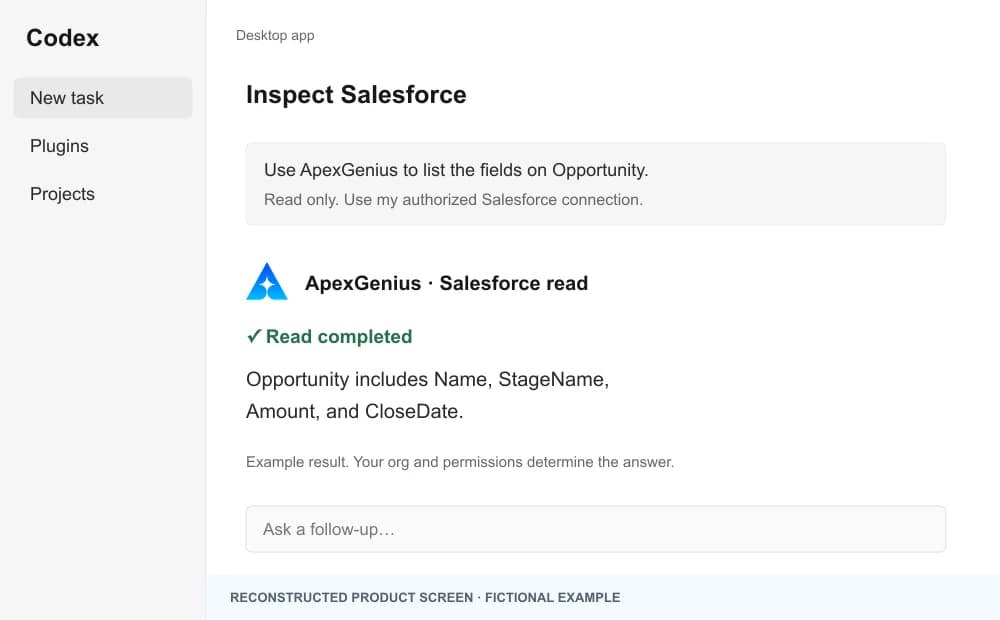
The walkthrough uses the original ChatGPT web plugin captures. After connecting, open Codex in the desktop app and start a new task with ApexGenius. A ChatGPT web connection does not verify Codex access.
A public ApexGenius plugin listing is not verified. Use a plugin shared with you or one you created, subject to your account and workspace policy.
Create a personal plugin
Where Developer mode is available, open ChatGPT Settings, then Security and login, and enable it. In Plugins, select the plus button, enter ApexGenius and a description, then add this URL under Connection. Create the connection, complete OAuth, and review the tools. Return to Codex in the desktop app and start a new task with the plugin enabled.
https://server.autom8.pro/mcpNo plugin available? Use desktop settings
- In the ChatGPT desktop app, open Settings, then MCP servers, then Add server.
- Name the server ApexGenius, choose Streamable HTTP, and paste the MCP address below.
- Save, select Restart, then Authenticate. Sign in to ApexGenius and authorize the intended connections and access.
- Start a new Codex task and ask one read-only question. Check the returned result and its matching successful read in Activity.
https://server.autom8.pro/mcpManual setup for developers
Codex CLI is optional. Run these commands, complete browser authorization, then start a new session. Do not paste bearer tokens or static authorization headers.
Register the remote MCP server
codex mcp add apexgenius --url https://server.autom8.pro/mcpAuthorize in your browser
codex mcp login apexgeniusInspect registered servers
codex mcp listThe desktop app, CLI, and IDE extension share MCP configuration on the same host. The IDE extension does not install plugins. ChatGPT web does not read local Codex configuration.
3. Verify one safe read
Find the available Apollo account and workspace read tools. Do not enrich contacts, send messages, or spend credits.
Find the available Apollo account and workspace read tools. Do not enrich contacts, send messages, or spend credits.Compare the returned account and resource with Apollo. Check the connection status separately from the result of the first read.
What Codex can do in Apollo
87 operations. Read looks things up and changes nothing. Write changes Apollo and runs only when that tool is enabled.
Read39 operations
Looks things up. Changes nothing.Find people and companies
apollo_mixed_people_api_searchSearch Apollo’s database for people by title, company, location and more.apollo_organizations_lookupLook up a company by its domain.apollo_webhook_result_showCheck the result of an enrichment that finishes later.
Contacts and accounts
apollo_contacts_searchSearch your saved contacts.
Deals
apollo_deals_searchSearch your deals.apollo_deals_showRead one deal with its stage and amount.
Lists and fields
apollo_labels_indexList your lists.apollo_fields_indexList your fields.
Sequences
apollo_emailer_campaigns_searchSearch your sequences.apollo_emailer_campaigns_showRead a sequence’s steps and emails.apollo_emailer_campaigns_step_contentRead the custom step content written for a contact.apollo_emailer_campaigns_activity_feedRead one contact’s sequence history.apollo_emailer_schedules_indexList your sending schedules.
Emails
apollo_emailer_messages_email_send_statusCheck whether an email was delivered.apollo_emailer_messages_searchReport on the emails of a sequence.apollo_emailer_messages_get_contentRead sent emails.apollo_email_accounts_indexList the mailboxes your team sends from.
Tasks and calls
apollo_tasks_searchSearch tasks.apollo_tasks_showRead one task, including the message it will send.apollo_phone_calls_searchSearch logged calls.
Conversations
apollo_conversations_searchSearch recorded conversations.apollo_conversations_get_transcriptRead a conversation’s transcript.apollo_conversations_get_insightsRead Apollo’s insights on a conversation.apollo_conversations_get_recording_linksGet short-lived links to a recording.
Reports and team
apollo_analytics_sync_reportReport on emails, calls, meetings, tasks and deals, grouped how you want.apollo_usage_stats_credit_usage_statsSee how many Apollo credits were used.apollo_users_searchFind teammates and their user IDs.apollo_users_api_profileRead your own Apollo profile.
Website visitors
apollo_website_visitors_domain_aggregatesSee which companies visited your site.apollo_website_visitor_domain_tracker_install_scriptGet the tracking script for your site.
Collections and imports
apollo_custom_objects_showRead a record collection.apollo_custom_object_records_searchSearch the rows in a collection.apollo_dynamic_field_enrichment_ongoing_enrichment_requestsCheck enrichment progress.apollo_csv_exports_showCheck a CSV export.
Context Center
apollo_context_center_showRead your profile and products.apollo_context_center_show_productRead one product.
Domains and mailboxes
apollo_domain_purchase_indexList the domains you bought through Apollo.apollo_email_account_purchase_indexList the mailboxes you bought through Apollo.
Help and feedback
apollo_prompts_suggestSuggest things to try in Apollo.
Write48 operations
Changes Apollo. Runs only when enabled.Find people and companies
apollo_mixed_companies_searchSearch Apollo’s database for companies.apollo_organizations_enrichFill in one company’s details. Uses credits.apollo_organizations_bulk_enrichFill in details for many companies at once. Uses credits.apollo_organizations_job_postingsRead a company’s open job postings.apollo_people_matchFill in one person’s details, such as email and phone. Uses credits.apollo_people_bulk_matchFill in details for many people at once. Uses credits.
Contacts and accounts
apollo_contacts_createSave a new contact.apollo_contacts_bulk_createSave many contacts at once.apollo_contacts_updateChange a saved contact.apollo_accounts_createSave a new account.apollo_accounts_bulk_createSave many accounts at once.apollo_accounts_updateChange a saved account.
Deals
apollo_deals_createCreate a deal.
Lists and fields
apollo_labels_createCreate a list.apollo_labels_updateRename or change a list.apollo_labels_add_entity_ids_to_label_namesAdd records to lists.apollo_labels_remove_entity_ids_from_label_namesRemove records from lists.apollo_fields_createCreate a custom field.apollo_fields_updateChange a custom field.
Sequences
apollo_sequences_createCreate a sequence.apollo_sequences_updateChange a sequence.apollo_emailer_campaigns_add_contact_idsAdd contacts to a sequence.apollo_emailer_campaigns_remove_or_stop_contact_idsRemove or stop contacts in sequences.apollo_emailer_campaigns_approveTurn a sequence on. Apollo starts sending real emails.
Emails
apollo_emailer_messages_createWrite an email draft. It is not sent.apollo_emailer_messages_send_nowSend a drafted email right away.
Tasks and calls
apollo_tasks_createCreate a task.apollo_tasks_bulk_createCreate many tasks at once.apollo_tasks_updateChange a task.apollo_tasks_completeMark a task done. In a sequence, the contact moves to the next step.apollo_tasks_skipSkip a task.apollo_phone_calls_createLog a call.apollo_phone_calls_updateChange a logged call.
Website visitors
apollo_website_visitor_domain_tracker_indexRead your tracked domains.apollo_website_visitor_domain_tracker_send_install_emailEmail the tracking script to someone to install.apollo_website_visitor_domain_tracker_updateAdd or change a tracked domain.
Collections and imports
apollo_custom_objects_createCreate a record collection.apollo_data_sources_createAttach a data source to a collection.apollo_data_source_imports_createRun an import into a collection.apollo_dynamic_field_enrichment_enrichEnrich rows in a collection. Uses credits.apollo_csv_exports_export_viewExport a collection to CSV.
Context Center
apollo_context_center_create_profileCreate your ideal customer profile.apollo_context_center_update_profileChange your ideal customer profile.apollo_context_center_create_productAdd a product.apollo_context_center_update_productChange a product.
Domains and mailboxes
apollo_email_account_purchase_createBuy mailboxes through Apollo. This spends money.
Help and feedback
apollo_feedback_logReport a bad result to Apollo.apollo_survey_submitSend Apollo a survey you chose to take.
You choose what Codex can use
When you approve Codex, pick Full access, Read only, or Custom. Read only allows the Read operations and nothing else. Custom picks apps and tools one by one.
Limits in Apollo
- · Your Apollo plan, credits and permissions decide what can be used.
- · Enrichment uses Apollo credits. Sending email and turning on a sequence reach real people. Buying mailboxes spends money.
- · Enabled writes run immediately. Turn a tool off to block calls.
- · Disconnecting stops future access. It does not unsend email or refund credits.
What it looks like in Codex
An illustrative read-only request and response. Your results come from the account and dates you choose.
apex_search_toolsApollo profile credits · Find Apollo toolsCompleteapex_call_write_toolapollo_users_api_profile · Read your profileCompleteapex_call_write_toolapollo_usage_stats_credit_usage_stats · Read credit usageCompleteIllustrative example: you are an admin on the Northwind workspace, and the team used 1,240 of 4,000 credits this month. Nothing was changed.
Read-only routeTry asking
“Show my Apollo profile and how many credits we used this month. Do not enrich or send anything.”
“Find VPs of Sales at software companies in Texas with 50 to 200 people.”
“Which tasks are due today, and which contacts do they belong to?”
“Add the five contacts I name to the onboarding sequence. Show me the list first.”
More connections like this one
One ApexGenius account covers every pair below. Connect an app once and each agent you allow can use it.
Codex with other apps
 MobbinConnect Codex to Mobbin
 Cal.comConnect Codex to Cal.com
 SlackConnect Codex to Slack
 DiscordConnect Codex to Discord
 ChatGPT AdsConnect Codex to ChatGPT Ads
 GitHubConnect Codex to GitHub
 StripeConnect Codex to Stripe
 Context.devConnect Codex to Context.dev
 AttioConnect Codex to Attio
 SemrushConnect Codex to Semrush
 NotionConnect Codex to Notion
 ApifyConnect Codex to Apify
 LinearConnect Codex to Linear
 JiraConnect Codex to Jira
 HQ RentalConnect Codex to HQ Rental
 Google AdsConnect Codex to Google Ads
 Google AnalyticsConnect Codex to Google Analytics
 Google FormsConnect Codex to Google Forms
 Google MeetConnect Codex to Google Meet
 Google TasksConnect Codex to Google Tasks
 GmailConnect Codex to Gmail
 Google CalendarConnect Codex to Google Calendar
 Google ChatConnect Codex to Google Chat
 Google DocsConnect Codex to Google Docs
 Google DriveConnect Codex to Google Drive
 Google SheetsConnect Codex to Google Sheets
 Google SlidesConnect Codex to Google Slides
 BlotatoConnect Codex to Blotato
 Bing WebmasterConnect Codex to Bing Webmaster
 CalendlyConnect Codex to Calendly
 ClickUpConnect Codex to ClickUp
 YouTubeConnect Codex to YouTube
- YouTube AnalyticsConnect Codex to YouTube Analytics
 SalesforceConnect Codex to Salesforce
 n8nConnect Codex to n8n
 ConfluenceConnect Codex to Confluence
 Google Search ConsoleConnect Codex to Google Search Console



Questions people ask first
How do I connect Apollo?
Open Apollo in ApexGenius Connections, choose Connect, and sign in to Apollo. You do not paste an Apollo API key.
Will this use my Apollo credits?
Enrichment and some searches use Apollo credits, and those tools say so. Ask your AI to check your credit usage first.
Can my AI send email?
Yes. It can send a drafted email and turn on a sequence, and both reach real people. Those tools are marked destructive. Enabled writes run immediately. Turn a tool off to block calls.
Can my AI spend money?
One tool buys mailboxes through Apollo. Keep it off unless you want your AI to buy them.
Will this list of tools change?
Apollo publishes its MCP tools, and ApexGenius reads Apollo’s live list on every search. This page shows the list as of its review date.
Connect Apollo to Codex today
Start free1,000 free credits. No card required. Disconnect any time.