

Connect Codex to Calendly
Connect Codex to Calendly through ApexGenius. Read meetings, invitees and open times, and book or cancel meetings for your connected Calendly user. Start in Plugins in the ChatGPT desktop app and authorize your connection.
7 days free · No card required
How to connect Calendly to Codex
Before you start
- An account with permission to use the Calendly resources you intend to connect.
1. Connect Calendly to ApexGenius
- Open Calendly in Connections. Choose Connect, or Add connection when offered. Give the connection a name if prompted. If Gateway setup pending appears, contact ApexGenius support before continuing.
- Choose the account and review access. Sign in to Calendly in the browser and allow access for your Calendly user. Calendly uses browser authorization; there is no API key to paste.
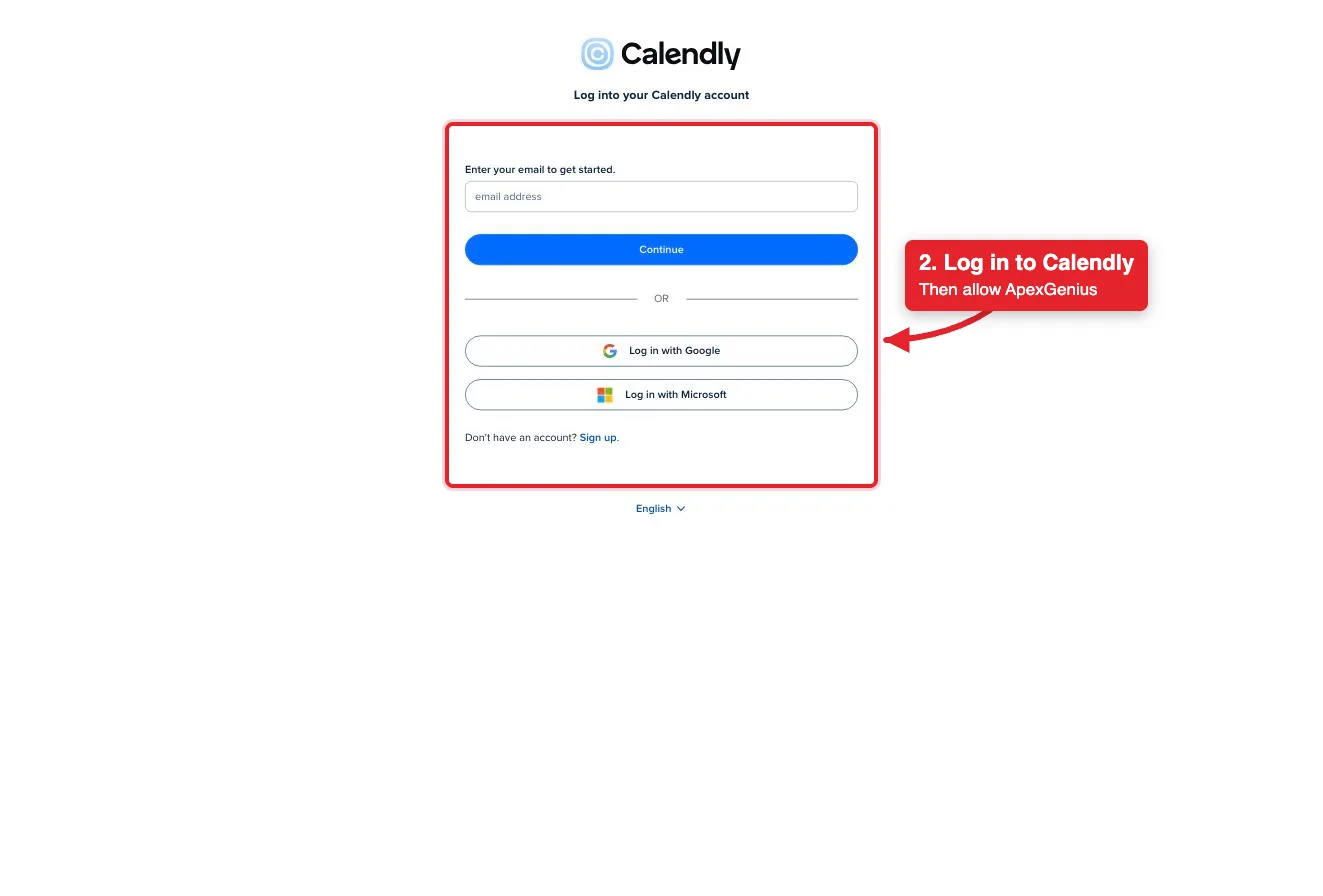
Connect opens Calendly's login. Log in with email, Google or Microsoft, then allow ApexGenius.Open full-size image (opens in a new tab) - Review the connected account and resources. Confirm the connected Calendly user. Open Tools to review the meeting and event type actions. Booking or cancelling a meeting emails the invitees.
- Check the connection. Use Test connection or Check again and read the reported status. Add an AI agent from the AI agents page, choose Read only for the first test, and try the question below.
2. Add ApexGenius to Codex
- In the desktop app, open Settings, then MCP servers and Add server.
- Name the server ApexGenius, choose Streamable HTTP, and paste the MCP address above.
- Save, then select Restart. Choose Authenticate for ApexGenius and complete the browser sign-in.
- When ApexGenius asks what this AI client may use, choose Read only for the first test, or Custom to limit it to the tools you need.
- Start a new conversation and select ApexGenius from the available tools before asking for live data.
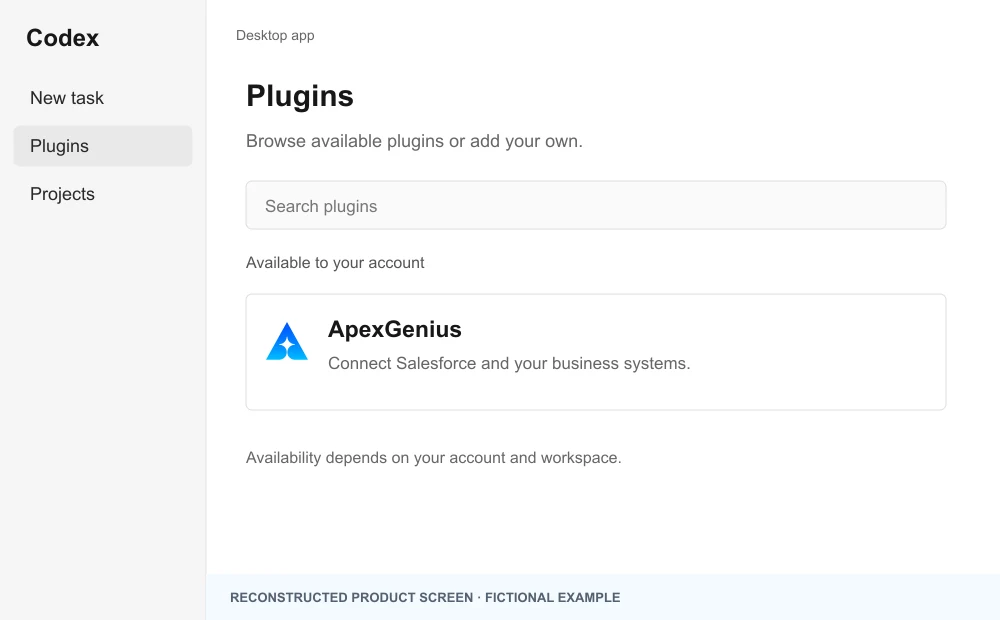
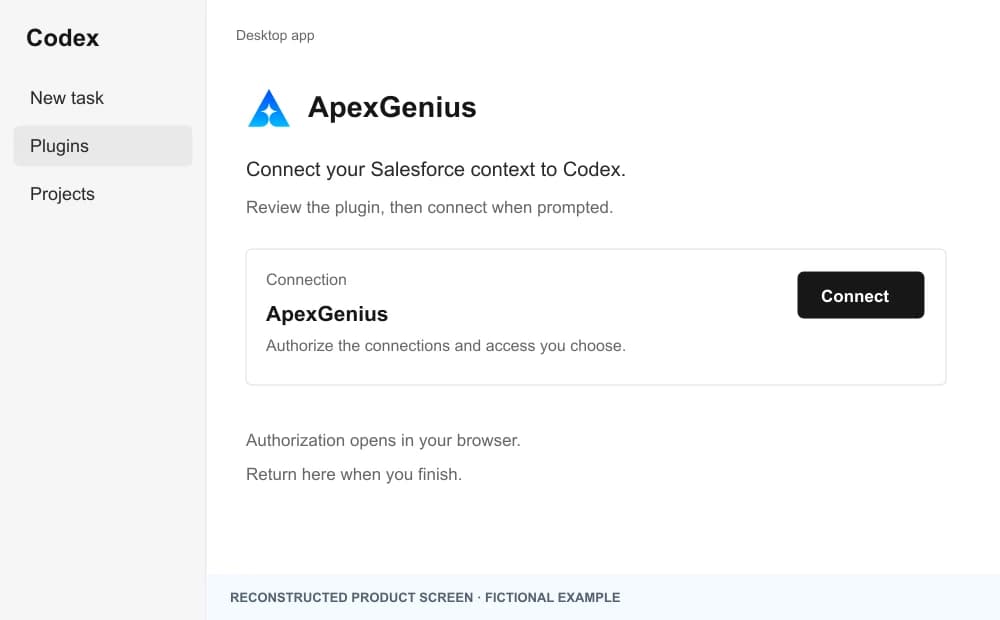
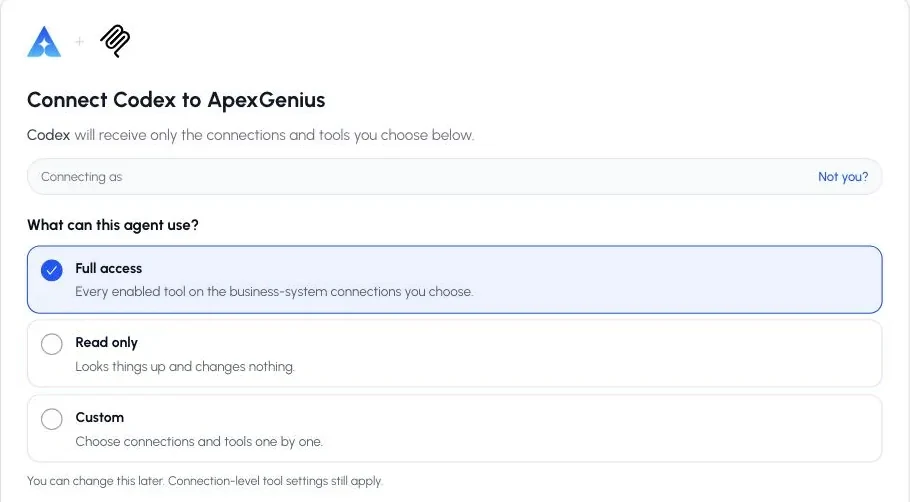
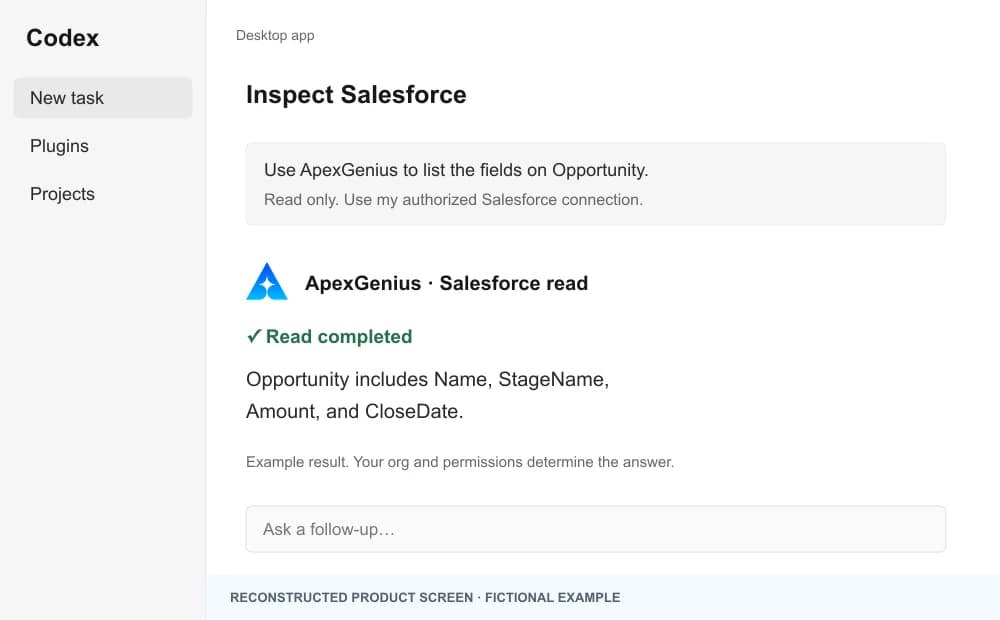
The walkthrough uses the original ChatGPT web plugin captures. After connecting, open Codex in the desktop app and start a new task with ApexGenius. A ChatGPT web connection does not verify Codex access.
A public ApexGenius plugin listing is not verified. Use a plugin shared with you or one you created, subject to your account and workspace policy.
Create a personal plugin
Where Developer mode is available, open ChatGPT Settings, then Security and login, and enable it. In Plugins, select the plus button, enter ApexGenius and a description, then add this URL under Connection. Create the connection, complete OAuth, and review the tools. Return to Codex in the desktop app and start a new task with the plugin enabled.
https://server.autom8.pro/mcpNo plugin available? Use desktop settings
- In the ChatGPT desktop app, open Settings, then MCP servers, then Add server.
- Name the server ApexGenius, choose Streamable HTTP, and paste the MCP address below.
- Save, select Restart, then Authenticate. Sign in to ApexGenius and authorize the intended connections and access.
- Start a new Codex task and ask one read-only question. Check the returned result and its matching successful read in Activity.
https://server.autom8.pro/mcpManual setup for developers
Codex CLI is optional. Run these commands, complete browser authorization, then start a new session. Do not paste bearer tokens or static authorization headers.
Register the remote MCP server
codex mcp add apexgenius --url https://server.autom8.pro/mcpAuthorize in your browser
codex mcp login apexgeniusInspect registered servers
codex mcp listThe desktop app, CLI, and IDE extension share MCP configuration on the same host. The IDE extension does not install plugins. ChatGPT web does not read local Codex configuration.
3. Verify one safe read
Show my connected Calendly user and list my scheduled meetings for the next seven days. Do not book, cancel or change anything.
Show my connected Calendly user and list my scheduled meetings for the next seven days. Do not book, cancel or change anything.Compare the returned account and resource with Calendly. Check the connection status separately from the result of the first read.
Additional reference: the Calendly setup guide.
Start freeWhat it looks like in Codex
An illustrative read-only request and response. Your results come from the account and dates you choose.

apex_search_toolsCalendly user · Find the Calendly read routeCompleteapex_call_read_toolusers-get_current_user · Read the connected userCompleteIllustrative example: the connected user is Alex Rivera in America/New_York. Compare this user with the Calendly account you authorized before asking about meetings.
Read-only routeWhat you can ask once it is connected
“Show my connected Calendly user and time zone. Do not change anything.”
“List my scheduled Calendly meetings for the next seven days with invitee names.”
“Find open times next week for my 30 minute Calendly event type.”
“Cancel the Calendly meeting I name. Show me the meeting and who will get an email first.”
You choose what Codex is allowed to touch
Choose the saved accounts and tools this Codex connection may use. Its authorization carries that scope, and each app connection’s tool and resource restrictions still apply.
- Full accessEvery enabled tool on the connections you choose.
- Read onlyLooks things up, changes nothing.
- CustomPick apps and tools one by one.
- · Calendly uses the permissions of the connected user. An organization admin can see more of the organization than a member can.
- · The read route checks Calendly’s live tool label and rejects writes or unlabeled operations.
- · Writes run right away unless you set the tool to Ask me first. Booking or cancelling a meeting emails the invitees, and a cancelled meeting cannot be restored.
- · Booking a meeting needs a paid Calendly plan. Routing forms need a Calendly Teams plan or higher.
- · Disconnecting stops future gateway access. It does not undo a meeting that was booked or cancelled.
The Calendly operations Codex can run
36 operations: 25 Read and 11 Write. Available tools depend on your connection and permissions. Review any action that changes or removes data. Codex discovers these operations through the ApexGenius gateway.
users-get_current_userReadRead the connected user: name, email, time zone and scheduling link.users-get_userReadRead one Calendly user.organizations-get_organizationReadRead the organization the user belongs to.organizations-list_organization_membershipsReadList the members of the organization.organizations-get_organization_membershipReadRead one membership and its role.organizations-list_organization_invitationsReadList pending invitations to the organization.event_types-list_event_typesReadList event types for a user or the organization.event_types-get_event_typeReadRead one event type: length, location and booking link.event_types-list_event_type_available_timesReadList open start times for one event type in a date range.availability-list_user_busy_timesReadList busy blocks for a user in a date range.availability-list_user_availability_schedulesReadList a user's working-hours schedules.availability-get_user_availability_scheduleReadRead one working-hours schedule.event_types-list_event_type_availability_scheduleReadRead the schedule behind one event type.locations-list_user_meeting_locationsReadList the meeting locations a user has set up.meetings-list_eventsReadList scheduled meetings in a date range.meetings-get_eventReadRead one scheduled meeting.meetings-list_event_inviteesReadList the invitees of a meeting with their answers.meetings-get_event_inviteeReadRead one invitee.meetings-get_invitee_no_showReadRead a no-show mark.routing_forms-list_routing_formsReadList routing forms.routing_forms-get_routing_formReadRead one routing form and its questions.routing_forms-list_routing_form_submissionsReadList answers submitted to a routing form.routing_forms-get_routing_form_submissionReadRead one submission.list_calendly_skillsReadList the skills Calendly publishes.load_calendly_skillReadRead one Calendly skill.organizations-create_organization_invitationWriteInvite someone to the organization. Calendly emails them.event_types-create_event_typeWriteCreate a new event type people can book.event_types-update_event_typeWriteChange an event type, such as its name or length.event_types-update_event_type_availability_scheduleWriteChange the hours an event type can be booked.meetings-create_inviteeWriteBook a meeting on an event type. Needs a paid Calendly plan and emails the invitee.meetings-create_invitee_no_showWriteMark an invitee as a no-show.scheduling_links-create_single_use_scheduling_linkWriteCreate a single-use booking link for an event type.shares-create_shareWriteCreate a single-use link with custom times or length.organizations-revoke_organization_invitationWriteWithdraw a pending invitation. The email was already sent.meetings-cancel_eventWriteCancel a scheduled meeting and email its invitees. It cannot be restored.meetings-delete_invitee_no_showWriteRemove a no-show mark.
Questions people ask first
How do I connect Calendly?
Open Calendly in ApexGenius Connections, choose Connect, and sign in to Calendly in the browser. ApexGenius registers itself with Calendly and keeps the grant encrypted. There is no API key to paste.
Which meetings can my AI see?
The meetings, event types and invitees your connected Calendly user can see. An organization admin can see more of the organization than a member can.
Can my AI book or cancel a meeting?
Yes. Both run right away unless you set the tool to Ask me first, and Calendly emails the invitees. A cancelled meeting cannot be restored; the only undo is a new booking.
Do I need a paid Calendly plan?
Booking a meeting through Calendly’s scheduling API needs a paid Calendly plan, and routing forms need a Teams plan or higher. Other operations follow your Calendly account’s limits.
Is this the same as Cal.com?
No. Calendly and Cal.com are separate products. This connector reaches Calendly only, through Calendly’s own hosted MCP.
Connect Calendly to Codex today
Start free7 days free. No card required. Disconnect any time.