


Connect Codex to ElevenLabs
Connect Codex to ElevenLabs in 3 steps: 1. Sign in to ApexGenius and connect ElevenLabs. 2. Add the ApexGenius plugin. 3. Start using ElevenLabs in Codex. Start in Plugins in the ChatGPT desktop app and authorize your connection.
1,000 free credits · No card required
How to connect ElevenLabs to Codex
- 1Sign in to ApexGenius and connect ElevenLabs
- 2Add the ApexGenius plugin to Codex
- 3Start using ElevenLabs in Codex
- 1
Connect ElevenLabs to ApexGenius
Open ElevenLabs in ApexGenius
Open ElevenLabs in Connections and choose Connect.
- 2
Connect ApexGenius to Codex
Choose Codex
Back on Start, pick Codex and copy the prompt.
- 3
Approve access
ApexGenius opens its approval page. Review the access, then approve.
Then ask Codex
Use agents_list to show which ElevenLabs agents are in this workspace, then agents_get on one of them. Do not change anything.
Written setup, step by stepShow
Before you start
- An account with permission to use the ElevenLabs resources you intend to connect.
1. Connect ElevenLabs to ApexGenius
- Open ElevenLabs in Connections. Choose Connect, or Add connection when offered. Give the connection a name if prompted. If Gateway setup pending appears, contact ApexGenius support before continuing.
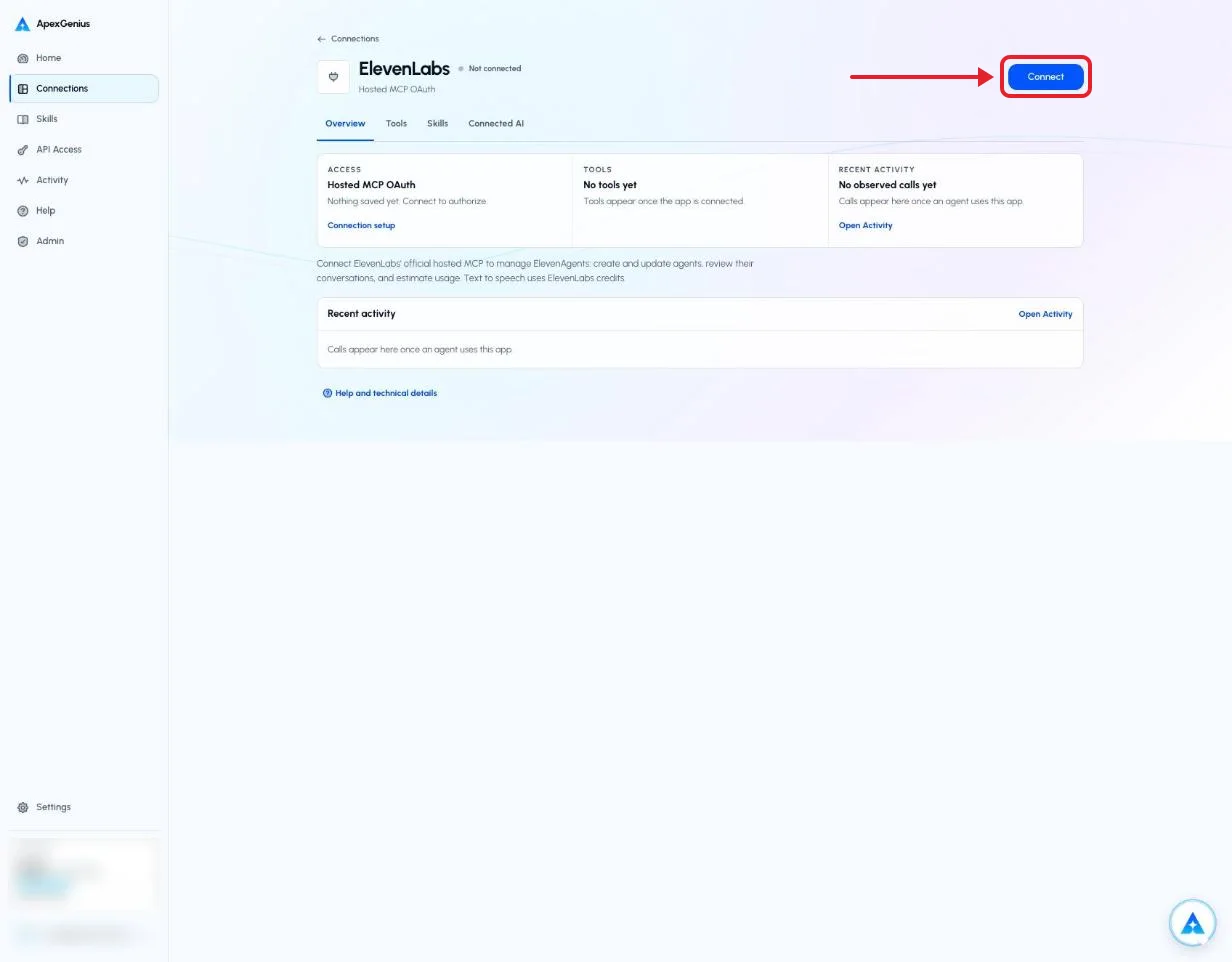
Open ElevenLabs in Connections and choose Connect. ElevenLabs then asks you to sign in and approve access.Open full-size image (opens in a new tab) - Choose the account and review access. Sign in to ElevenLabs in the browser, choose the workspace, review the permissions, and allow access. ElevenLabs uses browser authorization; no API key is pasted into ApexGenius.
- Review the connected account and resources. Confirm the workspace you chose. Open Tools to review the agent, conversation, knowledge base and generation actions, and turn off any your AI should not use. Generation spends ElevenLabs credits.
- Check the connection. Use Test connection or Check again and read the reported status. Add an AI agent from the AI agents page, choose Read only for the first test, and try the question below.
2. Connect ApexGenius to Codex
- In the desktop app, open Settings, then MCP servers and Add server.
- Name the server ApexGenius, choose Streamable HTTP, and paste the MCP address above.
- Save, then select Restart. Choose Authenticate for ApexGenius and complete the browser sign-in.
- When ApexGenius asks what this AI client may use, choose Read only for the first test, or Custom to limit it to the tools you need.
- Start a new conversation and select ApexGenius from the available tools before asking for live data.
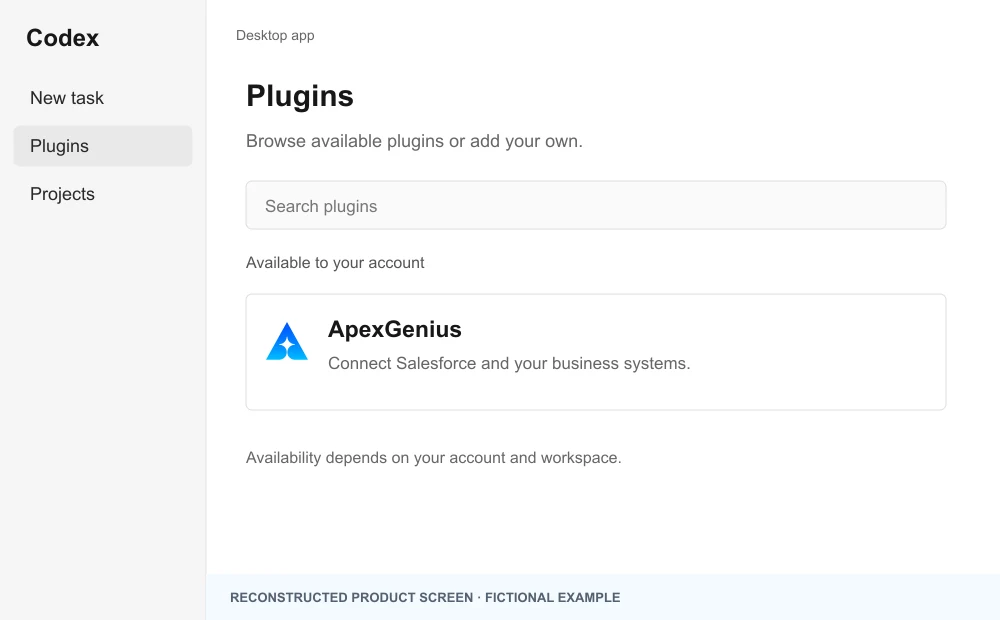
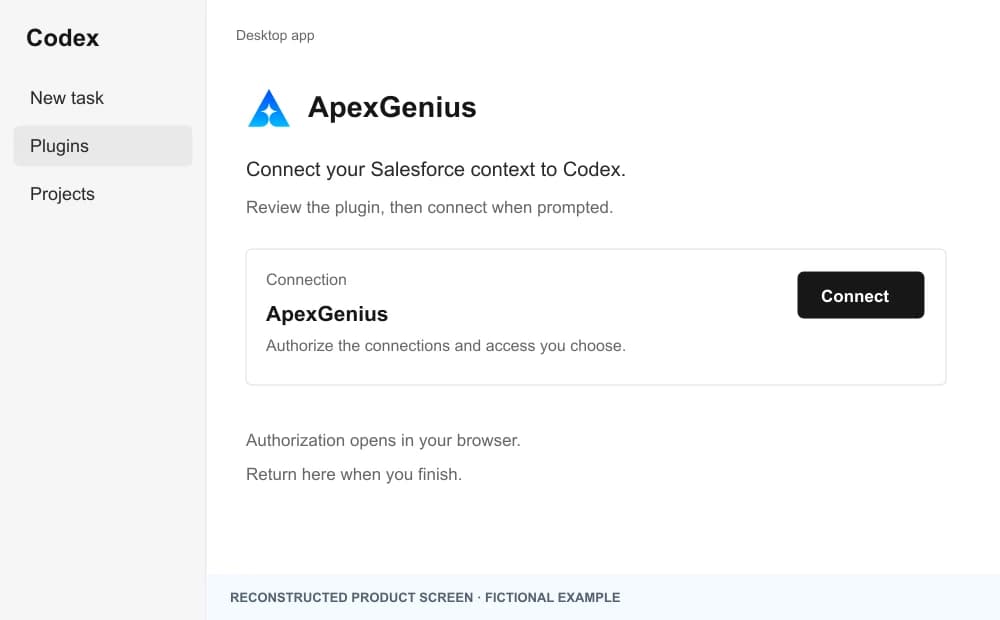
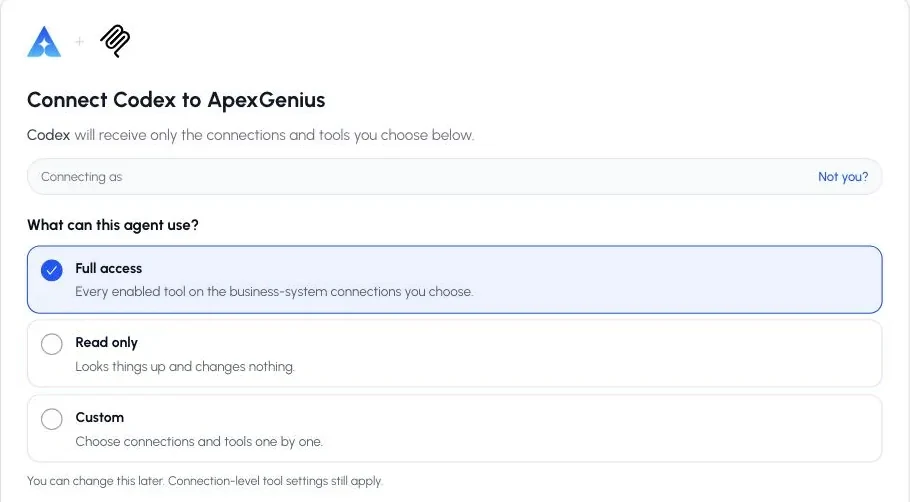
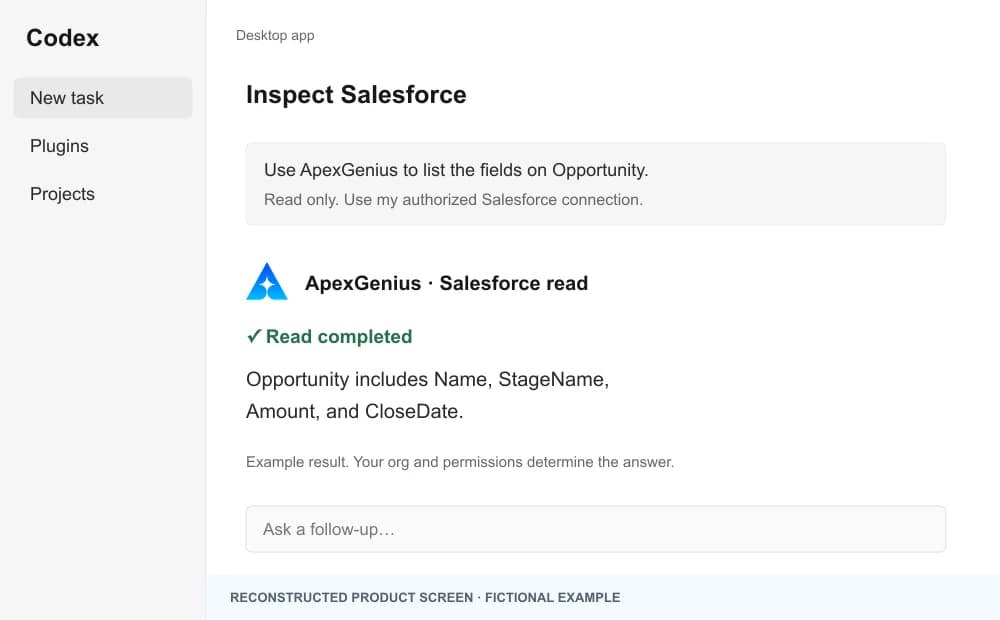
The walkthrough uses the original ChatGPT web plugin captures. After connecting, open Codex in the desktop app and start a new task with ApexGenius. A ChatGPT web connection does not verify Codex access.
A public ApexGenius plugin listing is not verified. Use a plugin shared with you or one you created, subject to your account and workspace policy.
Create a personal plugin
Where Developer mode is available, open ChatGPT Settings, then Security and login, and enable it. In Plugins, select the plus button, enter ApexGenius and a description, then add this URL under Connection. Create the connection, complete OAuth, and review the tools. Return to Codex in the desktop app and start a new task with the plugin enabled.
https://server.autom8.pro/mcpNo plugin available? Use desktop settings
- In the ChatGPT desktop app, open Settings, then MCP servers, then Add server.
- Name the server ApexGenius, choose Streamable HTTP, and paste the MCP address below.
- Save, select Restart, then Authenticate. Sign in to ApexGenius and authorize the intended connections and access.
- Start a new Codex task and ask one read-only question. Check the returned result and its matching successful read in Activity.
https://server.autom8.pro/mcpManual setup for developers
Codex CLI is optional. Run these commands, complete browser authorization, then start a new session. Do not paste bearer tokens or static authorization headers.
Register the remote MCP server
codex mcp add apexgenius --url https://server.autom8.pro/mcpAuthorize in your browser
codex mcp login apexgeniusInspect registered servers
codex mcp listThe desktop app, CLI, and IDE extension share MCP configuration on the same host. The IDE extension does not install plugins. ChatGPT web does not read local Codex configuration.
3. Verify one safe read
Use agents_list to show which ElevenLabs agents are in this workspace, then agents_get on one of them. Do not change anything.
Use agents_list to show which ElevenLabs agents are in this workspace, then agents_get on one of them. Do not change anything.Compare the returned account and resource with ElevenLabs. Check the connection status separately from the result of the first read.
Full guide: the ElevenLabs setup guide.
What it looks like in Codex
Illustration of a task, not a recorded customer result. Your answers come from the account and dates you choose.
apex_search_toolsElevenLabs agents · Find the ElevenLabs read routeCompleteapex_call_read_toolagents_list · List the agentsCompleteapex_call_read_toolagents_get · Read one agent's setupCompleteIllustrative example: three agents, Support, Booking and Sales Intake, each with a voice and a first message. Support still uses the default first message. Nothing was changed.
Read-only routeTry asking
List my ElevenLabs agents with the voice and first message of each. Do not change anything.
Show my Support agent's last ten conversations and tell me the most common question. Do not change anything.
Which voices fit a calm narrator? List four. Do not generate any audio.
Duplicate my Support agent and set the copy's first message to Spanish. Show me the change first.
What Codex can do in ElevenLabs
40 operations: 18 read, 22 write. Read looks things up and changes nothing. Writes change ElevenLabs and run only when you turn them on.
Agents
4 read · 4 writeagents_listreadList the agents in the workspace.
agents_getreadRead one agent's full configuration.
agents_get_linkreadGet the shareable test link for an agent.
agents_get_widgetreadRead an agent's widget configuration.
agents_createwriteCreate an agent from a name, prompt, first message, voice and language.
agents_updatewriteChange agent settings. By default it publishes to the live agent (main) right away.
agents_duplicatewriteCopy an existing agent.
agents_deletewriteDelete an agent.
Conversations
3 readagents_list_conversationsreadList an agent's recent conversations.
agents_get_conversationreadRead one conversation with its full transcript.
agents_search_conversation_messagesreadSearch conversation messages for a phrase.
Knowledge base
3 read · 4 writeagents_search_knowledge_basereadSearch the knowledge base documents.
agents_query_knowledge_base_ragreadTest what the knowledge base returns for a question.
agents_get_kb_dependentsreadSee which agents use a knowledge base document.
agents_create_kb_urlwriteAdd a web page as a document, with optional auto-sync.
agents_create_kb_textwriteAdd pasted text as a document.
agents_create_kb_folderwriteCreate a folder for documents.
agents_bulk_delete_knowledge_basewriteDelete several knowledge base documents at once.
Tools and phone numbers
2 writeagents_delete_toolwriteDelete a tool from the workspace.
agents_delete_phone_numberwriteRemove a phone number.
Tests
2 read · 1 writeagents_create_testwriteCreate a response, tool-call or simulation test.
agents_list_test_runsreadList the runs of a test.
agents_get_test_runreadRead the result of one test run.
Branches and deployment
1 read · 3 writeagents_create_branchwriteCreate a branch of an agent to stage changes.
agents_merge_branch_previewreadPreview what a merge would change.
agents_create_deploymentwriteSet how much live traffic goes to each version.
agents_merge_branchwriteMerge a branch into its parent.
Voices and models
3 readcreative_list_voicesreadList the voices you can use.
creative_get_flow_node_typesreadList what the workspace can generate.
creative_get_model_guidereadRead how to prompt a specific model.
Generate speech, images and video
5 writecreative_generate_speechwriteTurn text into speech with a chosen voice.
creative_generate_imagewriteGenerate images from a prompt.
creative_generate_videowriteGenerate video from a prompt.
creative_edit_imagewriteEdit an image from an earlier generation or upload.
creative_transcribe_audiowriteTurn an audio file into text.
Flows and reference files
2 read · 3 writecreative_create_flowwriteCreate a flow that groups related generations.
creative_get_flowreadRead a flow and its nodes.
creative_get_flow_run_statusreadCheck whether a generation has finished.
creative_attach_reference_filewriteAttach a file from a link to a flow.
creative_upload_flow_referencewriteAdd an empty upload slot for a file from your computer.
You choose the access. When you approve Codex, pick Full access, Read only, or Custom.
The connection acts as the ElevenLabs user who signed in, for the one workspace chosen at sign-in. Your ElevenLabs permissions set what it can do.
The read route runs only operations that ElevenLabs' live catalog labels read-only, and rejects writes and unlabeled operations.
Enabled writes run immediately. Turn a tool off to block calls.
creative_generate_speech, creative_generate_image, creative_generate_video, creative_edit_image and creative_transcribe_audio spend credits from your ElevenLabs plan. A second call starts a second charge, so retries cost credits.
agents_update publishes to the live agent by default (the main branch), so live callers can see the change at once. Ask the AI to name a branch for changes that need review. agents_merge_branch publishes a branch into its parent.
agents_delete, agents_delete_tool, agents_delete_phone_number and agents_bulk_delete_knowledge_base remove data and cannot be undone here.
Only US-region ElevenLabs workspaces (api.us.elevenlabs.io) are supported. Workspaces in the EU, India or Singapore residency regions use other server URLs and are not.
Questions about connecting Codex to ElevenLabs
Updated October 18, 2026.
How do I connect ElevenLabs?
Open ElevenLabs in ApexGenius Connections, choose Connect, and sign in to ElevenLabs in the browser. Choose your workspace, review the permissions and allow access. You never paste an API key.
What can my AI read in ElevenLabs?
Your agents and their settings, conversations and transcripts, knowledge base documents, tests and test runs, branches, voices, and the status of generations. It sees only the workspace you chose and only what your ElevenLabs permissions allow.
Can my AI change or delete things?
Yes. It can create, update and duplicate agents, add knowledge base documents, create tests and branches, and merge branches. agents_update publishes to the live agent by default. It can also delete agents, tools, phone numbers and knowledge base documents. Enabled writes run immediately, and deletes cannot be undone here. Turn a tool off to block calls.
Does it spend ElevenLabs credits?
Generating speech, images and video, editing images and transcribing audio use credits from your ElevenLabs plan. Reading agents, voices and conversations is not documented as a charge. Turn the generation tools off if you do not want your AI to make them.
Which ElevenLabs workspaces work?
Only US-region workspaces, which use api.us.elevenlabs.io. Workspaces in the EU, India or Singapore residency regions are not supported. If a call fails, check your ElevenLabs permissions first, because the AI can only do what your account can. Reconnect from Connections if the sign-in has expired.
More connections like this one
Codex with other apps
 Supabase
 Cal.com
 GitHub
 Stripe
 Linear
 Jira
Jira HQ Rental
 Google Forms
All 43 apps Codex can use
 Google Tasks
 Google Calendar
 Google Sheets
 Calendly
 ClickUp
 monday.com
 Mobbin
 Slack
Slack Discord
 ChatGPT Ads
 Context.dev
 Attio
Attio Semrush
 Notion
 Apify
Apify Google Ads
 Google Analytics
 Google Meet
 Gmail
Gmail Google Chat
 Google Docs
 Google Drive
 Google Slides
 Apollo
 Blotato
 Bing Webmaster
 Atlassian Rovo
 Polymarket
 OP.GG
OP.GG YouTube
- YouTube Analytics
 Salesforce
 n8n
n8n Confluence
 Google Search Console
Other agents with ElevenLabs
 Claude
 Grok Bot
 Muse
MuseConnect ElevenLabs to Codex today
Start free1,000 free credits. No card required. Disconnect any time.