

Connect Codex to GitHub
Connect Codex to GitHub through ApexGenius. Read code, issues and pull requests in the repositories your token can read, without changing anything. Start in Plugins in the ChatGPT desktop app and authorize your connection.
7 days free · No card required
How to connect GitHub to Codex
Before you start
- A GitHub account that can read the repositories you want your AI to use.
- A personal access token. A fine-grained token is best: choose the repositories and set Contents, Issues and Pull requests to Read-only. A classic token with the repo scope also works.
1. Connect GitHub to ApexGenius
- Create a token on GitHub. Open github.com/settings/personal-access-tokens and choose Generate new token. Pick the account or organization that owns the repositories, choose the repositories, and set Contents, Issues and Pull requests to Read-only. Add Members Read-only under organization permissions only if you want team reads. Copy the token once.
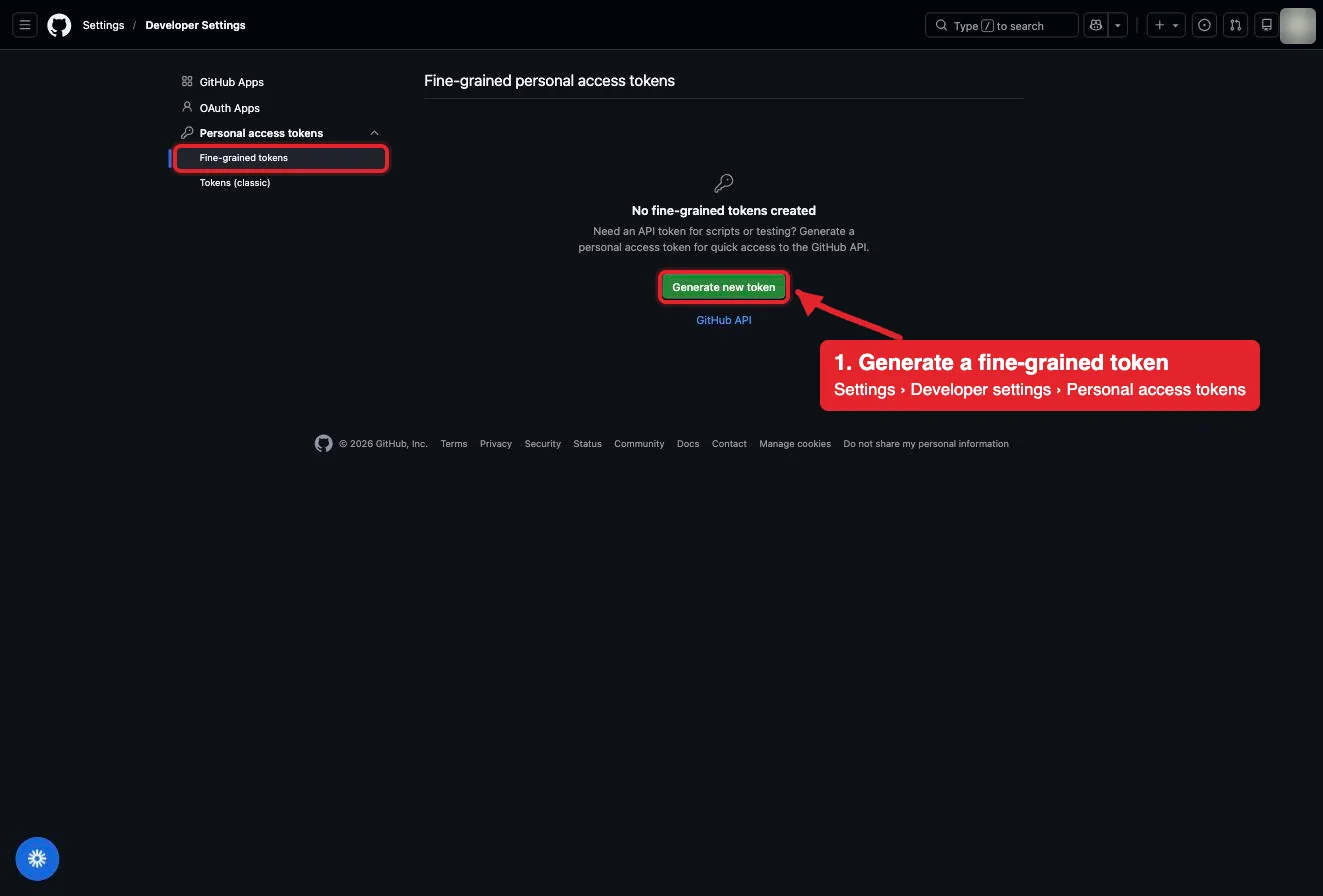
Settings, Developer settings, Personal access tokens, Fine-grained tokens. Generate new token starts one. The account avatar is blurred in this capture.Open full-size image (opens in a new tab) - Open GitHub in Connections. Sign in to ApexGenius, open Connections, choose GitHub, and select Connect.
- Paste the token. Paste the token into the connection form. ApexGenius supplies the GitHub MCP address, checks the token with GitHub, and stores it encrypted. Never paste the token into a chat.
- Check the connected account. Open Tools to see the read tools GitHub lists for your token, then ask your AI the question below. Compare the login with your GitHub account.
2. Add ApexGenius to Codex
- In the desktop app, open Settings, then MCP servers and Add server.
- Name the server ApexGenius, choose Streamable HTTP, and paste the MCP address above.
- Save, then select Restart. Choose Authenticate for ApexGenius and complete the browser sign-in.
- When ApexGenius asks what this AI client may use, choose Read only for the first test, or Custom to limit it to the tools you need.
- Start a new conversation and select ApexGenius from the available tools before asking for live data.
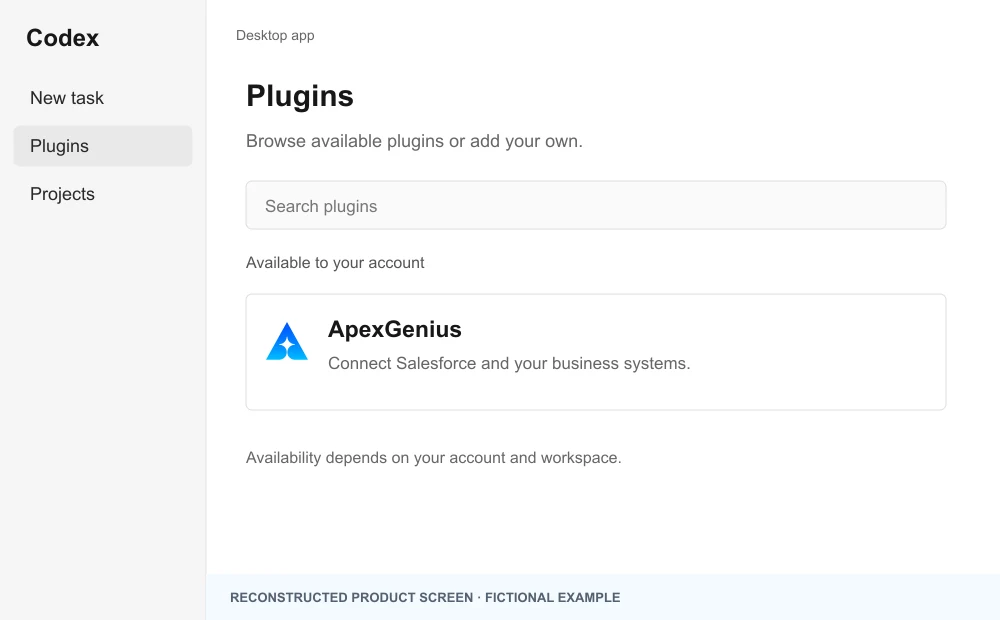
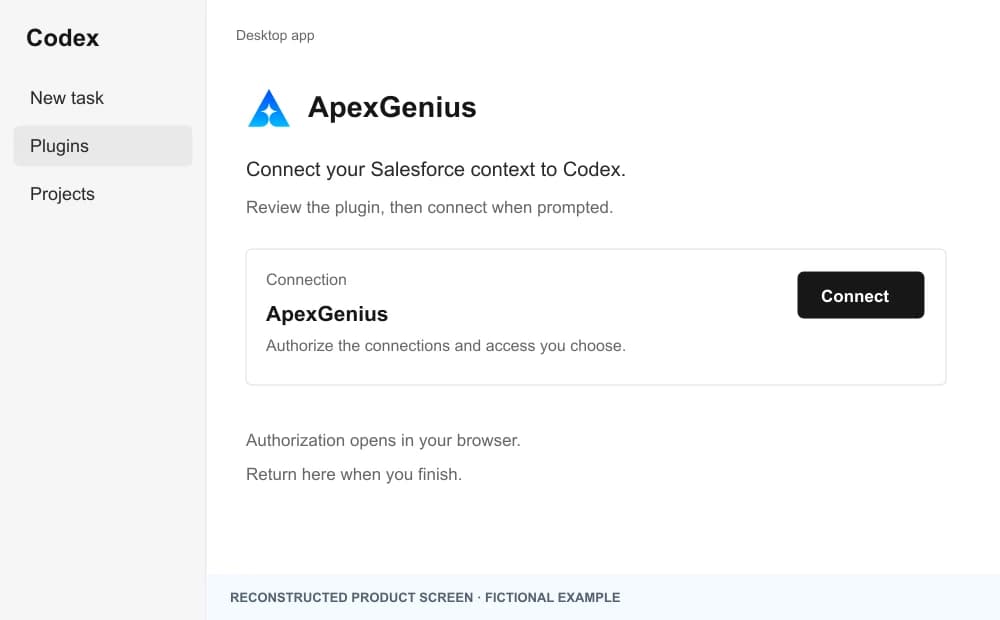
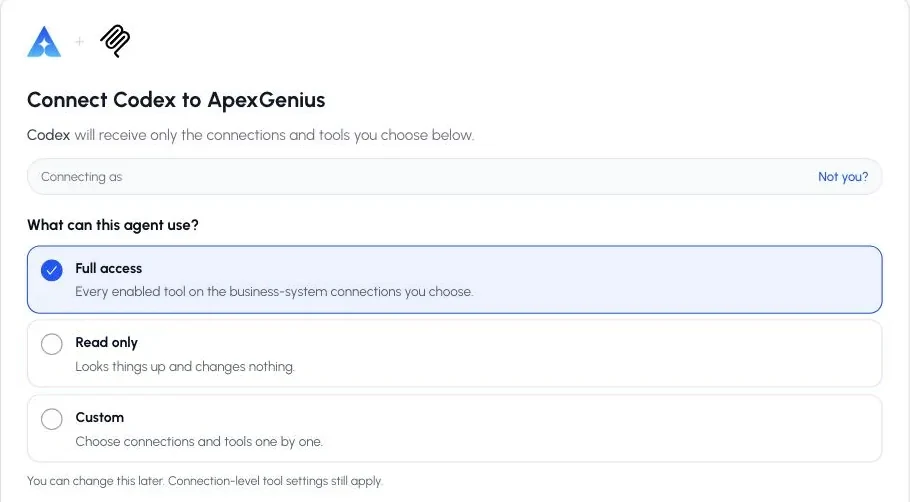
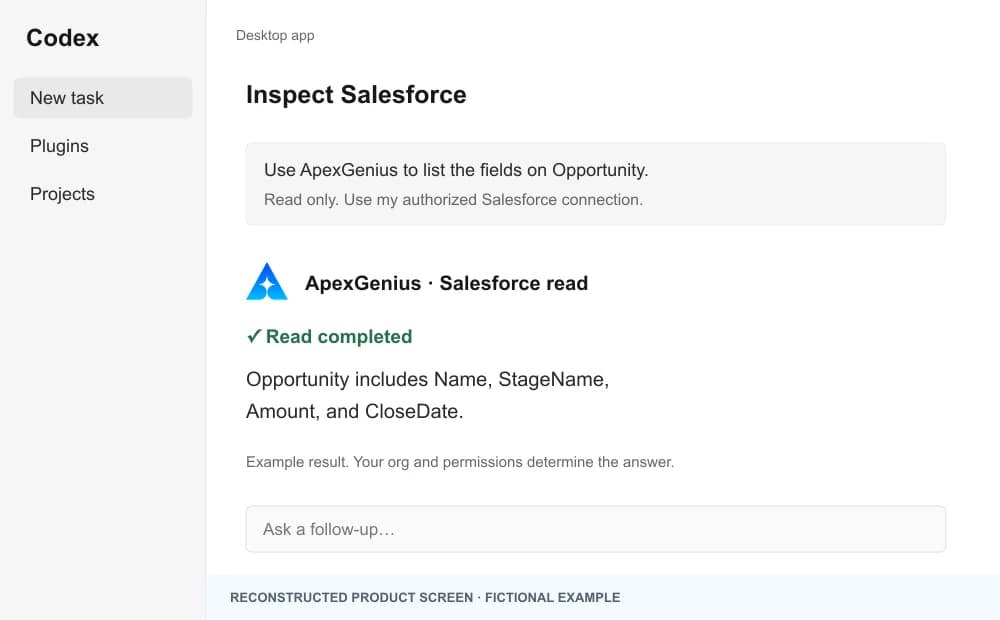
The walkthrough uses the original ChatGPT web plugin captures. After connecting, open Codex in the desktop app and start a new task with ApexGenius. A ChatGPT web connection does not verify Codex access.
A public ApexGenius plugin listing is not verified. Use a plugin shared with you or one you created, subject to your account and workspace policy.
Create a personal plugin
Where Developer mode is available, open ChatGPT Settings, then Security and login, and enable it. In Plugins, select the plus button, enter ApexGenius and a description, then add this URL under Connection. Create the connection, complete OAuth, and review the tools. Return to Codex in the desktop app and start a new task with the plugin enabled.
https://server.autom8.pro/mcpNo plugin available? Use desktop settings
- In the ChatGPT desktop app, open Settings, then MCP servers, then Add server.
- Name the server ApexGenius, choose Streamable HTTP, and paste the MCP address below.
- Save, select Restart, then Authenticate. Sign in to ApexGenius and authorize the intended connections and access.
- Start a new Codex task and ask one read-only question. Check the returned result and its matching successful read in Activity.
https://server.autom8.pro/mcpManual setup for developers
Codex CLI is optional. Run these commands, complete browser authorization, then start a new session. Do not paste bearer tokens or static authorization headers.
Register the remote MCP server
codex mcp add apexgenius --url https://server.autom8.pro/mcpAuthorize in your browser
codex mcp login apexgeniusInspect registered servers
codex mcp listThe desktop app, CLI, and IDE extension share MCP configuration on the same host. The IDE extension does not install plugins. ChatGPT web does not read local Codex configuration.
3. Verify one safe read
Using GitHub, tell me which GitHub account is connected, then read the README of the repository I name. Do not change anything.
Using GitHub, tell me which GitHub account is connected, then read the README of the repository I name. Do not change anything.Confirm the login matches your GitHub account and the README matches the repository on github.com. If the README is missing, check that the token includes that repository. The connection is read-only, so this check changes nothing.
Additional reference: the GitHub setup guide.
Start freeWhat it looks like in Codex
An illustrative read-only request and response. Your results come from the account and dates you choose.

apex_search_toolsGitHub account · Find GitHub readsCompleteapex_call_read_toolget_me · Read the connected accountCompleteIllustrative example: the token belongs to the login octo-dev. Compare it with the GitHub account you meant to connect before reading a repository.
Read-only routeWhat you can ask once it is connected
“Which GitHub account is connected? Do not change anything.”
“Summarize the open pull requests in the repository I name, with author, age and review status.”
“Read the config file I name on the main branch and explain what it sets.”
“List the bug issues opened in the last 30 days in the repository I name.”
You choose what Codex is allowed to touch
Choose the saved accounts and tools this Codex connection may use. Its authorization carries that scope, and each app connection’s tool and resource restrictions still apply.
- Full accessEvery enabled tool on the connections you choose.
- Read onlyLooks things up, changes nothing.
- CustomPick apps and tools one by one.
- · GitHub checks the token on every call. Your AI sees only the repositories and data the token can read.
- · ApexGenius sends GitHub’s read-only header, so write tools such as creating issues, commenting, merging or pushing are not listed and cannot run.
- · An organization can require approval for fine-grained tokens, or block classic tokens, before they reach its repositories.
- · Disconnecting removes the token from ApexGenius. Delete it on GitHub to stop it everywhere.
The GitHub operations Codex can run
26 operations: 26 Read and 0 Write. Available tools depend on your connection and permissions. Review any action that changes or removes data. Codex discovers these operations through the ApexGenius gateway.
get_meReadRead the GitHub account the token belongs to.get_teamsReadList the teams you belong to in organizations the token can see.get_team_membersReadList the members of one organization team.search_repositoriesReadFind repositories by name, description, topic or owner.get_file_contentsReadRead a file or list a folder on any branch, tag or commit.search_codeReadSearch code across GitHub with GitHub code search.list_repository_collaboratorsReadList the collaborators on a repository.list_commitsReadList commits on a branch.get_commitReadRead one commit with its changed files, and the diff when asked.search_commitsReadSearch commits by message, author or date.list_branchesReadList the branches in a repository.list_tagsReadList the tags in a repository.get_tagReadRead one tag.list_releasesReadList the releases in a repository.get_latest_releaseReadRead the latest release.get_release_by_tagReadRead the release for one tag.list_issuesReadList issues in a repository, filtered by state or label.issue_readReadRead one issue with its comments, labels, parent or sub-issues.search_issuesReadSearch issues by meaning, such as a bug described in your own words.get_labelReadRead one label in a repository.list_issue_typesReadList the issue types a repository or organization supports.list_issue_fieldsReadList the issue fields defined for a repository or organization.list_pull_requestsReadList pull requests in a repository.pull_request_readReadRead one pull request with its diff, files, commits, reviews, comments or check runs.search_pull_requestsReadSearch pull requests across repositories.search_usersReadFind GitHub users by username or name.
Questions people ask first
How do I connect GitHub?
Create a personal access token on GitHub, open GitHub in ApexGenius Connections, and paste it. ApexGenius checks the token with GitHub before saving it encrypted.
Which token should I create?
A fine-grained token is best. Choose only the repositories you want, then set Contents, Issues and Pull requests to Read-only. GitHub adds Metadata on its own. A classic token with the repo scope also works.
Can it change my repos?
No. The connection is read-only. ApexGenius asks GitHub for read tools only, so your AI cannot open or merge pull requests, comment, push, or delete anything. Make changes on GitHub.
Can it read private repositories?
Yes, the ones your token includes. A fine-grained token reaches only the repositories you picked. Public repositories are readable with any token.
What happens when my token expires?
GitHub stops accepting it and reads fail. Create a new token on GitHub and paste it on the GitHub connection page in ApexGenius.
Can I take this setup to another AI agent?
Yes. Add ApexGenius to another compatible agent with the same ApexGenius account. It can use the same GitHub connection and load the GitHub skill. Each agent needs its own setup.
Connect GitHub to Codex today
Start free7 days free. No card required. Disconnect any time.