


Connect Codex to Salesforce
Connect Codex to Salesforce through ApexGenius in the ChatGPT desktop app. Start in Plugins to authorize your org and inspect records, schema, Apex and Flows.
1,000 free credits · No card required
How to connect Salesforce to Codex
FirstConnect Salesforce to ApexGenius
ThenConnect ApexGenius to Codex
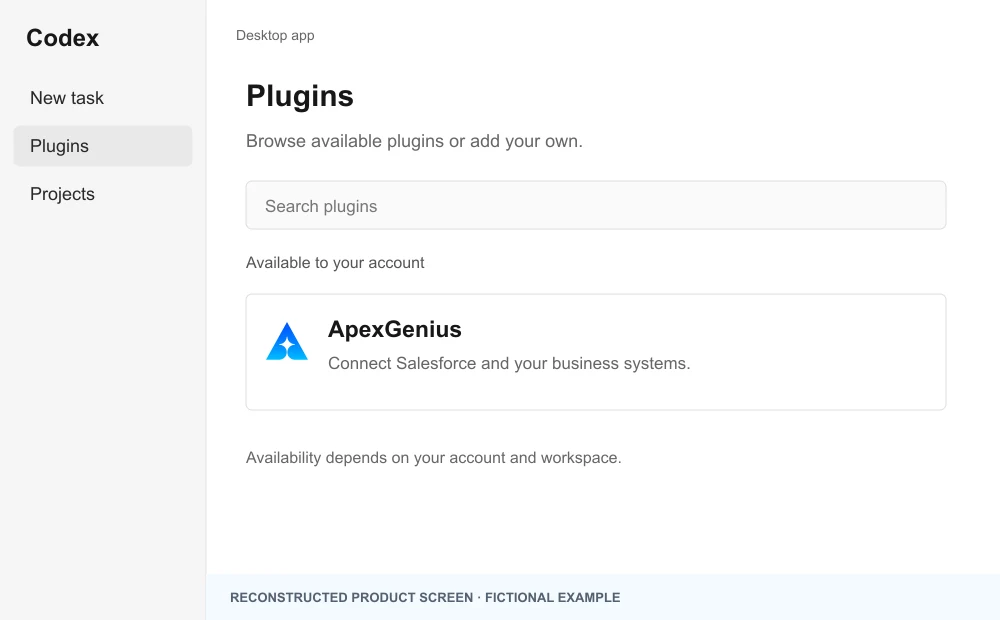
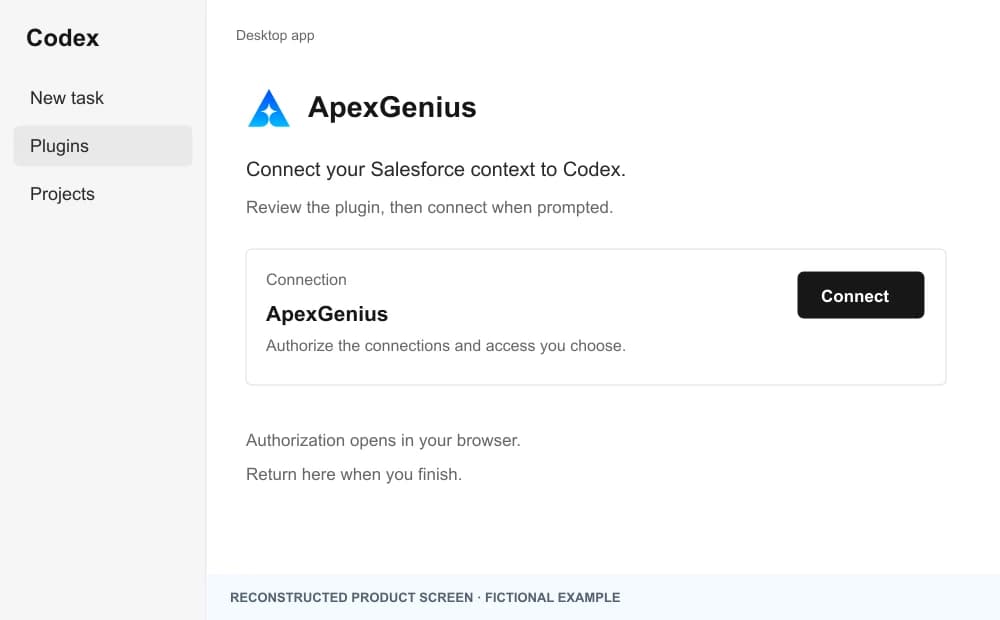
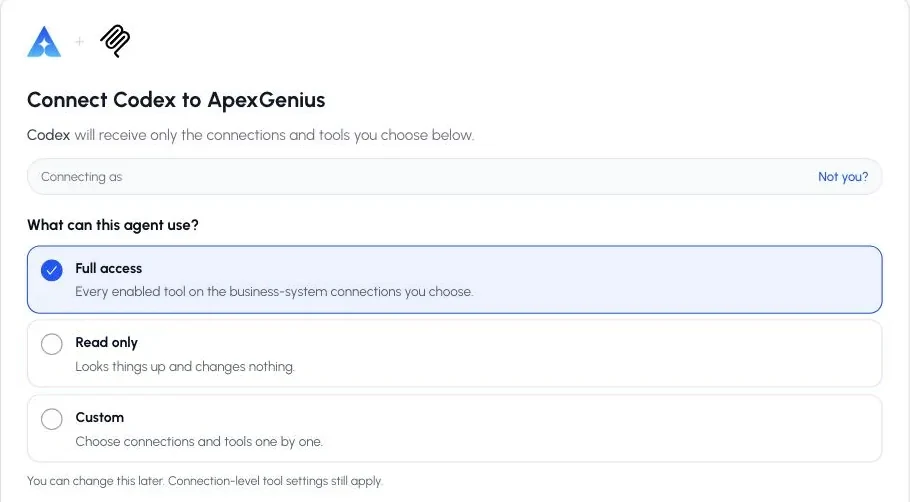
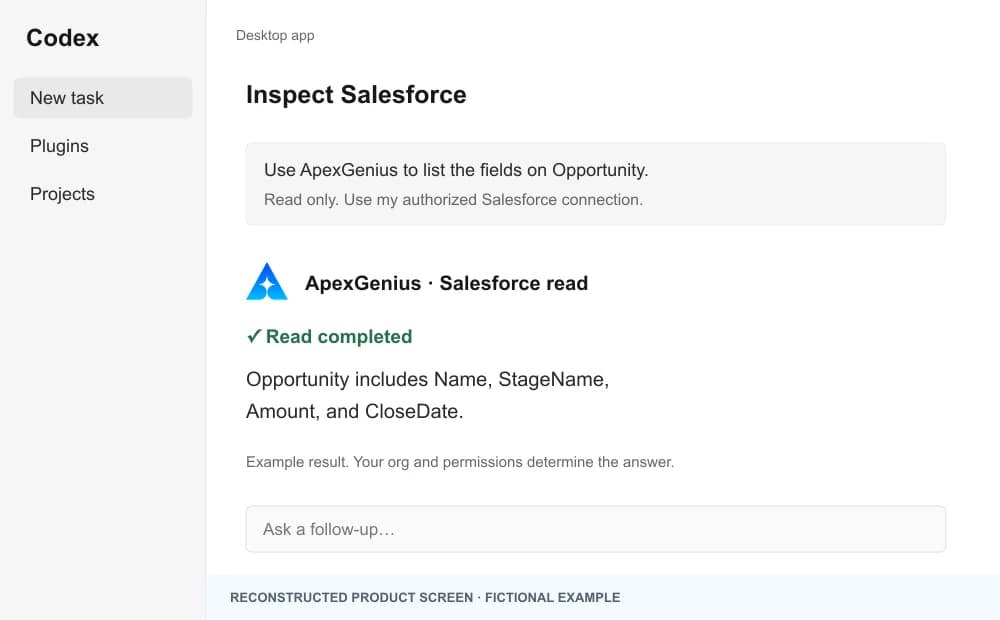
The desktop-app screens are labeled reconstructions of the Codex plugin flow; the approval screen is a real ApexGenius capture. A ChatGPT web connection does not verify Codex access.
- Find or add ApexGenius. Open Plugins in the ChatGPT desktop app and select an ApexGenius plugin shared with you or one you created.
- Connect and authorize. Sign in from the app’s connection prompt and approve the intended Salesforce connection and access.
- Return and use Salesforce. Start a new Codex task, ask one read-only question, and check the result against Activity.
Plugin availability and labels depend on your app and workspace. A public ApexGenius listing is not verified, and installing one does not by itself verify Salesforce access.
Create a personal plugin
Where Developer mode is available, open ChatGPT Settings, then Security and login, and enable it. In Plugins, select the plus button, enter ApexGenius and a description, then add this URL under Connection. Create the connection, complete OAuth, and review the tools. Return to Codex in the desktop app and start a new task with the plugin enabled.
https://server.autom8.pro/mcpNo plugin available? Use desktop settings
- In the ChatGPT desktop app, open Settings, then MCP servers, then Add server.
- Name the server ApexGenius, choose Streamable HTTP, and paste the MCP address below.
- Save, select Restart, then Authenticate. Sign in to ApexGenius and authorize the intended connections and access.
- Start a new Codex task and ask one read-only question. Check the returned result and its matching successful read in Activity.
https://server.autom8.pro/mcpManual setup for developers
Codex CLI is optional. Run these commands, complete browser authorization, then start a new session. Do not paste bearer tokens or static authorization headers.
Register the remote MCP server
codex mcp add apexgenius --url https://server.autom8.pro/mcpAuthorize in your browser
codex mcp login apexgeniusInspect registered servers
codex mcp listThe desktop app, CLI, and IDE extension share MCP configuration on the same host. The IDE extension does not install plugins. ChatGPT web does not read local Codex configuration.
What it looks like in Codex
Illustration of a task, not a recorded customer result. Your answers come from the account and dates you choose.
apex_search_toolsSalesforce records · Find the Salesforce read pathCompleteapex_call_read_toolquery_soql · Query opportunities closing this monthCompleteapex_call_read_toolquery_soql · Read owner namesCompleteSix opportunities over 50k close this month. Four belong to Priya Shah, two to Marcus Lee. The largest is Acme Renewal at 180k, stage Negotiation. Nothing was changed.
Read-only routeTry asking
Which Apex classes reference Opportunity.StageName?
Pull the Account trigger into staging and explain what it changes.
Which Flows fire when a Lead is converted in this org?
Deploy the staged Flow and show me the deployment result.
What Codex can do in Salesforce
21 operations: 11 read, 10 write. Read looks things up and changes nothing. Writes change Salesforce and run only when you turn them on.
Connection context
1 readlist_projectsreadList accessible Salesforce connections and their environment details.
Records and schema
5 read · 3 writequery_soqlreadRun SOQL and return selected Salesforce fields.
create_recordwriteCreate one Salesforce record.
update_recordwriteUpdate selected fields on one Salesforce record.
delete_recordwriteDelete one Salesforce record by ID.
get_recordreadRetrieve one record by object type and ID.
list_objectsreadList accessible Salesforce objects.
describe_objectreadReturn fields, types, picklists, relationships, and permissions.
search_recordsreadSearch records across Salesforce objects.
Apex runtime
1 writeexecute_anonymous_apexwriteExecute supplied anonymous Apex, which can change or delete data.
Staging and documentation
3 read · 3 writeread_filereadRead one staged component or documentation file.
write_filewriteCreate or overwrite a Salesforce metadata component or Markdown document in private staging.
edit_filewriteReplace exact matching content in a staged Salesforce metadata component or document.
delete_filewritePermanently remove one staged component or documentation file.
list_filesreadList staged or documentation files with an optional folder or pattern filter.
grepreadSearch staged file names or contents.
Live metadata and deployment
2 read · 3 writedeploywriteDeploy selected staged files with the requested Salesforce test level.
check_deploy_statusreadRead deployment status, component results, and test details.
cancel_deploywriteCancel an in-progress Salesforce deployment.
list_live_metadatareadList live components of one metadata type in the selected org.
get_live_componentwritePull one live component into the private staging workspace.
You choose the access. When you approve Codex, pick Full access, Read only, or Custom.
The selected Salesforce connection remains visible in the gateway workspace.
Tool availability is resolved for the current connection and account context.
Supported Salesforce write activity is recorded for review.
Turn a tool off to block calls. Enabled tools run when called.
Questions about connecting Codex to Salesforce
Updated August 26, 2026.
What if ApexGenius is not listed in Plugins?
Use an ApexGenius plugin shared with you or one you created, subject to workspace policy. A public listing is not verified. The desktop MCP settings fallback below connects the same hosted endpoint without a terminal.
Can I still use Codex CLI or the IDE extension?
Yes, remote MCP setup remains a developer option in Manual setup. The app plugin walkthrough is the default here. Plugin installation is not supported in the IDE extension.
How do Codex, ChatGPT, and ChatGPT Work differ?
The supported app surfaces follow the same plugin journey: find or add ApexGenius, connect, authorize, then return and use Salesforce. Codex runs tasks in the ChatGPT desktop app; ChatGPT offers Chat and Work. Start with Plugins in the app you use; availability and authorization depend on your account and workspace. A ChatGPT web custom app has its own setup and does not inherit a local Codex configuration.
Does ApexGenius need my Salesforce password?
No. You authorize Salesforce through OAuth on its own sign-in screen. Profiles, permission sets, and field-level security still apply to everything Codex does.
Is Codex included with ApexGenius?
No. ApexGenius is the Salesforce connection. Your ChatGPT subscription, which includes Codex, and your Salesforce subscription stay separate.
How do I connect Codex to Salesforce?
Connect Codex to Salesforce through ApexGenius in three steps. Sign in to ApexGenius and connect Salesforce with Salesforce OAuth, choosing Production or Sandbox. Add ApexGenius to Codex. Then open a task in Codex and ask a question about your Salesforce. Start with a read, so nothing changes.
More connections like this one
Codex with other apps
 Attio
Attio Apollo
 Supabase
 Mobbin
 Cal.com
 Slack
Slack Discord
 ChatGPT Ads
All 44 apps Codex can use
 GitHub
 Stripe
 Context.dev
 Semrush
 Notion
 Apify
Apify Linear
 Jira
Jira HQ Rental
 Google Ads
 Google Analytics
 Google Forms
 Google Meet
 Google Tasks
 Gmail
Gmail Google Calendar
 Google Chat
 Google Docs
 Google Drive
 Google Sheets
 Google Slides
 Blotato
 Bing Webmaster
 Calendly
 ClickUp
 monday.com
 Atlassian Rovo
 Polymarket
 OP.GG
OP.GG YouTube
- YouTube Analytics
 n8n
n8n Confluence
 Google Search Console
 ElevenLabs
 FreshBooks
Other agents with Salesforce
 Claude
 Grok Bot
 Muse
MuseConnect Salesforce to Codex today
Start free1,000 free credits. No card required. Disconnect any time.