


Connect Codex to Slack
Connect Codex to Slack in 3 steps: 1. Sign in to ApexGenius and connect Slack. 2. Add the ApexGenius plugin. 3. Start using Slack in Codex. Start in Plugins in the ChatGPT desktop app and authorize your connection.
7 days free · No card required
How to connect Slack to Codex
- 1Sign in to ApexGenius and connect Slack
- 2Add the ApexGenius plugin to Codex
- 3Start using Slack in Codex
FirstConnect Slack to ApexGenius
ThenConnect ApexGenius to Codex
Slackslack.com/oauth/v2_user/authorize1 of 3Connect Slack. Slack opens its own sign-in. Sign in and allow ApexGenius.
Then ask Codex:
Show my connected Slack accounts. For the account I choose, discover the read-only channel-list tool and list up to five channel names. Do not read or send messages.
Written setup, step by stepShow
Before you start
- A Slack account in each workspace and permission to authorize the app. Workspace admins may need to approve it.
1. Connect Slack to ApexGenius
- Open Slack in Connections. Sign in to ApexGenius, open Connections, and choose Slack.
- Choose the Slack user and workspace. Sign in with the intended Slack account. Check the workspace and requested access before you allow it.
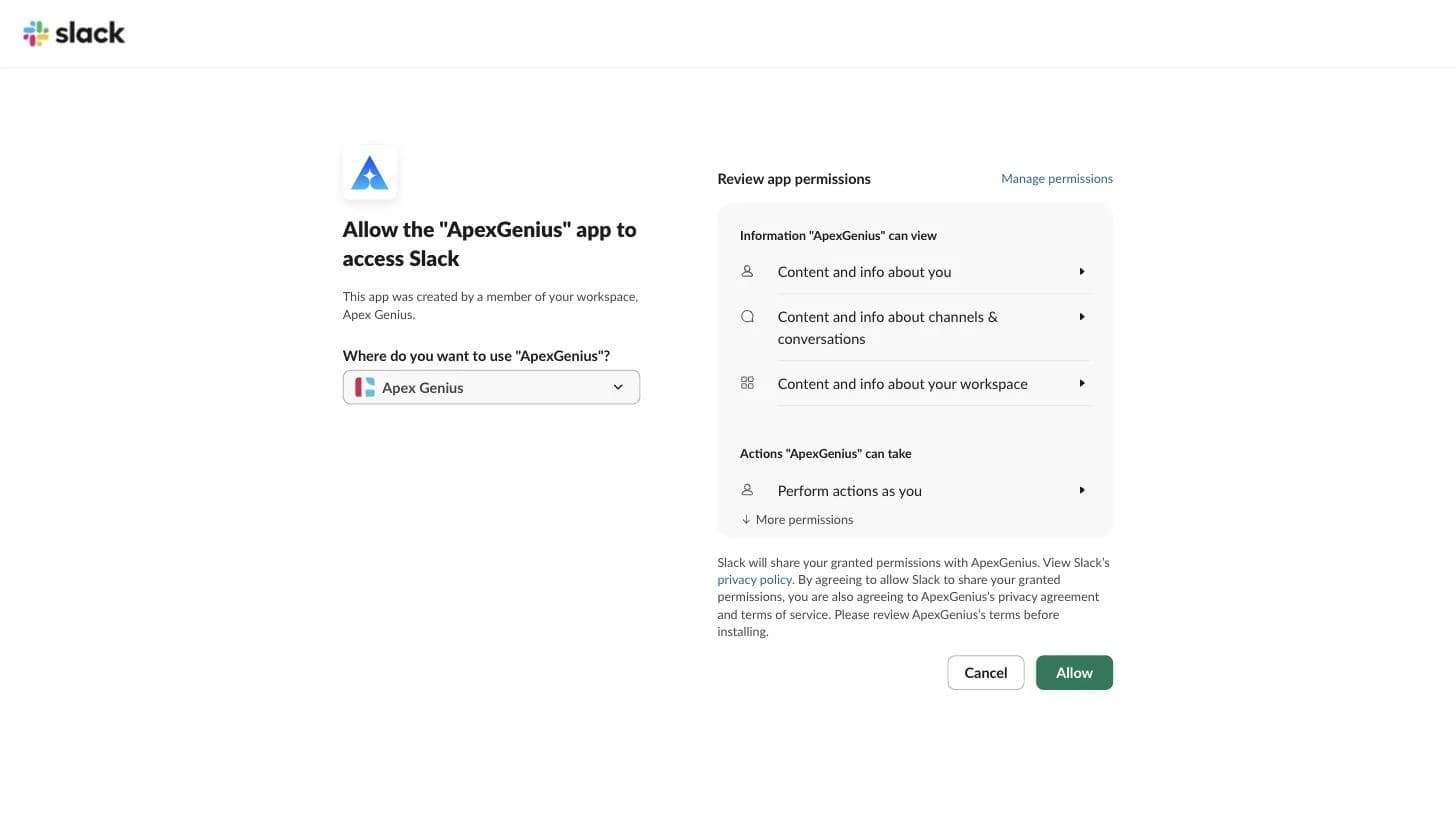
Connect opens Slack's own permission page. Pick the workspace, review what ApexGenius can view and do as you, then choose Allow.Open full-size image (opens in a new tab) - Add your other accounts. Check the saved workspace and user. Choose Add connection and repeat for each account. Use a clear name for each connection. Reconnect signs in to the same user and workspace.
- Choose tools and AI access. Open Tools and Access for each connection. Start with Read only for your AI. Enable writes only when you need them. Enabled writes run when called.
- Try one read per account. Name the intended Slack connection in your request. Check that the result and Tool Activity show that account.
2. Connect ApexGenius to Codex
- In the desktop app, open Settings, then MCP servers and Add server.
- Name the server ApexGenius, choose Streamable HTTP, and paste the MCP address above.
- Save, then select Restart. Choose Authenticate for ApexGenius and complete the browser sign-in.
- When ApexGenius asks what this AI client may use, choose Read only for the first test, or Custom to limit it to the tools you need.
- Start a new conversation and select ApexGenius from the available tools before asking for live data.
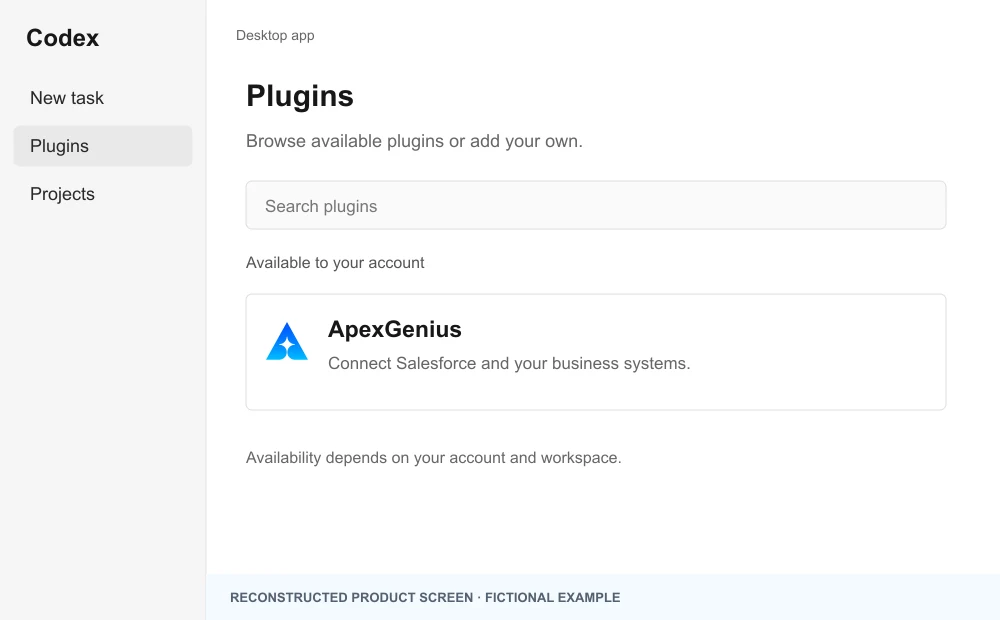
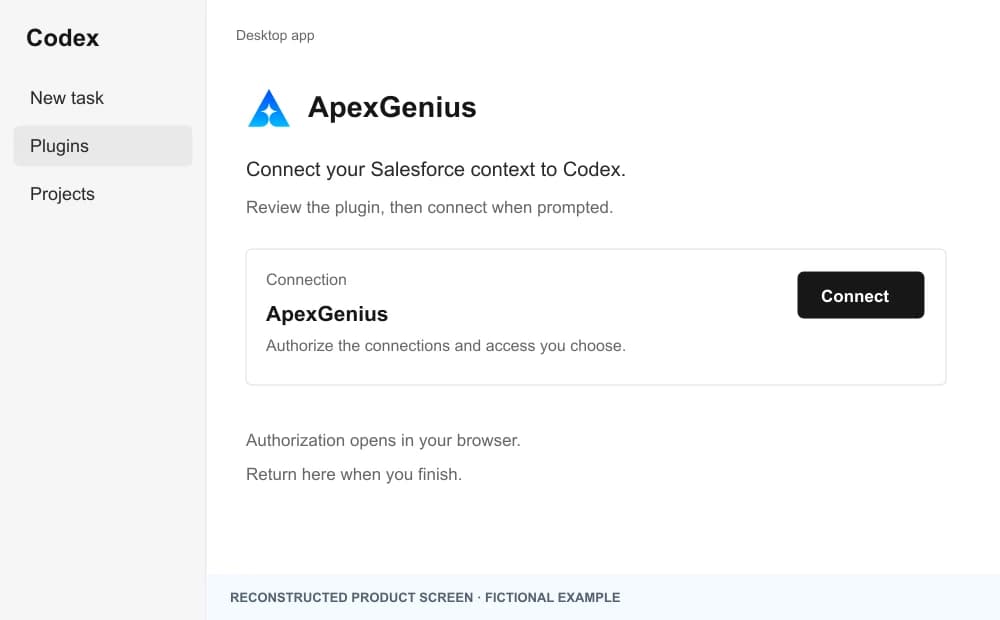
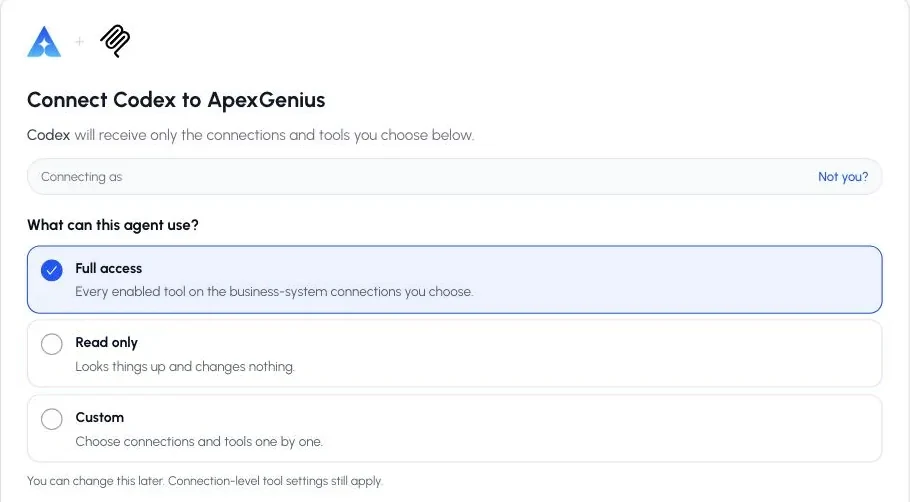
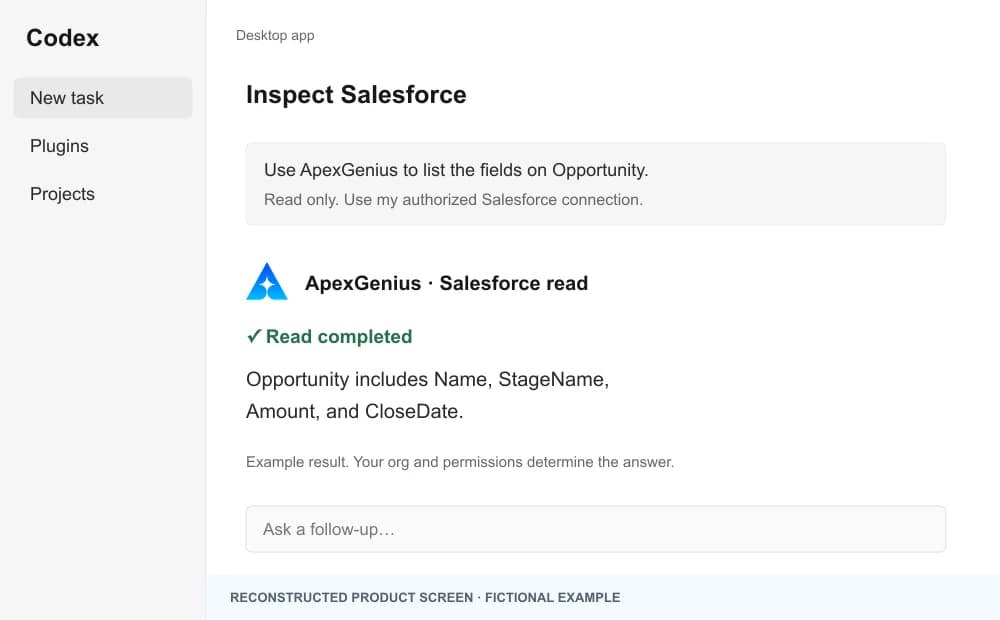
The walkthrough uses the original ChatGPT web plugin captures. After connecting, open Codex in the desktop app and start a new task with ApexGenius. A ChatGPT web connection does not verify Codex access.
A public ApexGenius plugin listing is not verified. Use a plugin shared with you or one you created, subject to your account and workspace policy.
Create a personal plugin
Where Developer mode is available, open ChatGPT Settings, then Security and login, and enable it. In Plugins, select the plus button, enter ApexGenius and a description, then add this URL under Connection. Create the connection, complete OAuth, and review the tools. Return to Codex in the desktop app and start a new task with the plugin enabled.
https://server.autom8.pro/mcpNo plugin available? Use desktop settings
- In the ChatGPT desktop app, open Settings, then MCP servers, then Add server.
- Name the server ApexGenius, choose Streamable HTTP, and paste the MCP address below.
- Save, select Restart, then Authenticate. Sign in to ApexGenius and authorize the intended connections and access.
- Start a new Codex task and ask one read-only question. Check the returned result and its matching successful read in Activity.
https://server.autom8.pro/mcpManual setup for developers
Codex CLI is optional. Run these commands, complete browser authorization, then start a new session. Do not paste bearer tokens or static authorization headers.
Register the remote MCP server
codex mcp add apexgenius --url https://server.autom8.pro/mcpAuthorize in your browser
codex mcp login apexgeniusInspect registered servers
codex mcp listThe desktop app, CLI, and IDE extension share MCP configuration on the same host. The IDE extension does not install plugins. ChatGPT web does not read local Codex configuration.
3. Verify one safe read
Show my connected Slack accounts. For the account I choose, discover the read-only channel-list tool and list up to five channel names. Do not read or send messages.
Show my connected Slack accounts. For the account I choose, discover the read-only channel-list tool and list up to five channel names. Do not read or send messages.Compare the selected workspace and user with Slack. Repeat for each connection. A successful read does not verify writes or access to another account.
What Codex can do in Slack
3 operations. Read looks things up and changes nothing. Write changes Slack and runs only when that tool is enabled.
Read2 operations
Looks things up. Changes nothing.slack_search_toolsDiscover what the selected Slack account can do: Slack's official tools and the Slack Web API methods ApexGenius runs.slack_call_read_toolRun a discovered operation only when it is classified read-only.
Write1 operation
Changes Slack. Runs only when enabled.slack_call_toolRun an enabled Slack write for the selected user and workspace, such as sending, editing, pinning or managing a channel. Writes run when called.
You choose what Codex can use
When you approve Codex, pick Full access, Read only, or Custom. Read only allows the Read operations and nothing else. Custom picks apps and tools one by one.
Limits in Slack
- · Each connection identifies both the Slack user and workspace. Two users in one workspace remain separate.
- · Private channels and DMs follow the connected user’s Slack access. ApexGenius does not add access to other users’ private conversations.
- · The read route refuses writes and anything not classified as a read. Enabled writes run when called.
- · ApexGenius uses Slack's official tools and Slack's Web API. Admin methods need a Slack org admin on Enterprise Grid. Sign-in, token and app-management methods are not available.
- · Disconnecting stops future calls. It does not undo a sent message or another completed change.
What it looks like in Codex
An illustrative read-only request and response. Your results come from the account and dates you choose.

apex_call_read_toolsalesforce_read · Find matching recordsCompleteapex_call_read_toolsalesforce_read · Read related activityComplete
apex_call_read_tooln8n_get_workflow · Check workflow statusCompleteThree safe example reads returned results. Nothing was changed.
Read-only routeTry asking
“Show my connected Slack accounts. For the account I choose, discover the read-only channel-list tool and list up to five channel names. Do not read or send messages.”
“In my chosen Slack account, find the thread I name and summarize its decisions.”
“Draft a reply for this Slack thread. Show the account, recipient and text before sending.”
More connections like this one
One ApexGenius account covers every pair below. Connect an app once and each agent you allow can use it.
Codex with other apps
- Connect Codex to Cal.com
- Connect Codex to Discord
- Connect Codex to ChatGPT Ads
- Connect Codex to GitHub
- Connect Codex to Stripe
- Connect Codex to Context.dev
- Connect Codex to Attio
- Connect Codex to Semrush
- Connect Codex to Notion
- Connect Codex to Apify
- Connect Codex to Linear
- Connect Codex to Calendly
- Connect Codex to ClickUp
- Connect Codex to YouTube
- Connect Codex to YouTube Analytics
- Connect Codex to Salesforce
- Connect Codex to n8n
- Connect Codex to Confluence
- Connect Codex to Google Search Console
Questions people ask first
Can I connect several Slack accounts?
Each user and workspace can have its own connection. Add accounts within your connection allowance and name the account in your request.
Can it do everything my Slack account can do?
It reaches most of it. ApexGenius uses Slack's official tools plus Slack's Web API, so pins, bookmarks, reminders, user groups, channel management and message edits are included, within your Slack permissions and the access you approve. Admin methods need a Slack org admin on Enterprise Grid. Sign-in, token and app-management methods are left out.
Can my AI read private messages?
Only messages the connected Slack user can access, when Slack grants the needed permissions and the read tool is enabled.
What does setup require?
An eligible Slack app, workspace approval where required, and separate OAuth consent for each account. Slack permits official MCP access for internal apps and Marketplace-published apps.
Connect Slack to Codex today
Start free7 days free. No card required. Disconnect any time.