


Connect Codex to HubSpot
Connect Codex to HubSpot in 3 steps: 1. Sign in to ApexGenius and connect HubSpot. 2. Add the ApexGenius plugin. 3. Start using HubSpot in Codex. Start in Plugins in the ChatGPT desktop app and authorize your connection.
1,000 free credits · No card required
How to connect HubSpot to Codex
- 1Sign in to ApexGenius and connect HubSpot
- 2Add the ApexGenius plugin to Codex
- 3Start using HubSpot in Codex
- 1
Connect HubSpot to ApexGenius
Open HubSpot in ApexGenius
Open HubSpot in Connections and choose Connect.
- 2
Connect HubSpot
HubSpot opens its own sign-in. Sign in and allow ApexGenius.
- 3
Connect ApexGenius to Codex
Choose Codex
Back on Start, pick Codex and copy the prompt.
- 4
Approve access
ApexGenius opens its approval page. Review the access, then approve.
Then ask Codex
Find the available HubSpot account identity read tool, then use it to show which HubSpot account is connected. Do not retrieve contacts or change anything.
Written setup, step by stepShow
Before you start
- An account with permission to use the HubSpot resources you intend to connect.
1. Connect HubSpot to ApexGenius
- Open HubSpot in Connections. Choose Connect, or Add connection when offered. Give the connection a name if prompted. If Gateway setup pending appears, contact ApexGenius support before continuing.
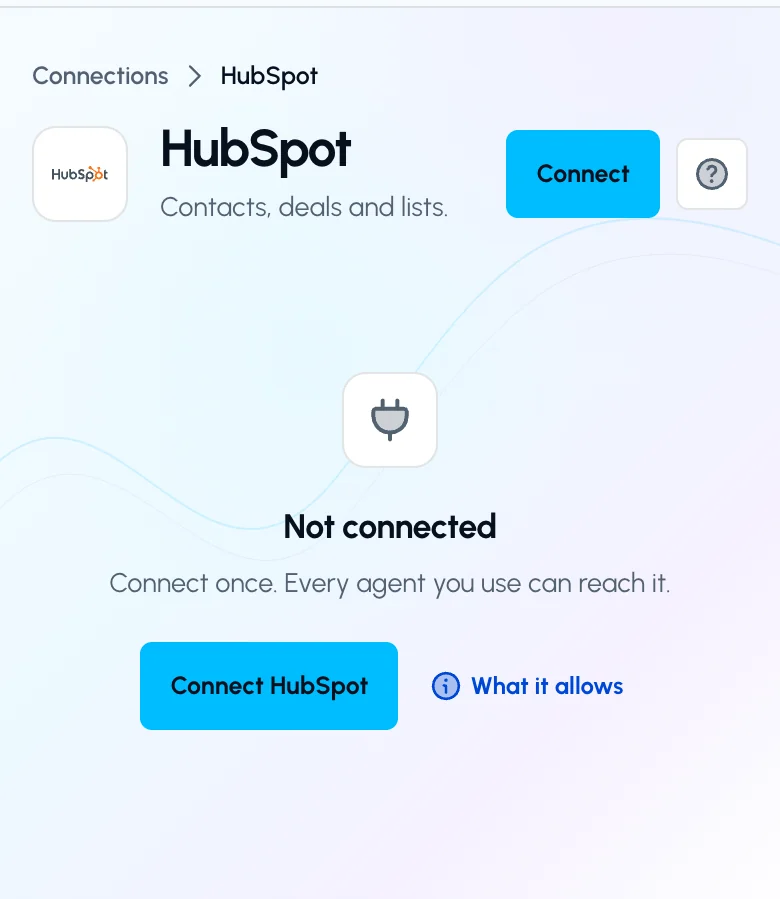
Open HubSpot in Connections and choose Connect. HubSpot then opens its own sign-in.Open full-size image (opens in a new tab) - Choose the account and review access. Choose Continue to HubSpot. On HubSpot’s own page, sign in to the intended account, choose the portal, and review the requested access before returning to ApexGenius.
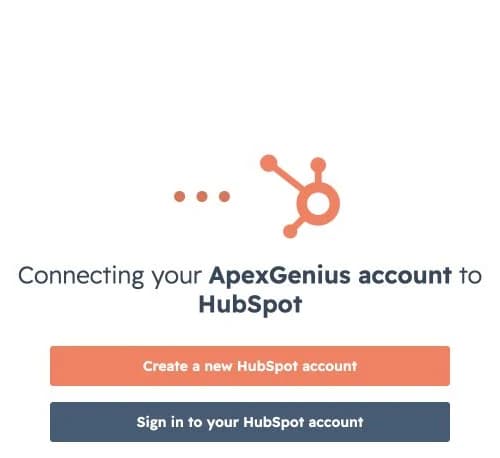
HubSpot opens its own sign-in screen. Sign in to the account with access to your intended portal.Open full-size image (opens in a new tab) - Review the connected account and resources. Check the saved portal and account identity. If you have more than one HubSpot connection, choose the intended account before reviewing its Tools tab.
- Check the connection. Use Test connection or Check again and read the reported status. Add an AI agent from the AI agents page, choose Read only for the first test, and try the question below.
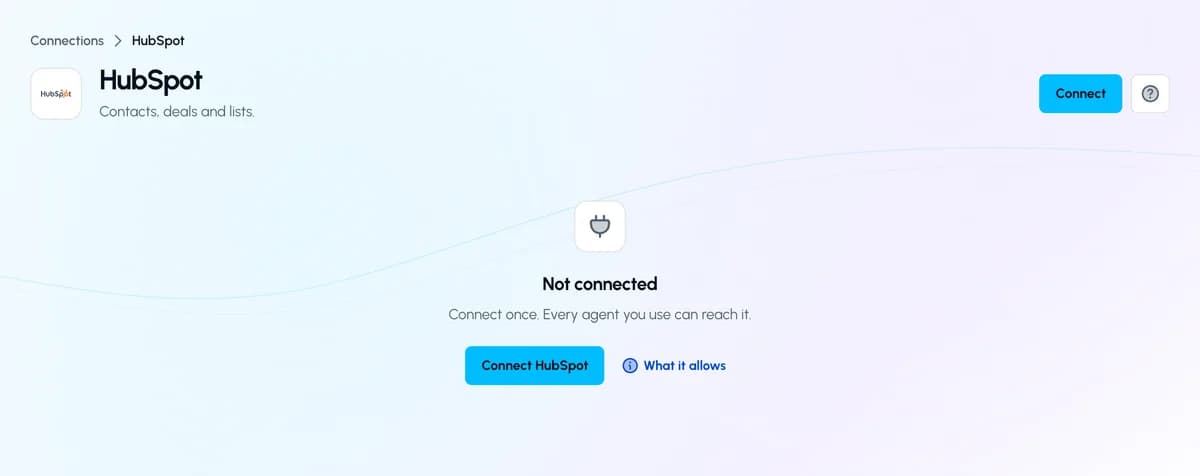
2. Connect ApexGenius to Codex
- In the desktop app, open Settings, then MCP servers and Add server.
- Name the server ApexGenius, choose Streamable HTTP, and paste the MCP address above.
- Save, then select Restart. Choose Authenticate for ApexGenius and complete the browser sign-in.
- When ApexGenius asks what this AI client may use, choose Read only for the first test, or Custom to limit it to the tools you need.
- Start a new conversation and select ApexGenius from the available tools before asking for live data.
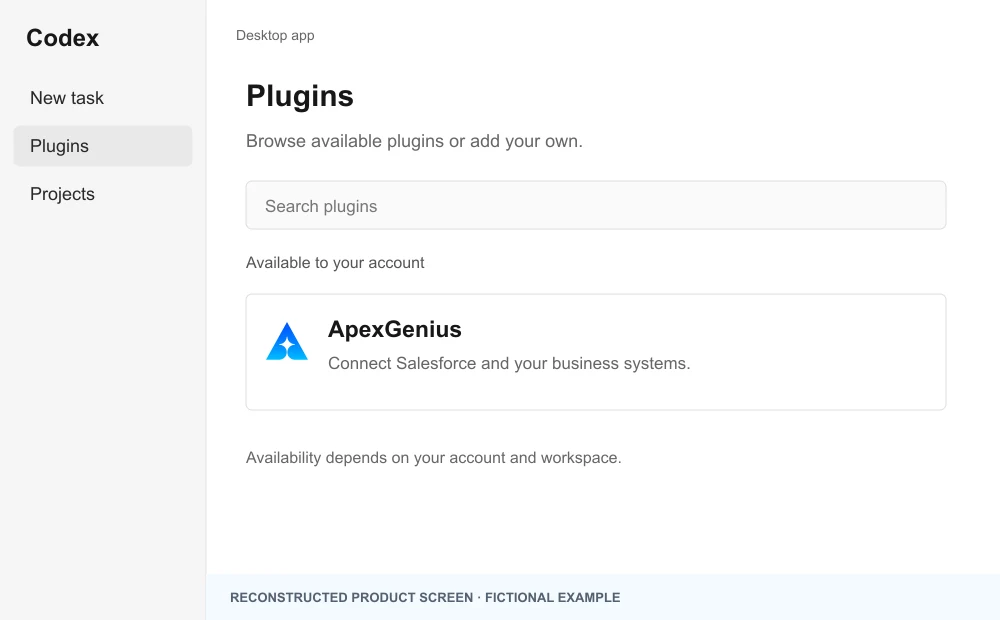
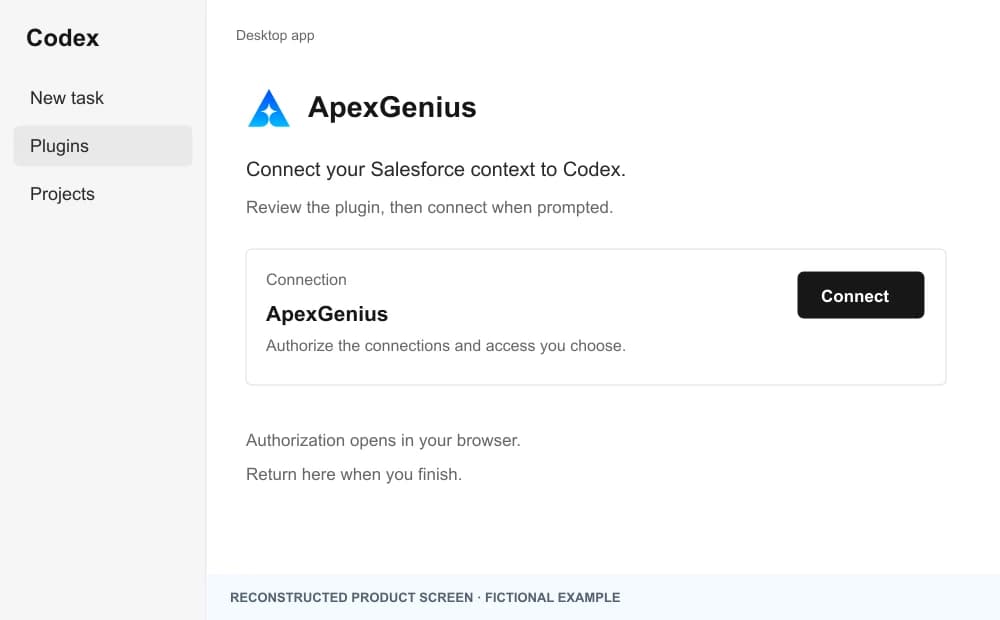
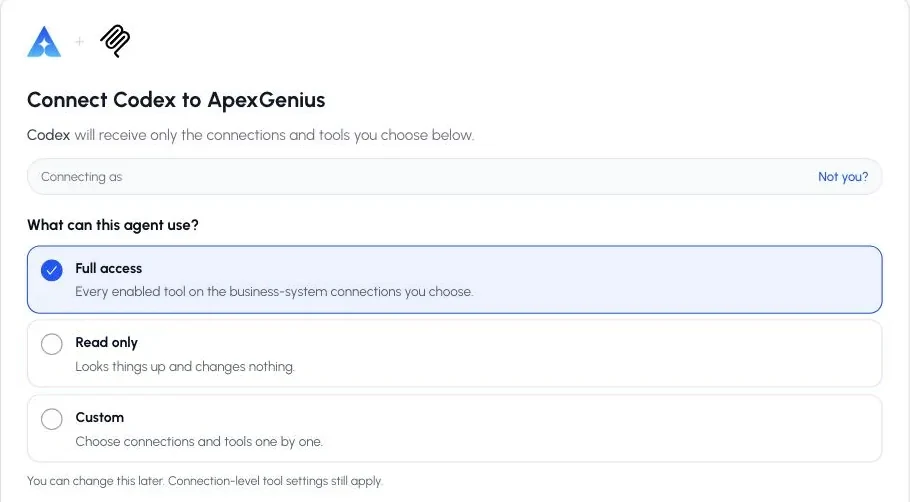
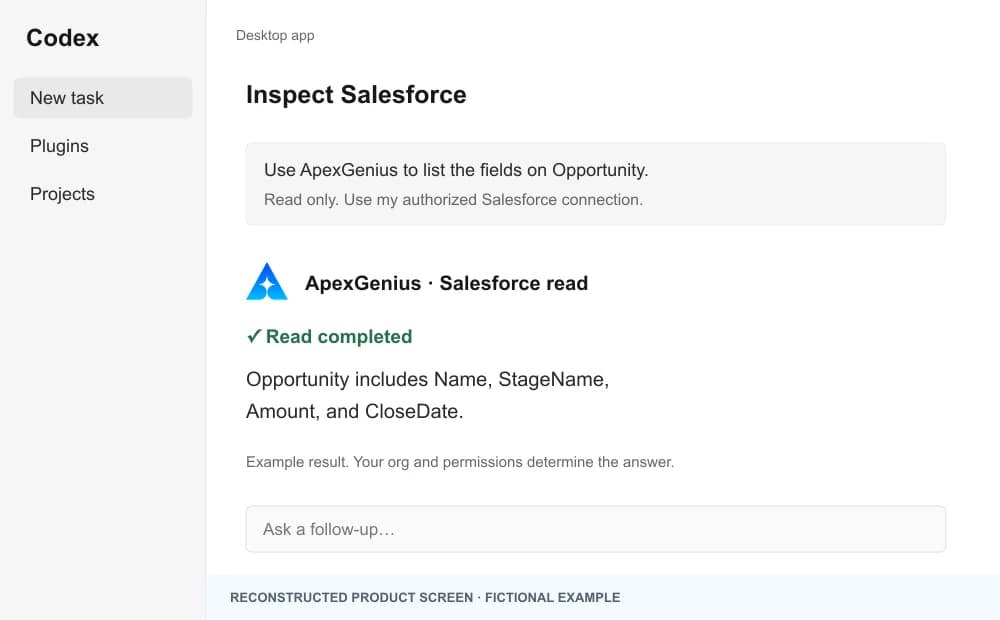
The walkthrough uses the original ChatGPT web plugin captures. After connecting, open Codex in the desktop app and start a new task with ApexGenius. A ChatGPT web connection does not verify Codex access.
A public ApexGenius plugin listing is not verified. Use a plugin shared with you or one you created, subject to your account and workspace policy.
Create a personal plugin
Where Developer mode is available, open ChatGPT Settings, then Security and login, and enable it. In Plugins, select the plus button, enter ApexGenius and a description, then add this URL under Connection. Create the connection, complete OAuth, and review the tools. Return to Codex in the desktop app and start a new task with the plugin enabled.
https://server.autom8.pro/mcpNo plugin available? Use desktop settings
- In the ChatGPT desktop app, open Settings, then MCP servers, then Add server.
- Name the server ApexGenius, choose Streamable HTTP, and paste the MCP address below.
- Save, select Restart, then Authenticate. Sign in to ApexGenius and authorize the intended connections and access.
- Start a new Codex task and ask one read-only question. Check the returned result and its matching successful read in Activity.
https://server.autom8.pro/mcpManual setup for developers
Codex CLI is optional. Run these commands, complete browser authorization, then start a new session. Do not paste bearer tokens or static authorization headers.
Register the remote MCP server
codex mcp add apexgenius --url https://server.autom8.pro/mcpAuthorize in your browser
codex mcp login apexgeniusInspect registered servers
codex mcp listThe desktop app, CLI, and IDE extension share MCP configuration on the same host. The IDE extension does not install plugins. ChatGPT web does not read local Codex configuration.
3. Verify one safe read
Find the available HubSpot account identity read tool, then use it to show which HubSpot account is connected. Do not retrieve contacts or change anything.
Find the available HubSpot account identity read tool, then use it to show which HubSpot account is connected. Do not retrieve contacts or change anything.Compare the returned account and resource with HubSpot. Check the connection status separately from the result of the first read.
Full guide: the HubSpot setup guide.
What it looks like in Codex
Illustration of a task, not a recorded customer result. Your answers come from the account and dates you choose.
apex_search_toolsHubSpot account · Find HubSpot readsCompleteapex_call_read_toolget_user_details · Read the connected user and accessCompleteIllustrative example: the connected portal is Example Co. Contacts, companies, deals and tickets can be read and written. Nothing was changed.
Read-only routeTry asking
Which HubSpot account is connected, and which objects can I read and write? Do not change anything.
Which deals are open this month, with their stage, amount and owner?
Find the contact with the email I give you and show their company and recent activity.
Create a deal for the company I name with the amount and close date I give you. Show me the record first.
What Codex can do in HubSpot
29 operations: 18 read, 11 write. Read looks things up and changes nothing. Writes change HubSpot and run only when you turn them on.
Account and schema
4 readget_user_detailsreadRead the connected user, account and object access. Start here.
get_organization_detailsreadRead teams, job titles, seat counts and account settings.
discover_hubspot_schemareadFind object types and whether each can be read or written.
tool_guidancereadRead HubSpot’s usage notes for one or more tools.
CRM records
4 read · 1 writesearch_crm_objectsreadSearch and filter CRM records, up to 200 a page.
get_crm_objectsreadRead up to 100 CRM records by id.
query_crm_datareadQuery CRM data with HubSpot’s SQL. No joins or subqueries.
search_ownersreadFind record owners by name, email or id.
manage_crm_objectswriteCreate or update CRM records and activities.
Properties, pipelines and segments
2 read · 3 writesearch_propertiesreadFind property definitions by keyword.
get_propertiesreadRead full property definitions, with types and options.
manage_custom_propertieswriteCreate custom properties on CRM objects.
manage_custom_pipelineswriteCreate and change pipelines.
manage_segmentwriteCreate segments, and add or remove records in static segments.
Conversations and intent
3 readsearch_conversationsreadSearch conversations and messages in the inboxes you can see.
get_conversation_channel_metadatareadList inboxes, channels and channel instances.
search_intent_signalsreadSearch buyer intent signals, grouped by company.
Campaigns and marketing email
3 read · 2 writeread_campaign_datareadRead campaign analytics, asset metrics and contacts.
get_campaign_attribution_reportsreadRead closed-won revenue and deal attribution by campaign.
get_marketing_email_analyticsreadRead marketing email results for a date range.
manage_campaign_objectswriteCreate or update campaigns and their assets.
manage_marketing_emailwriteManage marketing email templates, drafts, previews and A/B variants.
Content and AI search
2 read · 3 writeget_content_analytics_reportreadRead analytics for landing pages, website pages and blog posts.
get_aeo_metricsreadRead brand-level AI search metrics.
manage_aeo_promptswriteRead tracked AI search prompts and their answers, and add new ones.
manage_aeo_recommendationswriteReview AI search recommendations and start one.
manage_landing_pagewriteCreate, edit, clone and publish landing pages. Publishing makes a page public.
Onboarding and feedback
2 writemanage_onboardingwriteCheck CRM onboarding status and work through its steps.
submit_feedbackwriteSend feedback about the MCP server to HubSpot.
You choose the access. When you approve Codex, pick Full access, Read only, or Custom.
One connection covers one HubSpot portal and what your HubSpot user can see.
HubSpot decides which tools the portal gets, from its subscription and your user permissions. get_user_details shows yours.
Calls go only to mcp.hubspot.com. ApexGenius keeps the grant encrypted and refreshes it.
Enabled writes run immediately. Turn a tool off to block calls.
HubSpot’s MCP creates and updates records but does not delete them. Publishing a landing page makes it public.
Questions about connecting Codex to HubSpot
Updated October 26, 2026.
How do I connect HubSpot?
Choose Connect on the HubSpot connection in ApexGenius. On HubSpot’s own page, sign in, choose the portal, and allow access. There is no API key to paste.
Does this use the official HubSpot MCP server?
Yes. ApexGenius connects to HubSpot’s hosted MCP at mcp.hubspot.com and passes its tools to your AI agents through one governed connection.
Can my AI change HubSpot records?
Yes, when the write tool is on. It can create and update contacts, companies, deals, tickets and activities. HubSpot’s MCP does not delete records. Turn a tool off to block calls.
Why can’t I see every tool?
HubSpot decides which tools a portal gets from its subscription and your user permissions. AI search tools need Marketing Hub Professional or Enterprise. Ask your AI to run get_user_details to see your access.
Can I start with read-only access?
Yes. Choose Read only when you add your AI agent. Searches and reads still work, and every write is refused.
More connections like this one
Codex with other apps
 Attio
Attio Apollo
 Salesforce
 Supabase
 Mobbin
 Cal.com
 Slack
Slack Discord
All 48 apps Codex can use
 ChatGPT Ads
 GitHub
 Stripe
 Context.dev
 Semrush
 Notion
 Apify
Apify Linear
 Jira
Jira HQ Rental
 Google Ads
 Google Analytics
 Google Forms
 Google Meet
 Google Tasks
 Gmail
Gmail Google Calendar
 Google Chat
 Google Docs
 Google Drive
 Google Sheets
 Google Slides
 Blotato
 Bing Webmaster
 Calendly
 ClickUp
 monday.com
 Atlassian Rovo
 Polymarket
 OP.GG
OP.GG YouTube
- YouTube Analytics
 n8n
n8n Confluence
 Google Search Console
 ElevenLabs
 FreshBooks
 Trello
 GitLab
 TypeSafe
 Claude
 Grok Bot
 Muse
MuseConnect HubSpot to Codex today
Start free1,000 free credits. No card required. Disconnect any time.