


Connect Codex to monday.com
Connect Codex to monday.com in 3 steps: 1. Sign in to ApexGenius and connect monday.com. 2. Add the ApexGenius plugin. 3. Start using monday.com in Codex. Start in Plugins in the ChatGPT desktop app and authorize your connection.
1,000 free credits · No card required
How to connect monday.com to Codex
- 1Sign in to ApexGenius and connect monday.com
- 2Add the ApexGenius plugin to Codex
- 3Start using monday.com in Codex
- 1
Connect monday.com to ApexGenius
Connect monday.com
Create a read-only token in monday.com. You paste it into ApexGenius once.
- 2
Connect ApexGenius to Codex
Choose Codex
Back on Start, pick Codex and copy the prompt.
- 3
Approve access
ApexGenius opens its approval page. Review the access, then approve.
Then ask Codex
Using monday.com, tell me which user and account are connected and list the workspaces I can open. Do not change anything.
Written setup, step by stepShow
Before you start
- A monday.com account that can use the API and open the boards you want your AI to use.
- Your personal API token from monday.com. It has the same access you have in monday.
1. Connect monday.com to ApexGenius
- Copy your API token in monday.com. In monday.com, click your profile picture at the top right and choose Developers. Open My access tokens (called API token in some accounts), choose Show, and copy the token. Admins can also find it under Administration, Connections, Personal API token.
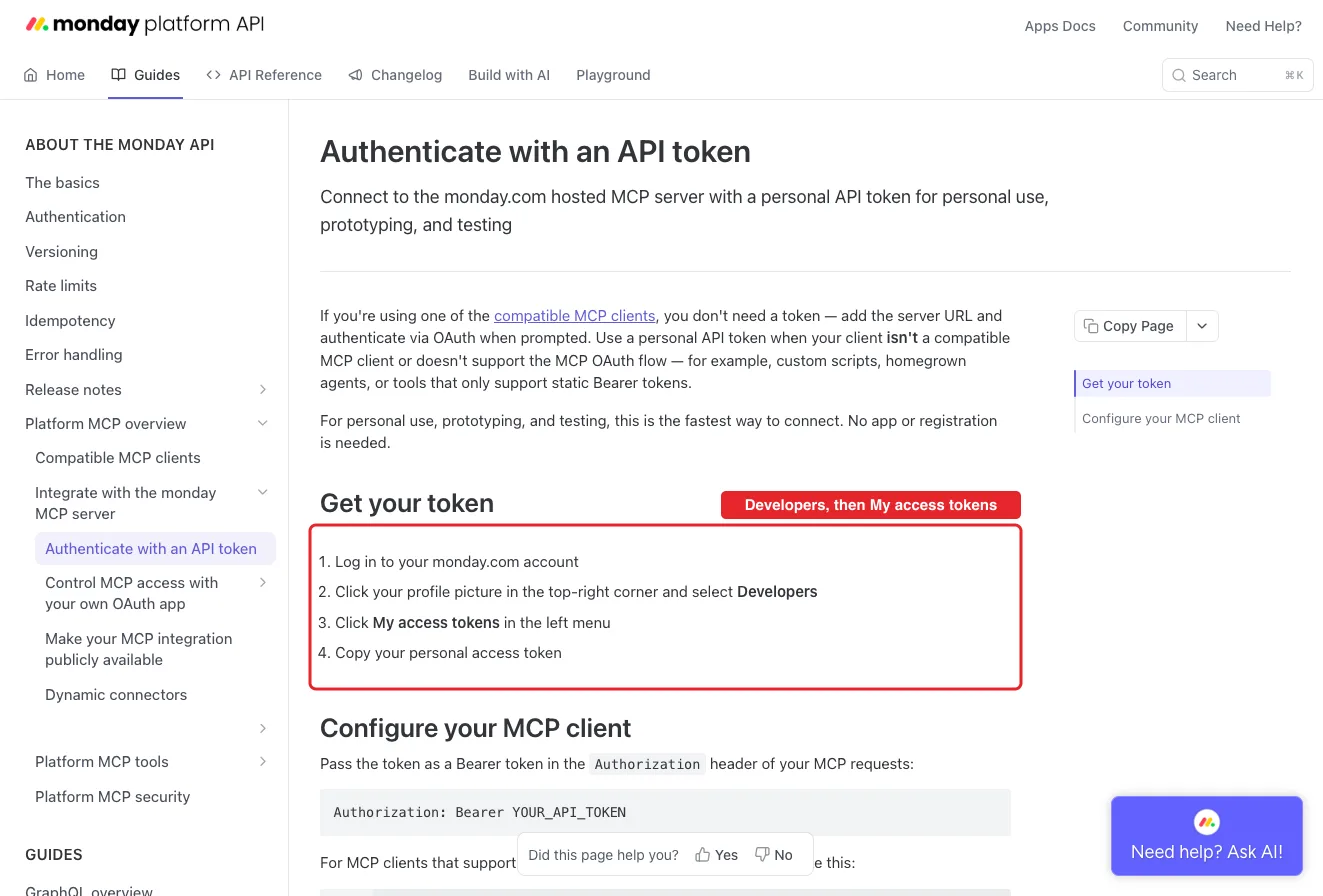
monday's own guide: profile picture, Developers, then My access tokens. This is monday's public guide page, so no account appears in it.Open full-size image (opens in a new tab) - Open monday.com in Connections. Sign in to ApexGenius, open Connections, choose monday.com, and select Connect.
- Paste the token. Paste the token into the connection form. ApexGenius supplies the mcp.monday.com address, checks the token with monday's MCP, and stores it encrypted. Never paste the token into a chat.
- Check the connected user. Open Tools to review the board, item, doc and update tools, then ask your AI the question below. Compare the user and workspaces with monday.com and check Tool Activity.
2. Connect ApexGenius to Codex
- In the desktop app, open Settings, then MCP servers and Add server.
- Name the server ApexGenius, choose Streamable HTTP, and paste the MCP address above.
- Save, then select Restart. Choose Authenticate for ApexGenius and complete the browser sign-in.
- When ApexGenius asks what this AI client may use, choose Read only for the first test, or Custom to limit it to the tools you need.
- Start a new conversation and select ApexGenius from the available tools before asking for live data.
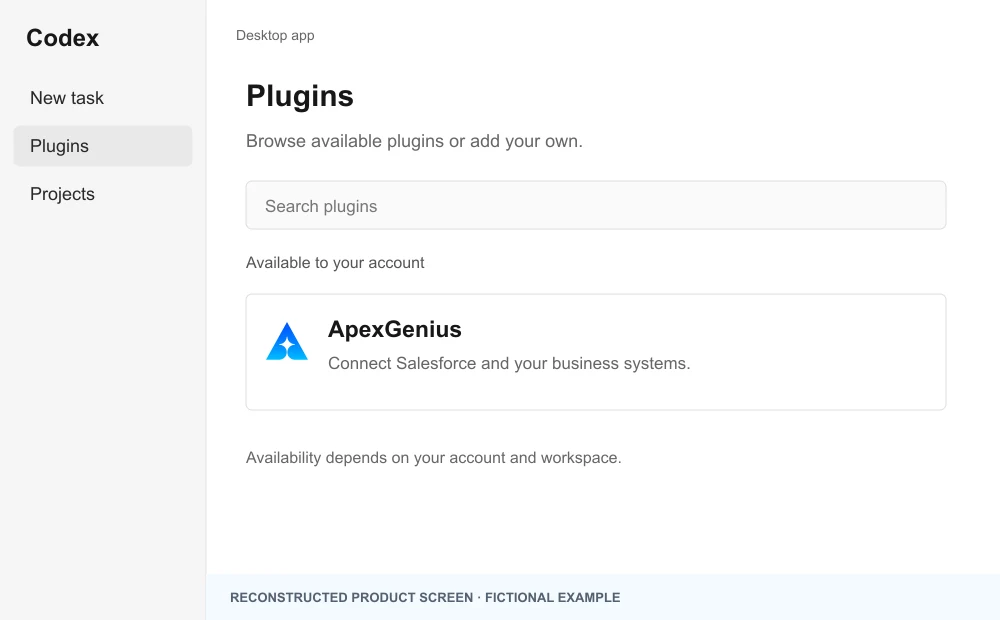
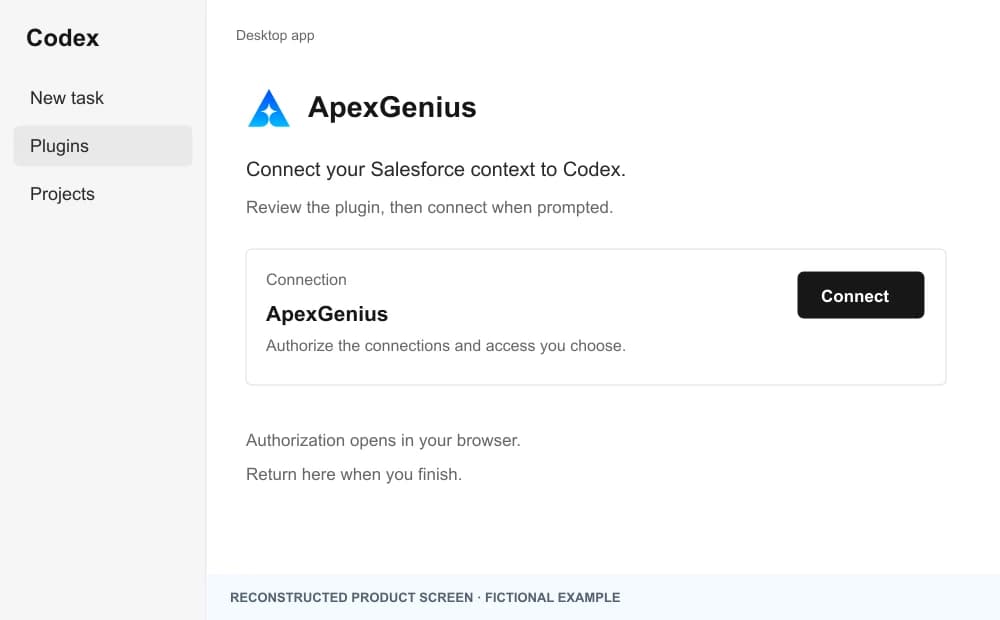
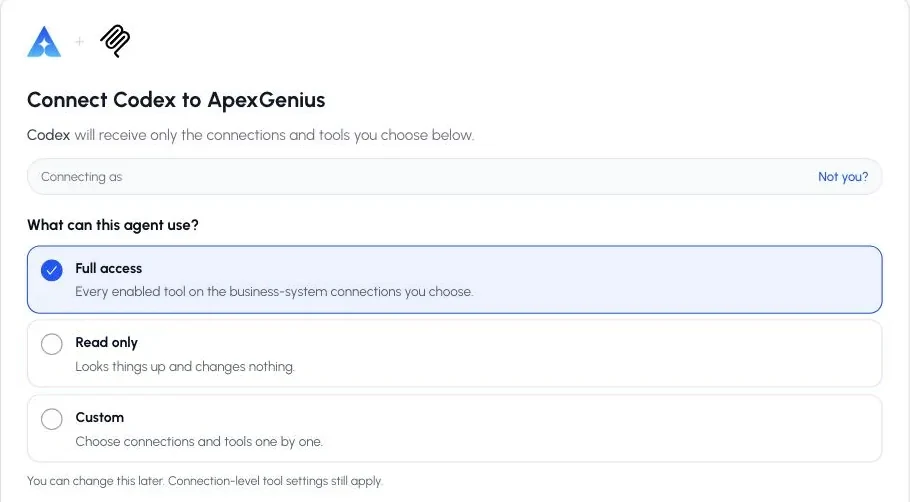
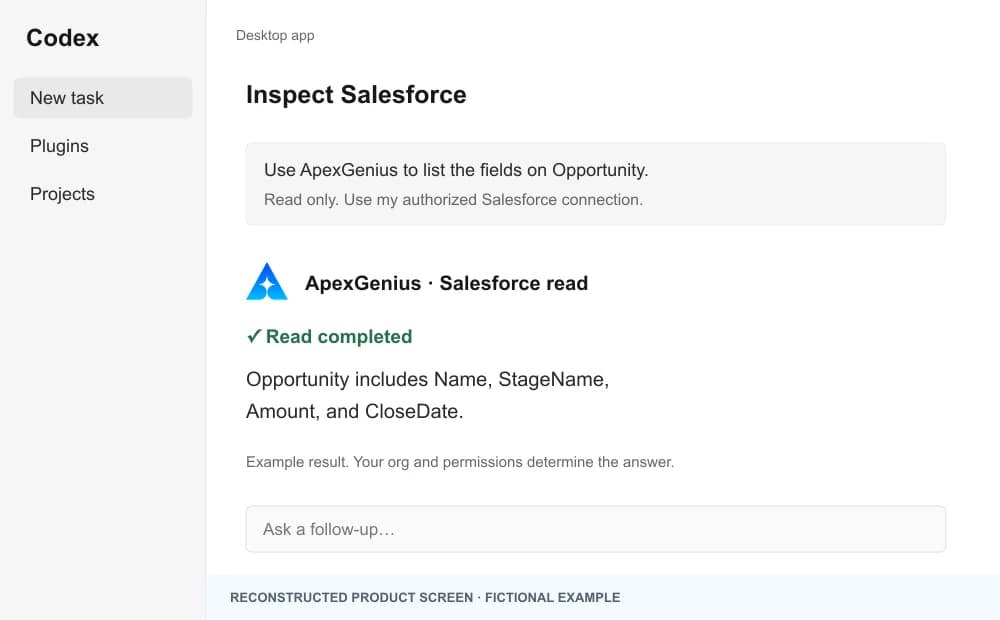
The walkthrough uses the original ChatGPT web plugin captures. After connecting, open Codex in the desktop app and start a new task with ApexGenius. A ChatGPT web connection does not verify Codex access.
A public ApexGenius plugin listing is not verified. Use a plugin shared with you or one you created, subject to your account and workspace policy.
Create a personal plugin
Where Developer mode is available, open ChatGPT Settings, then Security and login, and enable it. In Plugins, select the plus button, enter ApexGenius and a description, then add this URL under Connection. Create the connection, complete OAuth, and review the tools. Return to Codex in the desktop app and start a new task with the plugin enabled.
https://server.autom8.pro/mcpNo plugin available? Use desktop settings
- In the ChatGPT desktop app, open Settings, then MCP servers, then Add server.
- Name the server ApexGenius, choose Streamable HTTP, and paste the MCP address below.
- Save, select Restart, then Authenticate. Sign in to ApexGenius and authorize the intended connections and access.
- Start a new Codex task and ask one read-only question. Check the returned result and its matching successful read in Activity.
https://server.autom8.pro/mcpManual setup for developers
Codex CLI is optional. Run these commands, complete browser authorization, then start a new session. Do not paste bearer tokens or static authorization headers.
Register the remote MCP server
codex mcp add apexgenius --url https://server.autom8.pro/mcpAuthorize in your browser
codex mcp login apexgeniusInspect registered servers
codex mcp listThe desktop app, CLI, and IDE extension share MCP configuration on the same host. The IDE extension does not install plugins. ChatGPT web does not read local Codex configuration.
3. Verify one safe read
Using monday.com, tell me which user and account are connected and list the workspaces I can open. Do not change anything.
Using monday.com, tell me which user and account are connected and list the workspaces I can open. Do not change anything.Confirm the user and workspaces match what you see in monday.com. This read changes nothing, but every call counts toward your account's daily monday API limit: 1,000 calls on Free, Basic and Standard, 10,000 on Pro and 25,000 on Enterprise.
Full guide: the monday.com setup guide.
What it looks like in Codex
Illustration of a task, not a recorded customer result. Your answers come from the account and dates you choose.
apex_search_toolsmonday.com account · Find monday.com readsCompleteapex_call_read_toolget_user_context · Read the connected userCompleteapex_call_read_toollist_workspaces · List the workspacesCompleteIllustrative example: the token belongs to the user Sam Lee on the Acme account, with three workspaces: Marketing, Product and Operations. Nothing was changed.
Read-only routeTry asking
Which monday.com user and account are connected, and which workspaces can I open? Do not change anything.
Find the Campaigns board and list its items in the Live group with owner and status.
Summarize the latest updates on the item I name and list the open questions.
Create an item called Launch checklist in the Campaigns board and set its status to Working on it.
What Codex can do in monday.com
60 operations: 24 read, 36 write. Read looks things up and changes nothing. Writes change monday.com and run only when you turn them on.
Boards and items
5 read · 5 writeget_board_inforeadRead a board's columns, groups, views and owners.
get_board_items_pagereadRead a board's items a page at a time, with filters.
get_board_activityreadRead a board's activity log.
board_insightsreadCount, filter and group a board's data.
get_column_type_inforeadRead the settings a column type takes.
create_boardwriteCreate a board in a workspace.
create_groupwriteAdd a group to a board.
create_columnwriteAdd a column to a board.
create_itemwriteCreate an item or subitem, or duplicate an item.
change_item_column_valueswriteChange one or more column values on an item.
Workspaces and folders
2 read · 5 writelist_workspacesreadList the workspaces you can open.
workspace_inforeadList the boards, docs and folders in a workspace.
create_workspacewriteCreate a workspace.
update_workspacewriteChange a workspace's name, kind or description.
create_folderwriteCreate a folder in a workspace.
update_folderwriteRename, recolor or move a folder.
move_objectwriteMove a board, folder or overview to a new place.
Search, people and files
4 read · 2 writesearchreadSearch boards, docs, forms and folders.
get_user_contextreadRead the connected user, the account, and their boards and workspaces.
list_users_and_teamsreadFind users and teams by id or name.
get_assetsreadRead file details and download links.
get_asset_upload_urlwriteStart a file upload (step 1 of 2).
finalize_asset_uploadwriteFinish the upload and attach the file to an item (step 2 of 2).
Updates and notifications
1 read · 2 writeget_updatesreadRead the updates on an item or board.
create_updatewritePost an update or reply on an item. It is posted at once.
create_notificationwriteSend a bell notification, and an email if asked. It is sent at once.
Docs
1 read · 2 writeread_docsreadRead docs by id, object or workspace.
create_docwriteCreate a doc in a workspace or on an item.
update_docwriteRewrite a doc's content and blocks. monday marks it destructive.
Dashboards and views
1 read · 6 writeall_widgets_schemareadList the widget types a dashboard can hold.
create_dashboardwriteCreate a dashboard from one or more boards.
create_widgetwriteAdd a widget to a dashboard or board view.
create_viewwriteAdd a board view, with filters and sorting.
update_viewwriteChange a view's name, filters or sort.
create_view_tablewriteAdd a table view with chosen columns and grouping.
update_view_tablewriteChange a table view's columns, filters, sort or tags.
Forms
1 read · 4 writeget_formreadRead a WorkForm by its token.
create_formwriteCreate a WorkForm with its own board.
update_formwriteChange a form's settings, password or tags.
create_form_submissionwriteSubmit a response to a WorkForm.
form_questions_editorwriteAdd, change or delete form questions.
Automations and workflows
2 read · 5 writelist_automationsreadList a board's automations with their state.
plan_workflowreadPlan a workflow for a process. Builds nothing.
create_automationwriteCreate a board automation from a plain description.
create_workflowwriteCreate an empty workflow in a workspace.
update_workflowwriteChange a workflow draft.
manage_automationswriteTurn an automation on or off, or delete it.
publish_workflowwriteReplace the live workflow with the draft.
AI agents
1 read · 4 writeagent_catalogreadList the triggers and skills an agent can use.
manage_agent_triggerswriteAdd or remove an agent's triggers.
manage_agent_skillswriteCreate skills and attach or detach them.
manage_agent_knowledgewriteGive or remove an agent's access to boards and docs.
manage_agentwriteCreate, read, change, run, turn on or off, or delete an agent.
Meetings and sprints
4 readget_notetaker_meetingsreadRead notetaker meetings with summaries and action items.
get_monday_dev_sprints_boardsreadFind sprint boards and their task boards.
get_sprints_metadatareadRead sprint names, dates, goals and status.
get_sprint_summaryreadRead a summary of how a sprint went.
GraphQL API
2 read · 1 writeget_graphql_schemareadRead the GraphQL schema for queries and mutations.
get_type_detailsreadRead the fields and arguments of one GraphQL type.
all_monday_apiwriteRun any GraphQL query or mutation, including deletes.
You choose the access. When you approve Codex, pick Full access, Read only, or Custom.
monday.com sets the boundary. The token reaches every workspace and board your monday user can open, nothing more.
Reads use a route that checks monday's own read-only label before every call.
Enabled writes run immediately. Turn a tool off to block calls.
Every call counts toward your account's daily monday API limit, which resets at midnight UTC: 1,000 calls on Free, Basic and Standard, 10,000 on Pro and 25,000 on Enterprise.
Disconnecting stops ApexGenius access. It does not undo a change, update or notification that already ran, and it does not revoke the token. Regenerate the token in monday to stop it everywhere.
Questions about connecting Codex to monday.com
Updated October 10, 2026.
How do I connect monday.com?
In monday.com, click your profile picture, choose Developers, and copy your personal API token. Then open monday.com in ApexGenius Connections and paste it. ApexGenius checks the token with monday's MCP before saving it.
What can my AI reach in monday.com?
What your monday user can reach: the workspaces, boards, items, docs, forms and updates you can open in monday.com. The token has your own access, so use a monday user with only the access your AI needs.
Do changes wait for me?
Enabled writes run immediately. Turn a tool off to block calls.
Can my AI delete anything in monday.com?
Some tools can. all_monday_api runs any GraphQL mutation, manage_automations can delete an automation, and manage_agent can delete an agent. They are labelled Destructive here. Anything deleted has to be restored in monday.com itself.
Does it use my monday API limit?
Yes. Every tool call is a monday API call. The daily limit is 1,000 calls on Free, Basic and Standard, 10,000 on Pro and 25,000 on Enterprise, and it resets at midnight UTC.
Why an API token instead of signing in to monday.com?
monday's MCP sign-in needs a separate app with a client secret, and each monday account admin has to approve it. The personal token works today without that. It is sent only to mcp.monday.com and stored encrypted.
More connections like this one
Codex with other apps
 Supabase
 Cal.com
 GitHub
 Stripe
 Linear
 Jira
Jira HQ Rental
 Google Forms
All 40 apps Codex can use
 Google Tasks
 Google Calendar
 Google Sheets
 Calendly
 ClickUp
 Mobbin
 Slack
Slack Discord
 ChatGPT Ads
 Context.dev
 Attio
Attio Semrush
 Notion
 Apify
Apify Google Ads
 Google Analytics
 Google Meet
 Gmail
Gmail Google Chat
 Google Docs
 Google Drive
 Google Slides
 Apollo
 Blotato
 Bing Webmaster
 Atlassian Rovo
 YouTube
- YouTube Analytics
 Salesforce
 n8n
n8n Confluence
 Google Search Console
Other agents with monday.com
 Claude
 Grok Bot
 Muse
MuseConnect monday.com to Codex today
Start free1,000 free credits. No card required. Disconnect any time.