

Connect Codex to ApexGenius
Use Codex in the ChatGPT desktop app. Connect ApexGenius through Plugins, authorize your apps, and start with one useful read.
1,000 free credits · No card required
How to connect Codex to ApexGenius
- 1
Create your ApexGenius account and authorize the apps you use. Your own sign-in to each app decides the access, so the AI gets exactly what your own account can reach.
- 2
Add ApexGenius in Codex. In the ChatGPT desktop app, open Plugins and select an ApexGenius plugin shared with you or one you created. Connect it, authorize the intended app connections, and start a new Codex task.
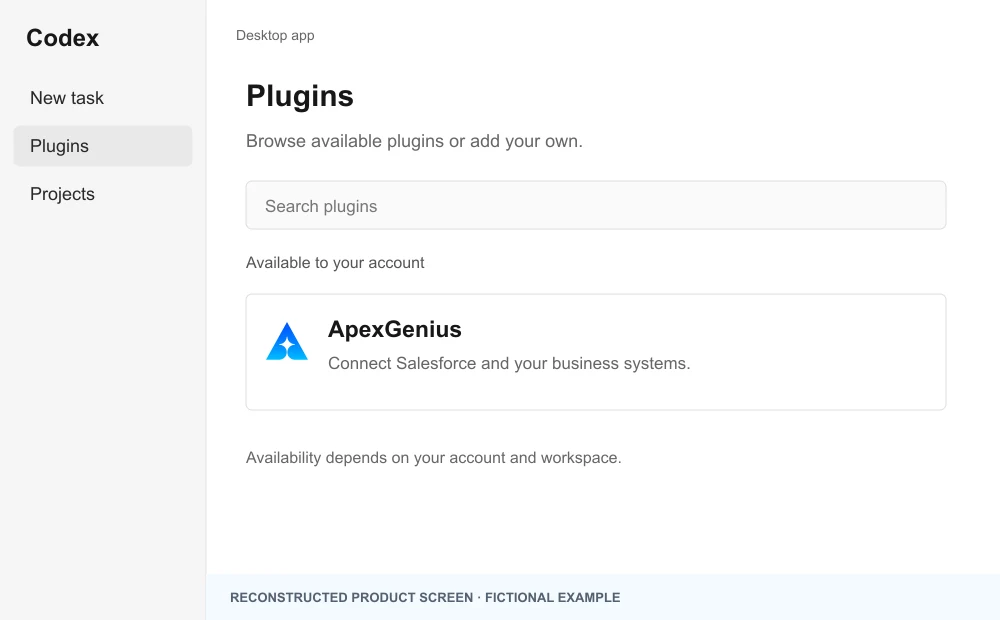
Open Codex in the ChatGPT desktop app, then Plugins, and find ApexGenius.Open full-size image (opens in a new tab) 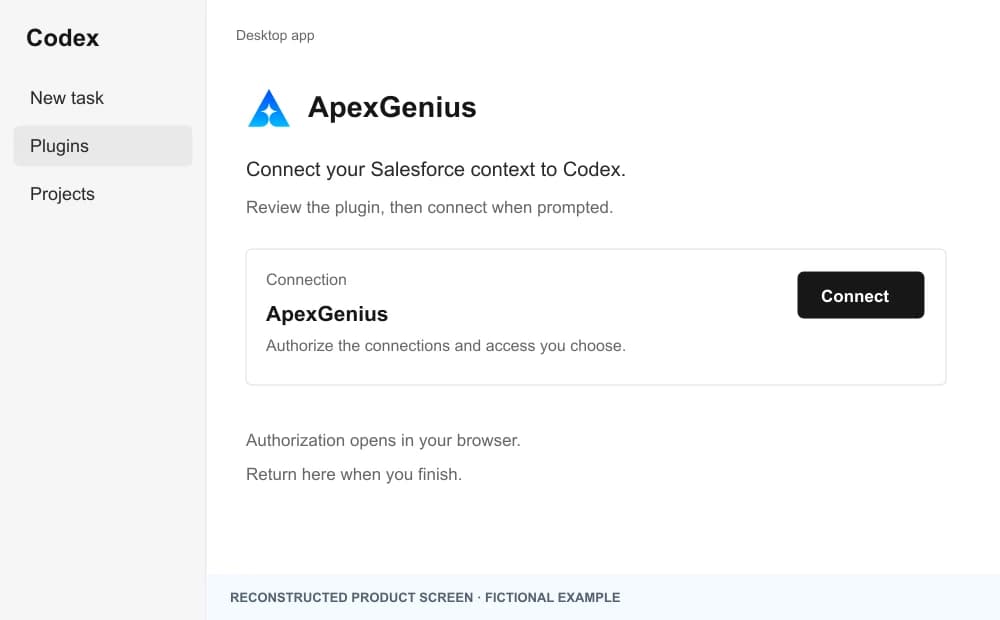
Select ApexGenius and choose Connect. Authorization opens in your browser.Open full-size image (opens in a new tab) 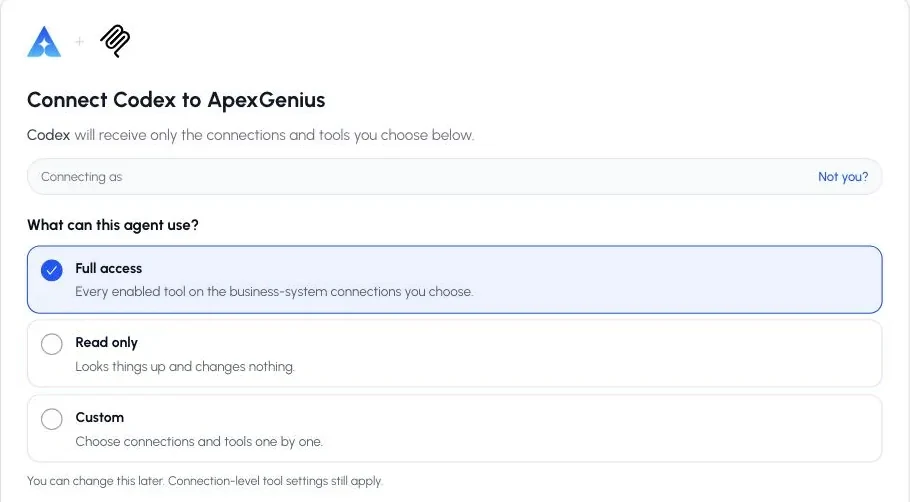
Choose Full access, Read only, or Custom, then approve.Open full-size image (opens in a new tab) 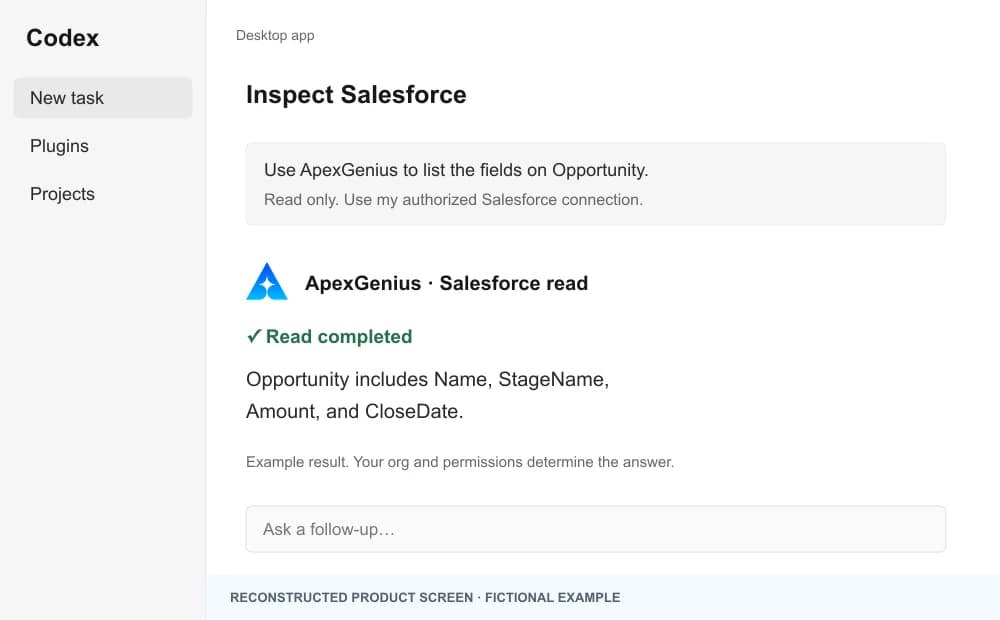
Start a new task, select ApexGenius, and ask one read-only Salesforce question.Open full-size image (opens in a new tab) - 3
Run one safe read. Ask “Which bug reports were posted on Discord today?” and check the answer against the app before you trust it with anything larger.
The walkthrough uses the original ChatGPT web plugin captures. After connecting, open Codex in the desktop app and start a new task with ApexGenius. A ChatGPT web connection does not verify Codex access.
A public ApexGenius plugin listing is not verified. Use a plugin shared with you or one you created, subject to your account and workspace policy.
Create a personal plugin
Where Developer mode is available, open ChatGPT Settings, then Security and login, and enable it. In Plugins, select the plus button, enter ApexGenius and a description, then add this URL under Connection. Create the connection, complete OAuth, and review the tools. Return to Codex in the desktop app and start a new task with the plugin enabled.
https://server.autom8.pro/mcpNo plugin available? Use desktop settings
- In the ChatGPT desktop app, open Settings, then MCP servers, then Add server.
- Name the server ApexGenius, choose Streamable HTTP, and paste the MCP address below.
- Save, select Restart, then Authenticate. Sign in to ApexGenius and authorize the intended connections and access.
- Start a new Codex task and ask one read-only question. Check the returned result and its matching successful read in Activity.
https://server.autom8.pro/mcpManual setup for developers
Codex CLI is optional. Run these commands, complete browser authorization, then start a new session. Do not paste bearer tokens or static authorization headers.
Register the remote MCP server
codex mcp add apexgenius --url https://server.autom8.pro/mcpAuthorize in your browser
codex mcp login apexgeniusInspect registered servers
codex mcp listThe desktop app, CLI, and IDE extension share MCP configuration on the same host. The IDE extension does not install plugins. ChatGPT web does not read local Codex configuration.
Full guides: the setup guides.
Start freeWhat it looks like in Codex
Illustration of a task, not a recorded customer result. Your answers come from the account and dates you choose.
apex_search_toolsDiscord · Find the Discord read pathComplete
apex_call_read_tooldiscord_list_messages · Read this week’s #bugs messagesCompleteapex_call_read_tooldiscord_list_history_threads · Read the archived threadsCompleteNine bug reports came in this week. Three mention the new export: two about CSV encoding and one about a timeout on large files. Nothing was sent.
Read-only routeTry asking
Which bug reports came in on Discord this week, and which ones mention the new export?
Inspect the pages we shipped this week and tell me which are not indexed yet and why.
We shipped the new pricing page on Tuesday. Is Google indexing it, and what are people saying about it in Discord?
Find the export spec in Google Drive and list its acceptance criteria before you start the task.
You choose what Codex is allowed to touch
Choose the saved accounts and tools this Codex connection may use. Its authorization carries that scope, and each app connection’s tool and resource restrictions still apply.
- Full accessEvery enabled tool on the connections you choose.
- Read onlyLooks things up, changes nothing.
- CustomPick apps and tools one by one.
- · Each AI connection has its own scope and selected app connections.
- · Every call is recorded with the app, the operation, and the connection it used.
- · Review write operations before using them. Approval behavior depends on the tool and AI client.
The apps Codex can run through ApexGenius
One ApexGenius connection per app, then every agent you allow can use it. Pick an app to see exactly what Codex can do there.
 Codex for Mobbin
 Codex for Cal.com
 Codex for Slack
- Codex for Discord
 Codex for ChatGPT Ads
 Codex for GitHub
 Codex for Stripe
 Codex for Context.dev
 Codex for Attio
 Codex for Semrush
 Codex for Notion
 Codex for Apify
 Codex for Linear
 Codex for Jira
 Codex for HQ Rental
 Codex for Google Ads
 Codex for Google Analytics
 Codex for Google Forms
 Codex for Google Meet
 Codex for Google Tasks
 Codex for Gmail
 Codex for Google Calendar
 Codex for Google Chat
 Codex for Google Docs
 Codex for Google Drive
 Codex for Google Sheets
 Codex for Google Slides
 Codex for Apollo
 Codex for Blotato
 Codex for Bing Webmaster
 Codex for Calendly
 Codex for ClickUp
 Codex for YouTube
- Codex for YouTube Analytics
 Codex for Salesforce
 Codex for n8n
 Codex for Confluence
 Codex for Google Search Console
Questions about connecting Codex to ApexGenius
Updated October 9, 2026.
How do I start in the ChatGPT desktop app?
Open Plugins and select an ApexGenius plugin shared with you or one you created. Connect it, authorize your chosen connections, then start a new Codex task. If it is unavailable, use the desktop MCP settings path in the setup options below.
Is ApexGenius in the public plugin directory?
A public listing is not verified. This guide covers personal or shared plugins available to your account and a desktop MCP fallback. Custom plugin creation depends on your account and workspace policy.
Can I still use the CLI or IDE?
Yes. The optional Manual setup instructions cover remote MCP. Same-host Codex MCP configuration is shared by the desktop app, CLI, and IDE extension. The IDE extension does not install plugins, and ChatGPT web does not read local Codex configuration.
Which apps can Codex reach?
Codex can use the available operations on the connections you authorize in ApexGenius. Choose a connector below for its setup, supported tasks, and account or resource limits.
Does each agent get its own access?
Yes. Each AI connection has its own scope: full access, read only, or a custom list of tools. Choose the saved app connections it may use. Connection-level tool and resource restrictions still apply.
Can I see what it did?
Supported Activity records show the operation, connection context, status, and timing. Review the returned result in Codex. Approval behavior depends on the tool and AI client; it is not a universal server-side control.
Connect ApexGenius to Codex today
Start free1,000 free credits. No card required. Disconnect any time.