

Connect Codex to Linear
Connect Codex to Linear through ApexGenius. Read issues, projects and cycles, and create or update issues and comments in your connected workspace. Start in Plugins in the ChatGPT desktop app and authorize your connection.
7 days free · No card required
How to connect Linear to Codex
Before you start
- An account with permission to use the Linear resources you intend to connect.
1. Connect Linear to ApexGenius
- Open Linear in Connections. Choose Connect, or Add connection when offered. Give the connection a name if prompted. If Gateway setup pending appears, contact ApexGenius support before continuing.
- Choose the account and review access. Sign in to Linear in the browser, choose the workspace, and approve read and write access. Linear uses browser authorization; no API key is pasted into ApexGenius. Each workspace needs its own connection.
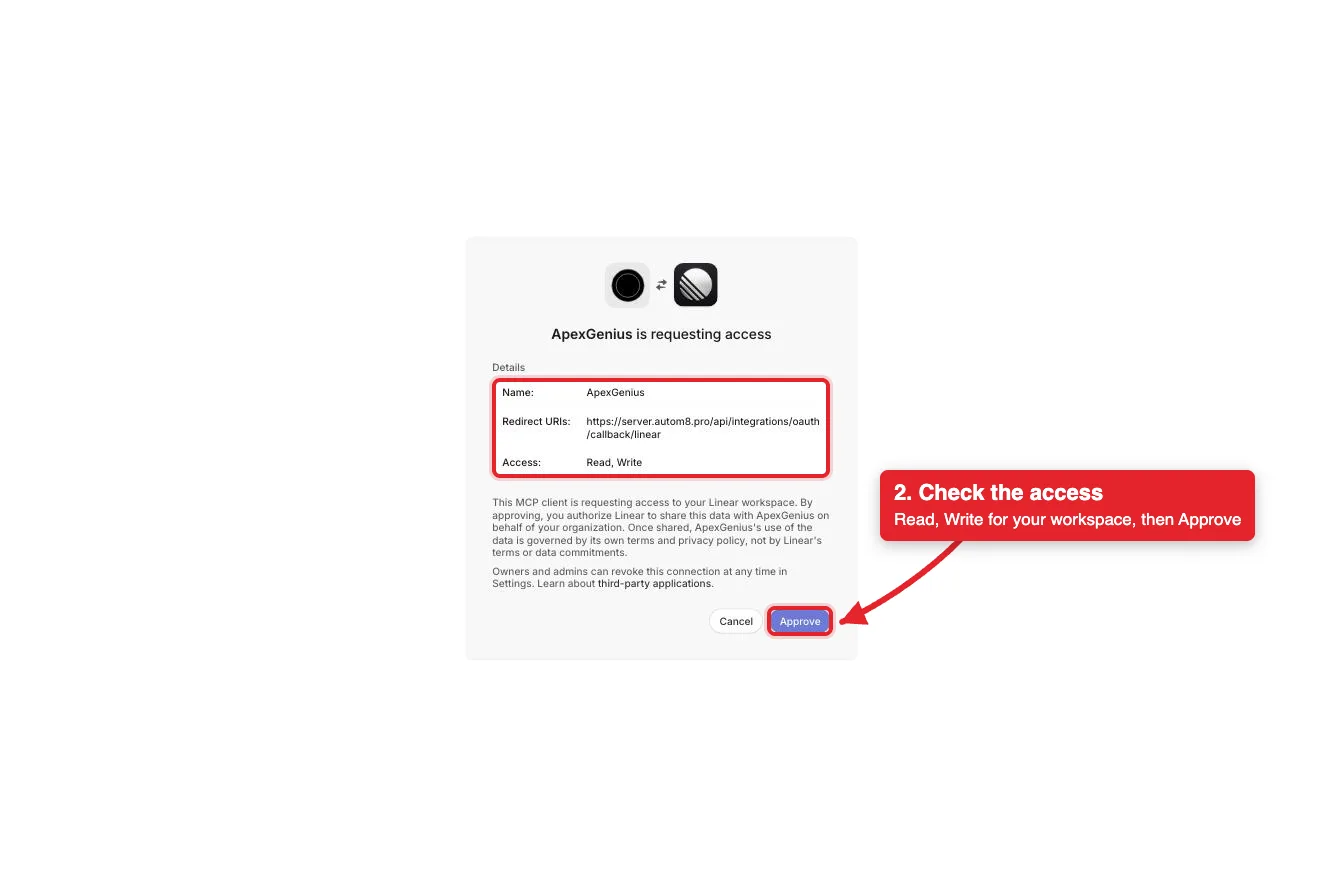
Linear names ApexGenius, its callback address and Read, Write access. Approve connects your workspace. Cancel stops without connecting.Open full-size image (opens in a new tab) - Review the connected account and resources. Confirm the connected Linear workspace. Open Tools to review the issue, project, cycle and comment actions. Writes run right away, and Linear notifies subscribers.
- Check the connection. Use Test connection or Check again and read the reported status. Add an AI agent from the AI agents page, choose Read only for the first test, and try the question below.
2. Add ApexGenius to Codex
- In the desktop app, open Settings, then MCP servers and Add server.
- Name the server ApexGenius, choose Streamable HTTP, and paste the MCP address above.
- Save, then select Restart. Choose Authenticate for ApexGenius and complete the browser sign-in.
- When ApexGenius asks what this AI client may use, choose Read only for the first test, or Custom to limit it to the tools you need.
- Start a new conversation and select ApexGenius from the available tools before asking for live data.
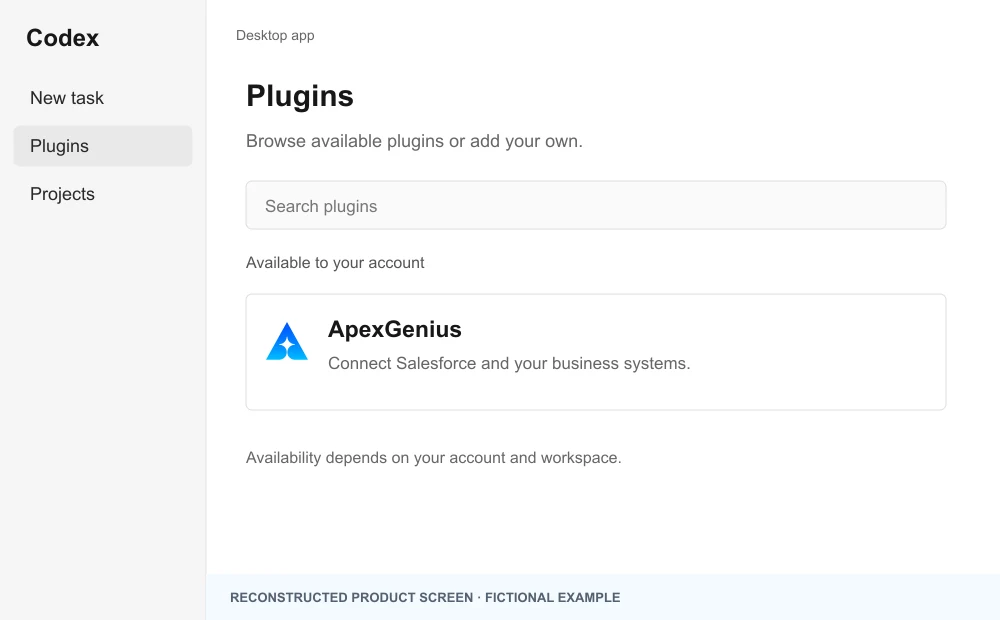
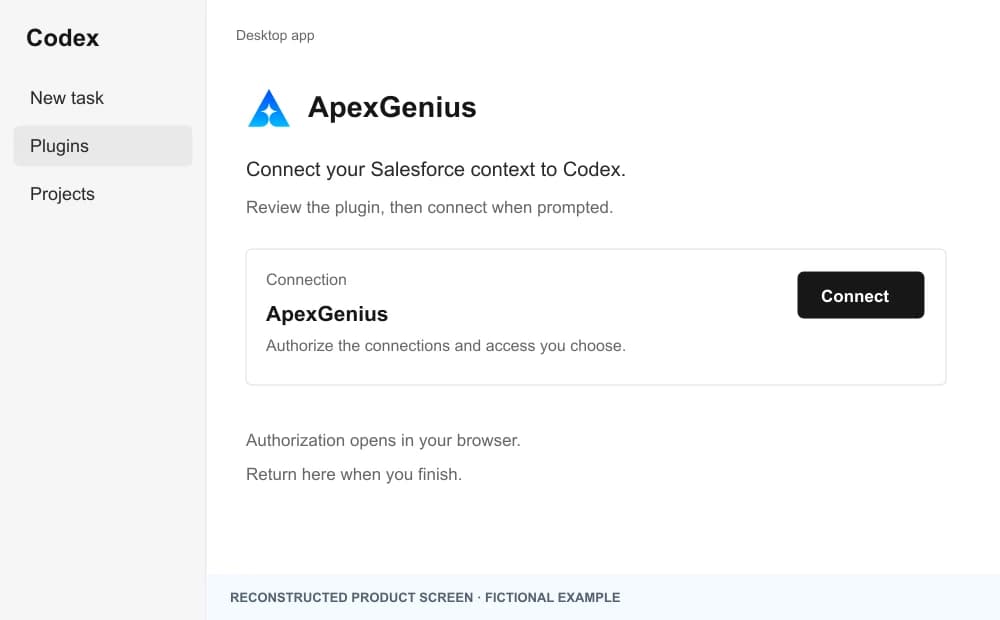
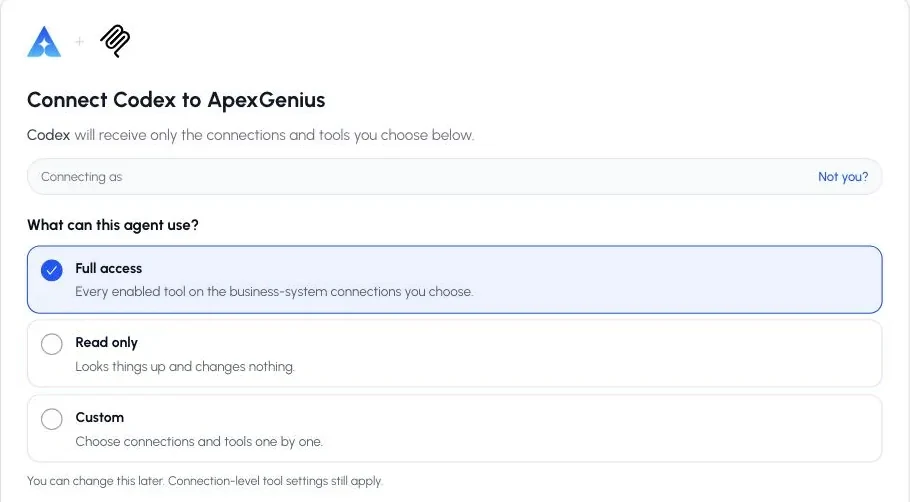
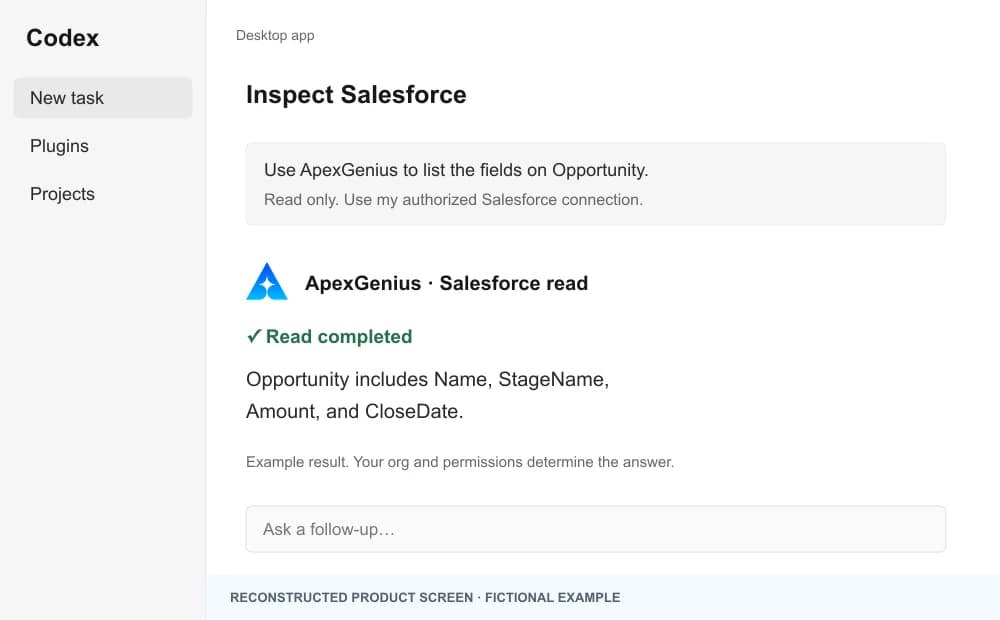
The walkthrough uses the original ChatGPT web plugin captures. After connecting, open Codex in the desktop app and start a new task with ApexGenius. A ChatGPT web connection does not verify Codex access.
A public ApexGenius plugin listing is not verified. Use a plugin shared with you or one you created, subject to your account and workspace policy.
Create a personal plugin
Where Developer mode is available, open ChatGPT Settings, then Security and login, and enable it. In Plugins, select the plus button, enter ApexGenius and a description, then add this URL under Connection. Create the connection, complete OAuth, and review the tools. Return to Codex in the desktop app and start a new task with the plugin enabled.
https://server.autom8.pro/mcpNo plugin available? Use desktop settings
- In the ChatGPT desktop app, open Settings, then MCP servers, then Add server.
- Name the server ApexGenius, choose Streamable HTTP, and paste the MCP address below.
- Save, select Restart, then Authenticate. Sign in to ApexGenius and authorize the intended connections and access.
- Start a new Codex task and ask one read-only question. Check the returned result and its matching successful read in Activity.
https://server.autom8.pro/mcpManual setup for developers
Codex CLI is optional. Run these commands, complete browser authorization, then start a new session. Do not paste bearer tokens or static authorization headers.
Register the remote MCP server
codex mcp add apexgenius --url https://server.autom8.pro/mcpAuthorize in your browser
codex mcp login apexgeniusInspect registered servers
codex mcp listThe desktop app, CLI, and IDE extension share MCP configuration on the same host. The IDE extension does not install plugins. ChatGPT web does not read local Codex configuration.
3. Verify one safe read
List my five most recently updated Linear issues. Read only; do not change anything.
List my five most recently updated Linear issues. Read only; do not change anything.Compare the returned account and resource with Linear. Check the connection status separately from the result of the first read.
Additional reference: the Linear setup guide.
Start freeWhat it looks like in Codex
An illustrative read-only request and response. Your results come from the account and dates you choose.

apex_search_toolsLinear issues · Find the Linear read routeCompleteapex_call_read_toollist_issues · List recently updated issuesCompleteIllustrative example: five issues changed in the last two days, each with its team, status and assignee. Compare the workspace with the one you connected. Nothing was changed.
Read-only routeWhat you can ask once it is connected
“List my five most recently updated Linear issues. Read only; do not change anything.”
“Summarize what my team finished in the last completed cycle.”
“Read the latest status updates on the project I name and list the open risks.”
“Create an issue in the team I name with this title and description. Show me the draft first.”
You choose what Codex is allowed to touch
Choose the saved accounts and tools this Codex connection may use. Its authorization carries that scope, and each app connection’s tool and resource restrictions still apply.
- Full accessEvery enabled tool on the connections you choose.
- Read onlyLooks things up, changes nothing.
- CustomPick apps and tools one by one.
- · One connection covers one Linear workspace. Connect again for another workspace.
- · Your Linear permissions set what the connection can reach. ApexGenius tool controls do not add Linear permissions.
- · The read route checks Linear’s live read-only label and rejects writes.
- · Writes run right away. If the owner set a tool to Ask me first (approval mode always), the call returns approval_required; a person approves it in ApexGenius and you retry with the returned approval_request_id.
- · ApexGenius cannot undo a Linear change. Disconnecting stops future gateway access; it does not reverse an issue, update or comment that already ran.
The Linear operations Codex can run
11 operations: 9 Read and 2 Write. Available tools depend on your connection and permissions. Review any action that changes or removes data. Codex discovers these operations through the ApexGenius gateway.
list_issuesReadFind issues by team, assignee, project, label, status, priority or cycle.get_issueReadRead one issue with its details.list_projectsReadBrowse projects in the workspace.get_projectReadRead one project, including milestones and members.get_status_updatesReadRead the latest status updates on a project or initiative.list_cyclesReadList a team’s cycles.list_commentsReadRead the comments on an issue.list_teamsReadList the teams in the workspace.list_usersReadLook up people to find an assignee, lead or owner.save_issueWriteCreate an issue or update one: title, team, assignee, project, labels, priority, status.save_commentWritePost a comment or edit one.
Questions people ask first
How do I connect Linear?
Open Linear in ApexGenius Connections, choose Connect, sign in to Linear in the browser and pick the workspace. No Linear API key is pasted into ApexGenius.
Which Linear tools can my AI use?
The ones Linear publishes on its hosted MCP. ApexGenius reads Linear’s live list on every search, so the list on this page is what Linear documents today, and Linear may add tools.
Can my AI create or change issues?
Yes, when your Linear permissions allow it. Writes run right away. If the owner set a tool to Ask me first (approval mode always), the call returns approval_required; a person approves it in ApexGenius and you retry with the returned approval_request_id.
Can ApexGenius undo a change?
No. To reverse an edit, save the old value back. Linear notifies subscribers of new issues and comments, and a sent notification cannot be recalled.
Can I start with read-only access?
Yes. Choose Read only when you add your AI agent. Reads go through the read route, which checks Linear’s live read-only label before each call.
Can I connect more than one workspace?
Yes. Each Linear workspace needs its own connection and its own sign-in.
Connect Linear to Codex today
Start free7 days free. No card required. Disconnect any time.