


Connect Codex to Trello
Connect Codex to Trello in 3 steps: 1. Sign in to ApexGenius and connect Trello. 2. Add the ApexGenius plugin. 3. Start using Trello in Codex. Start in Plugins in the ChatGPT desktop app and authorize your connection.
1,000 free credits · No card required
How to connect Trello to Codex
- 1Sign in to ApexGenius and connect Trello
- 2Add the ApexGenius plugin to Codex
- 3Start using Trello in Codex
- 1
Connect Trello to ApexGenius
Open Trello in ApexGenius
Open Trello in Connections and choose Connect.
- 2
Connect ApexGenius to Codex
Choose Codex
Back on Start, pick Codex and copy the prompt.
- 3
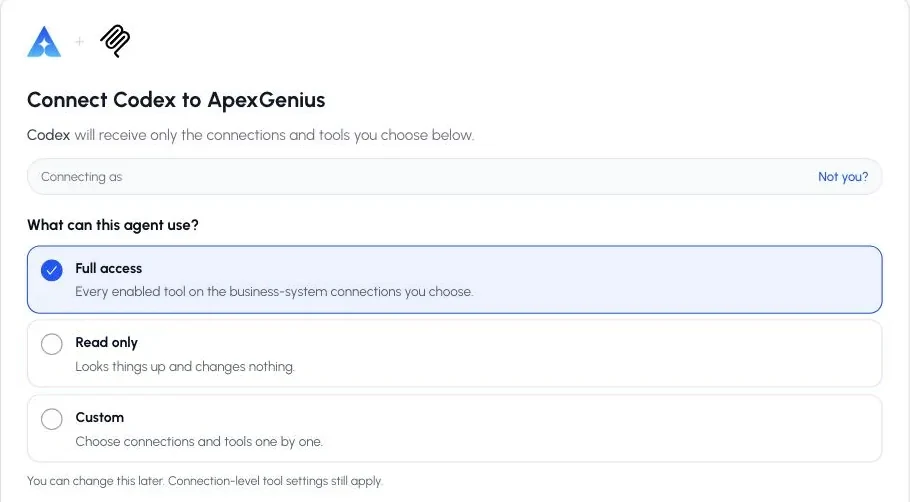
Approve access
ApexGenius opens its approval page. Review the access, then approve.
Then ask Codex
List my open Trello boards with their names and links. Do not create, move or change anything.
Written setup, step by stepShow
Before you start
- A Trello account that admins a Workspace.
- An API key from your own app at trello.com/power-ups/admin, and a token made for that key.
1. Connect Trello to ApexGenius
- Get an API key from Trello. Open trello.com/power-ups/admin and choose New. Choose My app doesn’t use Power-Up capabilities, then fill in the name, your Workspace, the two emails and the author, and choose Create. Open the Trello Auth tab and choose Generate a new API Key. Copy the API key. Trello may ask you to accept its developer agreement on your first visit.
- Open Trello in Connections. Choose Connect or Add connection, and paste the API key.
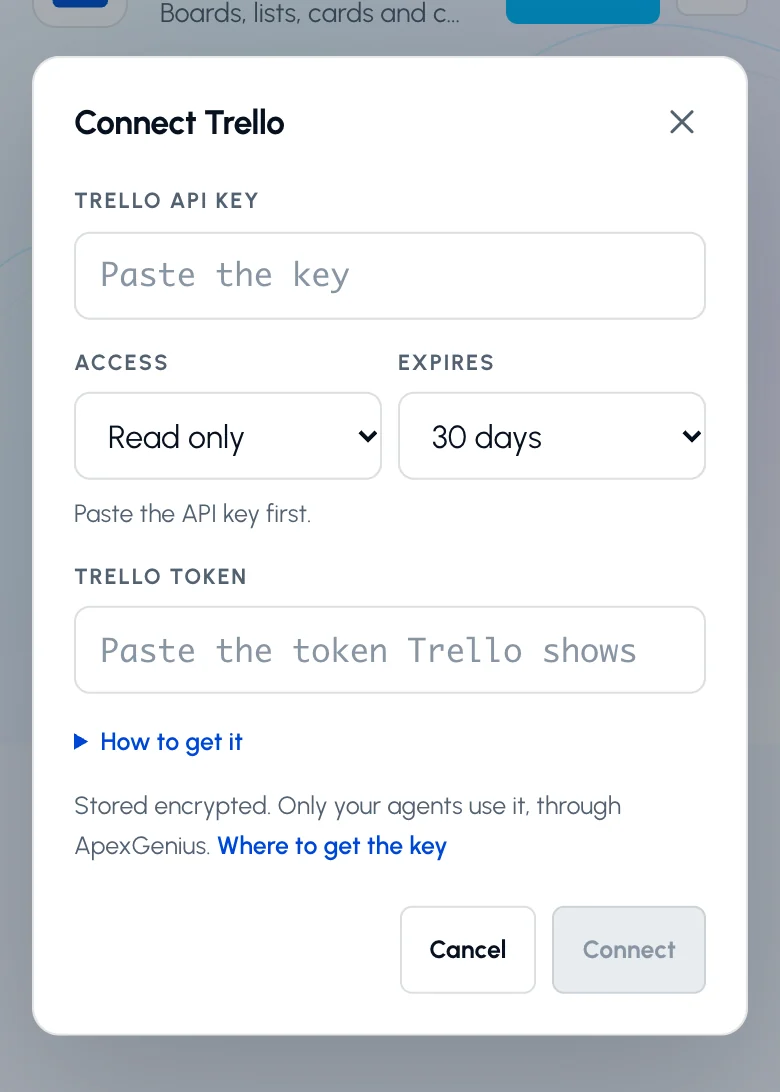
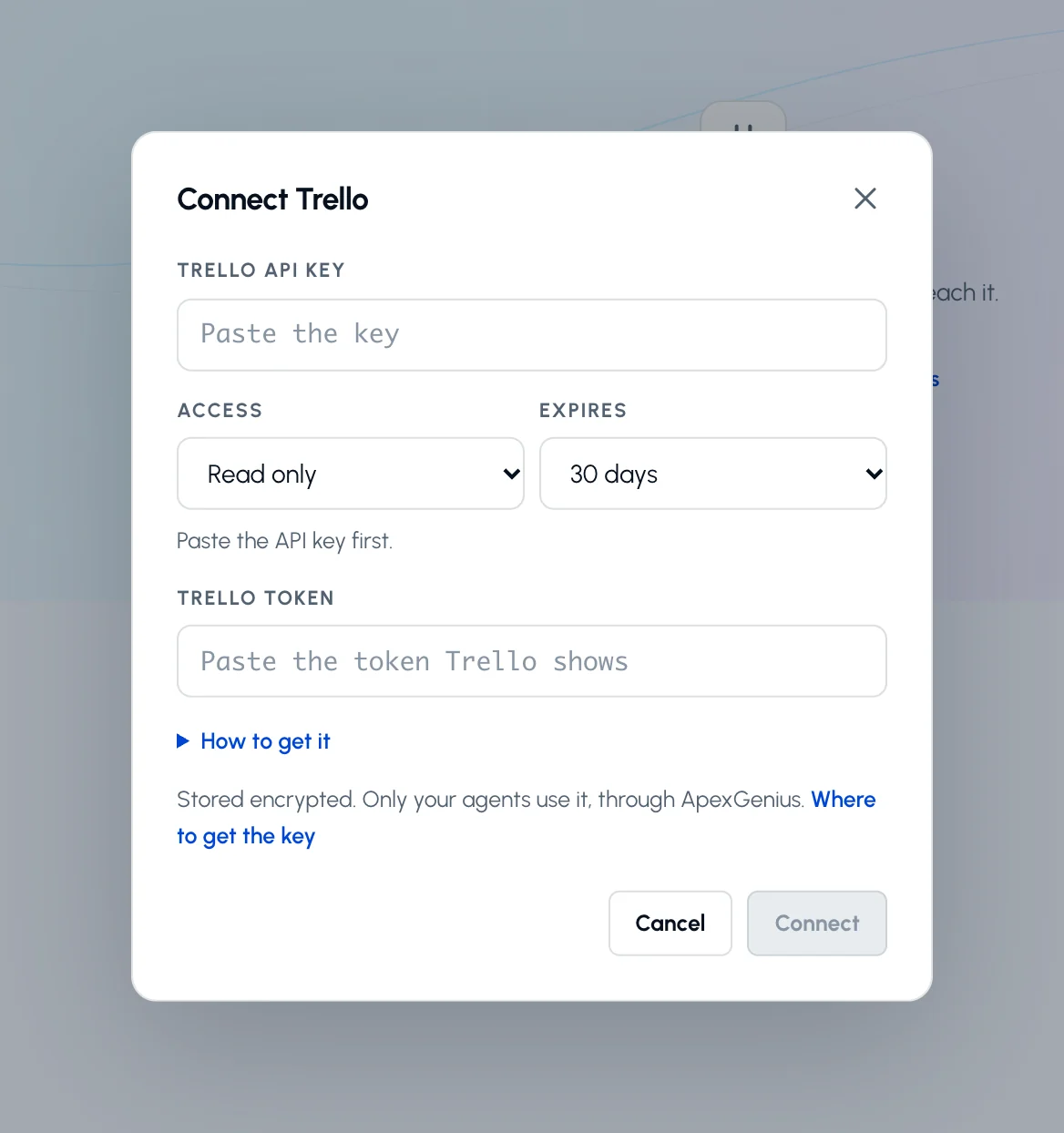
Paste your Trello API key, pick the access and how long the token lasts, then paste the token Trello shows. How to get it walks through both.Open full-size image (opens in a new tab) - Make a token for that key. Pick Read only or Read and write, and how long the token lasts. Choose Make a token on Trello, check the access Trello lists, and choose Allow. Copy the token Trello shows and paste it under the key.
- Check the saved connection. Save after the check succeeds. ApexGenius checks the key and token with Trello before saving. Review the Tools tab. A Read only token makes Trello refuse every change.
2. Connect ApexGenius to Codex
- In the desktop app, open Settings, then MCP servers and Add server.
- Name the server ApexGenius, choose Streamable HTTP, and paste the MCP address above.
- Save, then select Restart. Choose Authenticate for ApexGenius and complete the browser sign-in.
- When ApexGenius asks what this AI client may use, choose Read only for the first test, or Custom to limit it to the tools you need.
- Start a new conversation and select ApexGenius from the available tools before asking for live data.
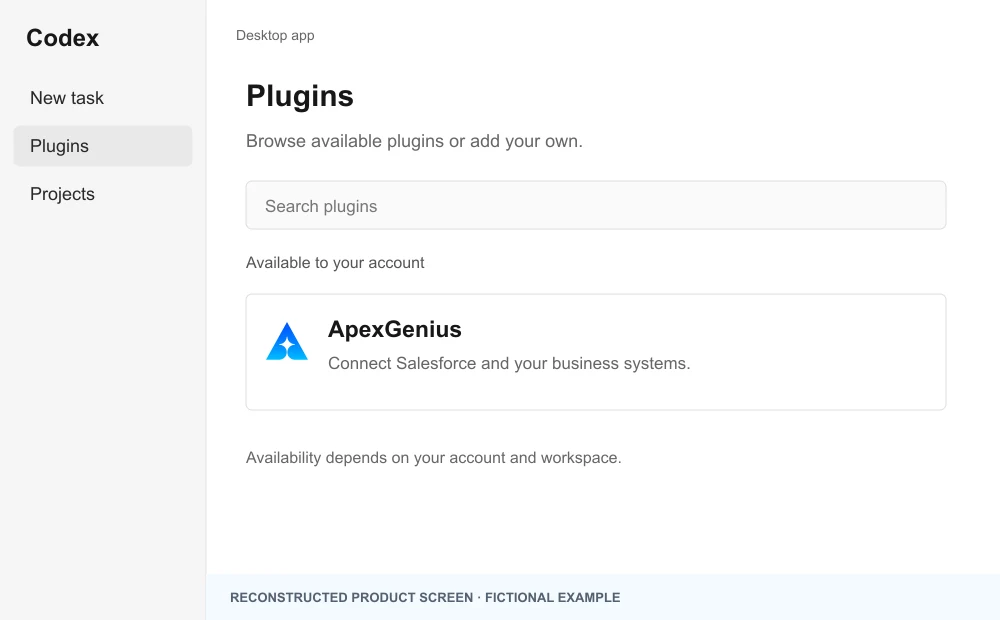
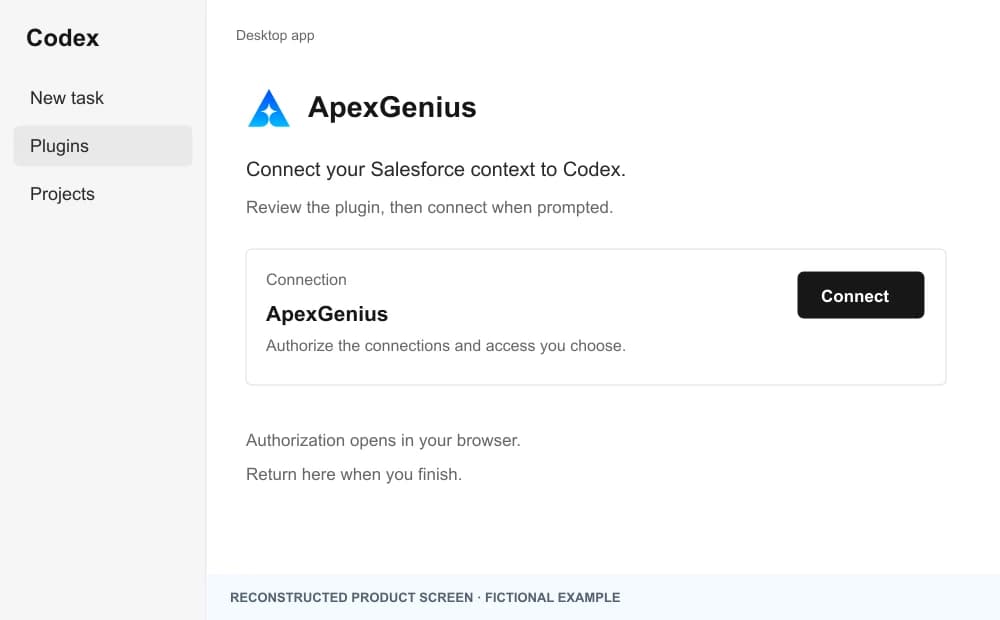
The walkthrough uses the original ChatGPT web plugin captures. After connecting, open Codex in the desktop app and start a new task with ApexGenius. A ChatGPT web connection does not verify Codex access.
A public ApexGenius plugin listing is not verified. Use a plugin shared with you or one you created, subject to your account and workspace policy.
Create a personal plugin
Where Developer mode is available, open ChatGPT Settings, then Security and login, and enable it. In Plugins, select the plus button, enter ApexGenius and a description, then add this URL under Connection. Create the connection, complete OAuth, and review the tools. Return to Codex in the desktop app and start a new task with the plugin enabled.
https://server.autom8.pro/mcpNo plugin available? Use desktop settings
- In the ChatGPT desktop app, open Settings, then MCP servers, then Add server.
- Name the server ApexGenius, choose Streamable HTTP, and paste the MCP address below.
- Save, select Restart, then Authenticate. Sign in to ApexGenius and authorize the intended connections and access.
- Start a new Codex task and ask one read-only question. Check the returned result and its matching successful read in Activity.
https://server.autom8.pro/mcpManual setup for developers
Codex CLI is optional. Run these commands, complete browser authorization, then start a new session. Do not paste bearer tokens or static authorization headers.
Register the remote MCP server
codex mcp add apexgenius --url https://server.autom8.pro/mcpAuthorize in your browser
codex mcp login apexgeniusInspect registered servers
codex mcp listThe desktop app, CLI, and IDE extension share MCP configuration on the same host. The IDE extension does not install plugins. ChatGPT web does not read local Codex configuration.
3. Verify one safe read
List my open Trello boards with their names and links. Do not create, move or change anything.
List my open Trello boards with their names and links. Do not create, move or change anything.Compare the boards with your Trello home page. Listing boards changes nothing in Trello.
Full guide: the Trello setup guide.
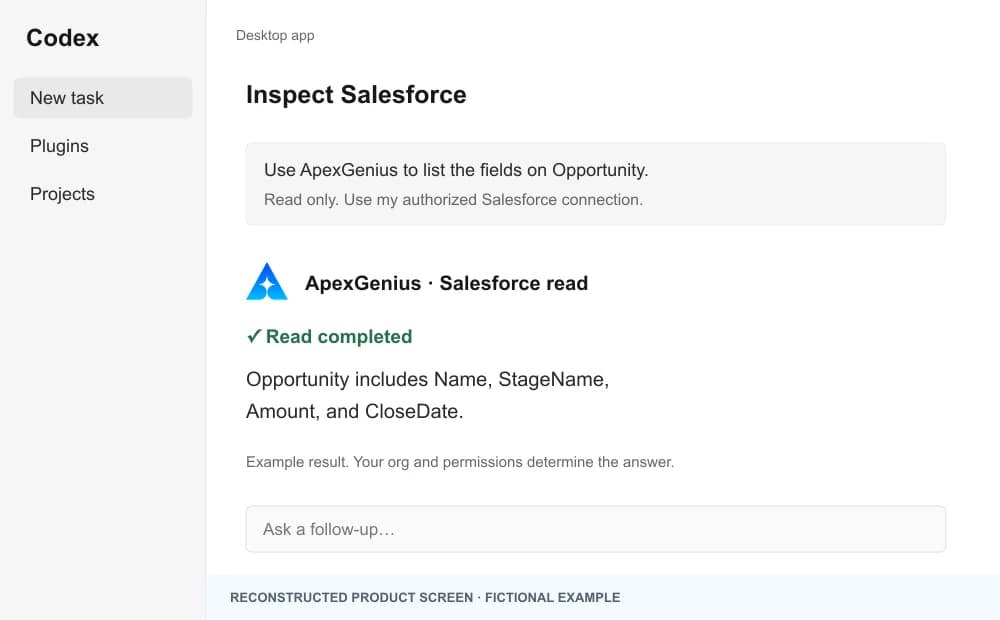
What it looks like in Codex
Illustration of a task, not a recorded customer result. Your answers come from the account and dates you choose.
apex_search_toolsTrello boards · Find the Trello read routeCompleteapex_call_read_toollist_member_boards · List open boardsCompleteIllustrative example: four open boards, led by Product roadmap and Website launch, each with its link. Nothing was changed.
Read-only routeTry asking
List my open Trello boards with their names and links. Do not create, move or change anything.
Which cards on the board I name are due this week, and which list is each one in?
Read the comments and checklist on the card I name and tell me what is left to do.
Move the card I name to Done and add a comment that it shipped. Show me the change first.
What Codex can do in Trello
25 operations: 20 read, 5 write. Read looks things up and changes nothing. Writes change Trello and run only when you turn them on.
Account and workspaces
5 readget_mereadRead the connected Trello member.
list_member_workspacesreadList the workspaces you belong to.
get_workspacereadRead one workspace.
list_workspace_boardsreadList the boards in a workspace.
list_workspace_membersreadList the members of a workspace.
Boards
6 readlist_member_boardsreadList the boards you can see.
get_boardreadRead one board.
list_board_listsreadList the lists on a board.
list_board_membersreadList the members of a board.
list_board_labelsreadList the labels on a board.
list_board_actionsreadRead recent board activity, comments included.
Lists and cards
5 readsearchreadSearch boards and cards by text.
list_board_cardsreadList the cards on a board.
get_listreadRead one list.
list_list_cardsreadList the cards in a list.
get_cardreadRead one card with its dates, labels and members.
Checklists and comments
4 read · 1 writelist_board_checklistsreadList the checklists on a board.
list_card_checklistsreadList the checklists on a card.
get_checklistreadRead one checklist and its items.
list_card_actionsreadRead a card’s comments and history.
add_commentwriteAdd a comment to a card.
Change cards
4 writecreate_cardwriteCreate a card in a list.
update_cardwriteChange a card’s name, description, dates, members or labels.
move_cardwriteMove a card to another list or board.
archive_cardwriteArchive a card, or bring it back.
You choose the access. When you approve Codex, pick Full access, Read only, or Custom.
One connection covers one Trello account and every board it can see.
The token decides what Trello allows. A Read only token makes Trello refuse every change, whatever the tool settings say.
The key and token go only to api.trello.com, in the Authorization header, never in a URL.
Enabled writes run immediately. Turn a tool off to block calls.
An archived card can be brought back. A comment cannot be removed through ApexGenius, and a Trello notification cannot be recalled. Permanent deletes are not offered.
Questions about connecting Codex to Trello
Updated October 26, 2026.
How do I connect Trello?
Open trello.com/power-ups/admin, make an app, and generate its API key on the Trello Auth tab. Paste the key into the Trello connection in ApexGenius, make a token for it on Trello, and paste the token too.
Why does Trello need a key and a token?
The key names your app. The token is your permission for that app to use your Trello account, with the access and expiration you picked. ApexGenius checks both with Trello before saving.
Can my AI change cards?
Only with a token made with Read and write. Then it can create, change, move, archive and comment on cards. Enabled writes run immediately. Turn a tool off to block calls.
What happens when the token expires?
Trello stops accepting it, and the connection asks you to reconnect. Make a new token for the same key and paste it.
Can I start with read-only access?
Yes. Make the token with Read only, and Trello refuses every change. You can also choose Read only when you add your AI agent.
Does this use the Trello MCP server?
No. ApexGenius uses the official Trello REST API with your key and token.
More connections like this one
Codex with other apps
 Supabase
 Cal.com
 GitHub
 Stripe
 Linear
 Jira
Jira HQ Rental
 Google Forms
All 48 apps Codex can use
 Google Tasks
 Google Calendar
 Google Sheets
 Calendly
 ClickUp
 monday.com
 ElevenLabs
 FreshBooks
 GitLab
 Mobbin
 Slack
Slack Discord
 ChatGPT Ads
 Context.dev
 Attio
Attio Semrush
 Notion
 Apify
Apify Google Ads
 Google Analytics
 Google Meet
 Gmail
Gmail Google Chat
 Google Docs
 Google Drive
 Google Slides
 Apollo
 Blotato
 Bing Webmaster
 Atlassian Rovo
 Polymarket
 OP.GG
OP.GG YouTube
- YouTube Analytics
 Salesforce
 n8n
n8n Confluence
 Google Search Console
 TypeSafe
 HubSpot
 Claude
 Grok Bot
 Muse
MuseConnect Trello to Codex today
Start free1,000 free credits. No card required. Disconnect any time.