

Connect ChatGPT Work to ApexGenius
Add ApexGenius to ChatGPT Work as a custom MCP plugin in Developer mode, authorize Search Console, Google Drive and your other apps, then run one safe read.
1,000 free credits · No card required
How to connect ChatGPT Work to ApexGenius
- 1
Create your ApexGenius account and authorize the apps you use. Your own sign-in to each app decides the access, so the AI gets exactly what your own account can reach.
- 2
Add ApexGenius in ChatGPT. In ChatGPT Settings, open Security and login and enable Developer mode. Open Plugins, select the plus button, and add the ApexGenius MCP URL.
Read the steps Follow along at your own pace
1. Enable developer mode
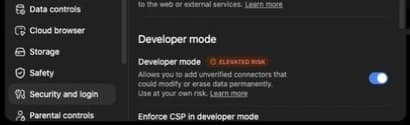
This captured workspace places Developer mode in Settings, then Security and login.Open full-size image (opens in a new tab) 2. Create the plugin
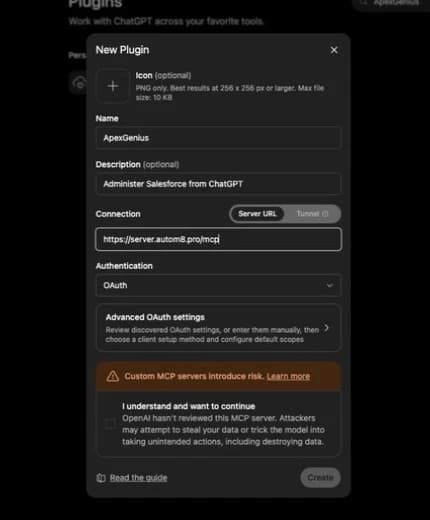
This captured workspace labels the form New Plugin. Copy the live endpoint above, keep Server URL and OAuth selected, then acknowledge the warning.Open full-size image (opens in a new tab) 3. Find ApexGenius
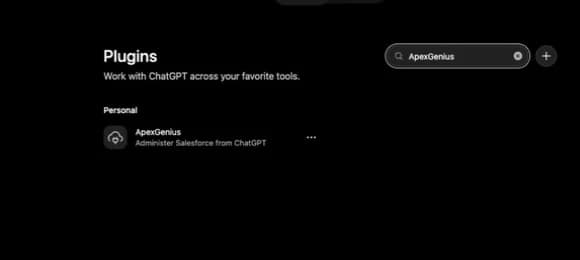
After creation, search Plugins for ApexGenius. A developer-mode copy appears under Personal rather than the Public catalog.Open full-size image (opens in a new tab) 4. Review the connection
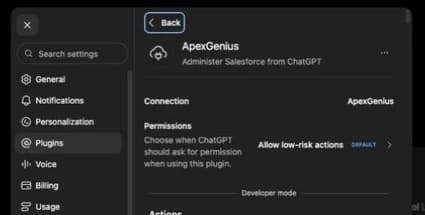
Open ApexGenius to review its connection, permission behavior, and Developer mode label before using it in a Work chat.Open full-size image (opens in a new tab) - 3
Run one safe read. Ask “Is our homepage indexed in Google?” and check the answer against the app before you trust it with anything larger.
Full guides: the setup guides.
Start freeWhat it looks like in ChatGPT Work
Illustration of a task, not a recorded customer result. Your answers come from the account and dates you choose.

apex_search_toolsSearch Console · Find the Search Console read pathComplete
apex_call_read_toolgoogle_search_console_get_sitemap · Read the submitted sitemapCompleteapex_call_read_toolgoogle_search_console_inspect_url · Inspect each new URLCompleteFour of the six new pages are indexed. /pricing/teams is discovered but not crawled yet, and /docs/export carries a noindex tag. Nothing was changed.
Read-only routeTry asking
Inspect the pages we shipped this week and tell me which are not indexed yet and why.
Summarize today’s #support channel in Discord and list the questions nobody has answered.
Which pages lost the most clicks over the last two complete 28-day periods, and when did the drop start?
Find the latest pricing deck in Google Drive and the Gmail thread where it was approved.
You choose what ChatGPT is allowed to touch
Choose the saved accounts and tools this ChatGPT connection may use. Its authorization carries that scope, and each app connection’s tool and resource restrictions still apply.
- Full accessEvery enabled tool on the connections you choose.
- Read onlyLooks things up, changes nothing.
- CustomPick apps and tools one by one.
- · Each AI connection has its own scope and selected app connections.
- · Every call is recorded with the app, the operation, and the connection it used.
- · Review write operations before using them. Approval behavior depends on the tool and AI client.
The apps ChatGPT Work can run through ApexGenius
One ApexGenius connection per app, then every agent you allow can use it. Pick an app to see exactly what ChatGPT Work can do there.
 ChatGPT Work for Mobbin
 ChatGPT Work for Cal.com
 ChatGPT Work for Slack
 ChatGPT Work for Discord
- ChatGPT Work for ChatGPT Ads
 ChatGPT Work for GitHub
 ChatGPT Work for Stripe
 ChatGPT Work for Context.dev
 ChatGPT Work for Attio
 ChatGPT Work for Semrush
 ChatGPT Work for Notion
 ChatGPT Work for Apify
 ChatGPT Work for Linear
 ChatGPT Work for Jira
 ChatGPT Work for HQ Rental
 ChatGPT Work for Google Ads
 ChatGPT Work for Google Analytics
 ChatGPT Work for Google Forms
 ChatGPT Work for Google Meet
 ChatGPT Work for Google Tasks
 ChatGPT Work for Gmail
 ChatGPT Work for Google Calendar
 ChatGPT Work for Google Chat
 ChatGPT Work for Google Docs
 ChatGPT Work for Google Drive
 ChatGPT Work for Google Sheets
 ChatGPT Work for Google Slides
 ChatGPT Work for Apollo
 ChatGPT Work for Blotato
 ChatGPT Work for Bing Webmaster
 ChatGPT Work for Calendly
 ChatGPT Work for ClickUp
 ChatGPT Work for YouTube
- ChatGPT Work for YouTube Analytics
 ChatGPT Work for Salesforce
 ChatGPT Work for n8n
 ChatGPT Work for Confluence
- ChatGPT Work for Google Search Console
Questions about connecting ChatGPT Work to ApexGenius
Updated October 9, 2026.
Which apps can ChatGPT Work reach?
Every app you connect in ApexGenius, such as Search Console, Google Drive, Discord and Salesforce. The apps below link to their setup pages, and the connector directory lists every app and its status.
Does each agent get its own access?
Yes. Each AI connection has its own scope: full access, read only, or a custom list of tools. Choose the saved app connections it may use. Connection-level tool and resource restrictions still apply.
Can I see what it did?
Every call is recorded with the app, the operation, the connection it used, and the result. Destructive operations are labeled, and you can switch any tool off.
Connect ApexGenius to ChatGPT Work today
Start free1,000 free credits. No card required. Disconnect any time.