


Connect ChatGPT to Jira
Connect ChatGPT to Jira in 3 steps: 1. Sign in to ApexGenius and connect Jira. 2. Add the ApexGenius plugin. 3. Start using Jira in ChatGPT.
1,000 free credits · No card required
How to connect Jira to ChatGPT
- 1Sign in to ApexGenius and connect Jira
- 2Add the ApexGenius plugin to ChatGPT
- 3Start using Jira in ChatGPT
- 1
Connect Jira to ApexGenius
Jira connected
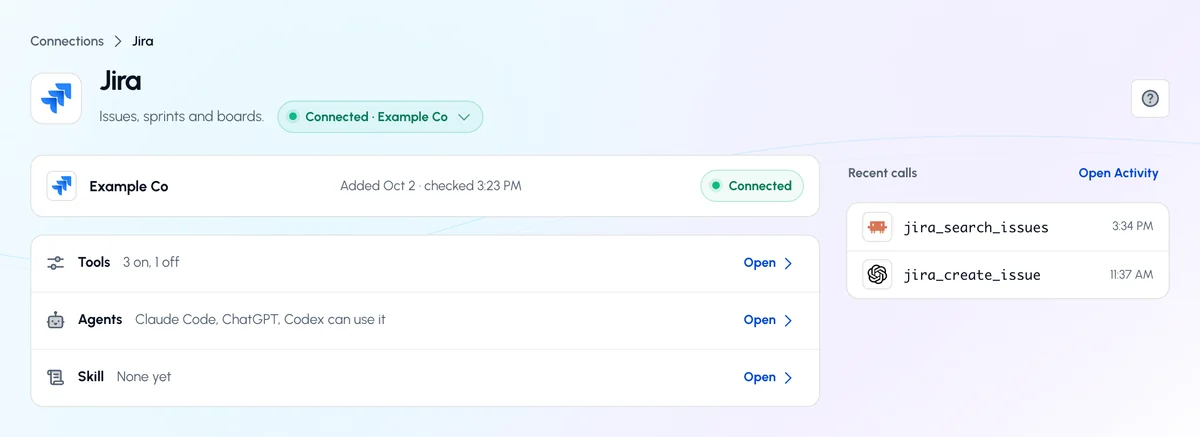
Jira shows as connected in ApexGenius, with what your AI can reach.
- 2
Connect ApexGenius to ChatGPT
Choose ChatGPT
Back on Start, pick ChatGPT and copy the prompt.
- 3
Add it in ChatGPT
In ChatGPT, open Settings, then Plugins, then Create. Paste the address, keep OAuth.
- 4
Approve access
ApexGenius opens its approval page. Review the access, then approve.
Add the ApexGenius plugin to ChatGPT
ChatGPT adds a custom MCP server as a plugin, under Plugins. There is no config file.
- Go to ChatGPT Plugins, select the plus button, then Add custom MCP server.
- Enter the name ApexGenius and a description. Under Connection, enter the MCP address, including the
/mcppath. - Configure authentication, review the risk warning and select I understand and want to continue. Select Create as a plugin.
- Complete the ApexGenius sign-in, approve access, and review the tools ChatGPT found.
The MCP address
https://server.autom8.pro/mcp
Check it. Start a new conversation, type @ in the prompt box and select the ApexGenius plugin.
Steps follow OpenAI Developers, Connect and test your plugin (opens in a new tab), read November 12, 2026.
Then ask ChatGPT
Find up to five Jira issues I can read. Return issue keys and links without changing anything.
Written setup, step by stepShow
Before you start
- An account with permission to use the Jira resources you intend to connect.
- ChatGPT developer mode must be available to your account and allowed by your workspace.
1. Connect Jira to ApexGenius
- Open Jira in Connections. Choose Connect, or Add connection when offered. Give the connection a name if prompted. If Gateway setup pending appears, contact ApexGenius support before continuing.
- Choose the account and review access. Sign in with the intended Atlassian account. Choose the Jira site and review the permissions before returning to ApexGenius.
- Review the connected account and resources. Check the connected Atlassian account and site. On the Tools tab, review any project resource controls. The Jira permissions of that account still apply.
- Check the connection. Use Test connection or Check again and read the reported status. Add an AI agent from the AI agents page, choose Read only for the first test, and try the question below.
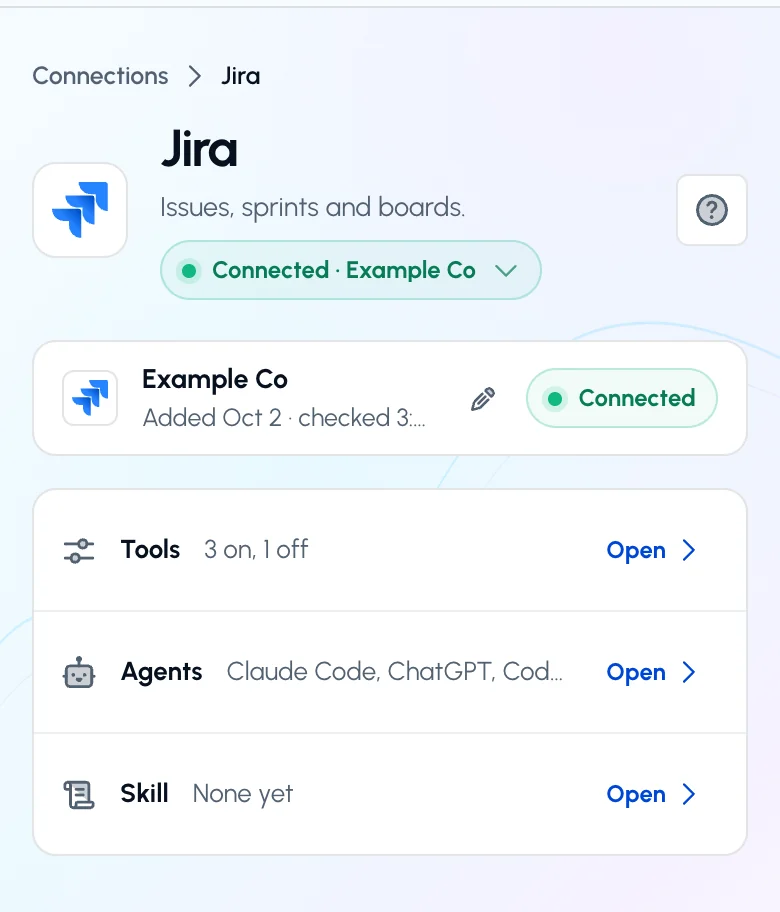
The Jira page after you connect. The status control reads Connected and the account row shows when it was last checked. Open the status control for Check again.Open full-size image (opens in a new tab)
2. Connect ApexGenius to ChatGPT
Use this server address when adding the connection:
https://server.autom8.pro/mcpThe steps are above, under Add the ApexGenius plugin to ChatGPT. These notes apply to ChatGPT only.
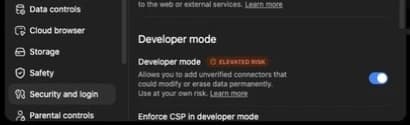
- If Add custom MCP server is missing. Account and workspace policies apply to custom MCP servers. Where ChatGPT offers Developer mode, turn it on under Settings, then Security and login. It has to be available to your account and allowed by your workspace.
- After ApexGenius adds tools. Open the connection at ChatGPT Plugins and select Refresh, then start a new conversation.
- Access. When ApexGenius asks what ChatGPT may use, choose Read only for the first test, or Custom to limit it to the tools you need.
Read the steps Follow along at your own pace
1. Enable developer mode
2. Create the plugin
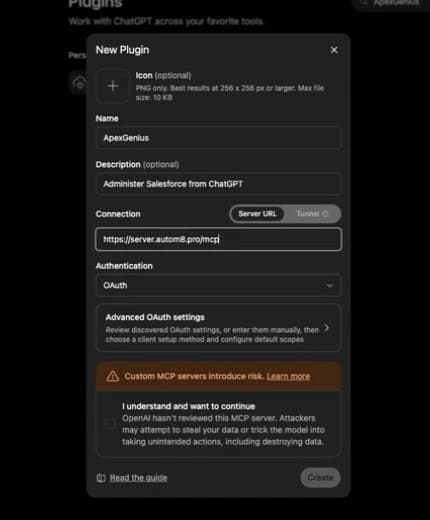
3. Find ApexGenius
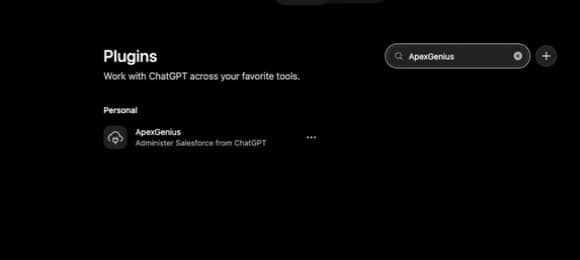
4. Review the connection
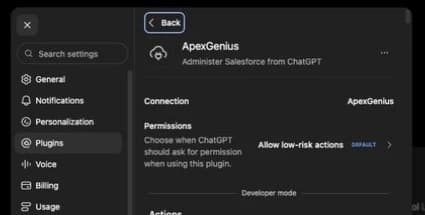
3. Verify one safe read
Find up to five Jira issues I can read. Return issue keys and links without changing anything.
Find up to five Jira issues I can read. Return issue keys and links without changing anything.Compare the returned account and resource with Jira. Check the connection status separately from the result of the first read.
Full guide: the Jira setup guide.
What it looks like in ChatGPT Work
Illustration of a task, not a recorded customer result. Your answers come from the account and dates you choose.

apex_search_toolsJira issues · Find the Jira read routeCompleteapex_call_read_tooljira_search_issues · Search issuesCompleteIllustrative example: five issues across two projects, each with its key, status and link. Compare the Jira site with the one you connected. Nothing was changed.
Read-only routeWhat to ask ChatGPT about Jira
- Find issues
Find up to five Jira issues I can read. Return issue keys and links without changing anything.
Runs
jira_search_issues(read). - Open bugs
List the open bugs in the project I name, highest priority first.
Runs
jira_get_issue_types(read), thenjira_search_issues(read). - Current sprint
Summarize the current sprint for the project I name and who owns each issue.
Runs
jira_get_sprints(read), thenjira_search_issues(read).
These 3 questions use 3 of Jira’s 24 operations. The full list is below.
- Create a task in the project I name with this summary and description. Show me the draft first. (write)
What ChatGPT can do in Jira
24 operations: 11 read, 13 write. Read looks things up and changes nothing. Writes change Jira and run only when you turn them on.
Find and read issues
6 readjira_search_issuesreadSearch issues with text or a JQL query, inside one project or across the site.
jira_get_issuereadRead one issue by its key, such as PROJ-123.
jira_list_projectsreadList the projects the connected account can see.
jira_get_issue_typesreadList the issue types a project uses, such as Task, Bug, Story or Epic.
jira_get_fieldsreadList the system and custom fields, with the IDs used for story points and components.
jira_get_transitionsreadList the status changes available on an issue right now.
Create and update issues
5 writejira_create_issuewriteCreate an issue in a project.
jira_update_issuewriteUpdate an issue: summary, description, assignee, priority or labels.
jira_update_fieldwriteSet one field on an issue by its field ID.
jira_transition_issuewriteMove an issue to another status, such as In Progress or Done.
jira_delete_issuewriteDelete an issue for good. It cannot be undone.
Comments
1 read · 3 writejira_list_commentsreadRead the comments on an issue, oldest first.
jira_add_commentwriteAdd a comment to an issue.
jira_update_commentwriteReplace the text of one comment.
jira_delete_commentwriteDelete one comment. It cannot be undone.
Sprints and people
3 read · 1 writejira_get_sprintsreadList the active and future sprints for a project, with their dates.
jira_assign_to_sprintwritePut one or more issues into a sprint.
jira_find_userreadFind a person by name or email to get the account ID used for assigning.
jira_get_current_userreadRead the connected user, for requests like assign to me.
Attachments and links
1 read · 4 writejira_list_attachmentsreadList the attachments and issue links on an issue.
jira_add_attachmentwriteAttach a file from a public https link or file content, up to 10 MB.
jira_delete_attachmentwriteDelete one attachment. It cannot be undone.
jira_link_issueswriteLink two issues with a type such as Blocks or Relates.
jira_unlink_issueswriteRemove one link between issues.
You choose the access. When you approve ChatGPT, pick Full access, Read only, or Custom.
The connected Atlassian account and its Jira permissions decide which projects and issues can be reached.
Creating, updating, moving and deleting use the access granted to that account.
Writes run immediately. Blocked hides a tool from agents.
Disconnecting stops future access. It does not undo an issue change, a comment or a deletion.
Questions about connecting ChatGPT to Jira
Updated November 12, 2026.
How do I connect ChatGPT to Jira?
Connect ChatGPT to Jira through ApexGenius in three steps. Sign in to ApexGenius and connect Jira by signing in with the Atlassian account for your Jira site. In ChatGPT, go to Plugins, select the plus button, then Add custom MCP server, and enter the ApexGenius MCP address under Connection. Then open a task in ChatGPT and ask a question about your Jira. Start with a read, so nothing changes.
How do I check that ChatGPT can use Jira?
Start a new conversation, type @ in the prompt box and select the ApexGenius plugin. If the plugin does not list a tool you expect, open the connection at ChatGPT Plugins and select Refresh. Then ask: “Find up to five Jira issues I can read. Return issue keys and links without changing anything.”
Is there a Jira MCP server for ChatGPT?
Yes. ApexGenius is an MCP server that ChatGPT connects to once. It carries your Jira connection and 24 Jira operations, so ChatGPT does not need a separate Jira integration or plugin. You set it up one time and add each agent the same way.
What can ChatGPT do in Jira once it is connected?
ChatGPT can run 24 Jira operations through ApexGenius: 11 reads that search issues with text or JQL and read issues, comments, sprints, projects and people, and 13 writes that create, update, move, comment on, link and delete issues, assign sprints and manage attachments.
Can ChatGPT read all my Jira projects?
Only the projects your connected Atlassian account can already see in Jira. ApexGenius never widens that access. Each saved connection is one Atlassian account and one Jira site, and you do not paste a Jira API token. Jira permissions of that account still apply.
Can ChatGPT change my Jira?
Not until you allow it. Choose Read only when you add ChatGPT, and write tools never reach its tool list. With writes on, it can create, update, move and comment on issues when your Jira permissions allow it. Deleting is marked destructive, so turn those tools off unless you need them.
Can I use the same Jira connection with Claude, Grok Bot or Muse?
Yes. One Jira connection in ApexGenius works with every compatible agent you add, including Claude, Grok Bot or Muse. Each agent gets its own access choice and its own short setup, so you can pick read only for one agent and more for another.
More connections like this one
ChatGPT with other apps
 Supabase
 Cal.com
 GitHub
 Stripe
 Linear
 HQ Rental
 Google Forms
 Google Tasks
All 48 apps ChatGPT can use
 Google Calendar
 Google Sheets
 Calendly
 ClickUp
 monday.com
 ElevenLabs
 FreshBooks
 Trello
 GitLab
 Mobbin
 Slack
 Discord
- ChatGPT Ads
 Context.dev
 Attio
 Semrush
 Notion
 Apify
 Google Ads
 Google Analytics
 Google Meet
 Gmail
 Google Chat
 Google Docs
 Google Drive
 Google Slides
 Apollo
 Blotato
 Bing Webmaster
 Atlassian Rovo
 Polymarket
 OP.GG
 YouTube
- YouTube Analytics
 Salesforce
 n8n
 Confluence
 Google Search Console
 TypeSafe
 HubSpot
Other agents with Jira
 Claude
 Grok Bot
 Muse
Connect Jira to ChatGPT today
Start free1,000 free credits. No card required. Disconnect any time.