

Connect Codex to ChatGPT Ads
Connect Codex to ChatGPT Ads through ApexGenius. Read spend, clicks and conversions by campaign, and pause or resume campaigns with approval in your connected ad account. Start in Plugins in the ChatGPT desktop app and authorize your connection.
7 days free · No card required
How to connect ChatGPT Ads to Codex
Before you start
- A ChatGPT Ads Manager account with access to the ad account you want to connect.
- An Ads API key created in Ads Manager under Settings. Each key covers one ad account, and it is not the Conversions API key used by a website pixel.
1. Connect ChatGPT Ads to ApexGenius
- Create an Ads API key in Ads Manager. In ChatGPT Ads Manager open Settings, then General. Under API Keys choose Create New Key, name it, and copy the key once. It is the Ads Management key, not a conversion key.
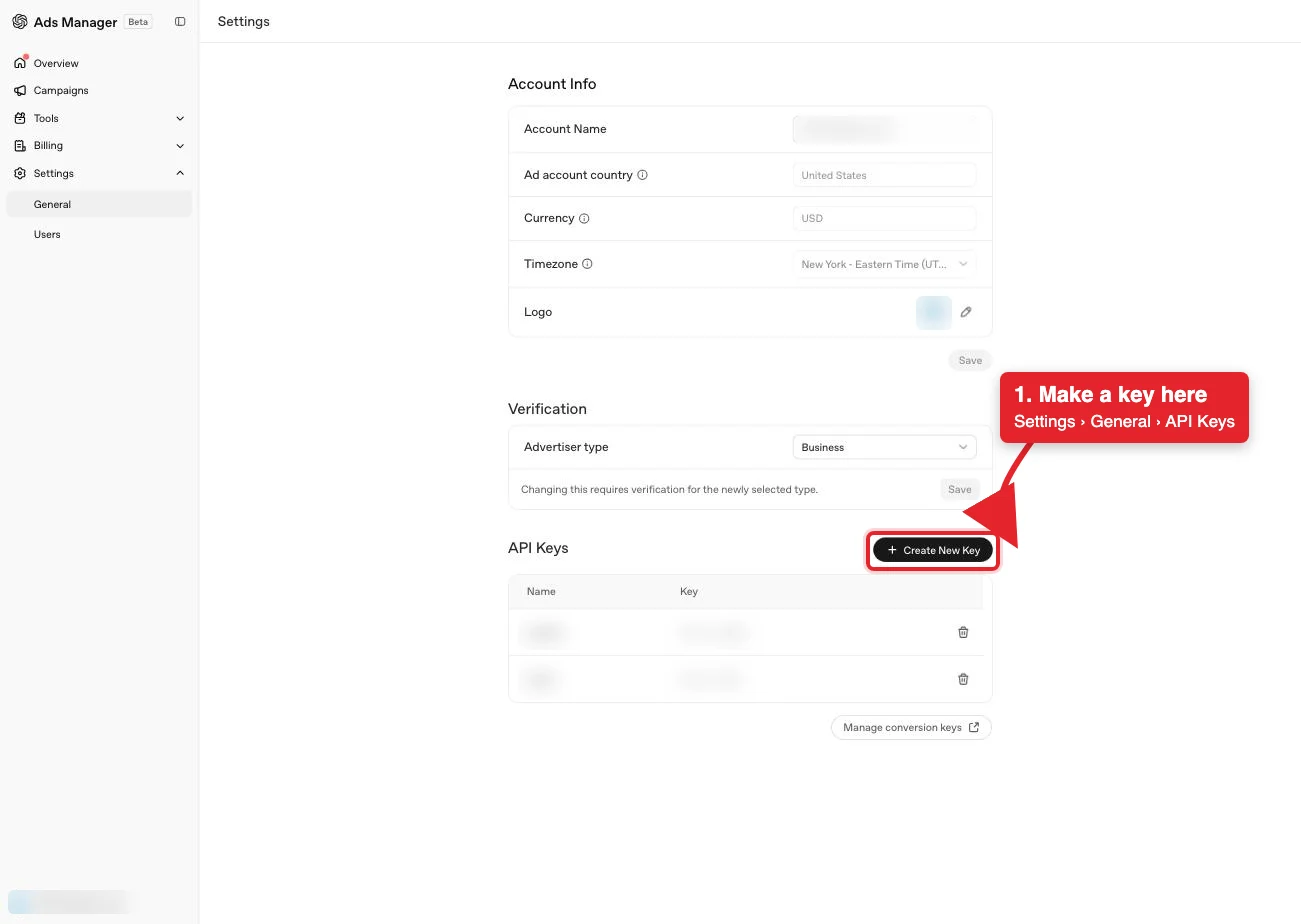
Settings, then General. Create New Key, marked in red, mints an Ads Management key for this ad account. Account details are blurred in this capture.Open full-size image (opens in a new tab) 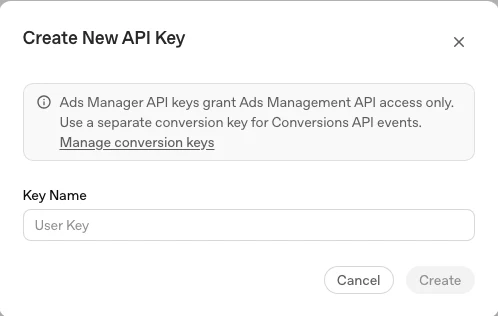
Name the key and choose Create. Copy it once; Ads Manager shows it masked afterwards. Conversion keys are managed separately.Open full-size image (opens in a new tab) - Open ChatGPT Ads in Connections. Sign in to ApexGenius, open Connections, choose ChatGPT Ads, and select Connect.
- Enter the Ads API key. Paste the key from Ads Manager Settings. ApexGenius supplies the api.ads.openai.com address, checks the key against the ad account, and stores it encrypted.
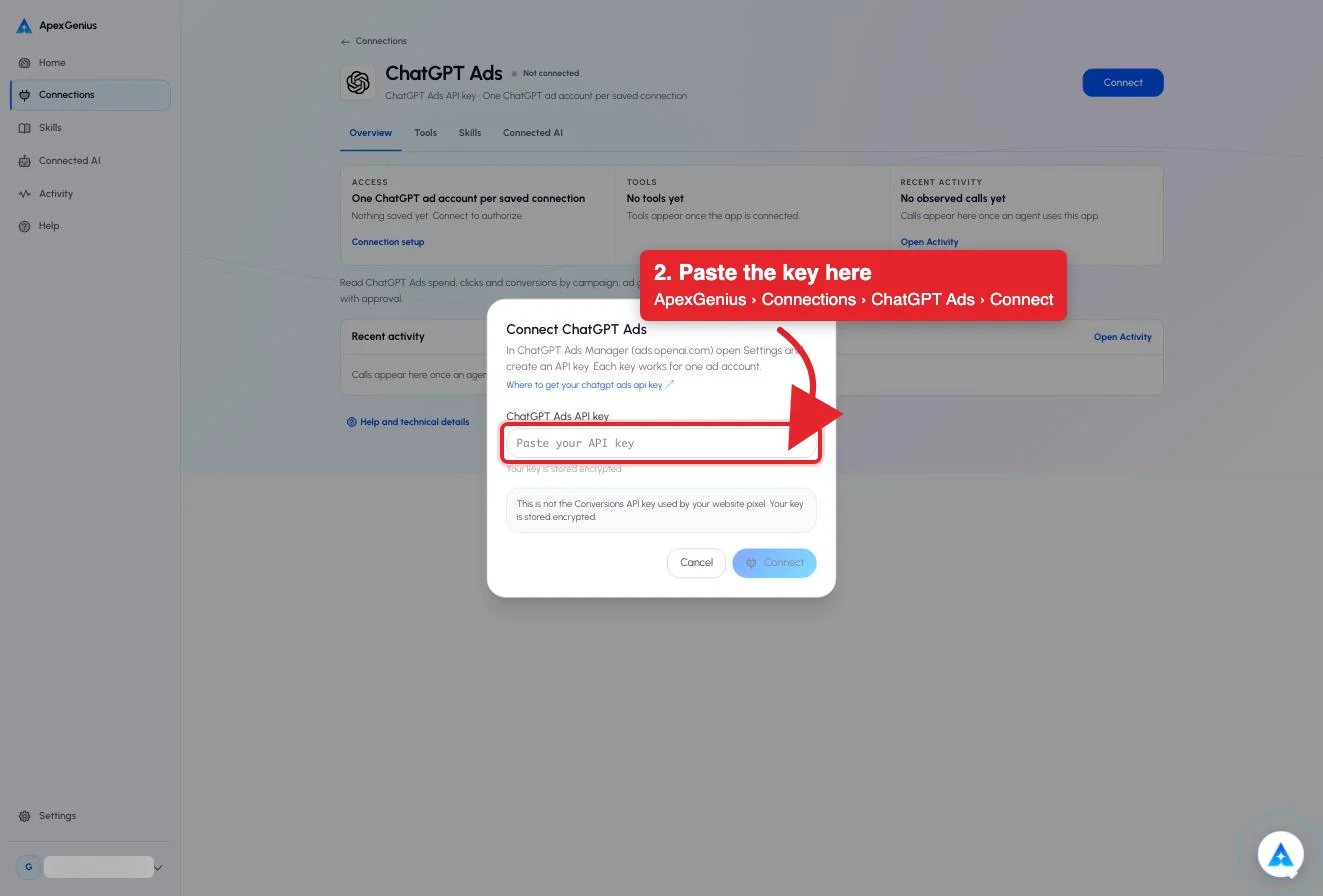
Paste the Ads API key into the field marked in red. It is not the Conversions API key used by your website pixel.Open full-size image (opens in a new tab) - Review the tools. Open Tools. Reads cover the account, campaigns, ad groups, ads and daily insights. Pause and activate always ask for approval, and activating starts spend.
- Verify the connected ad account. Use Test connection, then ask your AI the question below. Compare the account name and currency with Ads Manager and check Tool Activity.
2. Add ApexGenius to Codex
- In the desktop app, open Settings, then MCP servers and Add server.
- Name the server ApexGenius, choose Streamable HTTP, and paste the MCP address above.
- Save, then select Restart. Choose Authenticate for ApexGenius and complete the browser sign-in.
- When ApexGenius asks what this AI client may use, choose Read only for the first test, or Custom to limit it to the tools you need.
- Start a new conversation and select ApexGenius from the available tools before asking for live data.
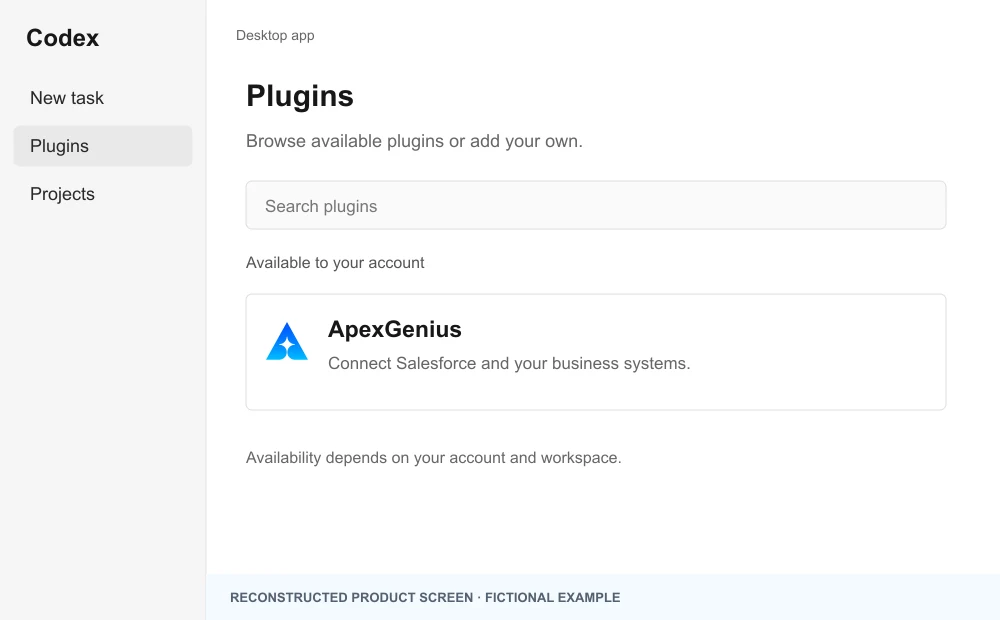
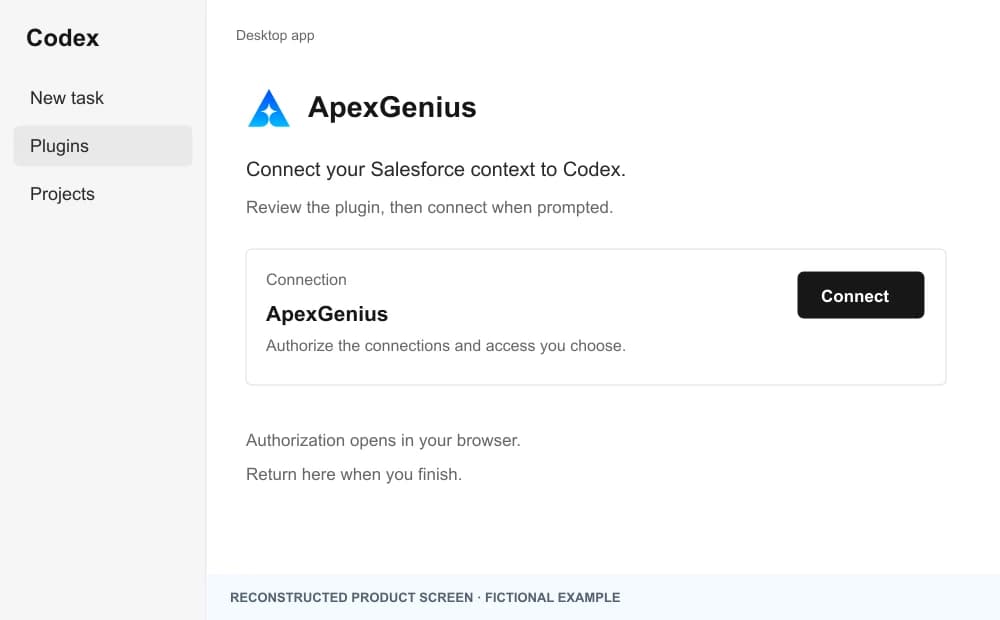
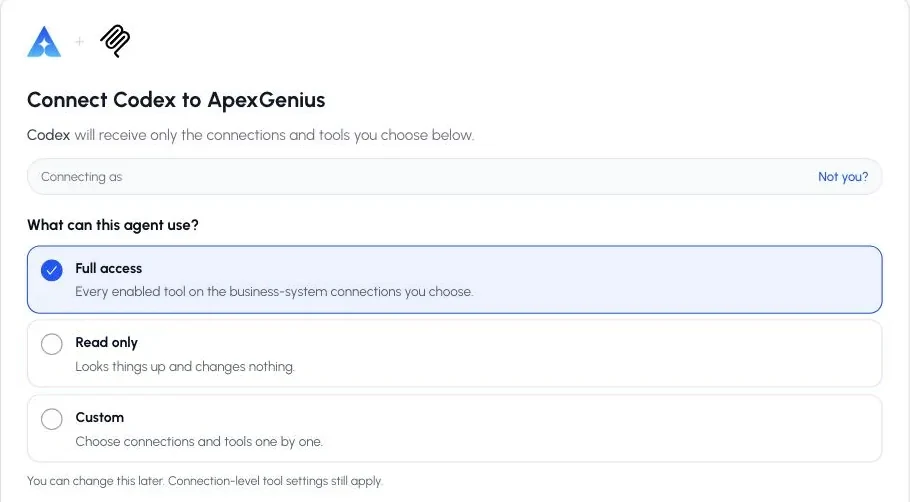
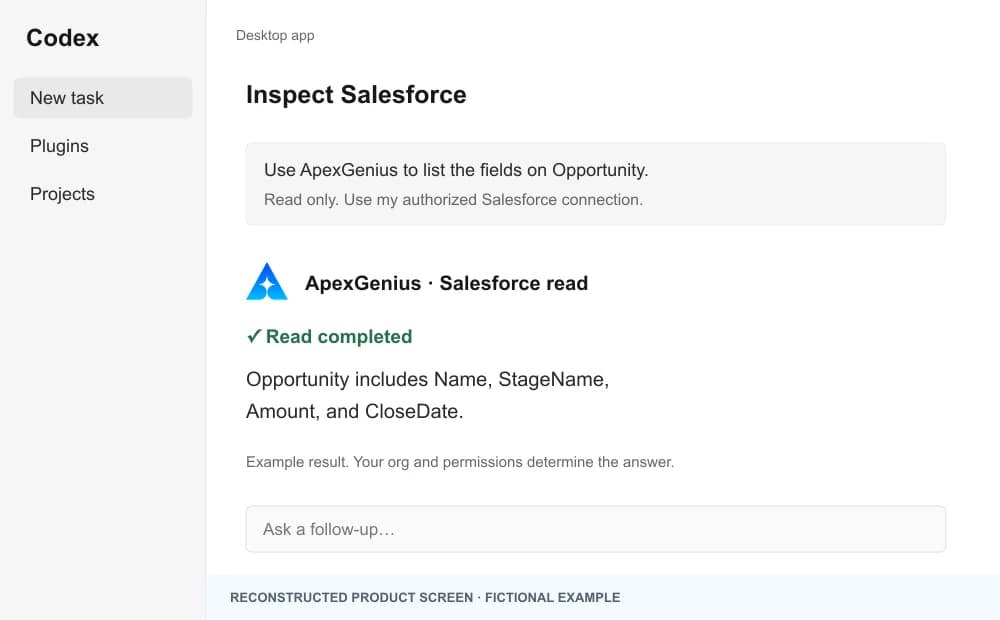
The walkthrough uses the original ChatGPT web plugin captures. After connecting, open Codex in the desktop app and start a new task with ApexGenius. A ChatGPT web connection does not verify Codex access.
A public ApexGenius plugin listing is not verified. Use a plugin shared with you or one you created, subject to your account and workspace policy.
Create a personal plugin
Where Developer mode is available, open ChatGPT Settings, then Security and login, and enable it. In Plugins, select the plus button, enter ApexGenius and a description, then add this URL under Connection. Create the connection, complete OAuth, and review the tools. Return to Codex in the desktop app and start a new task with the plugin enabled.
https://server.autom8.pro/mcpNo plugin available? Use desktop settings
- In the ChatGPT desktop app, open Settings, then MCP servers, then Add server.
- Name the server ApexGenius, choose Streamable HTTP, and paste the MCP address below.
- Save, select Restart, then Authenticate. Sign in to ApexGenius and authorize the intended connections and access.
- Start a new Codex task and ask one read-only question. Check the returned result and its matching successful read in Activity.
https://server.autom8.pro/mcpManual setup for developers
Codex CLI is optional. Run these commands, complete browser authorization, then start a new session. Do not paste bearer tokens or static authorization headers.
Register the remote MCP server
codex mcp add apexgenius --url https://server.autom8.pro/mcpAuthorize in your browser
codex mcp login apexgeniusInspect registered servers
codex mcp listThe desktop app, CLI, and IDE extension share MCP configuration on the same host. The IDE extension does not install plugins. ChatGPT web does not read local Codex configuration.
3. Verify one safe read
List my ChatGPT Ads campaigns with status and daily budget, and name the connected ad account and currency. Do not pause or activate anything.
List my ChatGPT Ads campaigns with status and daily budget, and name the connected ad account and currency. Do not pause or activate anything.Confirm the account and campaign list match Ads Manager. Listing campaigns changes nothing and spends nothing; it does not test pause or activate.
Additional reference: the ChatGPT Ads setup guide.
Start freeWhat it looks like in Codex
An illustrative read-only request and response. Your results come from the account and dates you choose.


apex_call_read_toolsalesforce_read · Find matching recordsCompleteapex_call_read_toolsalesforce_read · Read related activityComplete
apex_call_read_tooln8n_get_workflow · Check workflow statusCompleteThree safe example reads returned results. Nothing was changed.
Read-only routeWhat you can ask once it is connected
“Name the connected ChatGPT ad account, its currency and time zone.”
“List my ChatGPT Ads campaigns with status and daily budget. Do not change anything.”
“Show spend, clicks and conversions per campaign for the last seven complete days.”
“Pause the campaign I name. Show me the campaign and its daily budget, then wait for my approval.”
You choose what Codex is allowed to touch
Choose the saved accounts and tools this Codex connection may use. Its authorization carries that scope, and each app connection’s tool and resource restrictions still apply.
- Full accessEvery enabled tool on the connections you choose.
- Read onlyLooks things up, changes nothing.
- CustomPick apps and tools one by one.
- · An Ads API key is scoped to one ad account. Connect again for a second account.
- · Reads never change anything. Pause and activate are the only writes, both require ApexGenius approval, and activating starts spend at the campaign budget.
- · Archive, budget changes, spend limits, key creation and image uploads are not exposed. Image changes happen in Ads Manager.
- · Disconnecting stops future gateway access. It does not undo a pause or activate that already ran.
The ChatGPT Ads operations Codex can run
15 operations: 13 Read and 2 Write. Available tools depend on your connection and permissions. Review any action that changes or removes data. Codex discovers these operations through the ApexGenius gateway.
get_ad_accountReadRead the connected ad account: name, id, currency, time zone and review status.list_ad_accountsReadList the ad accounts visible to this key. A key covers one account.list_campaignsReadList campaigns with status, objective and daily budget.get_campaignReadRead one campaign, including targeting and landing-page template.get_campaign_insightsReadSpend, impressions, clicks and conversions for one campaign by day.list_ad_groupsReadList ad groups with their context hints and bids.get_ad_groupReadRead one ad group.get_ad_group_insightsReadDaily results for one ad group.list_adsReadList ads with creative title, body, link and review status.get_adReadRead one ad.get_ad_insightsReadDaily results for one ad.get_account_insightsReadAccount insights by day, grouped by campaign, ad group or ad, with the fields you choose.list_conversion_event_settingsReadList the conversion events attached to campaigns. Only attached events count as conversions.pause_campaignWritePause a campaign. Stops spend until it is activated again.activate_campaignWriteActivate a campaign. Starts spend at its daily budget until someone pauses it.
Questions people ask first
How do I connect ChatGPT Ads?
Create an Ads API key in ChatGPT Ads Manager under Settings, open ChatGPT Ads in ApexGenius Connections, and paste it. ApexGenius checks it against the ad account before saving it encrypted.
Can my AI read spend and conversions?
Yes. Daily insights return spend, impressions, clicks and conversions by campaign, ad group or ad. Conversions count only the events attached to a campaign in Ads Manager.
Can my AI turn a campaign on or off?
It can request a pause or activate. Both wait for your approval in ApexGenius, and activating starts spend until someone pauses the campaign again.
Can it create ads or change budgets?
No. Creating campaigns or ads, editing budgets, spend limits, archiving and image uploads are not exposed through ApexGenius. Use Ads Manager for those.
Is this the same key as my website pixel?
No. The Conversions API key belongs to your site. The Ads API key is created separately in Ads Manager Settings and covers one ad account.
Connect ChatGPT Ads to Codex today
Start free7 days free. No card required. Disconnect any time.