Issues
list_issuesFind issues by team, assignee, project, label, status, priority or cycle.

Linear MCP connector
Linear OAuth · Available
Connect a Linear workspace once in ApexGenius, then find issues, read projects, cycles and status updates, and create or update issues and comments from compatible AI agents. Each AI agent needs its own ApexGenius setup.
7 days free · No card required
Linear
App connector
Bring your Linear workspace and reusable skills to compatible AI agents. Find and read issues, projects and cycles, then create or update work.
Reviewed Sep 23, 2026


Claude / ChatGPT
MCP client
ApexGenius route
Gateway context
Linear
Authorized session
Why the gateway is here
It keeps the Linear authorization, tools, and activity behind the same managed route you use for your other supported systems.
Ask it
These questions use the Linear tools below. Start with a read after connecting your channel or account.
Tools
The reviewed catalog contains these 11 Linear tools. Search by tool name, job, or access type.
Open the generated tool referenceIssues
list_issuesFind issues by team, assignee, project, label, status, priority or cycle.
Issues
get_issueRead one issue with its details.
Issues
save_issueCreate an issue or update one: title, team, assignee, project, labels, priority, status.
Projects
list_projectsBrowse projects in the workspace.
Projects
get_projectRead one project, including milestones and members.
Projects
get_status_updatesRead the latest status updates on a project or initiative.
Cycles
list_cyclesList a team’s cycles.
Comments
list_commentsRead the comments on an issue.
Comments
save_commentPost a comment or edit one.
Teams and people
list_teamsList the teams in the workspace.
Teams and people
list_usersLook up people to find an assignee, lead or owner.
Connection model
The Linear connection belongs to your signed-in account. Any Linear-native resources stay inside that provider.
Read connection details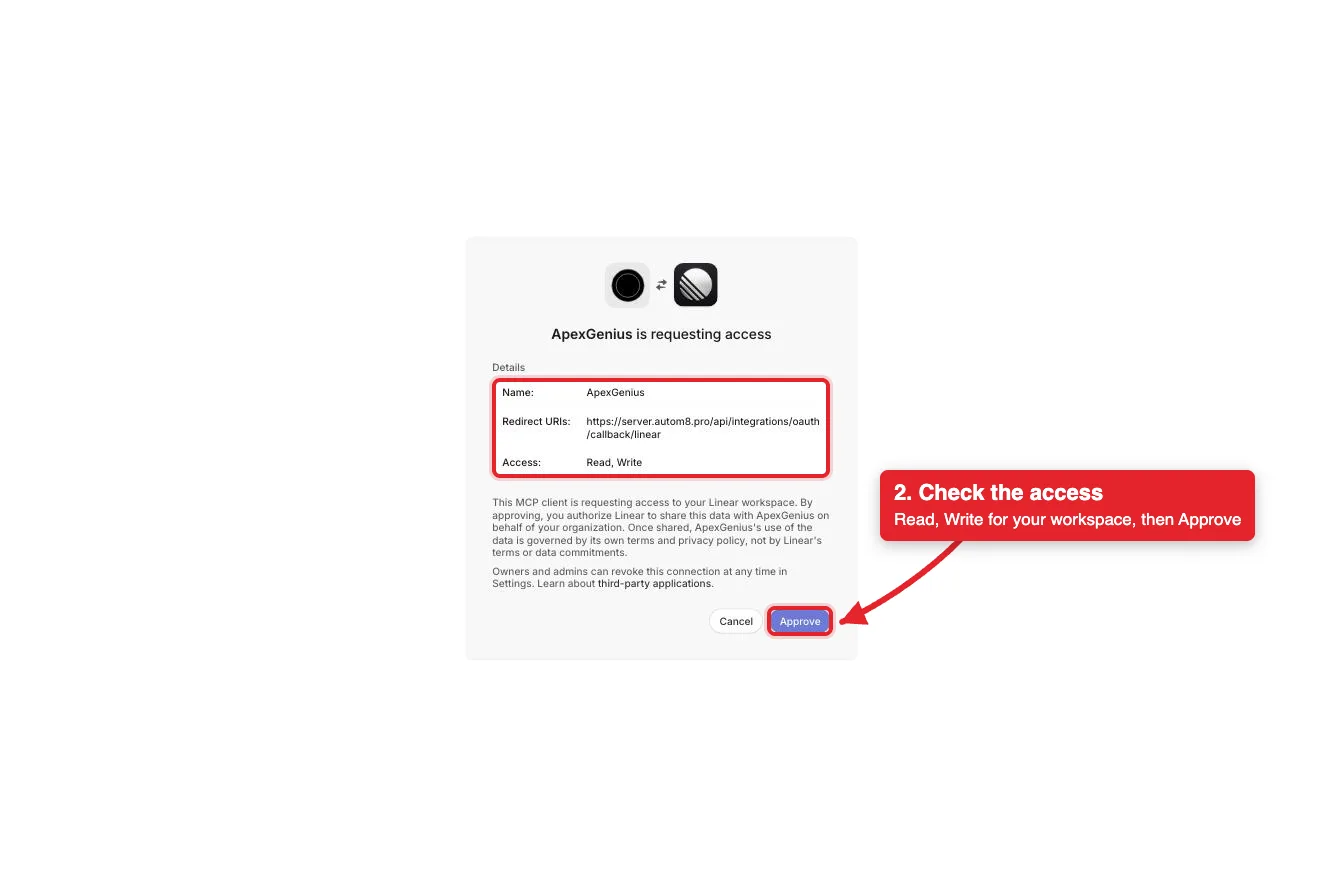
Each guide includes the AI setup and a first question for Linear.
Current governance
ApexGenius keeps the selected context and current tool surface visible, then records supported write activity for review.
Authorized context
One connection covers one Linear workspace. Connect again for another workspace.
Current tool surface
Your Linear permissions set what the connection can reach. ApexGenius tool controls do not add Linear permissions.
Reviewable activity
The read route checks Linear’s live read-only label and rejects writes.
Writes run right away. If the owner set a tool to Ask me first (approval mode always), the call returns approval_required; a person approves it in ApexGenius and you retry with the returned approval_request_id.
Why a gateway
Your AI starts with three ApexGenius gateway tools. It discovers the Linear operations available to its authorization when a task needs them, then runs the selected operation through the gateway.
Connect Linear to ApexGenius, then authorize each AI client to use the saved connection with its own tool permissions.
Give one client read-only and the write operations never appear in its tool list at all.
Which agent asked, what ran, and whether it succeeded, kept per connection for review.
Choose your AI client for setup steps and examples using Linear.
FAQ
More connectors
MCP-compatible AI agents


Codex starts in Plugins in the ChatGPT desktop app. ChatGPT Chat and Work also use Plugins, with personal setup where Developer Mode is permitted. Each AI client has its own guide and authorization requirements.
App connections



Salesforce keeps connection context. Other providers use your signed-in account.
Use the AI you already work in while ApexGenius keeps the app route visible.
Connect Linear7 days free · No card required
Compatibility does not imply partnership.


