Account and teams
get_meRead the GitHub account the token belongs to.

GitHub MCP connector
GitHub token · Available
Connect GitHub once in ApexGenius with a personal access token, then read repositories, files, code search, commits, releases, issues and pull requests from compatible AI agents. The connection is read-only, so nothing in GitHub changes. Each AI agent needs its own ApexGenius setup.
7 days free · No card required
GitHub
App connector
Bring your GitHub repositories and the GitHub skill to compatible AI agents. Read code, issues and pull requests. The connection is read-only.
Reviewed Sep 23, 2026


Claude / ChatGPT
MCP client
ApexGenius route
Gateway context
GitHub
Authorized session
Why the gateway is here
It keeps the GitHub authorization, tools, and activity behind the same managed route you use for your other supported systems.
Ask it
These questions use the GitHub tools below. Start with a read after connecting your channel or account.
Tools
The reviewed catalog contains these 26 GitHub tools. Search by tool name, job, or access type.
Open the generated tool referenceAccount and teams
get_meRead the GitHub account the token belongs to.
Account and teams
get_teamsList the teams you belong to in organizations the token can see.
Account and teams
get_team_membersList the members of one organization team.
Repositories and code
search_repositoriesFind repositories by name, description, topic or owner.
Repositories and code
get_file_contentsRead a file or list a folder on any branch, tag or commit.
Repositories and code
search_codeSearch code across GitHub with GitHub code search.
Repositories and code
list_repository_collaboratorsList the collaborators on a repository.
Commits, branches and tags
list_commitsList commits on a branch.
Commits, branches and tags
get_commitRead one commit with its changed files, and the diff when asked.
Commits, branches and tags
search_commitsSearch commits by message, author or date.
Commits, branches and tags
list_branchesList the branches in a repository.
Commits, branches and tags
list_tagsList the tags in a repository.
Commits, branches and tags
get_tagRead one tag.
Releases
list_releasesList the releases in a repository.
Releases
get_latest_releaseRead the latest release.
Releases
get_release_by_tagRead the release for one tag.
Issues
list_issuesList issues in a repository, filtered by state or label.
Issues
issue_readRead one issue with its comments, labels, parent or sub-issues.
Issues
search_issuesSearch issues by meaning, such as a bug described in your own words.
Issues
get_labelRead one label in a repository.
Issues
list_issue_typesList the issue types a repository or organization supports.
Issues
list_issue_fieldsList the issue fields defined for a repository or organization.
Pull requests
list_pull_requestsList pull requests in a repository.
Pull requests
pull_request_readRead one pull request with its diff, files, commits, reviews, comments or check runs.
Pull requests
search_pull_requestsSearch pull requests across repositories.
People
search_usersFind GitHub users by username or name.
Connection model
The GitHub connection belongs to your signed-in account. Any GitHub-native resources stay inside that provider.
Read connection details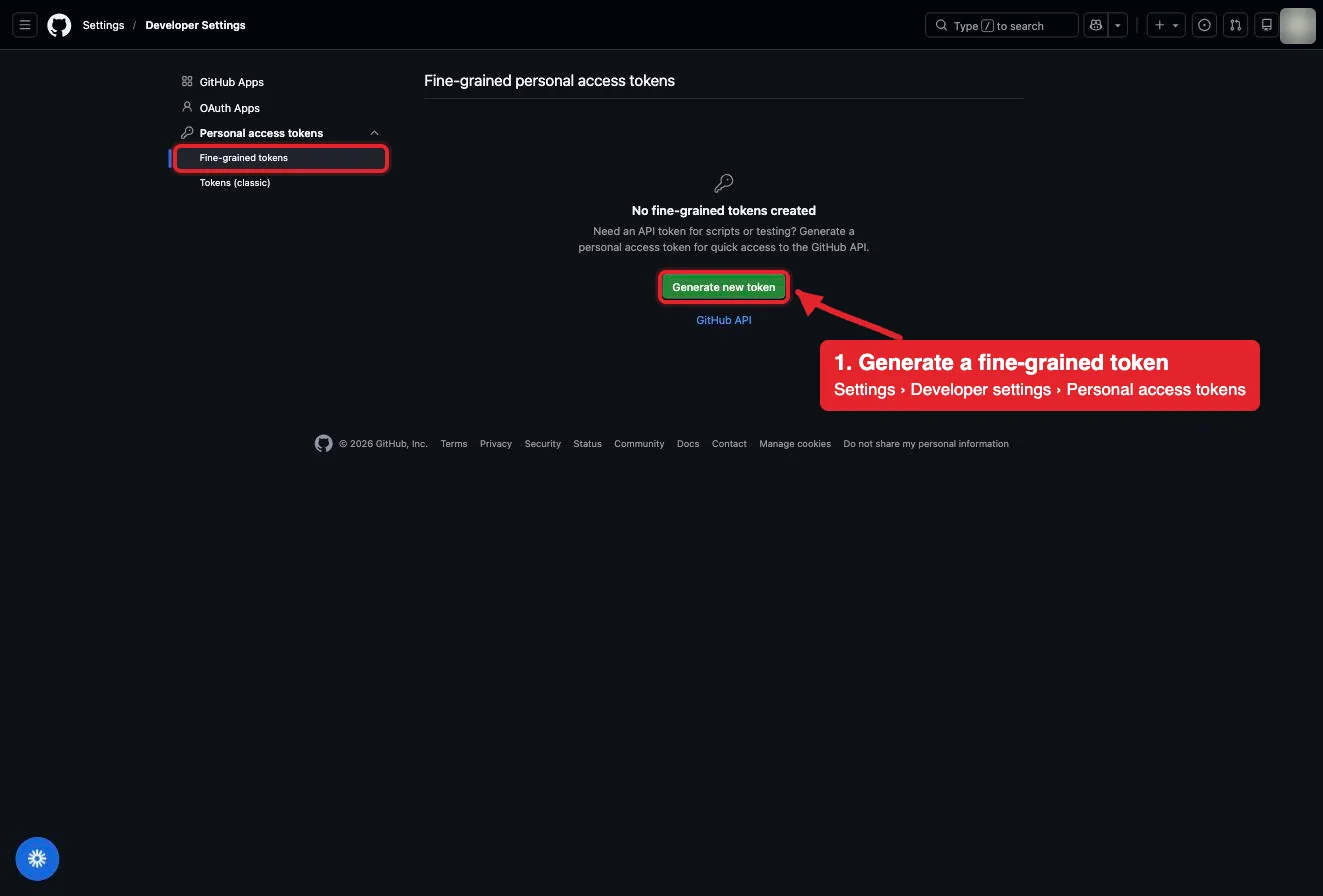
Each guide includes the AI setup and a first question for GitHub.
Current governance
ApexGenius keeps the selected context and current tool surface visible, then records supported write activity for review.
Authorized context
GitHub checks the token on every call. Your AI sees only the repositories and data the token can read.
Current tool surface
ApexGenius sends GitHub’s read-only header, so write tools such as creating issues, commenting, merging or pushing are not listed and cannot run.
Reviewable activity
An organization can require approval for fine-grained tokens, or block classic tokens, before they reach its repositories.
Disconnecting removes the token from ApexGenius. Delete it on GitHub to stop it everywhere.
Why a gateway
Your AI starts with three ApexGenius gateway tools. It discovers the GitHub operations available to its authorization when a task needs them, then runs the selected operation through the gateway.
Connect GitHub to ApexGenius, then authorize each AI client to use the saved connection with its own tool permissions.
Give one client read-only and the write operations never appear in its tool list at all.
Which agent asked, what ran, and whether it succeeded, kept per connection for review.
Choose your AI client for setup steps and examples using GitHub.
FAQ
More connectors
MCP-compatible AI agents


Codex starts in Plugins in the ChatGPT desktop app. ChatGPT Chat and Work also use Plugins, with personal setup where Developer Mode is permitted. Each AI client has its own guide and authorization requirements.
App connections



Salesforce keeps connection context. Other providers use your signed-in account.
Use the AI you already work in while ApexGenius keeps the app route visible.
Connect GitHub7 days free · No card required
Compatibility does not imply partnership.


