


Connect Grok Bot to GitHub
Connect Grok Bot to GitHub in 3 steps: 1. Sign in to ApexGenius and connect GitHub. 2. Add the ApexGenius plugin. 3. Start using GitHub in Grok Bot.
7 days free · No card required
How to connect GitHub to Grok Bot
- 1Sign in to ApexGenius and connect GitHub
- 2Add the ApexGenius plugin to Grok Bot
- 3Start using GitHub in Grok Bot
FirstConnect GitHub to ApexGenius
ThenConnect ApexGenius to Grok Bot
GitHubgithub.com/settings/personal-access-tokens1 of 3Connect GitHub. Create a read-only token in GitHub. You paste it into ApexGenius once.
Then ask Grok Bot:
Using GitHub, tell me which GitHub account is connected, then read the README of the repository I name. Do not change anything.
Written setup, step by stepShow
Before you start
- A GitHub account that can read the repositories you want your AI to use.
- A personal access token. A fine-grained token is best: choose the repositories and set Contents, Issues and Pull requests to Read-only, or to Read and write if you plan to turn on writes. A classic token with the repo scope also works for reads.
1. Connect GitHub to ApexGenius
- Create a token on GitHub. Open github.com/settings/personal-access-tokens and generate a fine-grained token. Pick the owner and only the repositories you need. Set Contents, Issues and Pull requests to Read-only, or to Read and write for repositories your AI may change. Copy the token once. The connect form links to a pre-filled token page for each choice.
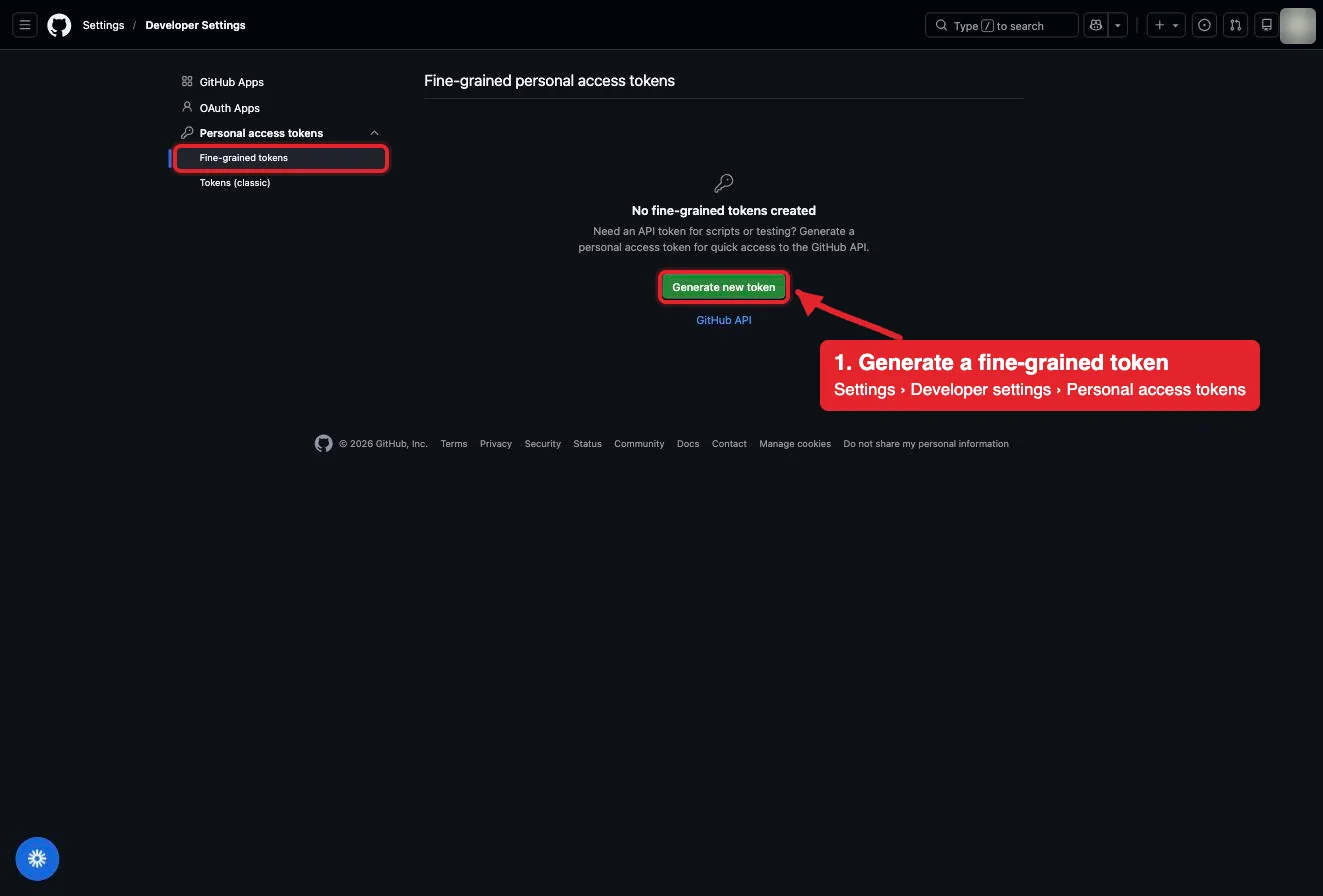
Settings, Developer settings, Personal access tokens, Fine-grained tokens. Generate new token starts one. The account avatar is blurred in this capture.Open full-size image (opens in a new tab) - Open GitHub in Connections. Sign in to ApexGenius, open Connections, choose GitHub, and select Connect.
- Paste the token. Paste the token into the connection form. ApexGenius supplies the GitHub MCP address, checks the token with GitHub, and stores it encrypted. Never paste the token into a chat.
- Check the connected account. Open Tools to see the read tools GitHub lists for your token, then ask your AI the question below. Compare the login with your GitHub account.
2. Connect ApexGenius to Grok Bot
Use this server address when adding the connection:
https://server.autom8.pro/mcp- Grok Bot signs in with your Cursor account. Connect ApexGenius from Settings, then Plugins, and authorize in the browser. If you are on a Cursor team, its MCP policy decides whether the server can be added.
- When ApexGenius asks what this AI client may use, choose Read only for the first test, or Custom to limit it to the tools you need.
- Start a new conversation and select ApexGenius from the available tools before asking for live data.
3. Verify one safe read
Using GitHub, tell me which GitHub account is connected, then read the README of the repository I name. Do not change anything.
Using GitHub, tell me which GitHub account is connected, then read the README of the repository I name. Do not change anything.Confirm the login matches your GitHub account and the README matches the repository on github.com. If the README is missing, check that the token includes that repository. New connections are read-only, so this check changes nothing. To let your AI open issues or pull requests, open Settings on the connection, pick the repositories, and switch to Read and write.
What Grok Bot can do in GitHub
39 operations. Read looks things up and changes nothing. Write changes GitHub and runs only when that tool is enabled.
Read26 operations
Looks things up. Changes nothing.Account and teams
get_meRead the GitHub account the token belongs to.get_teamsList the teams you belong to in organizations the token can see.get_team_membersList the members of one organization team.
Repositories and code
search_repositoriesFind repositories by name, description, topic or owner.get_file_contentsRead a file or list a folder on any branch, tag or commit.search_codeSearch code across GitHub with GitHub code search.list_repository_collaboratorsList the collaborators on a repository.
Commits, branches and tags
list_commitsList commits on a branch.get_commitRead one commit with its changed files, and the diff when asked.search_commitsSearch commits by message, author or date.list_branchesList the branches in a repository.list_tagsList the tags in a repository.get_tagRead one tag.
Releases
list_releasesList the releases in a repository.get_latest_releaseRead the latest release.get_release_by_tagRead the release for one tag.
Issues
list_issuesList issues in a repository, filtered by state or label.issue_readRead one issue with its comments, labels, parent or sub-issues.search_issuesSearch issues by meaning, such as a bug described in your own words.get_labelRead one label in a repository.list_issue_typesList the issue types a repository or organization supports.list_issue_fieldsList the issue fields defined for a repository or organization.
Pull requests
list_pull_requestsList pull requests in a repository.pull_request_readRead one pull request with its diff, files, commits, reviews, comments or check runs.search_pull_requestsSearch pull requests across repositories.
People
search_usersFind GitHub users by username or name.
Write13 operations
Changes GitHub. Runs only when enabled.Issue writes
issue_writeCreate, update, close or reopen an issue.add_issue_commentComment on an issue or pull request.update_issue_commentEdit one existing comment.sub_issue_writeAdd, remove or reorder sub-issues under a parent issue.
Branch and file writes
create_branchCreate a branch from an existing one.create_or_update_fileCreate or update one file on a branch with a commit message.push_filesCommit several files to a branch in one push.
Pull request writes
create_pull_requestOpen a pull request between two branches.update_pull_requestChange a pull request’s title, body, base, reviewers or draft state.update_pull_request_branchUpdate a pull request branch with the latest base branch.pull_request_review_writeCreate, submit or delete a pull request review.add_comment_to_pending_reviewAdd a line comment to a pending review.add_reply_to_pull_request_commentReply to a review comment thread.
You choose what Grok Bot can use
When you approve Grok Bot, pick Full access, Read only, or Custom. Read only allows the Read operations and nothing else. Custom picks apps and tools one by one.
Limits in GitHub
- · GitHub checks the token on every call. Your AI sees only the repositories and data the token can read.
- · Connections start read-only: ApexGenius sends GitHub’s read-only header, so write tools are not listed and cannot run. Under Settings you can switch one connection to read and write for the repositories you name; reads and writes then stay inside that list.
- · Merging pull requests, deleting files, and creating, deleting or forking repositories are refused on every connection, whatever the token allows. Every write is audited and runs when called.
- · An organization can require approval for fine-grained tokens, or block classic tokens, before they reach its repositories.
- · Disconnecting removes the token from ApexGenius. Delete it on GitHub to stop it everywhere.
What it looks like in Grok Bot
An illustrative read-only request and response. Your results come from the account and dates you choose.
apex_search_toolsGitHub account · Find GitHub readsCompleteapex_call_read_toolget_me · Read the connected accountCompleteIllustrative example: the token belongs to the login octo-dev. Compare it with the GitHub account you meant to connect before reading a repository.
Read-only routeTry asking
“Which GitHub account is connected? Do not change anything.”
“Summarize the open pull requests in the repository I name, with author, age and review status.”
“Read the config file I name on the main branch and explain what it sets.”
“List the bug issues opened in the last 30 days in the repository I name.”
Questions people ask first
How do I connect GitHub?
Create a personal access token on GitHub, open GitHub in ApexGenius Connections, and paste it. ApexGenius checks the token with GitHub before saving it encrypted.
Which token should I create?
A fine-grained token is best. Choose only the repositories you want, then set Contents, Issues and Pull requests to Read-only, or to Read and write for repositories you will let your AI change. GitHub adds Metadata on its own. A classic token with the repo scope also works, and it is the only kind GitHub lets write to a repository where you are just a collaborator; the repository list in ApexGenius still bounds it.
Can it change my repos?
Not until you say so. Connections start read-only. Under Settings, switch a connection to read and write and name the repositories; then your AI can open issues, comment, push branches and open pull requests there, and nowhere else. Merging, deleting, forking and creating repositories are always refused. Make those changes on GitHub.
How do I limit writes to certain repositories?
List them on the connection page, one owner/name per line, before switching to read and write. ApexGenius refuses any call outside that list and adds repo filters to searches. Your fine-grained token can name the same repositories, so GitHub enforces the boundary too.
Can it read private repositories?
Yes, the ones your token includes. A fine-grained token reaches only the repositories you picked. Public repositories are readable with any token.
What happens when my token expires?
GitHub stops accepting it and reads fail. Create a new token on GitHub and paste it on the GitHub connection page in ApexGenius.
Can I take this setup to another AI agent?
Yes. Add ApexGenius to another compatible agent with the same ApexGenius account. It can use the same GitHub connection and load the GitHub skill. Each agent needs its own setup.
Connect GitHub to Grok Bot today
Start free7 days free. No card required. Disconnect any time.