


Connect Grok Bot to ClickUp
Connect Grok Bot to ClickUp in 3 steps: 1. Sign in to ApexGenius and connect ClickUp. 2. Add the ApexGenius plugin. 3. Start using ClickUp in Grok Bot.
7 days free · No card required
How to connect ClickUp to Grok Bot
- 1Sign in to ApexGenius and connect ClickUp
- 2Add the ApexGenius plugin to Grok Bot
- 3Start using ClickUp in Grok Bot
FirstConnect ClickUp to ApexGenius
ThenConnect ApexGenius to Grok Bot
ClickUpmcp.clickup.com/oauth/authorize1 of 3Connect ClickUp. ClickUp opens its own sign-in. Sign in and allow ApexGenius.
Then ask Grok Bot:
Show the spaces, folders and lists in my connected ClickUp workspace. Do not create or change anything.
Written setup, step by stepShow
Before you start
- An account with permission to use the ClickUp resources you intend to connect.
1. Connect ClickUp to ApexGenius
- Open ClickUp in Connections. Choose Connect, or Add connection when offered. Give the connection a name if prompted. If Gateway setup pending appears, contact ApexGenius support before continuing.
- Choose the account and review access. Sign in to ClickUp in the browser and choose the workspace to allow if ClickUp asks. ClickUp uses browser authorization; no API key is pasted into ApexGenius.
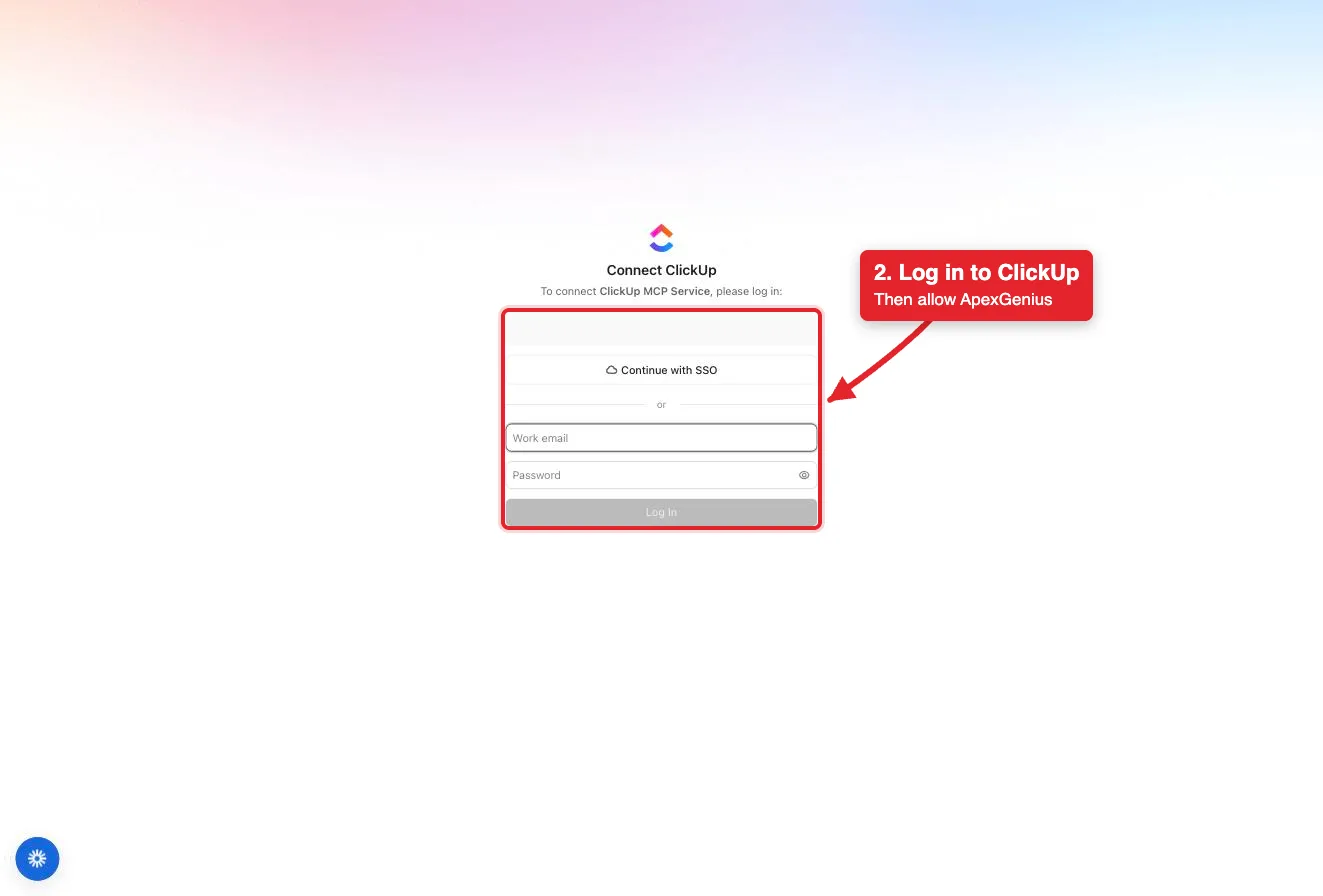
Connect opens ClickUp's login for the ClickUp MCP Service. Log in with SSO or your work email, then allow ApexGenius.Open full-size image (opens in a new tab) - Review the connected account and resources. Confirm the connected ClickUp account and workspace. Open Tools to review the task, list, doc, chat and time tools. ClickUp limits MCP calls per day by plan.
- Check the connection. Use Test connection or Check again and read the reported status. Add an AI agent from the AI agents page, choose Read only for the first test, and try the question below.
2. Connect ApexGenius to Grok Bot
Use this server address when adding the connection:
https://server.autom8.pro/mcp- Grok Bot signs in with your Cursor account. Connect ApexGenius from Settings, then Plugins, and authorize in the browser. If you are on a Cursor team, its MCP policy decides whether the server can be added.
- When ApexGenius asks what this AI client may use, choose Read only for the first test, or Custom to limit it to the tools you need.
- Start a new conversation and select ApexGenius from the available tools before asking for live data.
3. Verify one safe read
Show the spaces, folders and lists in my connected ClickUp workspace. Do not create or change anything.
Show the spaces, folders and lists in my connected ClickUp workspace. Do not create or change anything.Compare the returned account and resource with ClickUp. Check the connection status separately from the result of the first read.
What Grok Bot can do in ClickUp
48 operations. Read looks things up and changes nothing. Write changes ClickUp and runs only when that tool is enabled.
Read20 operations
Looks things up. Changes nothing.Search
Search WorkspaceSearch tasks, lists, folders and docs across the workspace.Search tasks by task typeFind tasks of one task type, such as bugs.Search tasks by tagFind tasks that carry a tag.
Tasks
Get TaskRead the full details of one task by its ID.
Comments and files
Get Task CommentsRead all comments on a task.Get Threaded RepliesRead the replies under one task comment.
Spaces, folders and lists
Get Workspace HierarchyRead every space, folder and list in the workspace, with IDs.Get ListRead one list, including its statuses.Get FolderRead one folder and the lists inside it.
Time tracking and status
Get Task Time EntriesRead the time logged on one task.Get time entries for multiple tasksRead total time for tasks in a space, folder or list.Get Current Time EntryCheck whether a timer is running and on which task.Get Time in Status for a taskRead how long a task has spent in each status.Get Time in Status for tasks in a ListRead time in status for the tasks in a list.
Members
Get Workspace MembersList the members and guests in the workspace.Find Member by NameFind a member by name or email.Resolve AssigneesMatch names to user IDs before assigning a task.
Chat
Get Chat ChannelsList the Chat channels in the workspace.
Docs
List Document PagesList the pages in a doc.Get Document PagesRead the content of one or more doc pages.
Write28 operations
Changes ClickUp. Runs only when enabled.Tasks
Create TaskCreate a task in a list with name, description, assignees, due date and priority.Update TaskChange a task's name, description, status, assignees or due date.Set Custom FieldsSet custom field values on a task.Create Bulk TasksCreate several tasks in one list in one call.Update Bulk TasksChange status, assignee or due date on many tasks at once.Delete taskDelete a task or subtask. Restoring it happens in ClickUp itself.
Comments and files
Create Task CommentPost a comment on a task. An @mention notifies that person.Attach File to TaskUpload a file and attach it to a task.
Tags, links and moves
Add Tag to TaskApply an existing tag to a task.Remove Tag from TaskRemove a tag from a task.Add task linkLink two related tasks.Remove task linkRemove the link between two tasks.Add dependencyMark that one task waits on another.Remove dependencyRemove a dependency between tasks.Move task to a new ListMove a task to a different home list.Add task to another ListShow a task in a second list as well.
Spaces, folders and lists
Create ListCreate a list in a folder or space.Create List in FolderCreate a list inside a named folder.Update ListRename a list or change its settings.Create FolderCreate a folder in a space.Update FolderRename a folder or change its settings.
Time tracking and status
Start Time TrackingStart a timer on a task for the signed-in user.Stop Time TrackingStop the running timer.Add Time EntryLog a block of time on a task.
Chat
Send Chat MessagePost a message to a Chat channel. It is sent at once.
Docs
Create DocumentCreate a doc in a space, folder or private docs.Create Document PageAdd a page or sub-page to a doc.Update Document PageEdit the content of a doc page.
You choose what Grok Bot can use
When you approve Grok Bot, pick Full access, Read only, or Custom. Read only allows the Read operations and nothing else. Custom picks apps and tools one by one.
Limits in ClickUp
- · ClickUp sets the boundary. The connection reaches what the signed-in ClickUp user can reach in the authorized workspace.
- · Reads use a route that checks ClickUp's own read-only label before every call.
- · Enabled writes run immediately. Turn a tool off to block calls.
- · ClickUp limits MCP calls by plan: without the Everything AI add-on, 50 calls per 24 hours on Free Forever and 300 on Unlimited and above. ClickUp's MCP server is in public beta.
- · Disconnecting stops future gateway access. It does not undo a task change, comment, chat message or deletion that already ran.
What it looks like in Grok Bot
An illustrative read-only request and response. Your results come from the account and dates you choose.
apex_search_toolsClickUp workspace · Find ClickUp readsCompleteapex_call_read_toolGet Workspace Hierarchy · Read the workspace hierarchyCompleteIllustrative example: the workspace has three spaces, Product, Marketing and Operations. Product holds a Sprint folder with Backlog and Sprint 12 lists. Nothing was changed.
Read-only routeTry asking
“Show the spaces, folders and lists in my ClickUp workspace. Do not change anything.”
“List the open tasks in the Sprint list with their assignees and due dates.”
“Summarize the comments on this task and list the action items.”
“Create a task in the list I name, assign it to me, and set the due date for Friday.”
Questions people ask first
How do I connect ClickUp?
Open ClickUp in ApexGenius Connections, choose Connect, and sign in to ClickUp in the browser. ClickUp uses browser authorization, so no API key is pasted into ApexGenius.
What can my AI read in ClickUp?
What the signed-in ClickUp user can read in the authorized workspace: spaces, folders and lists, tasks and comments, docs, Chat channels, members and time entries.
Do changes wait for me?
Enabled writes run immediately. Turn a tool off to block calls.
Can my AI delete a task?
ClickUp documents a Delete task tool, and it is labelled Destructive here. A deleted task is restored in ClickUp itself, not through ApexGenius. Comments and Chat messages notify people as soon as they are posted.
Does ClickUp limit MCP calls?
Yes. Without the Everything AI add-on, ClickUp allows 50 MCP calls per 24 hours on the Free Forever plan and 300 on Unlimited and above. With the add-on, ClickUp's Public API limits apply.
Can I take this setup to another AI agent?
Yes. Add ApexGenius to another compatible agent with the same ApexGenius account. It can use the ClickUp connection and read the ClickUp skill. Each agent needs its own setup and access choices.
Connect ClickUp to Grok Bot today
Start free7 days free. No card required. Disconnect any time.