


Connect Grok Bot to Cal.com
Connect Grok Bot to Cal.com in 3 steps: 1. Sign in to ApexGenius and connect Cal.com. 2. Add the ApexGenius plugin. 3. Start using Cal.com in Grok Bot.
7 days free · No card required
How to connect Cal.com to Grok Bot
- 1Sign in to ApexGenius and connect Cal.com
- 2Add the ApexGenius plugin to Grok Bot
- 3Start using Cal.com in Grok Bot
FirstConnect Cal.com to ApexGenius
ThenConnect ApexGenius to Grok Bot
Cal.comapp.cal.com/settings/developer/api-keys1 of 3Connect Cal.com. Create an API key in Cal.com. You paste it into ApexGenius once.
Then ask Grok Bot:
List my upcoming Cal.com bookings for this week. Do not book, move or cancel anything.
Written setup, step by stepShow
Before you start
- A Cal.com account.
- An API key from Cal.com Settings > Developer > API keys.
1. Connect Cal.com to ApexGenius
- Create an API key in Cal.com. In Cal.com open Settings, then Developer, then API keys, and choose New. Name the key, turn on Never expires, and choose Create. Copy the key once. Without Never expires it stops working after 30 days.
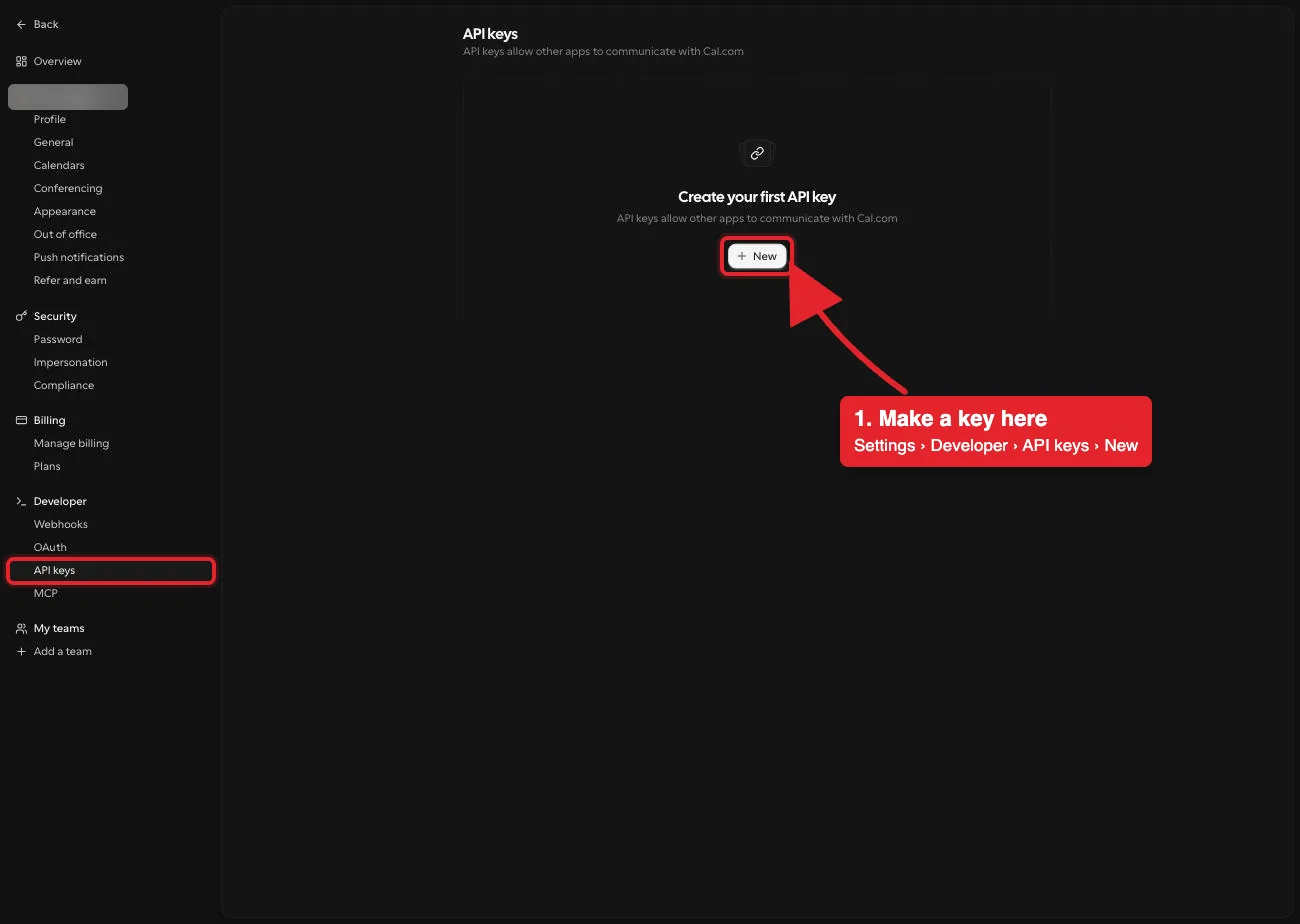
Settings, then Developer, then API keys. New, marked in red, starts a key for your own account. The account name is blurred in this capture.Open full-size image (opens in a new tab) 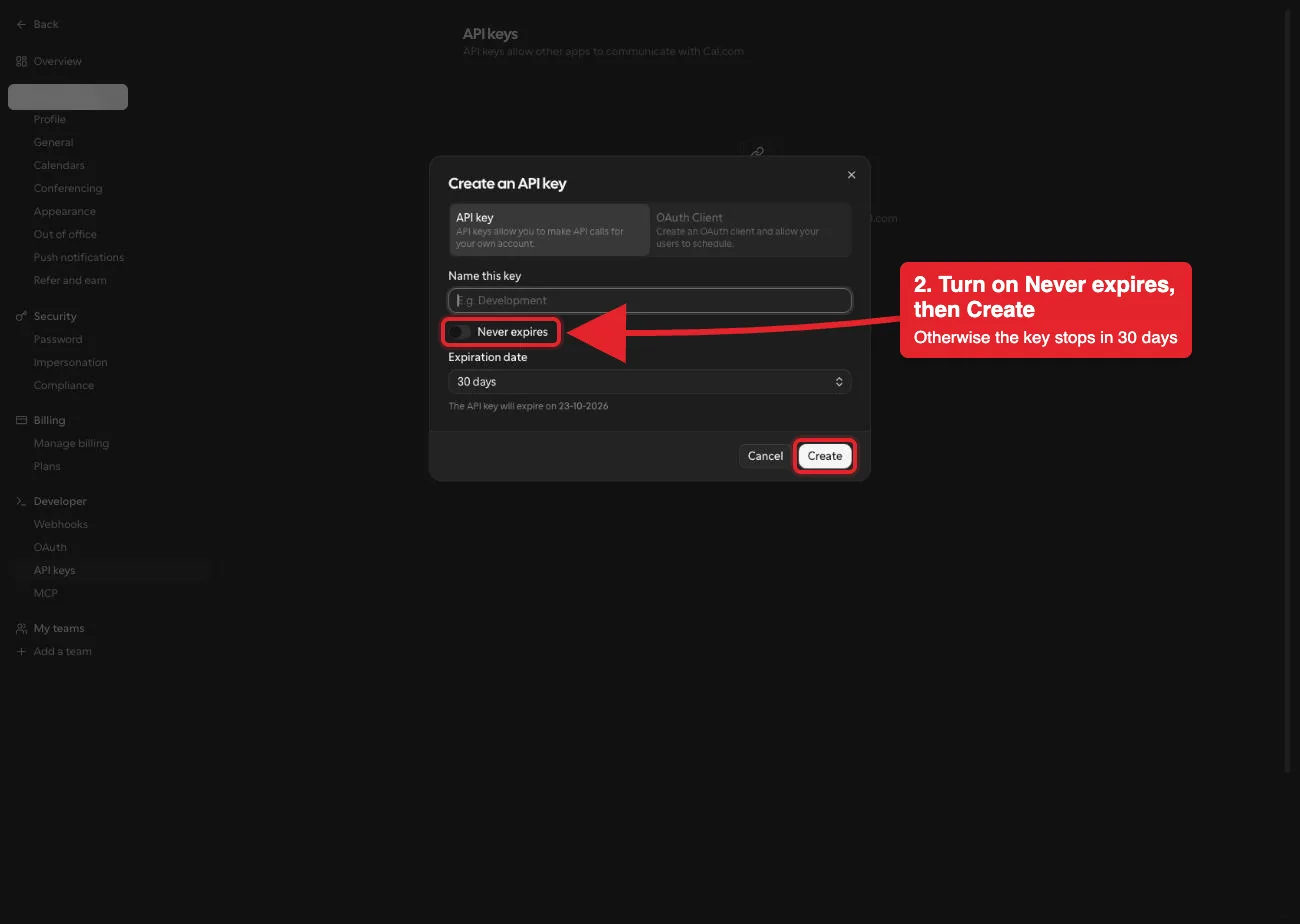
Name the key, turn on Never expires, and choose Create. A key left on the 30-day default stops working after a month.Open full-size image (opens in a new tab) - Open Cal.com in Connections. Choose Connect or Add connection.
- Enter the API key. Paste the key from Cal.com. ApexGenius supplies the API address and checks the key against your Cal.com profile.
- Check the saved connection. Save after validation succeeds. Review the Tools tab. Booking, rescheduling and cancelling email the attendees.
2. Connect ApexGenius to Grok Bot
Use this server address when adding the connection:
https://server.autom8.pro/mcp- Grok Bot signs in with your Cursor account. Connect ApexGenius from Settings, then Plugins, and authorize in the browser. If you are on a Cursor team, its MCP policy decides whether the server can be added.
- When ApexGenius asks what this AI client may use, choose Read only for the first test, or Custom to limit it to the tools you need.
- Start a new conversation and select ApexGenius from the available tools before asking for live data.
3. Verify one safe read
List my upcoming Cal.com bookings for this week. Do not book, move or cancel anything.
List my upcoming Cal.com bookings for this week. Do not book, move or cancel anything.Compare the bookings with your Cal.com Upcoming list. Reading bookings sends no emails.
What Grok Bot can do in Cal.com
3 operations. Read looks things up and changes nothing. Write changes Cal.com and runs only when that tool is enabled.
Read2 operations
Looks things up. Changes nothing.cal_com_search_operationsDiscover the Cal.com operations reviewed and exposed by ApexGenius.cal_com_read_operationRead your profile, event types, bookings, schedules and open time slots.
Write1 operation
Changes Cal.com. Runs only when enabled.cal_com_write_operationBook, reschedule or cancel a meeting. Each one emails the attendees.
You choose what Grok Bot can use
When you approve Grok Bot, pick Full access, Read only, or Custom. Read only allows the Read operations and nothing else. Custom picks apps and tools one by one.
Limits in Cal.com
- · The API key covers its Cal.com account. Requests use the fixed Cal.com API address.
- · The read route refuses booking changes. Enabled writes run when called.
- · Booking, rescheduling and cancelling email attendees. Cancelling a meeting cannot restore the original booking.
What it looks like in Grok Bot
An illustrative read-only request and response. Your results come from the account and dates you choose.

apex_call_read_toolsalesforce_read · Find matching recordsCompleteapex_call_read_toolsalesforce_read · Read related activityComplete
apex_call_read_tooln8n_get_workflow · Check workflow statusCompleteThree safe example reads returned results. Nothing was changed.
Read-only routeTry asking
“List my upcoming Cal.com bookings for this week. Do not book, move or cancel anything.”
“Show my Cal.com event types and their available time slots. Do not create a booking.”
More connections like this one
One ApexGenius account covers every pair below. Connect an app once and each agent you allow can use it.
Grok Bot with other apps
- Connect Grok Bot to Slack
- Connect Grok Bot to Discord
- Connect Grok Bot to ChatGPT Ads
- Connect Grok Bot to GitHub
- Connect Grok Bot to Stripe
- Connect Grok Bot to Context.dev
- Connect Grok Bot to Attio
- Connect Grok Bot to Semrush
- Connect Grok Bot to Notion
- Connect Grok Bot to Apify
- Connect Grok Bot to Linear
- Connect Grok Bot to Calendly
- Connect Grok Bot to ClickUp
- Connect Grok Bot to YouTube
- Connect Grok Bot to YouTube Analytics
- Connect Grok Bot to Salesforce
- Connect Grok Bot to n8n
- Connect Grok Bot to Confluence
- Connect Grok Bot to Google Search Console
Questions people ask first
What do I need to connect Cal.com?
A Cal.com account and an API key from Settings, Developer, API keys. ApexGenius checks it against your profile before saving.
Can my AI send booking emails?
Booking, rescheduling and cancelling through an enabled write tool email attendees. Start with reads and enable booking tools only when needed.
Does this use Cal.com hosted MCP?
ApexGenius uses the official Cal.com API v2 with your API key.
What should I test first?
Ask for your upcoming bookings and compare them with Cal.com. Reading bookings sends no emails.
Connect Cal.com to Grok Bot today
Start free7 days free. No card required. Disconnect any time.