


Connect Grok Bot to Polymarket
Connect Grok Bot to Polymarket in 3 steps: 1. Sign in to ApexGenius and connect Polymarket. 2. Add the ApexGenius plugin. 3. Start using Polymarket in Grok Bot.
1,000 free credits · No card required
How to connect Polymarket to Grok Bot
- 1Sign in to ApexGenius and connect Polymarket
- 2Add the ApexGenius plugin to Grok Bot
- 3Start using Polymarket in Grok Bot
- 1
Connect Polymarket to ApexGenius
Open Polymarket in ApexGenius
Open Polymarket in Connections and choose Connect.
- 2
Connect ApexGenius to Grok Bot
Choose Grok Bot
Back on Start, pick Grok Bot and copy the prompt.
- 3
Approve access
ApexGenius opens its approval page. Review the access, then approve.
Add the ApexGenius plugin to Grok Bot
Grok Bot keeps app connections on the Cursor account you sign in with, under Connect apps in the sidebar. They are not in Settings, and there is no config file.
- In ApexGenius, pick Grok Bot on Start and copy the setup prompt.
- Paste it into Grok Bot. It adds the server and opens the approval in your browser.
- When Grok Bot asks you to Authorize or Authenticate, finish the ApexGenius sign-in and approve access.
The MCP address
https://server.autom8.pro/mcp
Check it. Open Connect apps in the sidebar and confirm ApexGenius appears under Installed.
Steps follow Cursor Help, Connect apps in Grok Bot (opens in a new tab), read November 12, 2026.
Then ask Grok Bot
Read one public topic tag from Polymarket. Show its ID, label, source and the time checked.
Written setup, step by stepShow
Before you start
- An ApexGenius account.
- No wallet, private key or Polymarket sign-in is needed for these public reads.
1. Connect Polymarket to ApexGenius
- Open Polymarket in Connections. Sign in to ApexGenius, open Connections and choose Polymarket.
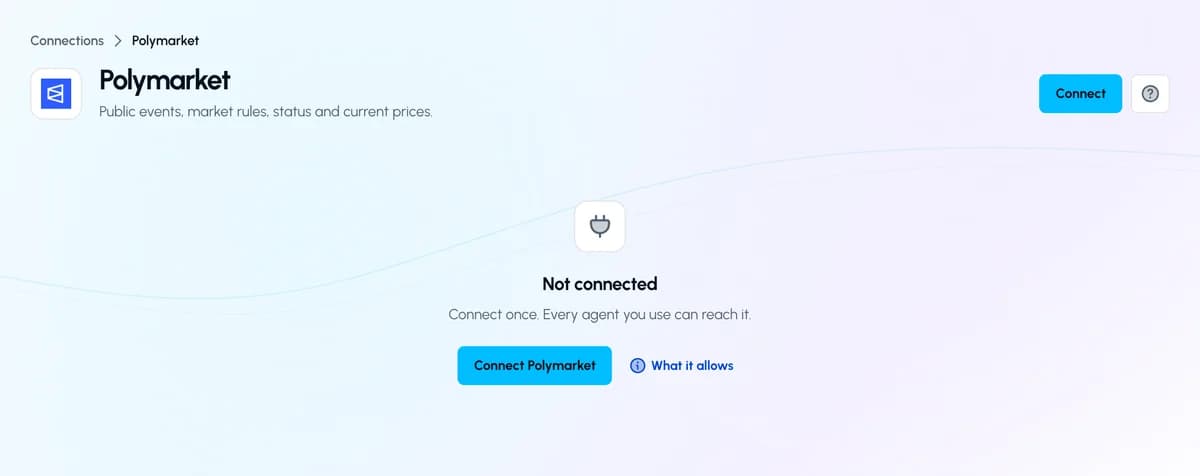
The Polymarket page before you connect. Choose Connect; there is no wallet, sign-in or key to enter.Open full-size image (opens in a new tab) - Check the public data service. Choose Connect. ApexGenius must complete a public data read before it saves a healthy connection. If the service denies access, setup stops.
- Review the read tools. Keep the public data service and the reads you need on. Set up a compatible AI agent with ApexGenius.
- Read one category. Load the PolymarketPublic skill and try the question below. Check the returned source and Tool Activity.
2. Connect ApexGenius to Grok Bot
Use this server address when adding the connection:
https://server.autom8.pro/mcpThe steps are above, under Add the ApexGenius plugin to Grok Bot. These notes apply to Grok Bot only.
- Added is not signed in. An app marked Added is installed. If Grok Bot still says it is missing, open it from Connect apps and choose Authenticate, or Authorize on the phone.
- Cursor teams. Your team’s Cursor connector policy applies to Grok Bot. If the app says Disabled by team admin, ask your Cursor admin to enable it, then restart the app.
- If sign-in does not finish. Choose Reconnect on the app, or Reopen on the in-chat card, to bring the sign-in page back.
- Access. When ApexGenius asks what Grok Bot may use, choose Read only for the first test, or Custom to limit it to the tools you need.
3. Try your first question
Read one public topic tag from Polymarket. Show its ID, label, source and the time checked.
Read one public topic tag from Polymarket. Show its ID, label, source and the time checked.Look for a public market tag in the result. The tools read public market data and have no wallet, order, or trading capabilities.
Full guide: the Polymarket setup guide.
What it looks like in Grok Bot

apex_call_read_toolsalesforce_read · Find matching recordsCompleteapex_call_read_toolsalesforce_read · Read related activityComplete
apex_call_read_tooln8n_get_workflow · Check workflow statusCompleteThree safe example reads returned results.
Read-only routeTry asking
Read one public topic tag from Polymarket. Show its ID, label, source and the time checked.
Find the Polymarket market for the event I name. Show each outcome's current price and the time checked, and say prices are market data, not a prediction.
Read the rules and published status for the market ID I provide. Do not infer a final outcome from the closed flag.
List Polymarket sports categories and their IDs. Do not infer which events have markets.
What Grok Bot can do in Polymarket
7 operations: 7 read. Every operation looks things up and changes nothing, so Grok Bot cannot change Polymarket through ApexGenius.
Public market data
7 readpolymarket_search_publicreadSearch public events and tags by text.
polymarket_list_eventsreadRead a bounded page of events with their markets and current prices.
polymarket_get_eventreadRead an event, its markets and their current prices by ID.
polymarket_list_marketsreadRead a bounded page of market questions, status and current prices.
polymarket_get_marketreadRead a market's question, rules, status and current prices by ID.
polymarket_list_tagsreadRead topic IDs and labels.
polymarket_list_sportsreadRead the sports category catalog.
You choose the access. When you approve Grok Bot, pick Full access, Read only, or Custom.
ApexGenius exposes the official Gamma API through its MCP gateway. This is not a vendor-hosted Polymarket MCP.
Only bounded public reads are offered. Prices are public market data, not advice. No wallets, funding or order operations are exposed.
Match the exact event and market question. A closed flag alone does not establish final resolution.
Provider access rules and rate limits still apply. An access denial must not be bypassed or reported as healthy.
Disconnecting stops future gateway calls. It does not change public source data.
Questions about connecting Grok Bot to Polymarket
Updated November 12, 2026.
How do I connect Grok Bot to Polymarket?
Sign in to ApexGenius and connect Polymarket. In Grok Bot, paste the ApexGenius setup prompt, then choose Authorize or Authenticate and finish the sign-in in your browser. Then ask Grok Bot: “Read one public topic tag from Polymarket. Show its ID, label, source and the time checked.” Start with a read, so nothing changes.
How do I check that Grok Bot can use Polymarket?
Open Connect apps in the Grok Bot sidebar. ApexGenius should appear under Installed. Added means it is installed, not that you are signed in, so open it and choose Authenticate if it asks. On a Cursor team, an app marked Disabled by team admin needs your admin to enable it. Then ask: “Read one public topic tag from Polymarket. Show its ID, label, source and the time checked.”
Is Polymarket available in ApexGenius?
Yes. Choose Connect in Connections. No wallet, key or sign-in is needed, and ApexGenius saves the connection only after a successful public read.
Is this Polymarket’s official hosted MCP?
No. ApexGenius exposes a small set of reads from Polymarket’s official Gamma API through its own MCP gateway. It is not a Polymarket-hosted MCP service or a partnership claim.
Do I need a wallet or API key?
No. These public reads need no wallet, private key, password or API key.
Can it read current prices?
Yes. Market reads include each outcome's current price from 0 to 1, the best bid and ask, the last trade, volume and liquidity, as Polymarket publishes them. Prices are market data, not advice.
Can the connector place bets?
No. It has no wallet, order, funding or trading operations, and it asks for no keys. It cannot sign transactions or move money.
How do I find a Worlds market?
Search Polymarket for the exact event and market question.
More connections like this one
Grok Bot with other apps
 Mobbin
 Slack
 Discord
 Context.dev
 Notion
 Google Meet
 Gmail
 Google Chat
All 50 apps Grok Bot can use
 Google Docs
 Google Drive
 Google Slides
 Atlassian Rovo
 OP.GG
 Confluence
 Microsoft Outlook
 Supabase
 Cal.com
 ChatGPT Ads
 GitHub
 Stripe
 Attio
 Semrush
 Apify
 Linear
 Jira
 HQ Rental
 Google Ads
 Google Analytics
 Google Forms
 Google Tasks
 Google Calendar
 Google Sheets
 Apollo
 Blotato
 Bing Webmaster
 Calendly
 ClickUp
 monday.com
 YouTube
- YouTube Analytics
- Salesforce
- n8n
 Google Search Console
 ElevenLabs
 FreshBooks
 Trello
 GitLab
 TypeSafe
 HubSpot
- Outlook Calendar
Other agents with Polymarket
 Claude
 Muse
Connect Polymarket to Grok Bot today
Start free1,000 free credits. No card required. Disconnect any time.