


Connect Claude to Polymarket
Connect Claude to Polymarket in 3 steps: 1. Sign in to ApexGenius and connect Polymarket. 2. Add the ApexGenius connector. 3. Start using Polymarket in Claude.
1,000 free credits · No card required
How to connect Polymarket to Claude
- 1Sign in to ApexGenius and connect Polymarket
- 2Add the ApexGenius connector to Claude
- 3Start using Polymarket in Claude
- 1
Connect Polymarket to ApexGenius
Open Polymarket in ApexGenius
Open Polymarket in Connections and choose Connect.
- 2
Connect ApexGenius to Claude
Choose Claude
Back on Start, pick Claude and copy the prompt.
- 3
Add it in Claude
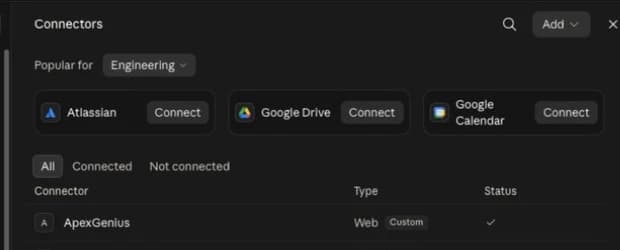
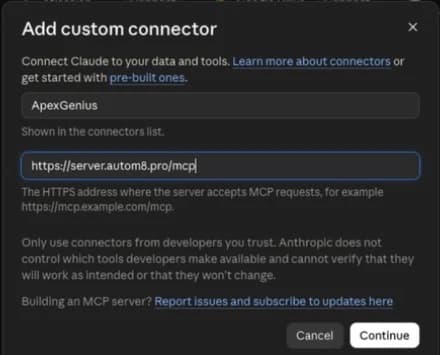
In Claude, open Settings, then Connectors, then Add custom connector. Paste the address.
- 4
Approve access
ApexGenius opens its approval page. Review the access, then approve.
Then ask Claude
Read one public topic tag from Polymarket. Show its ID, label, source and the time checked.
Written setup, step by stepShow
Before you start
- An ApexGenius account.
- No wallet, private key or Polymarket sign-in is needed for these public reads.
1. Connect Polymarket to ApexGenius
- Open Polymarket in Connections. Sign in to ApexGenius, open Connections and choose Polymarket.
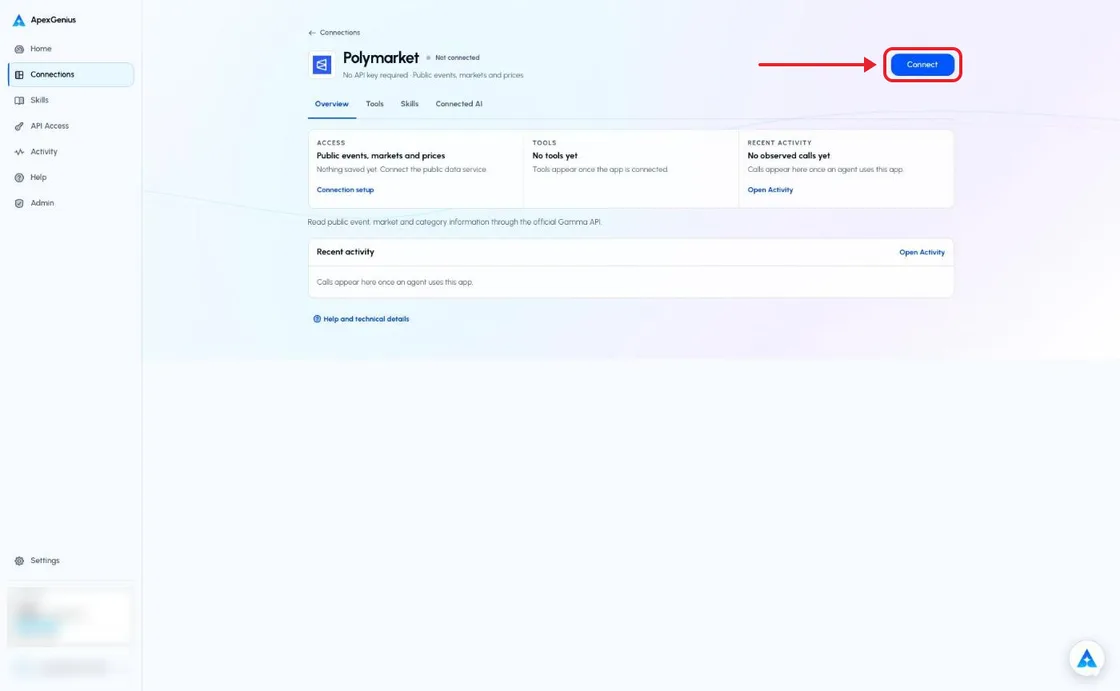
The Polymarket connection page before you connect. Choose Connect; there is no wallet, sign-in or key to enter. The account email and credits are blurred in this capture.Open full-size image (opens in a new tab) - Check the public data service. Choose Connect. ApexGenius must complete a public data read before it saves a healthy connection. If the service denies access, setup stops.
- Review the read tools. Keep the public data service and the reads you need on. Set up a compatible AI agent with ApexGenius.
- Read one category. Load the PolymarketPublic skill and try the question below. Check the returned source and Tool Activity.
2. Connect ApexGenius to Claude
Use this server address when adding the connection:
https://server.autom8.pro/mcp- Open Claude Settings, then Connectors, then Add custom connector.
- Enter ApexGenius and the MCP URL above. Choose Connect.
- Approve it in your browser, then turn it on in chat or Cowork.
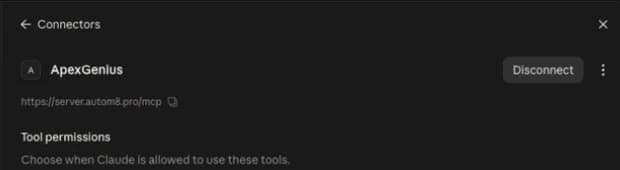
- When ApexGenius asks what this AI client may use, choose Read only for the first test, or Custom to limit it to the tools you need.
- Start a new conversation and select ApexGenius from the available tools before asking for live data.
Read the steps Follow along at your own pace
1. Open Connectors
2. Add ApexGenius
3. Review permissions
3. Verify one safe read
Read one public topic tag from Polymarket. Show its ID, label, source and the time checked.
Read one public topic tag from Polymarket. Show its ID, label, source and the time checked.A returned tag verifies this public read only. A saved setting or a denied request is not proof the connector works. Prices are public market data, not advice; there are no wallet, order or trading tools.
Full guide: the Polymarket setup guide.
What it looks like in Claude Cowork
Illustration of a task, not a recorded customer result. Your answers come from the account and dates you choose.

apex_call_read_toolsalesforce_read · Find matching recordsCompleteapex_call_read_toolsalesforce_read · Read related activityComplete
apex_call_read_tooln8n_get_workflow · Check workflow statusCompleteThree safe example reads returned results. Nothing was changed.
Read-only routeTry asking
Read one public topic tag from Polymarket. Show its ID, label, source and the time checked.
Find the Polymarket market for the event I name. Show each outcome's current price and the time checked, and say prices are market data, not a prediction.
Read the rules and published status for the market ID I provide. Do not infer a final outcome from the closed flag.
List Polymarket sports categories and their IDs. Do not infer which events have markets.
What Claude can do in Polymarket
7 operations: 7 read. Every operation looks things up and changes nothing, so Claude cannot change Polymarket through ApexGenius.
Public market data
7 readpolymarket_search_publicreadSearch public events and tags by text.
polymarket_list_eventsreadRead a bounded page of events with their markets and current prices.
polymarket_get_eventreadRead an event, its markets and their current prices by ID.
polymarket_list_marketsreadRead a bounded page of market questions, status and current prices.
polymarket_get_marketreadRead a market's question, rules, status and current prices by ID.
polymarket_list_tagsreadRead topic IDs and labels.
polymarket_list_sportsreadRead the sports category catalog.
You choose the access. When you approve Claude, pick Full access, Read only, or Custom.
ApexGenius exposes the official Gamma API through its MCP gateway. This is not a vendor-hosted Polymarket MCP.
Only bounded public reads are offered. Prices are public market data, not advice. No wallets, funding or order operations are exposed.
Match the exact event and market question. A closed flag alone does not establish final resolution.
Provider access rules and rate limits still apply. An access denial must not be bypassed or reported as healthy.
Disconnecting stops future gateway calls. It does not change public source data.
Questions about connecting Claude to Polymarket
Updated October 16, 2026.
Is Polymarket available in ApexGenius?
Yes. Choose Connect in Connections. No wallet, key or sign-in is needed, and ApexGenius saves the connection only after a successful public read.
Is this Polymarket’s official hosted MCP?
No. ApexGenius exposes a small set of reads from Polymarket’s official Gamma API through its own MCP gateway. It is not a Polymarket-hosted MCP service or a partnership claim.
Do I need a wallet or API key?
No. These public reads need no wallet, private key, password or API key.
Can it read current prices?
Yes. Market reads include each outcome's current price from 0 to 1, the best bid and ask, the last trade, volume and liquidity, as Polymarket publishes them. Prices are market data, not advice.
Can the connector place bets?
No. It has no wallet, order, funding or trading operations, and it asks for no keys. It cannot sign transactions or move money.
Does it prove a Worlds market exists?
No. A sports category or game schedule does not prove market availability. Match the exact event and market question in a verified source result.
More connections like this one
Claude with other apps
 Mobbin
 Slack
Slack Discord
 Context.dev
 Notion
 Google Meet
 Gmail
Gmail Google Chat
All 42 apps Claude can use
 Google Docs
 Google Drive
 Google Slides
 Atlassian Rovo
 OP.GG
OP.GG Confluence
 Supabase
 Cal.com
 ChatGPT Ads
 GitHub
 Stripe
 Attio
Attio Semrush
 Apify
Apify Linear
 Jira
Jira HQ Rental
 Google Ads
 Google Analytics
 Google Forms
 Google Tasks
 Google Calendar
 Google Sheets
 Apollo
 Blotato
 Bing Webmaster
 Calendly
 ClickUp
 monday.com
 YouTube
- YouTube Analytics
- Salesforce
- n8n
 Google Search Console
Other agents with Polymarket
 Grok Bot
 Muse
MuseConnect Polymarket to Claude today
Start free1,000 free credits. No card required. Disconnect any time.