


Connect Claude to Google Search Console
Connect Claude to Google Search Console: 1. Connect Google Search Console in ApexGenius. 2. Add the ApexGenius connector. 3. Ask Claude.
1,000 free credits · No card required
How to connect Google Search Console to Claude
- 1Sign in to ApexGenius and connect Google Search Console
- 2Add the ApexGenius connector to Claude
- 3Start using Google Search Console in Claude
- 1
Connect Google Search Console to ApexGenius
Choose what it can reach
Pick the accounts or properties your AI may use.
- 2
Connect ApexGenius to Claude
Choose Claude
Back on Start, pick Claude and copy the prompt.
- 3
Add it in Claude
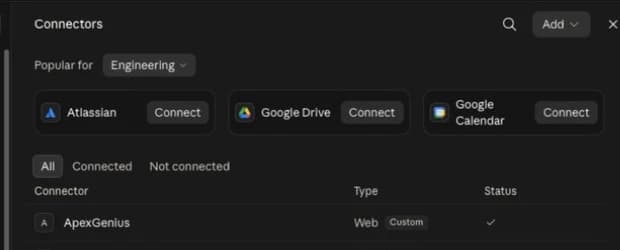
In Claude, open Settings, then Connectors, then Add custom connector. Paste the address.
- 4
Approve access
ApexGenius opens its approval page. Review the access, then approve.
Then ask Claude
List the Google Search Console properties enabled for me in ApexGenius. Do not change anything.
Written setup, step by stepShow
Before you start
- A Google account with access to an existing Search Console property.
- The exact Domain or URL-prefix property you want to use. You can add a missing property with the connector’s Add property write tool. Verify ownership in Google Search Console when required.
1. Connect Google Search Console to ApexGenius
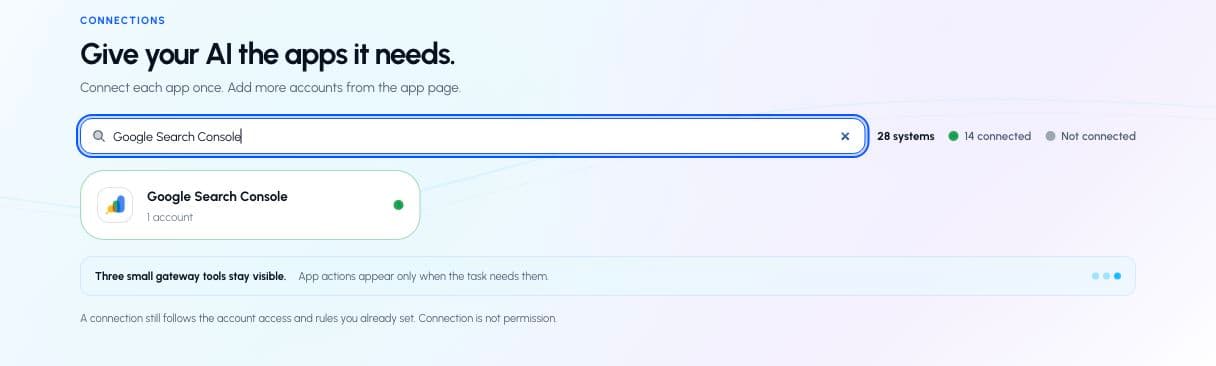
- Open Google Search Console in Connections. Sign in to ApexGenius, open Connections, and choose Google Search Console. Select Connect to begin Google authorization.
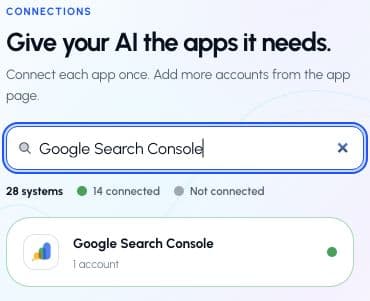
Search Connections for Google Search Console. This captured account already has a saved connection; a new account starts with Connect.Open full-size image (opens in a new tab) - Choose the right Google account. Use the account that can already access your site in Search Console. Review the Google consent screen and continue back to ApexGenius.
- Enable your Search Console property. Find Allowed resources on the connection page or its Tools tab and choose Refresh. Turn on the exact property you want to use. A Domain property and a URL-prefix property are separate choices.
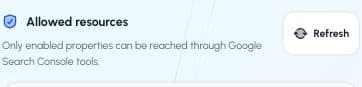
Choose Refresh under Allowed resources to discover properties the authorized Google account can access.Open full-size image (opens in a new tab) 
Turn on the exact property you want your AI to use. This real capture shows our own apexgenius.ai Domain property; choose your property in your account.Open full-size image (opens in a new tab) - Check the connection and tools. Use Test connection and review the Read tools. Search performance, property details, sitemap details, and URL inspection are reads. Keep property and sitemap changes off if you only need reporting.
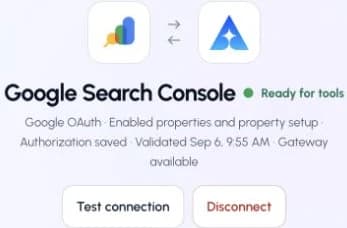
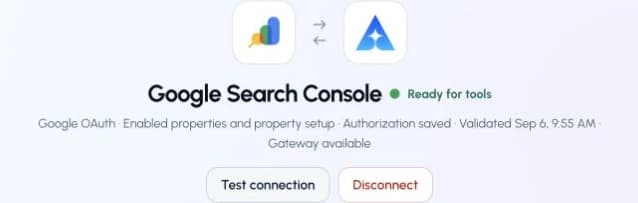
This captured Google Search Console connection reports ready. Check your own connection and its latest validation before using tools.Open full-size image (opens in a new tab)


2. Connect ApexGenius to Claude
Use this server address when adding the connection:
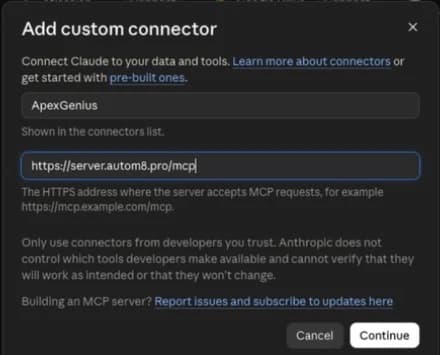
https://server.autom8.pro/mcp- Open Claude Settings, then Connectors, then Add custom connector.
- Enter ApexGenius and the MCP URL above. Choose Connect.
- Approve it in your browser, then turn it on in chat or Cowork.
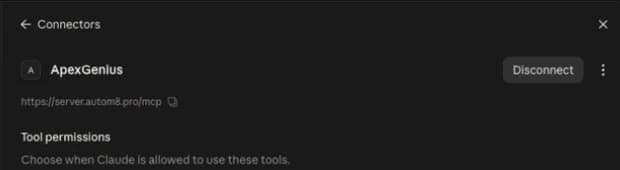
- When ApexGenius asks what this AI client may use, choose Read only for the first test, or Custom to limit it to the tools you need.
- Start a new conversation and select ApexGenius from the available tools before asking for live data.
Read the steps Follow along at your own pace
1. Open Connectors
2. Add ApexGenius
3. Review permissions
3. Verify one safe read
List the Google Search Console properties enabled for me in ApexGenius. Do not change anything.
List the Google Search Console properties enabled for me in ApexGenius. Do not change anything.Confirm that the returned property matches the one you enabled. Then ask for its ten pages with the most clicks over a specific date range. Compare the property, dates, search type, clicks, and impressions with the Search Console Performance report.
Full guide: the Google Search Console setup guide.
What it looks like in Claude Cowork
Illustration of a task, not a recorded customer result. Your answers come from the account and dates you choose.
apex_search_toolsGoogle Search Console properties · Find Search Console property accessCompleteapex_call_read_toolgoogle_search_console_list_properties · List enabled propertiesCompleteapex_call_read_toolgoogle_search_console_get_property · Check the selected property’s permission levelCompleteExample: sc-domain:example.com is enabled. Confirm that this is the site you want before requesting a report. Nothing was changed.
Read-only routeTry asking
Which Search Console properties have I enabled in ApexGenius? Help me choose the right Domain or URL-prefix property.
Compare clicks and impressions for my selected property over the last two complete 28-day periods. Which pages gained or lost the most clicks?
Find queries with high impressions and low CTR for my selected property. Show their pages and average positions, then suggest what to review.
Inspect a URL I provide and explain the index status Google reports. Do not submit anything.
What Claude can do in Google Search Console
11 operations: 6 read, 5 write. Read looks things up and changes nothing. Writes change Google Search Console and run only when you turn them on.
Search Console operations
6 read · 5 writegoogle_search_console_list_propertiesreadList current Google properties enabled for MCP in ApexGenius, with their permission levels.
google_search_console_get_propertyreadRead the exact property URL and Google permission level for an enabled property.
google_search_console_add_propertywriteAdd a Domain or URL-prefix property to the connected Google account. Does not verify ownership or enable ApexGenius access. Refresh Allowed resources and select the new property afterward.
google_search_console_delete_propertywriteRemove an enabled property from the connected Google account and disable its ApexGenius access. Does not delete the website. Confirm the exact property before removal.
google_search_console_queryreadQuery search performance with dimensions, filters, pagination, aggregation, and final, fresh, or hourly data. Recent data can be incomplete.
google_search_console_inspect_urlreadInspect Google index status for a URL in an enabled property.
google_search_console_list_sitemapsreadList submitted sitemaps for an enabled property, optionally within a sitemap index.
google_search_console_get_sitemapreadRead a submitted sitemap’s status, errors, warnings, and content counts.
google_search_console_submit_sitemapwriteSubmit a sitemap for an enabled property.
google_search_console_delete_sitemapwriteDelete a submitted sitemap from an enabled property.
google_search_console_requestwriteCall a property-relative Search Console v3 endpoint for an enabled property. Prefer the named tools for adding properties and inspecting URLs.
You choose the access. When you approve Claude, pick Full access, Read only, or Custom.
Only properties accessible to the Google account and enabled in ApexGenius can be queried.
Use Read only when authorizing your AI client if you only need search reporting and URL inspection.
Compare the selected property, dates, search type, and returned metrics with Search Console before making a decision.
Adding or removing properties and changing sitemaps require Google write permission and allowed write tools. Adding a property does not verify ownership or enable it in ApexGenius.
Questions about connecting Claude to Google Search Console
Updated September 4, 2026.
How do I connect Claude to Google Search Console?
Connect Claude to Google Search Console through ApexGenius in three steps. Sign in to ApexGenius and connect Google Search Console by signing in with Google and enabling your property. Add ApexGenius to Claude. Then open a task in Claude and ask a question about your Google Search Console. Start with a read, so nothing changes.
Is there a Google Search Console MCP server for Claude?
Yes. ApexGenius is an MCP server that Claude connects to once. It carries your Google Search Console connection and 11 Google Search Console operations, so Claude does not need a separate Google Search Console integration or plugin. You set it up one time and add each agent the same way.
What can Claude do in Google Search Console once it is connected?
Claude can run 11 Google Search Console operations through ApexGenius: 6 reads that list properties, query search performance, inspect URLs and list sitemaps, and 5 writes that add or delete properties and sitemaps, plus a general request tool, once you allow writes.
Can Claude read my Search Console properties?
Only properties the Google account can access and you enable in ApexGenius. Domain and URL-prefix properties are separate choices, so enable the exact one. Check the returned property, dates and search type against Search Console before you decide anything. Adding a property is a separate write.
Can Claude change my Google Search Console?
Not unless you turn on write tools. Search analytics and URL inspection are read only, and they do not request indexing or edit your website. Property and sitemap changes are separate writes you can leave disabled. Adding a property does not verify ownership.
Can I use the same Google Search Console connection with ChatGPT, Grok Bot or Muse?
Yes. One Google Search Console connection in ApexGenius works with every compatible agent you add, including ChatGPT, Grok Bot or Muse. Each agent gets its own access choice and its own short setup, so you can pick read only for one agent and more for another.
More connections like this one
Claude with other apps
 ChatGPT Ads
 Semrush
 Google Ads
 Google Analytics
 Blotato
 Bing Webmaster
 YouTube
All 44 apps Claude can use
 Supabase
 Mobbin
 Cal.com
 Slack
Slack Discord
 GitHub
 Stripe
 Context.dev
 Attio
Attio Notion
 Apify
Apify Linear
 Jira
Jira HQ Rental
 Google Forms
 Google Meet
 Google Tasks
 Gmail
Gmail Google Calendar
 Google Chat
 Google Docs
 Google Drive
 Google Sheets
 Google Slides
 Apollo
 Calendly
 ClickUp
 monday.com
 Atlassian Rovo
 Polymarket
 OP.GG
OP.GG Salesforce
 n8n
n8n Confluence
 ElevenLabs
 FreshBooks
 Grok Bot
 Muse
MuseConnect Google Search Console to Claude today
Start free1,000 free credits. No card required. Disconnect any time.