

Connect Claude to Stripe
Connect Claude to Stripe through ApexGenius. Read payments, invoices and subscriptions, and create refunds, invoices and payment links.
7 days free · No card required
How to connect Stripe to Claude
Before you start
- An account with permission to use the Stripe resources you intend to connect.
1. Connect Stripe to ApexGenius
- Open Stripe in Connections. Choose Connect, or Add connection when offered. Give the connection a name if prompted. If Gateway setup pending appears, contact ApexGenius support before continuing.
- Choose the account and review access. On Stripe’s page, sign in and pick the live mode accounts or sandboxes to share, with the permissions for each. To test, pick only a sandbox. No Stripe API key is pasted into ApexGenius.
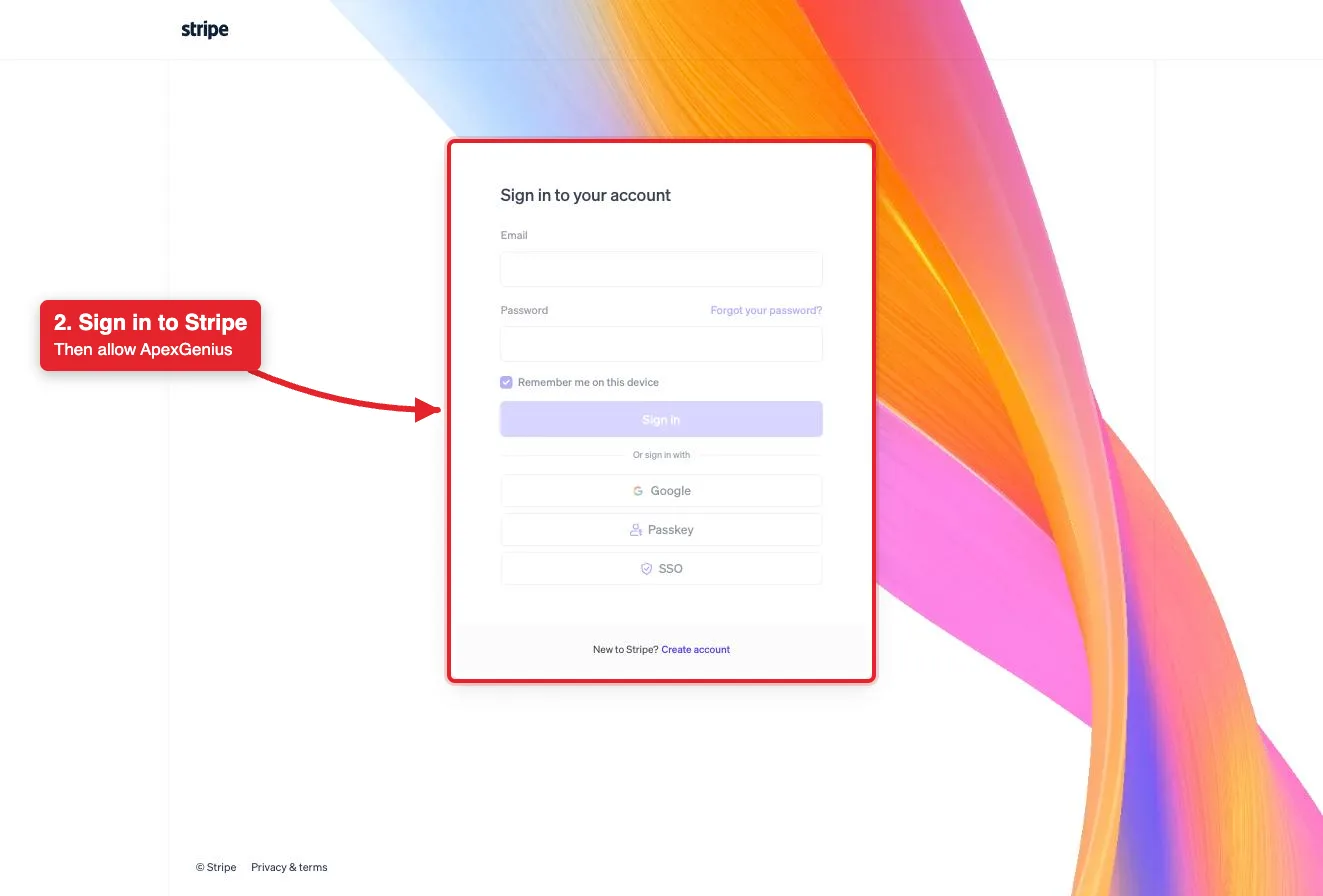
Connect opens Stripe's sign-in. Sign in with email, Google, a passkey or SSO, then allow ApexGenius.Open full-size image (opens in a new tab) - Review the connected account and resources. Confirm the connected Stripe account on the connection page, then open Tools. Refunds, invoices, payment links and subscription changes move real money and run right away unless set to Ask me first.
- Check the connection. Use Test connection or Check again and read the reported status. Add an AI agent from the AI agents page, choose Read only for the first test, and try the question below.
2. Add ApexGenius to Claude
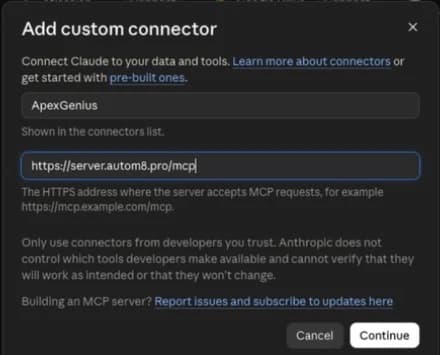
Use this server address when adding the connection:
https://server.autom8.pro/mcp- Open Claude Settings, then Connectors, then Add custom connector.
- Enter ApexGenius and the MCP URL above. Choose Connect.
- Approve it in your browser, then turn it on in chat or Cowork.
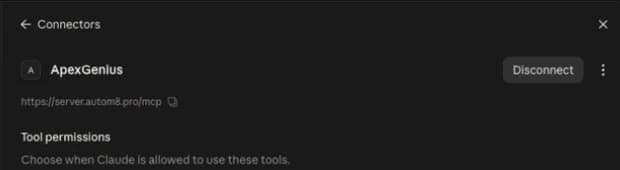
- When ApexGenius asks what this AI client may use, choose Read only for the first test, or Custom to limit it to the tools you need.
- Start a new conversation and select ApexGenius from the available tools before asking for live data.
Read the steps Follow along at your own pace
1. Open Connectors
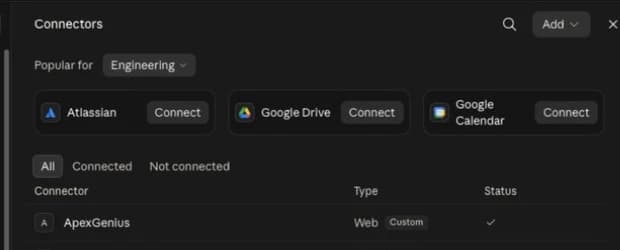
2. Add ApexGenius
3. Review permissions
3. Verify one safe read
Which Stripe account is connected, and is it live mode or a sandbox? Use the read-only route. Do not change anything.
Which Stripe account is connected, and is it live mode or a sandbox? Use the read-only route. Do not change anything.Compare the returned account and resource with Stripe. Check the connection status separately from the result of the first read.
Additional reference: the Stripe setup guide.
Start freeWhat it looks like in Claude Cowork
An illustrative read-only request and response. Your results come from the account and dates you choose.

apex_search_toolsStripe account · Find Stripe readsCompleteapex_call_read_toolget_stripe_account_info · Read the connected accountCompleteIllustrative example: the connected account is Example Studio, in a sandbox. Compare it with the account you picked on Stripe’s consent page. Nothing was changed.
Read-only routeWhat you can ask once it is connected
“Which Stripe account is connected, and is it live mode or a sandbox?”
“List my last ten payments with amount, currency and customer. Do not change anything.”
“Which invoices are open or past due, and for which customers?”
“Refund this payment in full. Show me the amount, currency and customer first.”
You choose what Claude is allowed to touch
Choose the saved accounts and tools this Claude connection may use. Its authorization carries that scope, and each app connection’s tool and resource restrictions still apply.
- Full accessEvery enabled tool on the connections you choose.
- Read onlyLooks things up, changes nothing.
- CustomPick apps and tools one by one.
- · Stripe’s consent page sets the reach: live mode accounts, sandboxes or both, with permissions for each. An administrator can turn MCP access on or off for live mode and sandboxes separately.
- · The connector acts only on the Stripe account you connect. It is separate from how ApexGenius bills you.
- · Reads use a route that checks Stripe’s live read-only label. stripe_api_write moves money and runs right away unless you set it to Ask me first.
- · For some writes, such as refunds, Stripe returns its own confirmation link. Approve it on Stripe, then ask your AI to retry.
- · Disconnecting ends ApexGenius access and asks Stripe to revoke the grant. It does not undo a refund, invoice or subscription change that already ran.
The Stripe operations Claude can run
10 operations: 8 Read and 2 Write. Available tools depend on your connection and permissions. Review any action that changes or removes data. Claude discovers these operations through the ApexGenius gateway.
get_stripe_account_infoReadRead the connected Stripe account. Start here.get_balance_summaryReadShow the balance across the Stripe balance and Treasury accounts. Public preview.stripe_api_searchReadSearch Stripe API methods by keyword.stripe_api_detailsReadShow the parameters of one Stripe API method.stripe_api_readReadRun any Stripe API GET method. Returns data and changes nothing.stripe_analyticsReadQuery metrics, analyze subscriptions and billing, and run financial reports.search_stripe_documentationReadSearch Stripe’s documentation and support articles.stripe_implementation_plannerReadPlan a Stripe integration: payments, online sales, billing and more.send_stripe_feedbackWriteSend feedback about Stripe’s products to Stripe.stripe_api_writeWriteMoves money. Runs Stripe API POST, PATCH, PUT and DELETE methods: create refunds, create and finalize invoices, create payment links, and create, change or cancel subscriptions.
Questions people ask first
How do I connect Stripe?
Open Stripe in ApexGenius Connections and choose Connect. Sign in on Stripe’s page and pick the accounts or sandboxes to share. No Stripe API key is pasted into ApexGenius.
Can I connect only a sandbox?
Yes. On Stripe’s consent page, grant only a sandbox. Stripe lets you set different permissions for live mode and each sandbox, and an administrator can turn MCP access on or off for each.
Can my AI refund a payment or create an invoice?
Yes, through stripe_api_write. It runs right away unless you set it to Ask me first. For some writes, such as refunds, Stripe also sends a confirmation link. A refund cannot be undone.
Which Stripe tools are included?
The ten tools Stripe documents for its MCP server: account and balance, API search and details, a read tool for any GET method, a write tool for POST, PATCH, PUT and DELETE methods, analytics, docs search, the implementation planner and feedback.
Can I undo a change?
Not always. A refund cannot be undone. An open invoice can be voided, and a payment link can be turned off. A canceled subscription cannot be restarted. Disconnecting stops future access only.
Does this touch how ApexGenius bills me?
No. The connector acts only on the Stripe account you connect. ApexGenius billing is separate and is never reached through it.
Connect Stripe to Claude today
Start free7 days free. No card required. Disconnect any time.