Account and balance
get_stripe_account_infoRead the connected Stripe account. Start here.

Stripe MCP connector
Stripe OAuth · Available
Connect Stripe once in ApexGenius, then read customers, payments, invoices and subscriptions from compatible AI agents, and create refunds, invoices and payment links. Writes move real money, so test in a sandbox first. Each AI agent needs its own ApexGenius setup.
7 days free · No card required
Stripe
App connector
Bring your Stripe connection and skill to compatible AI agents. Read payments and invoices first, then refund or bill with the amount stated.
Reviewed Sep 23, 2026


Claude / ChatGPT
MCP client
ApexGenius route
Gateway context
Stripe
Authorized session
Why the gateway is here
It keeps the Stripe authorization, tools, and activity behind the same managed route you use for your other supported systems.
Ask it
These questions use the Stripe tools below. Start with a read after connecting your channel or account.
Tools
The reviewed catalog contains these 10 Stripe tools. Search by tool name, job, or access type.
Open the generated tool referenceAccount and balance
get_stripe_account_infoRead the connected Stripe account. Start here.
Account and balance
get_balance_summaryShow the balance across the Stripe balance and Treasury accounts. Public preview.
Find the right API method
stripe_api_searchSearch Stripe API methods by keyword.
Find the right API method
stripe_api_detailsShow the parameters of one Stripe API method.
Read customers, payments, invoices and subscriptions
stripe_api_readRun any Stripe API GET method. Returns data and changes nothing.
Refunds, invoices, payment links and subscriptions
stripe_api_writeMoves money. Runs Stripe API POST, PATCH, PUT and DELETE methods: create refunds, create and finalize invoices, create payment links, and create, change or cancel subscriptions.
Reports
stripe_analyticsQuery metrics, analyze subscriptions and billing, and run financial reports.
Docs, planning and feedback
search_stripe_documentationSearch Stripe’s documentation and support articles.
Docs, planning and feedback
stripe_implementation_plannerPlan a Stripe integration: payments, online sales, billing and more.
Docs, planning and feedback
send_stripe_feedbackSend feedback about Stripe’s products to Stripe.
Connection model
The Stripe connection belongs to your signed-in account. Any Stripe-native resources stay inside that provider.
Read connection details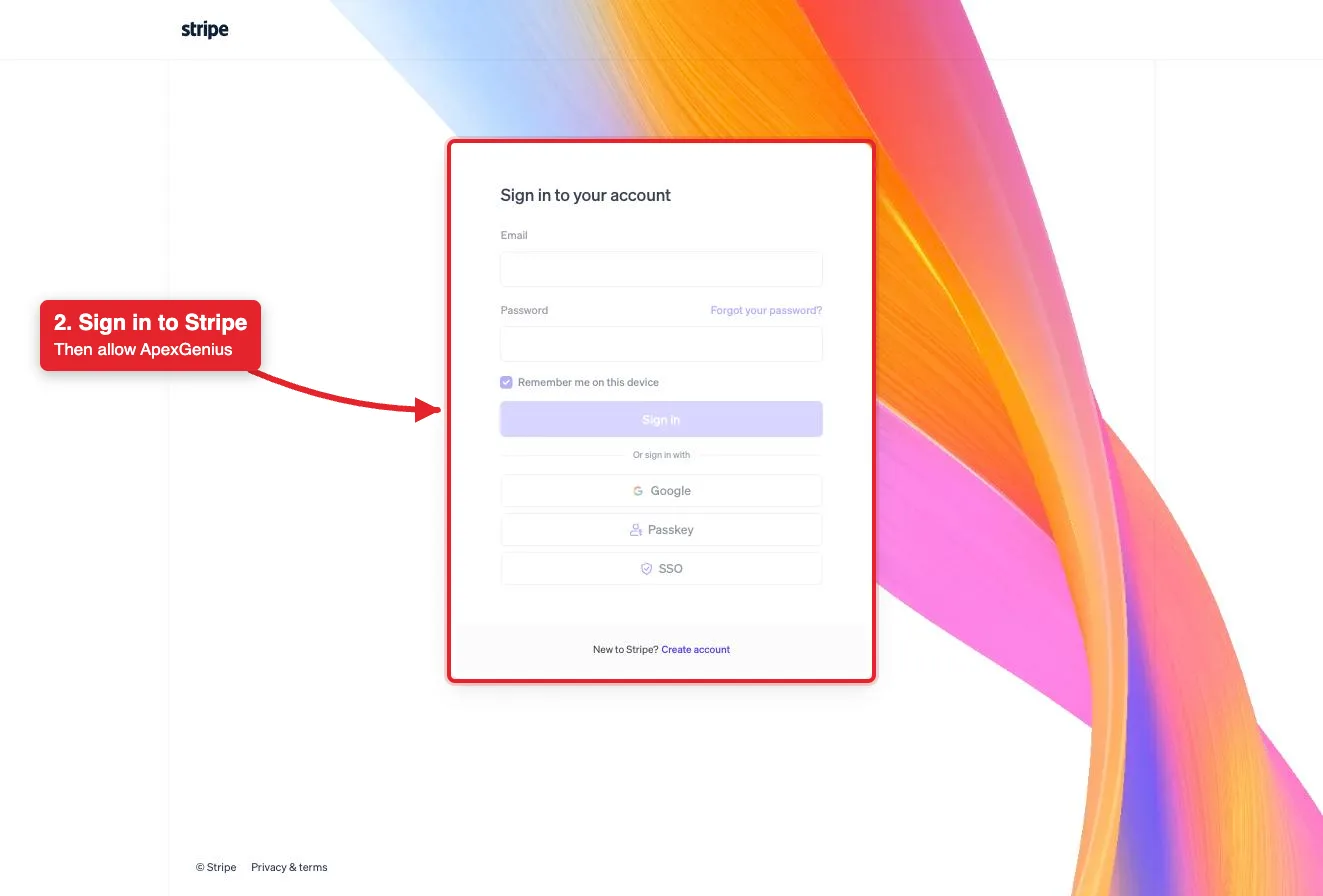
Each guide includes the AI setup and a first question for Stripe.
Current governance
ApexGenius keeps the selected context and current tool surface visible, then records supported write activity for review.
Authorized context
Stripe’s consent page sets the reach: live mode accounts, sandboxes or both, with permissions for each. An administrator can turn MCP access on or off for live mode and sandboxes separately.
Current tool surface
The connector acts only on the Stripe account you connect. It is separate from how ApexGenius bills you.
Reviewable activity
Reads use a route that checks Stripe’s live read-only label. stripe_api_write moves money and runs right away unless you set it to Ask me first.
For some writes, such as refunds, Stripe returns its own confirmation link. Approve it on Stripe, then ask your AI to retry.
Why a gateway
Your AI starts with three ApexGenius gateway tools. It discovers the Stripe operations available to its authorization when a task needs them, then runs the selected operation through the gateway.
Connect Stripe to ApexGenius, then authorize each AI client to use the saved connection with its own tool permissions.
Give one client read-only and the write operations never appear in its tool list at all.
Which agent asked, what ran, and whether it succeeded, kept per connection for review.
Choose your AI client for setup steps and examples using Stripe.
FAQ
More connectors
MCP-compatible AI agents


Codex starts in Plugins in the ChatGPT desktop app. ChatGPT Chat and Work also use Plugins, with personal setup where Developer Mode is permitted. Each AI client has its own guide and authorization requirements.
App connections



Salesforce keeps connection context. Other providers use your signed-in account.
Use the AI you already work in while ApexGenius keeps the app route visible.
Connect Stripe7 days free · No card required
Compatibility does not imply partnership.


