

Connect Claude to Notion
Connect Claude to Notion in 3 steps: 1. Sign in to ApexGenius and connect Notion. 2. Add the ApexGenius connector. 3. Start using Notion in Claude.
1,000 free credits · No card required
How to connect Notion to Claude
- 1Sign in to ApexGenius and connect Notion
- 2Add the ApexGenius connector to Claude
- 3Start using Notion in Claude
- 1
Connect Notion to ApexGenius
Open Notion in ApexGenius
Open Notion in Connections and choose Connect.
- 2
Connect ApexGenius to Claude
Choose Claude
Back on Start, pick Claude and copy the prompt.
- 3
Add it in Claude
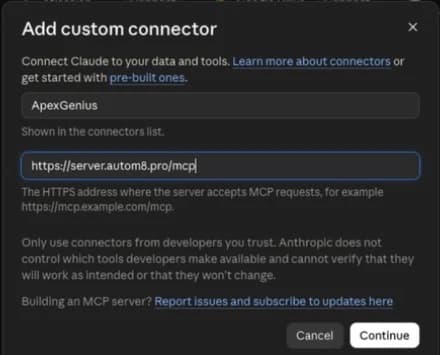
In Claude, open Settings, then Connectors, then Add custom connector. Paste the address.
- 4
Approve access
ApexGenius opens its approval page. Review the access, then approve.
Then ask Claude
Show the name of the Notion user connected to ApexGenius. Discover the current-user read operation first, then use the read-only route. Do not open or change workspace content.
Written setup, step by stepShow
Before you start
- A Notion account with access to the workspace you want to connect.
- Permission from your workspace owner if your organization limits MCP connections.
1. Connect Notion to ApexGenius
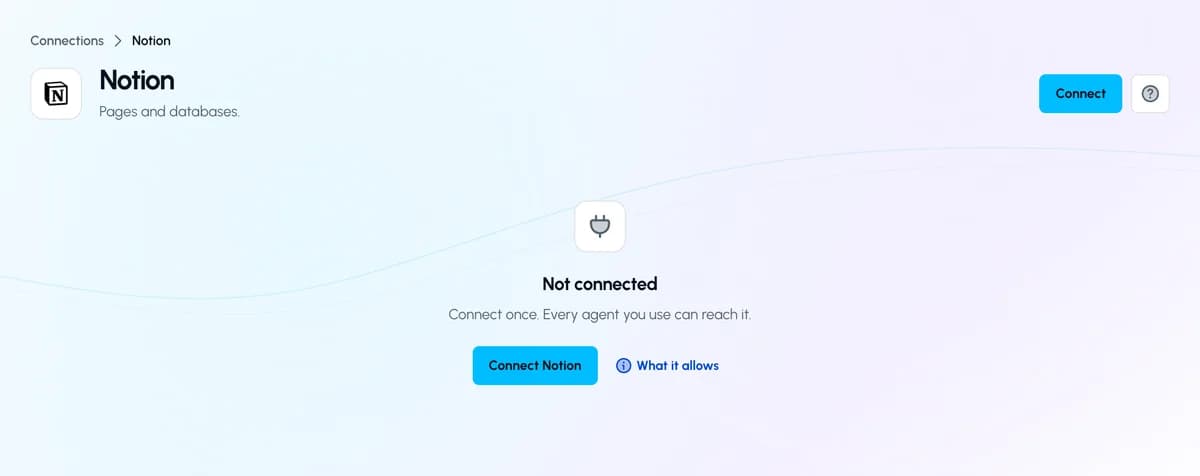
- Open Notion in Connections. Sign in to ApexGenius, open Connections, choose Notion, and select Connect.
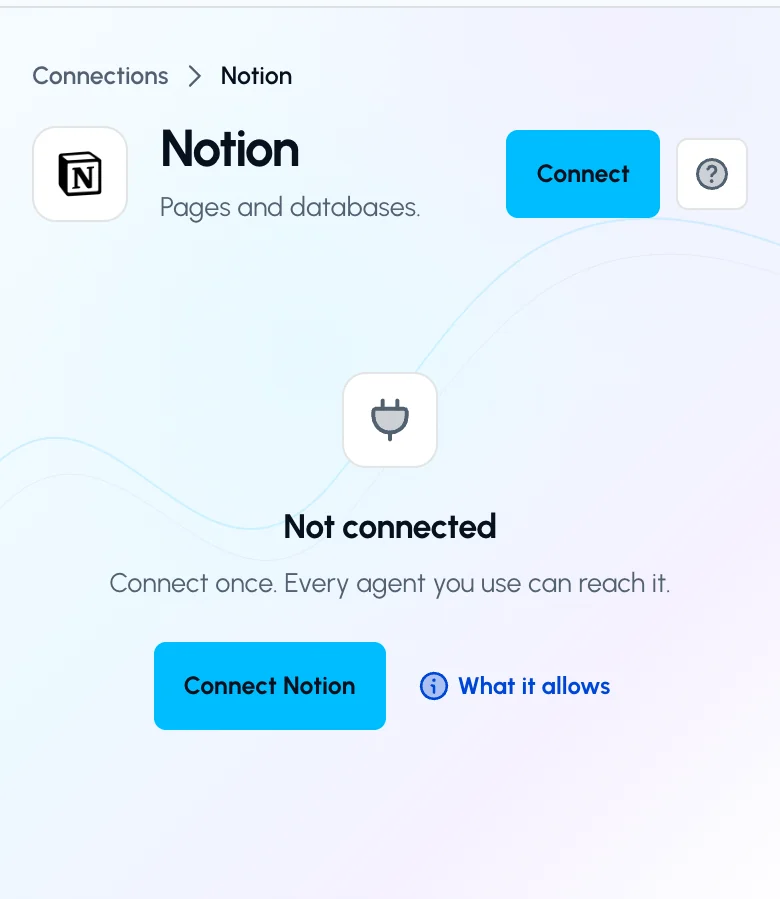
Open Notion in Connections and choose Connect to start setup.Open full-size image (opens in a new tab) - Choose the account and review access. Sign in to the intended Notion account. Choose your workspace and review Notion’s requested access. Return to ApexGenius after authorization.
- Check the workspace and tools. Open Tools and enable the intended workspace resource. Your existing Notion permissions set the content boundary. Choose Read only when adding your AI agent for the first test.
- Verify the connected account. Use Test connection, then ask your AI the question below. Compare the returned user with the account you authorized and check Tool Activity.
2. Connect ApexGenius to Claude
Use this server address when adding the connection:
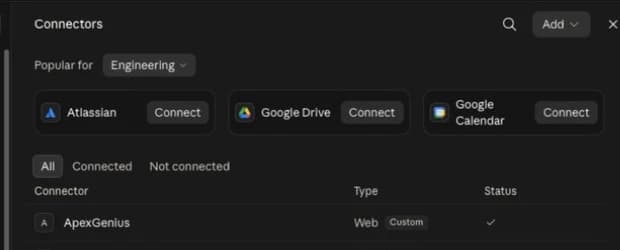
https://server.autom8.pro/mcp- Open Claude Settings, then Connectors, then Add custom connector.
- Enter ApexGenius and the MCP URL above. Choose Connect.
- Approve it in your browser, then turn it on in chat or Cowork.
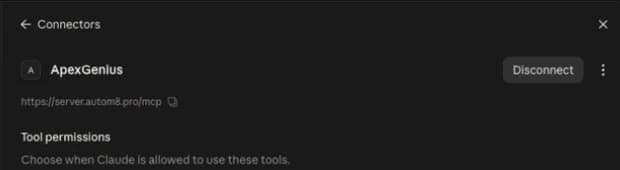
- When ApexGenius asks what this AI client may use, choose Read only for the first test, or Custom to limit it to the tools you need.
- Start a new conversation and select ApexGenius from the available tools before asking for live data.
Read the steps Follow along at your own pace
1. Open Connectors
2. Add ApexGenius
3. Review permissions
3. Verify one safe read
Show the name of the Notion user connected to ApexGenius. Discover the current-user read operation first, then use the read-only route. Do not open or change workspace content.
Show the name of the Notion user connected to ApexGenius. Discover the current-user read operation first, then use the read-only route. Do not open or change workspace content.Confirm the returned user matches your intended Notion account. This account read verifies the connection path; it does not test every page, write action, or Notion plan feature.
Full guide: the Notion setup guide.
What it looks like in Claude Cowork
Illustration of a task, not a recorded customer result. Your answers come from the account and dates you choose.
apex_search_toolsNotion account · Find the Notion read routeCompleteapex_call_read_toolnotion_search_tools · Discover the current-user operationCompleteapex_call_read_toolnotion_call_read_tool · Read the current userCompleteIllustrative example: the connected user is Alex. Compare this name with the Notion account you authorized before asking about a page.
Read-only routeTry asking
Show the name of my connected Notion user without opening workspace content.
Find the project page I name in my connected workspace and show its link.
Read this Notion page and summarize its open decisions. Do not change it.
Update this page. Show the exact change and undo limits first.
What Claude can do in Notion
3 operations: 2 read, 1 write. Read looks things up and changes nothing. Writes change Notion and run only when you turn them on.
Notion gateway tools
2 read · 1 writenotion_search_toolsreadSearch the live tool catalog published by Notion's official hosted MCP. Returns matching names, descriptions, and schemas.
notion_call_read_toolreadRun a discovered Notion operation only when its live catalog marks it read-only. Writes and unclassified operations are rejected.
notion_call_toolwriteRun a reviewed Notion change when enabled, including destructive actions when the live tool permits them. Review the target and undo limits first.
You choose the access. When you approve Claude, pick Full access, Read only, or Custom.
Notion controls the OAuth grant and the content your user can access. Workspace access can be broad; ApexGenius does not promise a separate page-level allowlist.
The read route checks Notion’s live tool annotation and rejects writes or unclassified operations.
The mutation tool must be enabled. Available operations and plan limits come from the current Notion catalog.
Disconnecting stops future gateway access. It does not undo a page edit, comment, upload, or other completed action.
Questions about connecting Claude to Notion
Updated September 19, 2026.
How do I connect Claude to Notion?
Connect Claude to Notion through ApexGenius in three steps. Sign in to ApexGenius and connect Notion by authorizing your workspace in Notion. Add ApexGenius to Claude. Then open a task in Claude and ask a question about your Notion. Start with a read, so nothing changes.
Is there a Notion MCP server for Claude?
Yes. ApexGenius is an MCP server that Claude connects to once. It carries your Notion connection and 3 Notion operations, so Claude does not need a separate Notion integration or plugin. You set it up one time and add each agent the same way.
What can Claude do in Notion once it is connected?
Claude can use 3 Notion operations through ApexGenius: 2 that find what Notion offers and run a classified read, and 1 that runs a change you have enabled. Together they find accessible pages, read the sources you choose, and update pages, within your Notion access and plan.
Can Claude read all my Notion pages?
Claude reaches what your connected Notion user can access in the authorized workspace. That access can be broad, and ApexGenius does not promise a separate page-level allowlist. You enable the workspace resource and choose which tools Claude may use. Notion controls the sign-in grant.
Can Claude change my Notion?
Not until you enable the change tool. Choose Read only and Claude uses the read route, which rejects writes. With the tool enabled, it can update a page when the live Notion catalog and your access allow it. Check the exact page and the undo limits first.
Can I use the same Notion connection with ChatGPT, Grok Bot or Muse?
Yes. One Notion connection in ApexGenius works with every compatible agent you add, including ChatGPT, Grok Bot or Muse. Each agent gets its own access choice and its own short setup. The Notion skills loads in all of them, so it travels with the connection.
More connections like this one
Claude with other apps
 Mobbin
 Slack
Slack Discord
 Context.dev
 Google Meet
 Gmail
Gmail Google Chat
 Google Docs
All 48 apps Claude can use
 Google Drive
 Google Slides
 Atlassian Rovo
 Polymarket
 OP.GG
OP.GG Confluence
 Supabase
 Cal.com
 ChatGPT Ads
 GitHub
 Stripe
 Attio
Attio Semrush
 Apify
Apify Linear
 Jira
Jira HQ Rental
 Google Ads
 Google Analytics
 Google Forms
 Google Tasks
 Google Calendar
 Google Sheets
 Apollo
 Blotato
 Bing Webmaster
 Calendly
 ClickUp
 monday.com
 YouTube
- YouTube Analytics
 Salesforce
 n8n
n8n Google Search Console
 ElevenLabs
 FreshBooks
 Trello
 GitLab
 TypeSafe
 HubSpot
Other agents with Notion
 Grok Bot
 Muse
MuseConnect Notion to Claude today
Start free1,000 free credits. No card required. Disconnect any time.