


Connect Claude to Apollo
Connect Claude to Apollo in 3 steps: 1. Sign in to ApexGenius and connect Apollo. 2. Add the ApexGenius connector. 3. Start using Apollo in Claude.
1,000 free credits · No card required
How to connect Apollo to Claude
- 1Sign in to ApexGenius and connect Apollo
- 2Add the ApexGenius connector to Claude
- 3Start using Apollo in Claude
- 1
Connect Apollo to ApexGenius
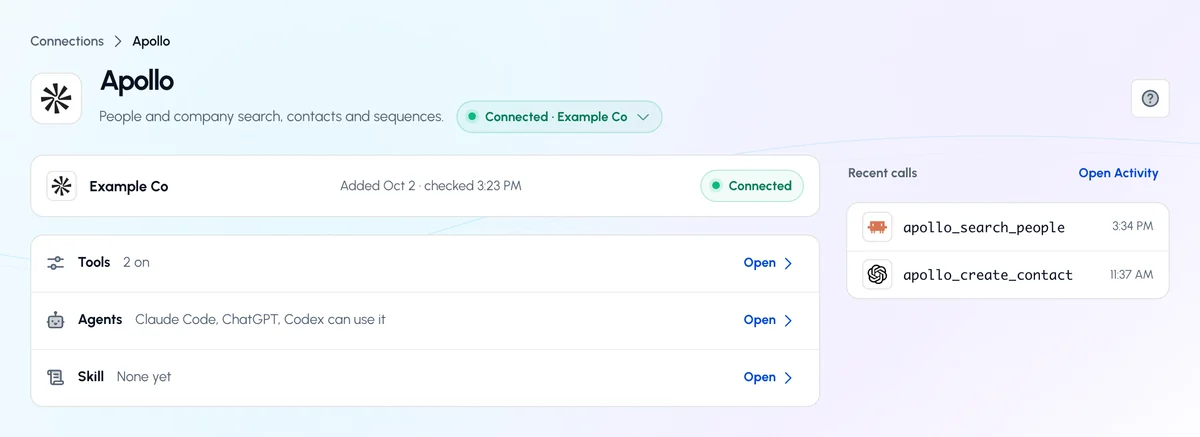
Apollo connected
Apollo shows as connected in ApexGenius, with what your AI can reach.
- 2
Connect ApexGenius to Claude
Choose Claude
Back on Start, pick Claude and copy the prompt.
- 3
Add it in Claude
In Claude, open Settings, then Connectors, then Add custom connector. Paste the address.
- 4
Approve access
ApexGenius opens its approval page. Review the access, then approve.
Add the ApexGenius connector to Claude
Claude keeps custom connectors on your Claude account, under Customize, then Connectors. There is no config file, and one connector works in Claude on the web, Claude Desktop and Cowork.
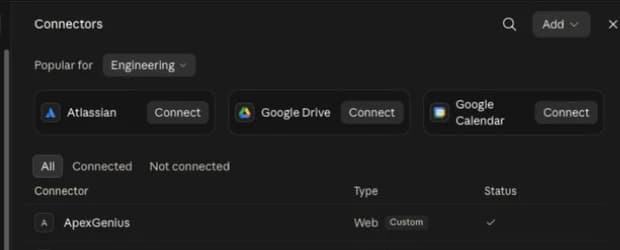
- Open Customize, then Connectors. Choose + Add, then Add custom connector.
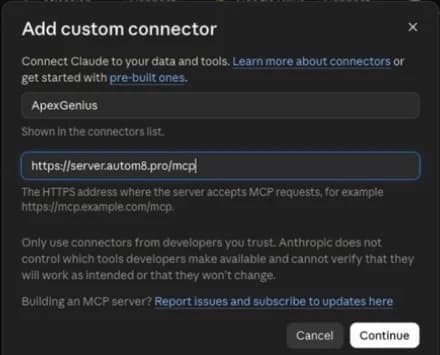
- Name it ApexGenius and paste the MCP address as the remote MCP server URL. Choose Continue.
- Review the authentication settings Claude detected and choose Continue. Finish with Add.
- Sign in to ApexGenius and approve access in your browser when Claude asks.
The MCP address
https://server.autom8.pro/mcp
Check it. In a chat, open the + button at the lower left, choose Connectors, and check that ApexGenius is switched on.
Steps follow Claude Help Center, custom connectors using remote MCP (opens in a new tab), read November 12, 2026.
Then ask Claude
Find the available Apollo account and workspace read tools. Do not enrich contacts, send messages, or spend credits.
Written setup, step by stepShow
Before you start
- An account with permission to use the Apollo resources you intend to connect.
1. Connect Apollo to ApexGenius
- Open Apollo in Connections. Choose Connect, or Add connection when offered. Give the connection a name if prompted. If Gateway setup pending appears, contact ApexGenius support before continuing.
- Choose the account and review access. Sign in to Apollo and review the requested workspace access. Apollo uses browser authorization; no Apollo API key is pasted into ApexGenius.
- Review the connected account and resources. Confirm the connected Apollo workspace. Open Tools to review its available actions. Enrichment and other paid actions use Apollo credits.
- Check the connection. Use Test connection or Check again and read the reported status. Add an AI agent from the AI agents page, choose Read only for the first test, and try the question below.
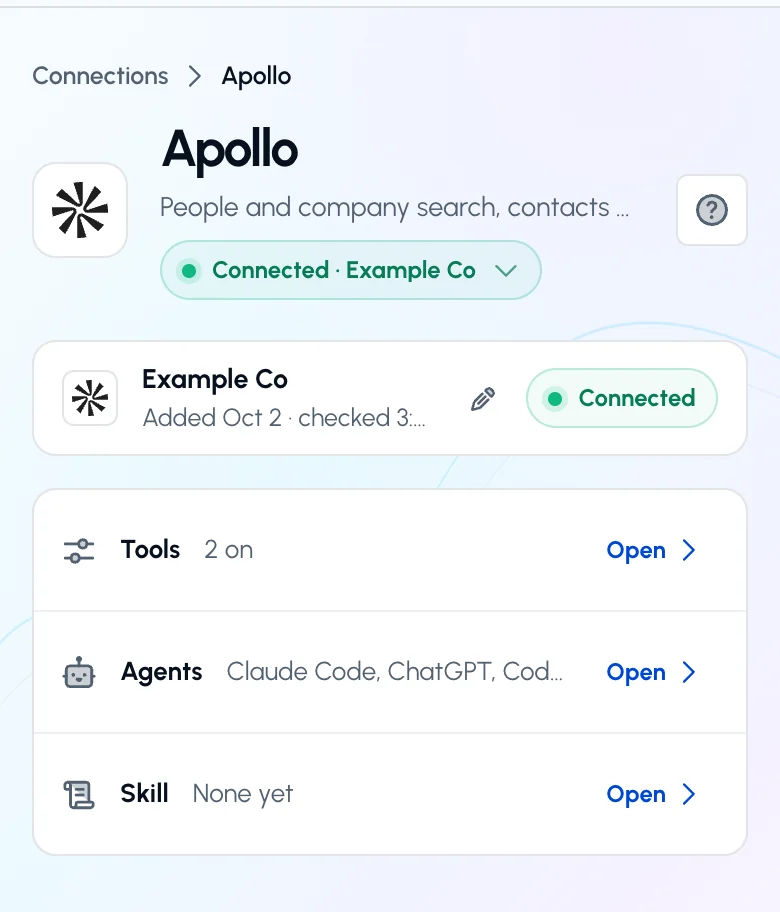
The Apollo page after you connect. The status control reads Connected and the account row shows when it was last checked. Open the status control for Check again.Open full-size image (opens in a new tab)
2. Connect ApexGenius to Claude
Use this server address when adding the connection:
https://server.autom8.pro/mcpThe steps are above, under Add the ApexGenius connector to Claude. These notes apply to Claude only.
- Team and Enterprise plans. An Owner adds the connector first, under Organization settings, then Connectors. After that each person finds it under Customize, then Connectors, and chooses Connect.
- Free plan. Free plans allow one custom connector.
- Where the connection runs. Claude reaches ApexGenius from Anthropic’s servers, not from your computer, including in Claude Desktop and Cowork.
- Access. When ApexGenius asks what Claude may use, choose Read only for the first test, or Custom to limit it to the tools you need.
Read the steps Follow along at your own pace
1. Open Connectors
2. Add ApexGenius
3. Review permissions
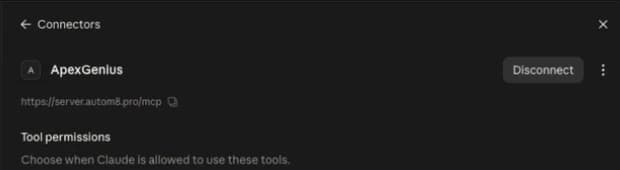
3. Verify one safe read
Find the available Apollo account and workspace read tools. Do not enrich contacts, send messages, or spend credits.
Find the available Apollo account and workspace read tools. Do not enrich contacts, send messages, or spend credits.Compare the returned account and resource with Apollo. Check the connection status separately from the result of the first read.
Full guide: the Apollo setup guide.
What it looks like in Claude Cowork
Illustration of a task, not a recorded customer result. Your answers come from the account and dates you choose.
apex_search_toolsApollo profile credits · Find Apollo toolsCompleteapex_call_write_toolapollo_users_api_profile · Read your profileCompleteapex_call_write_toolapollo_usage_stats_credit_usage_stats · Read credit usageCompleteIllustrative example: you are an admin on the Northwind workspace, and the team used 1,240 of 4,000 credits this month. Nothing was changed.
Read-only routeWhat to ask Claude about Apollo
- Check the workspace
Show my Apollo profile and how many credits we used this month. Do not enrich or send anything.
Runs
apollo_users_api_profile(read), thenapollo_usage_stats_credit_usage_stats(read). - Find prospects
Find VPs of Sales at software companies in Texas with 50 to 200 people.
Runs
apollo_mixed_people_api_search(read). - Due today
Which tasks are due today, and which contacts do they belong to?
Runs
apollo_tasks_search(read).
These 3 questions use 4 of Apollo’s 87 operations. The full list is below.
- Add the five contacts I name to the onboarding sequence. Show me the list first. (write)
What Claude can do in Apollo
87 operations: 39 read, 48 write. Read looks things up and changes nothing. Writes change Apollo and run only when you turn them on.
Find people and companies
3 read · 6 writeapollo_mixed_people_api_searchreadSearch Apollo’s database for people by title, company, location and more.
apollo_mixed_companies_searchwriteSearch Apollo’s database for companies.
apollo_organizations_lookupreadLook up a company by its domain.
apollo_organizations_enrichwriteFill in one company’s details. Uses credits.
apollo_organizations_bulk_enrichwriteFill in details for many companies at once. Uses credits.
apollo_organizations_job_postingswriteRead a company’s open job postings.
apollo_people_matchwriteFill in one person’s details, such as email and phone. Uses credits.
apollo_people_bulk_matchwriteFill in details for many people at once. Uses credits.
apollo_webhook_result_showreadCheck the result of an enrichment that finishes later.
Contacts and accounts
1 read · 6 writeapollo_contacts_searchreadSearch your saved contacts.
apollo_contacts_createwriteSave a new contact.
apollo_contacts_bulk_createwriteSave many contacts at once.
apollo_contacts_updatewriteChange a saved contact.
apollo_accounts_createwriteSave a new account.
apollo_accounts_bulk_createwriteSave many accounts at once.
apollo_accounts_updatewriteChange a saved account.
Deals
2 read · 1 writeapollo_deals_searchreadSearch your deals.
apollo_deals_showreadRead one deal with its stage and amount.
apollo_deals_createwriteCreate a deal.
Lists and fields
2 read · 6 writeapollo_labels_indexreadList your lists.
apollo_labels_createwriteCreate a list.
apollo_labels_updatewriteRename or change a list.
apollo_labels_add_entity_ids_to_label_nameswriteAdd records to lists.
apollo_labels_remove_entity_ids_from_label_nameswriteRemove records from lists.
apollo_fields_indexreadList your fields.
apollo_fields_createwriteCreate a custom field.
apollo_fields_updatewriteChange a custom field.
Sequences
5 read · 5 writeapollo_emailer_campaigns_searchreadSearch your sequences.
apollo_emailer_campaigns_showreadRead a sequence’s steps and emails.
apollo_emailer_campaigns_step_contentreadRead the custom step content written for a contact.
apollo_emailer_campaigns_activity_feedreadRead one contact’s sequence history.
apollo_emailer_schedules_indexreadList your sending schedules.
apollo_sequences_createwriteCreate a sequence.
apollo_sequences_updatewriteChange a sequence.
apollo_emailer_campaigns_add_contact_idswriteAdd contacts to a sequence.
apollo_emailer_campaigns_remove_or_stop_contact_idswriteRemove or stop contacts in sequences.
apollo_emailer_campaigns_approvewriteTurn a sequence on. Apollo starts sending real emails.
Emails
4 read · 2 writeapollo_emailer_messages_createwriteWrite an email draft. It is not sent.
apollo_emailer_messages_send_nowwriteSend a drafted email right away.
apollo_emailer_messages_email_send_statusreadCheck whether an email was delivered.
apollo_emailer_messages_searchreadReport on the emails of a sequence.
apollo_emailer_messages_get_contentreadRead sent emails.
apollo_email_accounts_indexreadList the mailboxes your team sends from.
Tasks and calls
3 read · 7 writeapollo_tasks_searchreadSearch tasks.
apollo_tasks_showreadRead one task, including the message it will send.
apollo_tasks_createwriteCreate a task.
apollo_tasks_bulk_createwriteCreate many tasks at once.
apollo_tasks_updatewriteChange a task.
apollo_tasks_completewriteMark a task done. In a sequence, the contact moves to the next step.
apollo_tasks_skipwriteSkip a task.
apollo_phone_calls_searchreadSearch logged calls.
apollo_phone_calls_createwriteLog a call.
apollo_phone_calls_updatewriteChange a logged call.
Conversations
4 readapollo_conversations_searchreadSearch recorded conversations.
apollo_conversations_get_transcriptreadRead a conversation’s transcript.
apollo_conversations_get_insightsreadRead Apollo’s insights on a conversation.
apollo_conversations_get_recording_linksreadGet short-lived links to a recording.
Reports and team
4 readapollo_analytics_sync_reportreadReport on emails, calls, meetings, tasks and deals, grouped how you want.
apollo_usage_stats_credit_usage_statsreadSee how many Apollo credits were used.
apollo_users_searchreadFind teammates and their user IDs.
apollo_users_api_profilereadRead your own Apollo profile.
Website visitors
2 read · 3 writeapollo_website_visitors_domain_aggregatesreadSee which companies visited your site.
apollo_website_visitor_domain_tracker_indexwriteRead your tracked domains.
apollo_website_visitor_domain_tracker_install_scriptreadGet the tracking script for your site.
apollo_website_visitor_domain_tracker_send_install_emailwriteEmail the tracking script to someone to install.
apollo_website_visitor_domain_tracker_updatewriteAdd or change a tracked domain.
Collections and imports
4 read · 5 writeapollo_custom_objects_createwriteCreate a record collection.
apollo_custom_objects_showreadRead a record collection.
apollo_custom_object_records_searchreadSearch the rows in a collection.
apollo_data_sources_createwriteAttach a data source to a collection.
apollo_data_source_imports_createwriteRun an import into a collection.
apollo_dynamic_field_enrichment_enrichwriteEnrich rows in a collection. Uses credits.
apollo_dynamic_field_enrichment_ongoing_enrichment_requestsreadCheck enrichment progress.
apollo_csv_exports_export_viewwriteExport a collection to CSV.
apollo_csv_exports_showreadCheck a CSV export.
Context Center
2 read · 4 writeapollo_context_center_showreadRead your profile and products.
apollo_context_center_show_productreadRead one product.
apollo_context_center_create_profilewriteCreate your ideal customer profile.
apollo_context_center_update_profilewriteChange your ideal customer profile.
apollo_context_center_create_productwriteAdd a product.
apollo_context_center_update_productwriteChange a product.
Domains and mailboxes
2 read · 1 writeapollo_domain_purchase_indexreadList the domains you bought through Apollo.
apollo_email_account_purchase_indexreadList the mailboxes you bought through Apollo.
apollo_email_account_purchase_createwriteBuy mailboxes through Apollo. This spends money.
Help and feedback
1 read · 2 writeapollo_prompts_suggestreadSuggest things to try in Apollo.
apollo_feedback_logwriteReport a bad result to Apollo.
apollo_survey_submitwriteSend Apollo a survey you chose to take.
You choose the access. When you approve Claude, pick Full access, Read only, or Custom.
Your Apollo plan, credits and permissions decide what can be used.
Enrichment uses Apollo credits. Sending email and turning on a sequence reach real people. Buying mailboxes spends money.
Writes run immediately. Blocked hides a tool from agents.
Disconnecting stops future access. It does not unsend email or refund credits.
Questions about connecting Claude to Apollo
Updated November 12, 2026.
How do I connect Claude to Apollo?
Sign in to ApexGenius and connect Apollo. In Claude, open Customize, then Connectors, choose + Add, then Add custom connector, and paste the ApexGenius MCP address. Then ask Claude: “Find the available Apollo account and workspace read tools. Do not enrich contacts, send messages, or spend credits.” Start with a read, so nothing changes.
How do I check that Claude can use Apollo?
In a chat, open the + button at the lower left and choose Connectors. ApexGenius should be listed and switched on for that conversation. On a Team or Enterprise plan an Owner has to add the connector first, under Organization settings, then Connectors. Then ask: “Find the available Apollo account and workspace read tools. Do not enrich contacts, send messages, or spend credits.”
Will this use my Apollo credits?
Enrichment and some searches use Apollo credits, and those tools say so. Ask your AI to check your credit usage first.
Can my AI send email?
Yes. It can send a drafted email and turn on a sequence, and both reach real people. Those tools are marked destructive. Writes run immediately. Blocked hides a tool from agents.
Can my AI spend money?
One tool buys mailboxes through Apollo. Keep it off unless you want your AI to buy them.
Will this list of tools change?
Apollo publishes its MCP tools, and ApexGenius reads Apollo’s live list on every search. This page shows the list as of its review date.
More connections like this one
Claude with other apps
 Attio
 Salesforce
 HubSpot
 Supabase
 Mobbin
 Cal.com
 Slack
 Discord
All 48 apps Claude can use
 ChatGPT Ads
 GitHub
 Stripe
 Context.dev
 Semrush
 Notion
 Apify
 Linear
 Jira
 HQ Rental
 Google Ads
 Google Analytics
 Google Forms
 Google Meet
 Google Tasks
 Gmail
 Google Calendar
 Google Chat
 Google Docs
 Google Drive
 Google Sheets
 Google Slides
 Blotato
 Bing Webmaster
 Calendly
 ClickUp
 monday.com
 Atlassian Rovo
 Polymarket
 OP.GG
 YouTube
- YouTube Analytics
 n8n
 Confluence
 Google Search Console
 ElevenLabs
 FreshBooks
 Trello
 GitLab
 TypeSafe
Other agents with Apollo
 Grok Bot
 Muse
Connect Apollo to Claude today
Start free1,000 free credits. No card required. Disconnect any time.