


Connect Claude to HQ Rental
Connect Claude to HQ Rental in 3 steps: 1. Sign in to ApexGenius and connect HQ Rental. 2. Add the ApexGenius connector. 3. Start using HQ Rental in Claude.
1,000 free credits · No card required
How to connect HQ Rental to Claude
- 1Sign in to ApexGenius and connect HQ Rental
- 2Add the ApexGenius connector to Claude
- 3Start using HQ Rental in Claude
- 1
Connect HQ Rental to ApexGenius
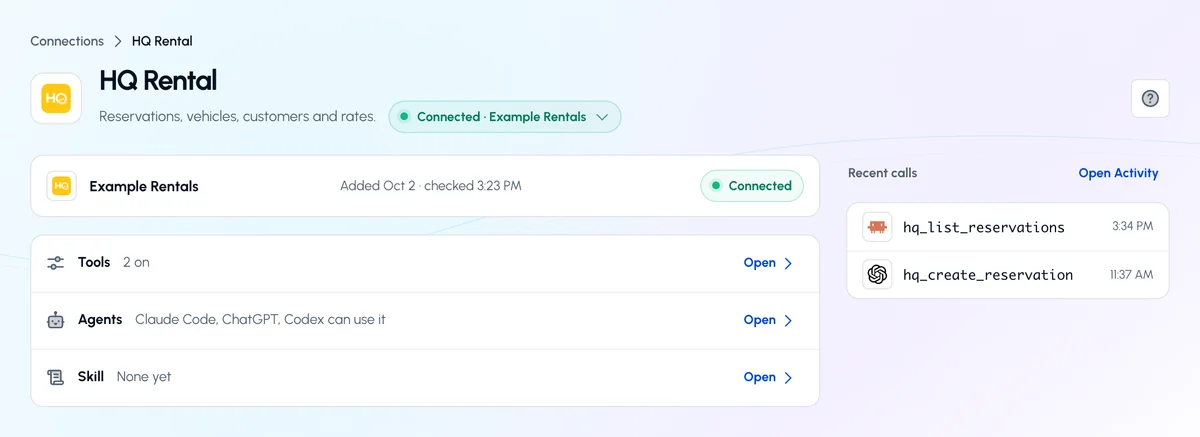
HQ Rental connected
HQ Rental shows as connected in ApexGenius, with what your AI can reach.
- 2
Connect ApexGenius to Claude
Choose Claude
Back on Start, pick Claude and copy the prompt.
- 3
Add it in Claude
In Claude, open Settings, then Connectors, then Add custom connector. Paste the address.
- 4
Approve access
ApexGenius opens its approval page. Review the access, then approve.
Add the ApexGenius connector to Claude
Claude keeps custom connectors on your Claude account, under Customize, then Connectors. There is no config file, and one connector works in Claude on the web, Claude Desktop and Cowork.
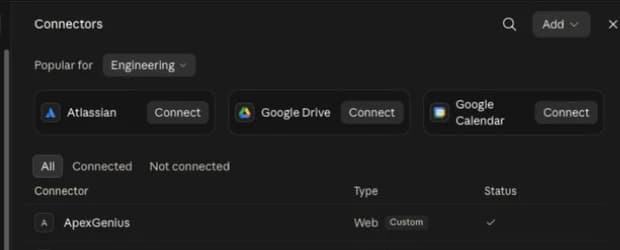
- Open Customize, then Connectors. Choose + Add, then Add custom connector.
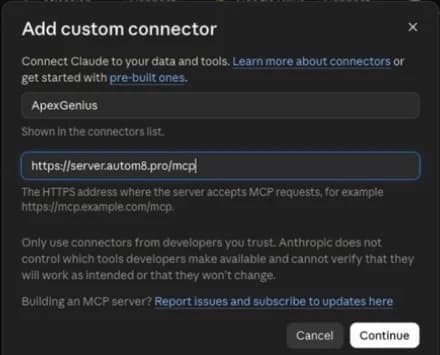
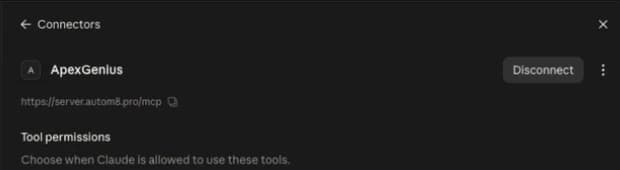
- Name it ApexGenius and paste the MCP address as the remote MCP server URL. Choose Continue.
- Review the authentication settings Claude detected and choose Continue. Finish with Add.
- Sign in to ApexGenius and approve access in your browser when Claude asks.
The MCP address
https://server.autom8.pro/mcp
Check it. In a chat, open the + button at the lower left, choose Connectors, and check that ApexGenius is switched on.
Steps follow Claude Help Center, custom connectors using remote MCP (opens in a new tab), read November 12, 2026.
Then ask Claude
List the locations available in my connected HQ Rental tenant. Do not create or change a reservation.
Written setup, step by stepShow
Before you start
- HQ Rental API access enabled by an administrator.
- The tenant label, API region, tenant token, and user token for the intended tenant.
1. Connect HQ Rental to ApexGenius
- Open HQ Rental in Connections. Choose Connect or Add connection to open the HQ Rental form.
- Enter the tenant and user credentials. Choose the assigned API region. Enter the tenant label, tenant token, and user token supplied by your HQ administrator.
- Verify and connect. Choose Verify and connect. ApexGenius checks a location search before saving. Confirm the tenant and reported status after the form closes.
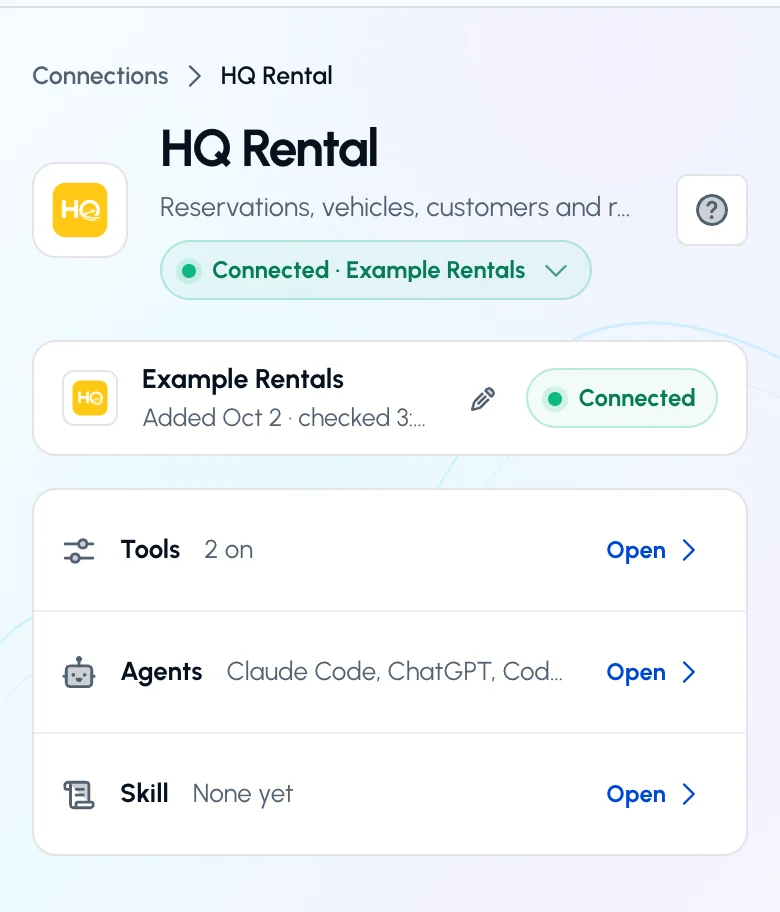
The HQ Rental page after you connect. The status control reads Connected and the account row shows when it was last checked. Open the status control for Check again.Open full-size image (opens in a new tab)
2. Connect ApexGenius to Claude
Use this server address when adding the connection:
https://server.autom8.pro/mcpThe steps are above, under Add the ApexGenius connector to Claude. These notes apply to Claude only.
- Team and Enterprise plans. An Owner adds the connector first, under Organization settings, then Connectors. After that each person finds it under Customize, then Connectors, and chooses Connect.
- Free plan. Free plans allow one custom connector.
- Where the connection runs. Claude reaches ApexGenius from Anthropic’s servers, not from your computer, including in Claude Desktop and Cowork.
- Access. When ApexGenius asks what Claude may use, choose Read only for the first test, or Custom to limit it to the tools you need.
Read the steps Follow along at your own pace
1. Open Connectors
2. Add ApexGenius
3. Review permissions
3. Verify one safe read
List the locations available in my connected HQ Rental tenant. Do not create or change a reservation.
List the locations available in my connected HQ Rental tenant. Do not create or change a reservation.Compare the returned locations with the intended HQ Rental tenant.
Full guide: the HQ Rental setup guide.
What it looks like in Claude Cowork
Illustration of a task, not a recorded customer result. Your answers come from the account and dates you choose.
apex_search_toolsHQ Rental locations · Find the HQ Rental read routeCompleteapex_call_read_toolhqrental_search_locations · Search locationsCompleteIllustrative example: three locations, the airport, downtown and the harbor office. Compare them with the tenant you meant to connect. Nothing was changed.
Read-only routeWhat to ask Claude about HQ Rental
- Check the tenant
List the locations available in my connected HQ Rental tenant. Do not create or change a reservation.
Runs
hqrental_search_locations(read). - Today’s pickups
Show today’s pickups and returns at the location I name.
Runs
hqrental_search_locations(read), thenhqrental_daily_manifest(read). - Availability and a quote
Which vehicle classes are free at the airport location next Friday through Sunday, and what would a quote cost?
Runs
hqrental_check_vehicle_availability(read), thenhqrental_calculate_quote(read).
These 3 questions use 4 of HQ Rental’s 114 operations. The full list is below.
- Extend reservation 4821 to return on Monday at noon. Show me the new total first. (write)
What Claude can do in HQ Rental
114 operations: 60 read, 54 write. Read looks things up and changes nothing. Writes change HQ Rental and run only when you turn them on.
Reservations
7 read · 10 writehqrental_get_reservationreadGet a reservation by ID
hqrental_search_reservationsreadSearch reservations
hqrental_create_reservationwriteCreate and confirm a reservation
hqrental_update_reservationwriteUpdate a reservation: dates, location, vehicle class, customer or charges.
hqrental_set_reservation_statuswriteChange a reservation status: open, cancelled, pending, quote, no show or ready for pickup.
hqrental_calculate_quotereadCalculate a rental quote (price + applicable charges) without creating a reservation
hqrental_send_quotewriteStore a quote and email it to a customer
hqrental_list_available_vehicles_for_reservationreadList vehicles available for a specific reservation
hqrental_assign_vehiclewriteAssign a vehicle to a reservation (check-in)
hqrental_detach_vehiclewriteDetach the vehicle from a reservation (check-out)
hqrental_list_free_upgradesreadList free vehicle-class upgrades available for a reservation
hqrental_apply_free_upgradewriteApply a free vehicle-class upgrade to a reservation
hqrental_get_extensionsreadList extensions for a reservation
hqrental_create_extensionwriteExtend a reservation to a new return date/time
hqrental_delete_extensionwriteDelete a reservation extension
hqrental_list_agentsreadList rental agents (staff)
hqrental_assign_agentwriteAssign primary or return agent to a reservation
Charges, agreements and comments
4 read · 9 writehqrental_get_external_chargesreadList external charges (tolls, parking, damages) on a reservation
hqrental_create_external_chargewriteAdd an external charge to a reservation
hqrental_delete_external_chargewriteDelete an external charge from a reservation
hqrental_get_adjustmentsreadList price adjustments on a reservation
hqrental_create_adjustmentwriteCreate a price adjustment on a reservation
hqrental_delete_adjustmentwriteDelete a reservation adjustment
hqrental_get_rental_agreementreadFetch the rental agreement document for a reservation
hqrental_mark_reservation_signedwriteSet the signed date on a reservation.
hqrental_upload_signaturewriteUpload the primary driver signature image to a reservation
hqrental_list_reservation_commentsreadList the comments people added to a reservation. Broker and system comments appear on the reservation itself.
hqrental_create_reservation_commentwriteAdd a comment to a reservation
hqrental_delete_reservation_commentwriteDelete a reservation comment
hqrental_send_reservation_emailwriteSend a reservation confirmation or contract email
Fleet
7 read · 10 writehqrental_get_vehiclereadGet a vehicle by ID
hqrental_search_vehiclesreadSearch vehicles in the fleet
hqrental_check_vehicle_availabilityreadValidate a date range and return available vehicle classes
hqrental_reserve_vehiclewriteReserve a vehicle, or cancel that hold.
hqrental_update_vehiclewriteUpdate vehicle fields. Tenant fields such as registration expiry go in custom fields.
hqrental_list_vehicle_damagesreadList damages recorded on a vehicle
hqrental_create_vehicle_damagewriteRecord a damage on a vehicle
hqrental_get_vehicle_damagereadGet a vehicle damage record
hqrental_update_vehicle_damagewriteUpdate a vehicle damage record
hqrental_list_blocked_periodsreadList blocked periods for a vehicle
hqrental_create_blocked_periodwriteBlock a vehicle for a date/time range
hqrental_update_blocked_periodwriteUpdate a blocked period
hqrental_delete_blocked_periodwriteDelete a blocked period
hqrental_list_relocationsreadList vehicle relocations
hqrental_create_relocationwriteCreate a vehicle relocation
hqrental_update_relocationwriteUpdate a vehicle relocation
hqrental_delete_relocationwriteDelete a vehicle relocation
Maintenance and telematics
7 readhqrental_get_maintenance_historyreadGet maintenance history for a vehicle
hqrental_list_repair_ordersreadList repair orders (optionally filtered by vehicle)
hqrental_get_repair_orderreadGet a repair order by ID
hqrental_get_obd_historyreadGet OBD telematics events for a vehicle
hqrental_get_obd_history_allreadGet telematics events across all vehicles, a page at a time.
hqrental_get_vehicle_tripsreadGet telematics trips for a vehicle
hqrental_get_vehicle_alertsreadGet telematics alerts for a vehicle in a date range
Customers
5 read · 5 writehqrental_get_customerreadGet a customer by ID within its contact category.
hqrental_search_customersreadSearch customers (contacts)
hqrental_create_customerwriteCreate a customer through the booking flow. Tenant fields go in custom fields.
hqrental_list_customer_creditsreadList credit transactions for a customer
hqrental_create_customer_creditwriteCreate a customer credit transaction
hqrental_update_customer_creditwriteUpdate a customer credit transaction
hqrental_delete_customer_creditwriteDelete a customer credit transaction
hqrental_merge_customerswriteMerge one or more contacts into a target contact
hqrental_list_contact_categoriesreadList contact categories. Most customer reads and writes need one.
hqrental_get_contact_categoryreadGet a single contact category by ID
Payments and refunds
3 read · 7 writehqrental_get_paymentreadGet a payment-gateway transaction by ID
hqrental_search_paymentsreadSearch payment-gateway transactions
hqrental_create_paymentwriteRecord an offline payment on a reservation
hqrental_update_paymentwriteUpdate a payment on a reservation
hqrental_charge_credit_cardwriteCharge a credit card on a reservation (uses saved card or sends a payment request)
hqrental_refund_security_depositwriteRefund a security deposit, offline against a payment or online through the payment gateway.
hqrental_get_refundsreadList refunds on a reservation
hqrental_create_refundwriteCreate a refund on a reservation
hqrental_update_refundwriteUpdate a refund on a reservation
hqrental_delete_refundwriteDelete a refund from a reservation
Rates and pricing
11 read · 6 writehqrental_get_ratereadGet a rate by ID
hqrental_search_ratesreadSearch rates
hqrental_list_seasonsreadList rate seasons
hqrental_get_seasonreadGet a season by ID
hqrental_create_seasonwriteCreate a season
hqrental_update_seasonwriteUpdate a season
hqrental_delete_seasonwriteDelete a season
hqrental_list_rate_typesreadList rate types
hqrental_get_rate_typereadGet a rate type by ID
hqrental_create_rate_typewriteCreate a rate type
hqrental_update_rate_typewriteUpdate a rate type
hqrental_delete_rate_typewriteDelete a rate type
hqrental_list_packagesreadList bundle packages
hqrental_get_packagereadGet a package by ID
hqrental_list_package_itemsreadList items inside packages
hqrental_list_additional_chargesreadList configured additional charges (insurance, equipment, fees)
hqrental_get_additional_chargereadGet an additional charge by ID
Locations and vehicle catalog
11 readhqrental_get_locationreadGet a location by ID
hqrental_search_locationsreadSearch locations
hqrental_daily_manifestreadDaily operations dashboard (pickups, returns, manifests)
hqrental_list_featuresreadList vehicle features
hqrental_get_featurereadGet a vehicle feature by ID
hqrental_list_vehicle_typesreadList vehicle types/classes
hqrental_get_vehicle_typereadGet a vehicle type by ID
hqrental_list_vehicle_modelsreadList vehicle models
hqrental_get_vehicle_modelreadGet a vehicle model by ID
hqrental_list_vehicle_brandsreadList vehicle brands, which HQ calls branches.
hqrental_get_vehicle_brandreadGet a vehicle brand by ID
Traffic fines
2 read · 3 writehqrental_list_finesreadList traffic fines
hqrental_get_finereadGet a fine by ID
hqrental_create_finewriteRecord a traffic fine
hqrental_update_finewriteUpdate a fine
hqrental_delete_finewriteDelete a fine
Email, files and webhooks
3 read · 4 writehqrental_list_email_templatesreadList configured email templates
hqrental_get_email_templatereadGet an email template by ID
hqrental_trigger_email_templatewriteSend an email template against any record (reservation, contact, etc.)
hqrental_upload_filewriteUpload a file (e.g. attach a toll receipt PDF to an external charge)
hqrental_list_filesreadList files (optionally filtered by attached item)
hqrental_delete_filewriteDelete a file by ID
hqrental_register_webhookwriteRegister a webhook receiver URL
You choose the access. When you approve Claude, pick Full access, Read only, or Custom.
The tenant and the permissions on its user token decide what can be read and changed.
Payments, card charges, refunds and sent emails reach real customers and money. Keep those tools off unless you need them.
Writes run immediately. Blocked hides a tool from agents.
Disconnecting stops future access. It does not undo a booking, charge, refund or sent email.
Questions about connecting Claude to HQ Rental
Updated November 12, 2026.
How do I connect Claude to HQ Rental?
Sign in to ApexGenius and connect HQ Rental. In Claude, open Customize, then Connectors, choose + Add, then Add custom connector, and paste the ApexGenius MCP address. Then ask Claude: “List the locations available in my connected HQ Rental tenant. Do not create or change a reservation.” Start with a read, so nothing changes.
How do I check that Claude can use HQ Rental?
In a chat, open the + button at the lower left and choose Connectors. ApexGenius should be listed and switched on for that conversation. On a Team or Enterprise plan an Owner has to add the connector first, under Organization settings, then Connectors. Then ask: “List the locations available in my connected HQ Rental tenant. Do not create or change a reservation.”
What can my AI read?
Reservations, vehicles, customers, rates, payments, maintenance, telematics, fines and files, within the permissions of the user token you entered.
Can my AI book or change rentals?
Yes. It can create and change reservations, charges, fleet records and customers. Writes run immediately. Blocked hides a tool from agents.
Can my AI move money?
Card charges, payments, deposits and refunds are on the tool list and marked destructive where they move money. Turn those tools off unless you want your AI to use them.
Can I start with read-only access?
Yes. Choose Read only when you add your AI agent, and the write tools never reach its tool list.
More connections like this one
Claude with other apps
 Supabase
 Cal.com
 GitHub
 Stripe
 Linear
 Jira
 Google Forms
 Google Tasks
All 48 apps Claude can use
 Google Calendar
 Google Sheets
 Calendly
 ClickUp
 monday.com
 ElevenLabs
 FreshBooks
 Trello
 GitLab
 Mobbin
 Slack
 Discord
 ChatGPT Ads
 Context.dev
 Attio
 Semrush
 Notion
 Apify
 Google Ads
 Google Analytics
 Google Meet
 Gmail
 Google Chat
 Google Docs
 Google Drive
 Google Slides
 Apollo
 Blotato
 Bing Webmaster
 Atlassian Rovo
 Polymarket
 OP.GG
 YouTube
- YouTube Analytics
 Salesforce
 n8n
 Confluence
 Google Search Console
 TypeSafe
 HubSpot
Other agents with HQ Rental
 Grok Bot
 Muse
Connect HQ Rental to Claude today
Start free1,000 free credits. No card required. Disconnect any time.