

Connect Claude to Gmail
Connect Claude to Gmail in 3 steps: 1. Sign in to ApexGenius and connect Gmail. 2. Add the ApexGenius connector. 3. Start using Gmail in Claude.
1,000 free credits · No card required
How to connect Gmail to Claude
- 1Sign in to ApexGenius and connect Gmail
- 2Add the ApexGenius connector to Claude
- 3Start using Gmail in Claude
- 1
Connect Gmail to ApexGenius
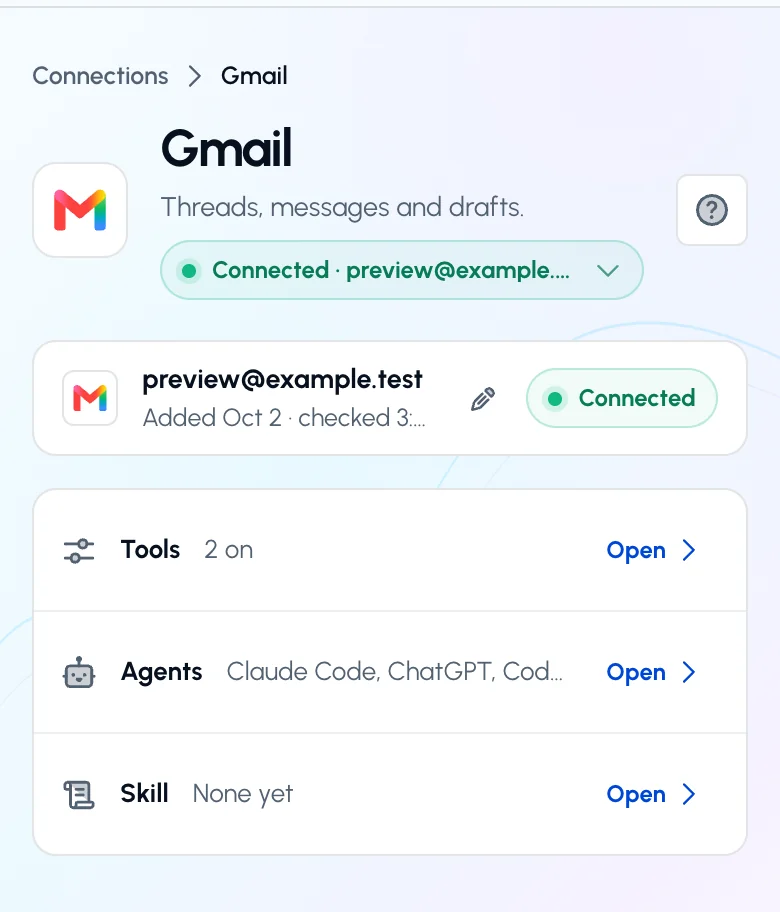
Gmail connected
Gmail shows as connected in ApexGenius, with what your AI can reach.
- 2
Connect ApexGenius to Claude
Choose Claude
Back on Start, pick Claude and copy the prompt.
- 3
Add it in Claude
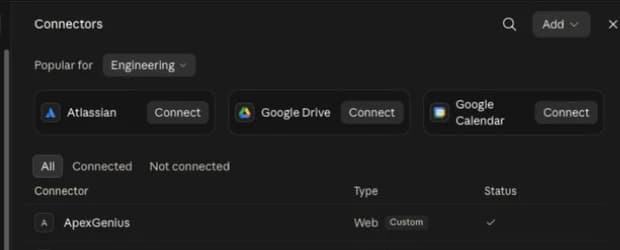
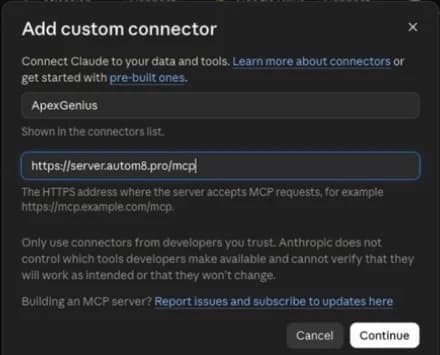
In Claude, open Settings, then Connectors, then Add custom connector. Paste the address.
- 4
Approve access
ApexGenius opens its approval page. Review the access, then approve.
Add the ApexGenius connector to Claude
Claude keeps custom connectors on your Claude account, under Customize, then Connectors. There is no config file, and one connector works in Claude on the web, Claude Desktop and Cowork.
- Open Customize, then Connectors. Choose + Add, then Add custom connector.
- Name it ApexGenius and paste the MCP address as the remote MCP server URL. Choose Continue.
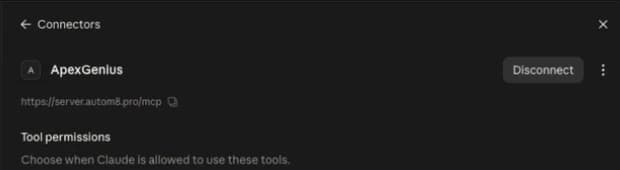
- Review the authentication settings Claude detected and choose Continue. Finish with Add.
- Sign in to ApexGenius and approve access in your browser when Claude asks.
The MCP address
https://server.autom8.pro/mcp
Check it. In a chat, open the + button at the lower left, choose Connectors, and check that ApexGenius is switched on.
Steps follow Claude Help Center, custom connectors using remote MCP (opens in a new tab), read November 12, 2026.
Then ask Claude
Find up to five recent Gmail messages and show their subjects only. Do not send, draft, or change anything.
Written setup, step by stepShow
Before you start
- An account with permission to use the Gmail resources you intend to connect.
1. Connect Gmail to ApexGenius
- Open Gmail in Connections. Choose Connect, or Add connection when offered. Give the connection a name if prompted. If Gateway setup pending appears, contact ApexGenius support before continuing.
- Choose the account and review access. Sign in to the Google account that has access to the intended resources. Review the permissions Google requests, then return to ApexGenius.
- Review the connected account and resources. Find Allowed resources on the connection page or its Tools tab. Choose Refresh and enable only the connected mailbox. Resource selection does not add permissions to the Google account.
- Check the connection. Use Test connection or Check again and read the reported status. Add an AI agent from the AI agents page, choose Read only for the first test, and try the question below.
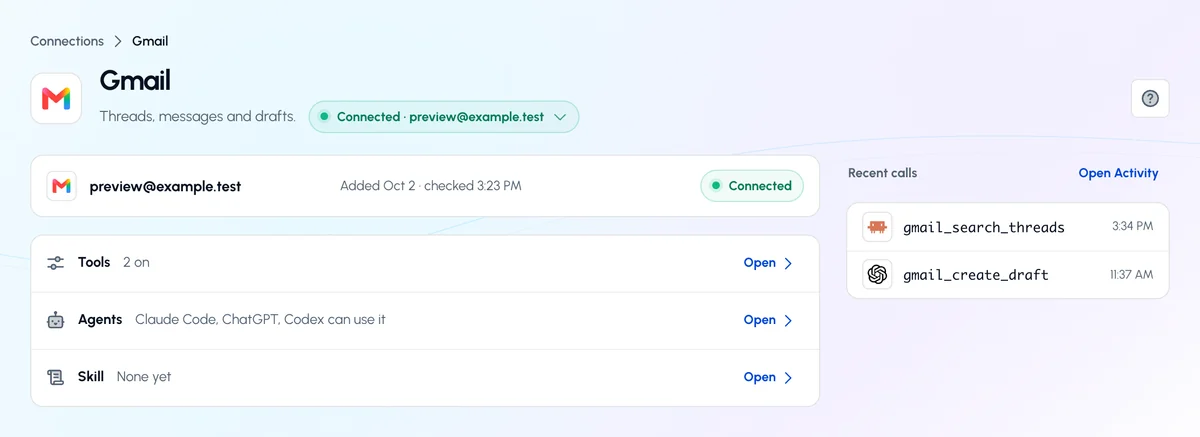
The Gmail page after you connect. The status control reads Connected and the account row shows when it was last checked. Open the status control for Check again.Open full-size image (opens in a new tab)
2. Connect ApexGenius to Claude
Use this server address when adding the connection:
https://server.autom8.pro/mcpThe steps are above, under Add the ApexGenius connector to Claude. These notes apply to Claude only.
- Team and Enterprise plans. An Owner adds the connector first, under Organization settings, then Connectors. After that each person finds it under Customize, then Connectors, and chooses Connect.
- Free plan. Free plans allow one custom connector.
- Where the connection runs. Claude reaches ApexGenius from Anthropic’s servers, not from your computer, including in Claude Desktop and Cowork.
- Access. When ApexGenius asks what Claude may use, choose Read only for the first test, or Custom to limit it to the tools you need.
Read the steps Follow along at your own pace
1. Open Connectors
2. Add ApexGenius
3. Review permissions
3. Verify one safe read
Find up to five recent Gmail messages and show their subjects only. Do not send, draft, or change anything.
Find up to five recent Gmail messages and show their subjects only. Do not send, draft, or change anything.Compare the returned account and resource with Gmail. Check the connection status separately from the result of the first read.
Full guide: the Gmail setup guide.
What it looks like in Claude Cowork
Illustration of a task, not a recorded customer result. Your answers come from the account and dates you choose.
apex_search_toolsGmail search · Find the Gmail read routeCompleteapex_call_read_toolgoogle_gmail_get_profile · Check the connected mailboxCompleteapex_call_read_toolsearch_threads · Search recent threadsCompleteIllustrative example: five subjects from today, two from clients and three newsletters. Nothing was sent or changed.
Read-only routeWhat to ask Claude about Gmail
- Recent subjects
Find up to five recent Gmail messages and show their subjects only. Do not send, draft, or change anything.
Runs
google_gmail_get_profile(read), thensearch_threads(read). - Client summary
Summarize the unread email from my biggest client this week.
Runs
google_gmail_get_profile(read), thensearch_threads(read), thenget_thread(read). - Find an invoice
Find the latest invoice email and tell me the amount and due date.
Runs
google_gmail_get_profile(read), thensearch_threads(read), thenget_message(read).
These 3 questions use 4 of Gmail’s 25 operations. The full list is below.
- Draft a reply to the last email from the client I name. Do not send it. (write)
What Claude can do in Gmail
25 operations: 7 read, 18 write. Read looks things up and changes nothing. Writes change Gmail and run only when you turn them on.
Mailbox and search
5 readgoogle_gmail_get_profilereadRead the connected mailbox’s address. ApexGenius checks it before any mail is read.
search_threadsreadSearch threads with Gmail search, such as from:, subject: or newer_than:.
get_threadreadRead a whole conversation.
get_messagereadRead one message.
list_labelsreadList the mailbox’s labels and their IDs.
Drafts
2 read · 2 writecreate_draftwriteWrite a new draft or a reply, with attachments up to 25 MB. It does not send.
list_draftsreadList your drafts.
get_draftreadRead one draft.
google_gmail_send_draftwriteSend one draft. ApexGenius checks the mailbox first. Sent email cannot be recalled.
Labels
6 writecreate_labelwriteCreate a label, including nested labels.
label_threadwriteAdd labels to a whole thread.
unlabel_threadwriteRemove labels from a whole thread.
label_messagewriteAdd labels to one message.
unlabel_messagewriteRemove labels from one message.
update_message_labelswriteAdd and remove labels on one message in a single step.
Trash and spam
10 writetrash_threadwriteMove a whole thread to trash.
untrash_threadwriteBring a thread back from trash.
mark_thread_spamwriteMark a whole thread as spam.
unmark_thread_spamwriteTake a thread out of spam.
apply_sensitive_thread_labelwritePut the trash or spam label on one thread.
trash_messagewriteMove one message to trash.
untrash_messagewriteBring one message back from trash.
mark_message_spamwriteMark one message as spam.
unmark_message_spamwriteTake one message out of spam.
apply_sensitive_message_labelwritePut the trash or spam label on one message.
You choose the access. When you approve Claude, pick Full access, Read only, or Custom.
Before any mail is read, ApexGenius checks that the mailbox matches the account you connected.
Your AI sends only a draft that already exists, from the mailbox ApexGenius checked. Sent email cannot be recalled.
Writes run immediately. Blocked hides a tool from agents.
Disconnecting stops future access. It does not undo a label, trash or spam change.
Questions about connecting Claude to Gmail
Updated November 12, 2026.
How do I connect Claude to Gmail?
Connect Claude to Gmail through ApexGenius in three steps. Sign in to ApexGenius and connect Gmail by signing in with the Google account for your mailbox. In Claude, open Customize, then Connectors, choose + Add, then Add custom connector, and paste the ApexGenius MCP address. Then open a task in Claude and ask a question about your Gmail. Start with a read, so nothing changes.
How do I check that Claude can use Gmail?
In a chat, open the + button at the lower left and choose Connectors. ApexGenius should be listed and switched on for that conversation. On a Team or Enterprise plan an Owner has to add the connector first, under Organization settings, then Connectors. Then ask: “Find up to five recent Gmail messages and show their subjects only. Do not send, draft, or change anything.”
Is there a Gmail MCP server for Claude?
Yes. ApexGenius is an MCP server that Claude connects to once. It carries your Gmail connection and 25 Gmail operations, so Claude does not need a separate Gmail integration or plugin. You set it up one time and add each agent the same way.
What can Claude do in Gmail once it is connected?
Claude can run 25 Gmail operations through ApexGenius: 7 reads that check the mailbox, search threads, and read messages, drafts and labels, and 18 writes that create drafts, send a draft you asked for, add and remove labels, and move mail to trash or spam and back.
Can Claude read my Gmail inbox?
Yes, the one mailbox you connect. Each saved connection is one Gmail mailbox, and ApexGenius checks that the mailbox matches the account you connected before any mail is read. Choose Read only and Claude can check the mailbox, search threads and read messages, and nothing else.
Can Claude change my Gmail?
Not until you allow writes. Choose Read only and it cannot change mail. With writes on, Claude sends only a draft that already exists, and sent email cannot be recalled. It can also label mail and move it to trash or spam. Turn any tool off to block calls.
Can I use the same Gmail connection with ChatGPT, Grok Bot or Muse?
Yes. One Gmail connection in ApexGenius works with every compatible agent you add, including ChatGPT, Grok Bot or Muse. Each agent gets its own access choice and its own short setup, so you can pick read only for one agent and more for another.
More connections like this one
Claude with other apps
 Mobbin
 Slack
 Discord
 Context.dev
 Notion
 Google Meet
 Google Chat
 Google Docs
All 48 apps Claude can use
 Google Drive
 Google Slides
 Atlassian Rovo
 Polymarket
 OP.GG
 Confluence
 Supabase
 Cal.com
 ChatGPT Ads
 GitHub
 Stripe
 Attio
 Semrush
 Apify
 Linear
 Jira
 HQ Rental
 Google Ads
 Google Analytics
 Google Forms
 Google Tasks
 Google Calendar
 Google Sheets
 Apollo
 Blotato
 Bing Webmaster
 Calendly
 ClickUp
 monday.com
 YouTube
- YouTube Analytics
 Salesforce
 n8n
 Google Search Console
 ElevenLabs
 FreshBooks
 Trello
 GitLab
 TypeSafe
 HubSpot
Other agents with Gmail
 Grok Bot
 Muse
Connect Gmail to Claude today
Start free1,000 free credits. No card required. Disconnect any time.