

Connect Claude to Apify
Connect Claude to Apify through ApexGenius. Find and run Apify Actors, read run results, and stop runs in your connected Apify account.
7 days free · No card required
How to connect Apify to Claude
Before you start
- An account with permission to use the Apify resources you intend to connect.
1. Connect Apify to ApexGenius
- Open Apify in Connections. Choose Connect, or Add connection when offered. Give the connection a name if prompted. If Gateway setup pending appears, contact ApexGenius support before continuing.
- Choose the account and review access. Sign in to Apify in the browser and approve access for ApexGenius. Apify uses browser authorization; no Apify API token is pasted into ApexGenius.
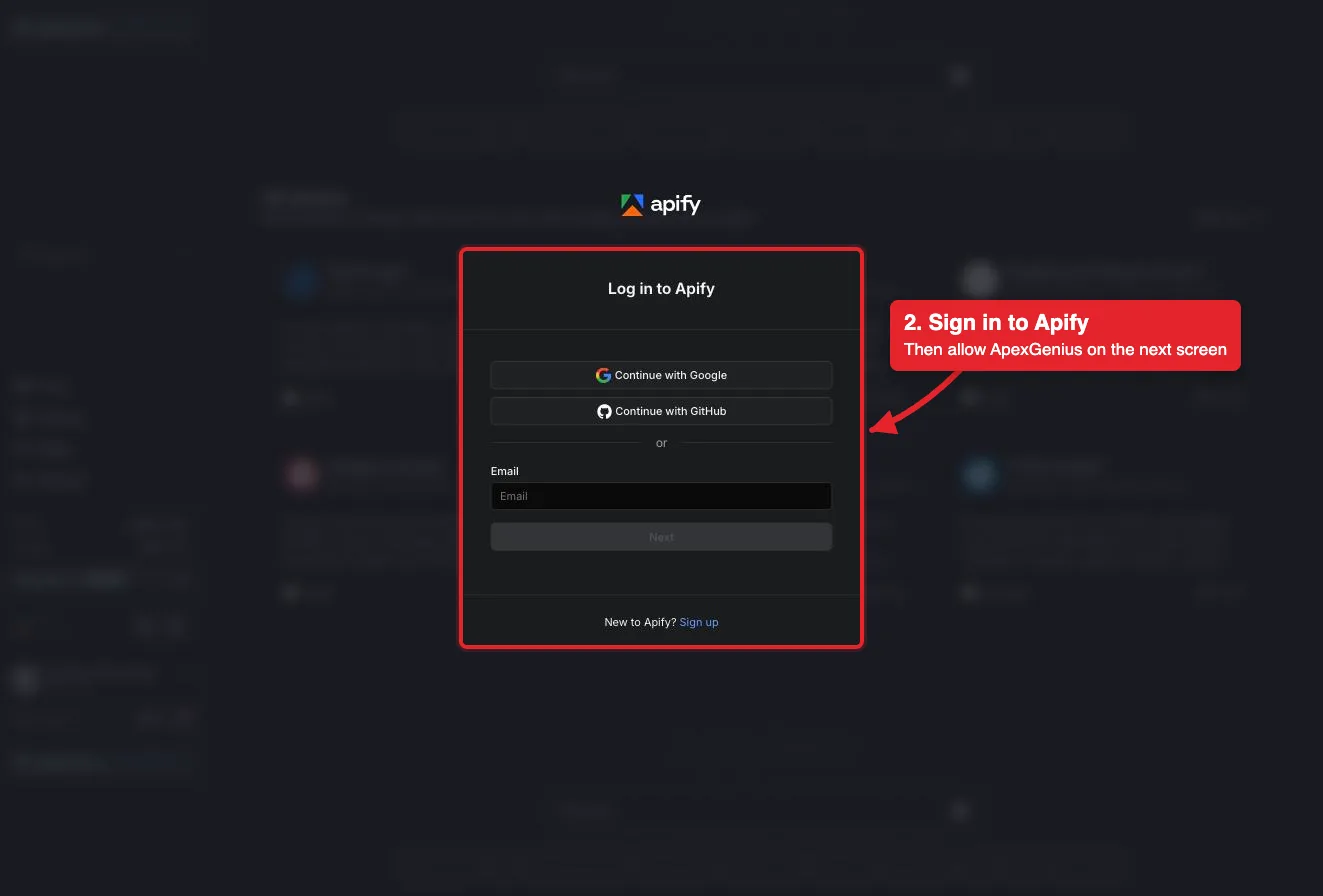
Connect opens Apify's own sign-in. Sign in with Google, GitHub or email, then allow ApexGenius.Open full-size image (opens in a new tab) - Review the connected account and resources. Confirm the connected Apify account. Open Tools to review the Apify tools. Running an Actor spends Apify credits on that account, and a run keeps going until it finishes or is stopped.
- Check the connection. Use Test connection or Check again and read the reported status. Add an AI agent from the AI agents page, choose Read only for the first test, and try the question below.
2. Add ApexGenius to Claude
Use this server address when adding the connection:
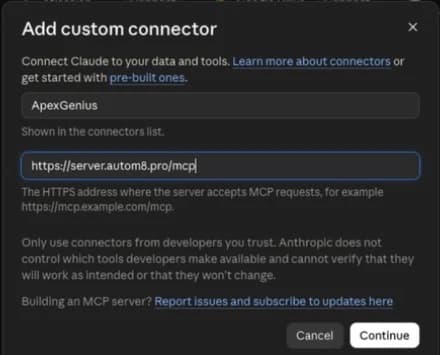
https://server.autom8.pro/mcp- Open Claude Settings, then Connectors, then Add custom connector.
- Enter ApexGenius and the MCP URL above. Choose Connect.
- Approve it in your browser, then turn it on in chat or Cowork.
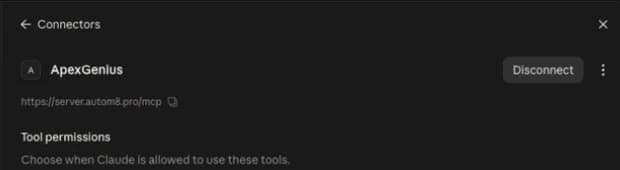
- When ApexGenius asks what this AI client may use, choose Read only for the first test, or Custom to limit it to the tools you need.
- Start a new conversation and select ApexGenius from the available tools before asking for live data.
Read the steps Follow along at your own pace
1. Open Connectors
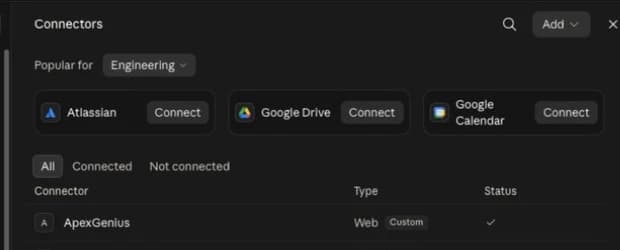
2. Add ApexGenius
3. Review permissions
3. Verify one safe read
Search Apify Store for an Actor that scrapes Google Maps reviews and show its price. Do not run any Actor or spend credits.
Search Apify Store for an Actor that scrapes Google Maps reviews and show its price. Do not run any Actor or spend credits.Compare the returned account and resource with Apify. Check the connection status separately from the result of the first read.
Additional reference: the Apify setup guide.
Start freeWhat it looks like in Claude Cowork
An illustrative read-only request and response. Your results come from the account and dates you choose.

apex_search_toolsApify Store search · Find the Apify read routeCompleteapex_call_read_toolsearch-actors · Search Apify StoreCompleteapex_call_read_toolfetch-actor-details · Read the Actor’s input and priceCompleteIllustrative example: the top match is a Google Maps reviews scraper that charges per result. Its input takes place URLs and a maximum number of reviews. Nothing was run and no credits were spent.
Read-only routeWhat you can ask once it is connected
“Search Apify Store for an Actor that scrapes Google Maps reviews and show its price. Do not run anything.”
“Read the first 20 results from the dataset of this run, with only the title and URL fields.”
“Run the Website Content Crawler on this one URL. Show me the input and the price first.”
“Stop the run I just started and tell me what it produced so far.”
You choose what Claude is allowed to touch
Choose the saved accounts and tools this Claude connection may use. Its authorization carries that scope, and each app connection’s tool and resource restrictions still apply.
- Full accessEvery enabled tool on the connections you choose.
- Read onlyLooks things up, changes nothing.
- CustomPick apps and tools one by one.
- · One connection is one Apify account. Apify grants full API access to that account; ApexGenius tool controls limit what your AI can call.
- · Reads go through a read-only route that checks Apify’s live labels. Running an Actor spends Apify credits, and runs and stops happen right away unless you set the tool to Ask me first.
- · ApexGenius loads Apify’s default tool set. Run lists, run logs, storage lists, saved tasks, schedules and builds are not included.
- · Disconnecting stops future access. It does not stop a run that is already going, refund credits, or delete results.
The Apify operations Claude can run
11 operations: 7 Read and 4 Write. Available tools depend on your connection and permissions. Review any action that changes or removes data. Claude discovers these operations through the ApexGenius gateway.
search-actorsReadSearch Apify Store for Actors by keyword. Starts no run.fetch-actor-detailsReadRead one Actor’s input schema, output, README and price.get-actor-runReadRead one run’s status and storage IDs.get-dataset-itemsReadRead a run’s results from its dataset, with limit, offset and field filters.get-key-value-store-recordReadRead one saved record, such as OUTPUT, from a key-value store.search-apify-docsReadSearch the Apify documentation.fetch-apify-docsReadRead one Apify documentation page by its URL.abort-actor-runWriteStop a run. A stopped run cannot be resumed, and credits already spent are not refunded.call-actorWriteRun any Actor with your input. Waits up to 45 seconds, then returns the run status and storage IDs.apify--rag-web-browserWriteRun the RAG Web Browser Actor: search the web and read the top pages.apify--web-fetchWriteRun the Web Fetch Actor: fetch one URL and return its content.
Questions people ask first
How do I connect Apify?
Open Apify in ApexGenius Connections, choose Connect, sign in to Apify and approve access. Apify uses browser sign-in, so you never paste an API token into ApexGenius.
Does running an Actor cost money?
Yes. Actor runs spend Apify credits on your account. Some Actors charge per result or event, others for the compute they use, and reading results can use a little platform usage. Your AI can read an Actor’s price before it runs anything.
How do I stop a run?
Ask your AI to stop it. It calls abort-actor-run with the run ID. You can also open the run in Apify Console and choose Abort. A stopped run cannot be resumed.
Can I undo a run?
No. Credits already spent are not refunded, and anything an Actor fetched or sent to other sites cannot be taken back. Results stay in your Apify account until you delete them in Apify Console.
Which Apify tools are included?
Apify’s default hosted set: Store search, Actor details, running an Actor, the RAG Web Browser and Web Fetch Actors, run status, results, stopping a run, and Apify docs. Run lists, logs, schedules and saved tasks are not included.
Connect Apify to Claude today
Start free7 days free. No card required. Disconnect any time.