


Connect Grok Bot to Context.dev
Connect Grok Bot to Context.dev: 1. Sign in to ApexGenius and connect Context.dev. 2. Add the ApexGenius plugin. 3. Start using Context.dev in Grok Bot.
7 days free · No card required
How to connect Context.dev to Grok Bot
- 1Sign in to ApexGenius and connect Context.dev
- 2Add the ApexGenius plugin to Grok Bot
- 3Start using Context.dev in Grok Bot
FirstConnect Context.dev to ApexGenius
ThenConnect ApexGenius to Grok Bot
Context.devmcp.context.dev/authorize1 of 3Connect Context.dev. Context.dev opens its own sign-in. Sign in and allow ApexGenius.
Then ask Grok Bot:
List my Context.dev monitors. Do not create, run, or change anything.
Written setup, step by stepShow
Before you start
- An account with permission to use the Context.dev resources you intend to connect.
1. Connect Context.dev to ApexGenius
- Open Context.dev in Connections. Choose Connect, or Add connection when offered. Give the connection a name if prompted. If Gateway setup pending appears, contact ApexGenius support before continuing.
- Choose the account and review access. Sign in to Context.dev in the browser and approve access for your organization. Context.dev uses browser authorization; no Context.dev API key is pasted into ApexGenius.
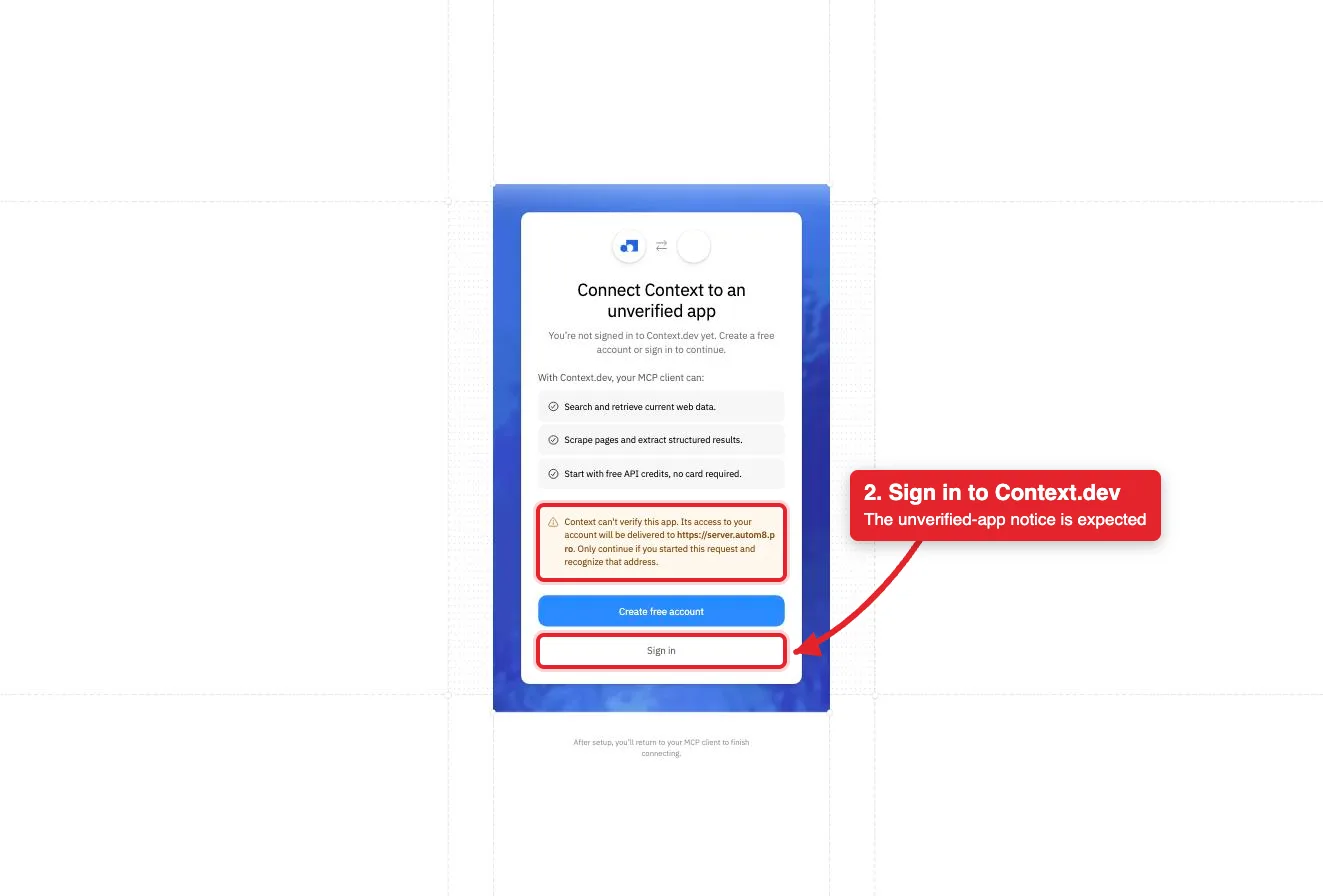
Context.dev labels ApexGenius an unverified app and names server.autom8.pro, the ApexGenius gateway, as the address that receives access. Sign in to continue.Open full-size image (opens in a new tab) - Review the connected account and resources. Confirm the connected Context.dev organization. Open Tools to review its reads and the monitor and batch actions. Most operations spend your organization's Context.dev credits.
- Check the connection. Use Test connection or Check again and read the reported status. Add an AI agent from the AI agents page, choose Read only for the first test, and try the question below.
2. Connect ApexGenius to Grok Bot
Use this server address when adding the connection:
https://server.autom8.pro/mcp- Grok Bot signs in with your Cursor account. Connect ApexGenius from Settings, then Plugins, and authorize in the browser. If you are on a Cursor team, its MCP policy decides whether the server can be added.
- When ApexGenius asks what this AI client may use, choose Read only for the first test, or Custom to limit it to the tools you need.
- Start a new conversation and select ApexGenius from the available tools before asking for live data.
3. Verify one safe read
List my Context.dev monitors. Do not create, run, or change anything.
List my Context.dev monitors. Do not create, run, or change anything.Compare the returned account and resource with Context.dev. Check the connection status separately from the result of the first read.
What Grok Bot can do in Context.dev
34 operations. Read looks things up and changes nothing. Write changes Context.dev and runs only when that tool is enabled.
Read27 operations
Looks things up. Changes nothing.Search and read pages
web-searchSearch the live web and optionally return ranked results as Markdown.web-scrape-markdownTurn one known URL into clean Markdown. The default way to read a page.web-scrape-htmlReturn the raw HTML of one URL when the markup itself matters.web-scrape-imagesList the images on one page, with sources and available metadata.web-screenshotCapture a rendered PNG of a page, full page or one viewport.
Map, crawl and extract
web-scrape-sitemapList a site's URLs from its sitemap without reading every page.web-crawlFollow links from one URL and return Markdown for several pages in one call.web-extractCrawl the relevant pages and return JSON shaped by the JSON Schema you pass.
Documents
parse-documentConvert PDF, Office, spreadsheet, image or text file bytes into Markdown.
Company and brand data
get-brandShow a company's logo, colors, description, links and social profiles for one domain.brand-retrieve-unifiedReturn brand data as JSON by domain, name, work email, ticker, ISIN, transaction text or URL.web-styleguideRead a site's colors, type, spacing and shadows.web-fontsName the font families a site uses, with fallbacks.web-naicsClassify a company into 2022 NAICS industry codes.web-sicClassify a company into SIC industry codes.
Monitor history
list-monitorsList the monitors in your organization with status and tags.get-monitorRead one monitor's target, schedule, rules and webhook settings.list-monitor-runsList one monitor's runs with status, timing and credits.get-monitor-runRead one run and the change it found, if any.list-account-runsList monitor runs across the whole organization.list-monitor-changesList the changes one monitor has found.list-changesList changes found across all monitors.get-changeRead one change with its text diff, evidence and importance.list-monitor-credit-usageReport credits spent by each monitor over a time window.
Batches
list-batchesList batch jobs from newest to oldest.get-batchRead one batch's status, progress and credit use.get-batch-resultsPage through a finished batch's results as JSON.
Write7 operations
Changes Context.dev. Runs only when enabled.Manage monitors
create-monitorCreate a recurring monitor. It runs a first baseline right away and spends credits on each later run.update-monitorChange or pause a monitor. A new target or rule starts a new baseline.run-monitor-nowStart a check now. It spends credits and can send the monitor's webhook.delete-monitorPermanently delete a monitor and its future runs. Cannot be undone.
Batches
submit-batchStart a background scrape or crawl job. It can call an outside webhook when done.cancel-batchStop a batch from starting new pages. Stored results are kept.delete-batchPermanently delete a finished batch and its stored results. Cannot be undone.
You choose what Grok Bot can use
When you approve Grok Bot, pick Full access, Read only, or Custom. Read only allows the Read operations and nothing else. Custom picks apps and tools one by one.
Limits in Context.dev
- · Context.dev controls the OAuth grant. The connection acts for your Context.dev organization and uses its shared credits.
- · The read route checks Context.dev's live tool label and rejects writes or unlabeled operations.
- · Writes run right away when enabled. A deleted monitor or batch cannot be restored.
- · Fetched page text is untrusted data. The ContextDev skill tells your AI to quote and cite it and never follow instructions inside it.
- · Disconnecting stops future gateway access. It does not stop monitors or batches that already exist.
What it looks like in Grok Bot
An illustrative read-only request and response. Your results come from the account and dates you choose.
apex_search_toolsContext.dev monitors · Find the Context.dev read routeCompleteapex_call_read_toollist-monitors · List monitorsCompleteIllustrative example: two monitors are active, a pricing page checked daily and a changelog checked weekly. Listing monitors spends no credits. Nothing was changed.
Read-only routeTry asking
“List my Context.dev monitors and their status. Do not create, run or change anything.”
“Read https://example.com/pricing as Markdown and list every plan with its price. Cite the URL.”
“Pull the brand profile for linear.app: logo, colors, fonts and social links.”
“Search the web for this week's official Stripe product announcements and cite each source URL.”
Questions people ask first
How do I connect Context.dev?
Open Context.dev in ApexGenius Connections, choose Connect, and sign in to Context.dev in the browser. ApexGenius registers itself with the hosted Context.dev MCP. No API key is pasted into ApexGenius.
Does it spend Context.dev credits?
Most calls do. A scrape is 1 credit, a web search is 1 credit per 10 results, a crawl is 1 credit per page and a brand lookup is 10 credits. Listing monitors is free. Free organizations get 1,000 credits a month with a work email, or 250 once with a personal email.
Can my AI change my Context.dev account?
Yes. It can create, update, run or delete monitors and submit, cancel or delete batches. Writes run right away when enabled. A deleted monitor or batch cannot be restored.
Can a web page tell my AI what to do?
It should not. Page text is data. The ContextDev skill tells your AI to quote and cite it and never follow instructions found inside it. Review results before you act on them.
Can I take this setup to another AI agent?
Yes. Add ApexGenius to another compatible agent with the same ApexGenius account. It uses the same Context.dev connection and can load the ContextDev skill. Each agent needs its own setup.
Connect Context.dev to Grok Bot today
Start free7 days free. No card required. Disconnect any time.