


Connect Grok Bot to Calendly
Connect Grok Bot to Calendly in 3 steps: 1. Sign in to ApexGenius and connect Calendly. 2. Add the ApexGenius plugin. 3. Start using Calendly in Grok Bot.
7 days free · No card required
How to connect Calendly to Grok Bot
- 1Sign in to ApexGenius and connect Calendly
- 2Add the ApexGenius plugin to Grok Bot
- 3Start using Calendly in Grok Bot
FirstConnect Calendly to ApexGenius
ThenConnect ApexGenius to Grok Bot
Calendlycalendly.com/oauth/authorize1 of 3Connect Calendly. Calendly opens its own sign-in. Sign in and allow ApexGenius.
Then ask Grok Bot:
Show my connected Calendly user and list my scheduled meetings for the next seven days. Do not book, cancel or change anything.
Written setup, step by stepShow
Before you start
- An account with permission to use the Calendly resources you intend to connect.
1. Connect Calendly to ApexGenius
- Open Calendly in Connections. Choose Connect, or Add connection when offered. Give the connection a name if prompted. If Gateway setup pending appears, contact ApexGenius support before continuing.
- Choose the account and review access. Sign in to Calendly in the browser and allow access for your Calendly user. Calendly uses browser authorization; there is no API key to paste.
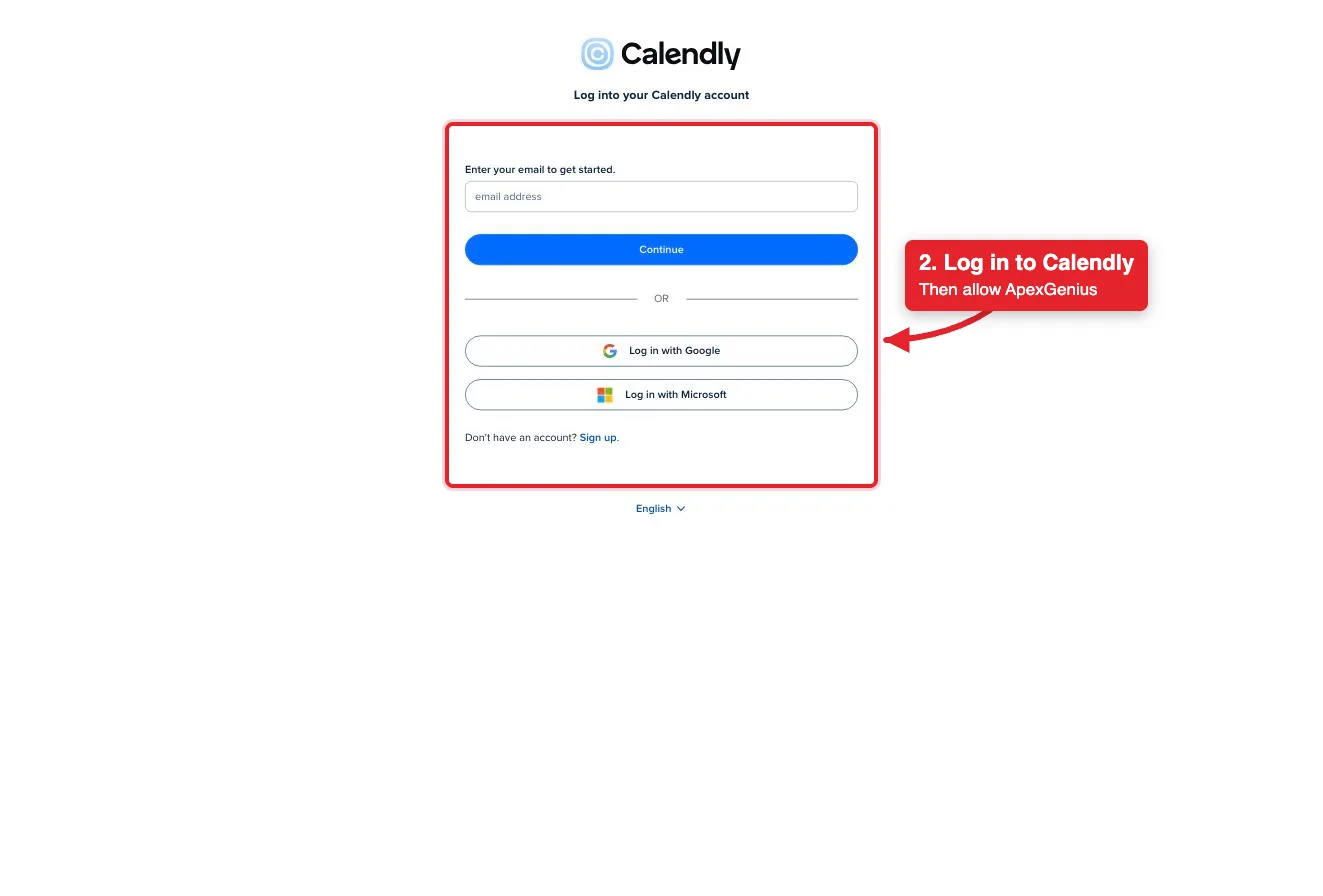
Connect opens Calendly's login. Log in with email, Google or Microsoft, then allow ApexGenius.Open full-size image (opens in a new tab) - Review the connected account and resources. Confirm the connected Calendly user. Open Tools to review the meeting and event type actions. Booking or cancelling a meeting emails the invitees.
- Check the connection. Use Test connection or Check again and read the reported status. Add an AI agent from the AI agents page, choose Read only for the first test, and try the question below.
2. Connect ApexGenius to Grok Bot
Use this server address when adding the connection:
https://server.autom8.pro/mcp- Grok Bot signs in with your Cursor account. Connect ApexGenius from Settings, then Plugins, and authorize in the browser. If you are on a Cursor team, its MCP policy decides whether the server can be added.
- When ApexGenius asks what this AI client may use, choose Read only for the first test, or Custom to limit it to the tools you need.
- Start a new conversation and select ApexGenius from the available tools before asking for live data.
3. Verify one safe read
Show my connected Calendly user and list my scheduled meetings for the next seven days. Do not book, cancel or change anything.
Show my connected Calendly user and list my scheduled meetings for the next seven days. Do not book, cancel or change anything.Compare the returned account and resource with Calendly. Check the connection status separately from the result of the first read.
What Grok Bot can do in Calendly
36 operations. Read looks things up and changes nothing. Write changes Calendly and runs only when that tool is enabled.
Read25 operations
Looks things up. Changes nothing.Account and team
users-get_current_userRead the connected user: name, email, time zone and scheduling link.users-get_userRead one Calendly user.organizations-get_organizationRead the organization the user belongs to.organizations-list_organization_membershipsList the members of the organization.organizations-get_organization_membershipRead one membership and its role.organizations-list_organization_invitationsList pending invitations to the organization.
Event types
event_types-list_event_typesList event types for a user or the organization.event_types-get_event_typeRead one event type: length, location and booking link.
Availability
event_types-list_event_type_available_timesList open start times for one event type in a date range.availability-list_user_busy_timesList busy blocks for a user in a date range.availability-list_user_availability_schedulesList a user's working-hours schedules.availability-get_user_availability_scheduleRead one working-hours schedule.event_types-list_event_type_availability_scheduleRead the schedule behind one event type.locations-list_user_meeting_locationsList the meeting locations a user has set up.
Meetings and invitees
meetings-list_eventsList scheduled meetings in a date range.meetings-get_eventRead one scheduled meeting.meetings-list_event_inviteesList the invitees of a meeting with their answers.meetings-get_event_inviteeRead one invitee.
No-shows
meetings-get_invitee_no_showRead a no-show mark.
Routing forms
routing_forms-list_routing_formsList routing forms.routing_forms-get_routing_formRead one routing form and its questions.routing_forms-list_routing_form_submissionsList answers submitted to a routing form.routing_forms-get_routing_form_submissionRead one submission.
Calendly skills
list_calendly_skillsList the skills Calendly publishes.load_calendly_skillRead one Calendly skill.
Write11 operations
Changes Calendly. Runs only when enabled.Account and team
organizations-create_organization_invitationInvite someone to the organization. Calendly emails them.organizations-revoke_organization_invitationWithdraw a pending invitation. The email was already sent.
Event types
event_types-create_event_typeCreate a new event type people can book.event_types-update_event_typeChange an event type, such as its name or length.
Availability
event_types-update_event_type_availability_scheduleChange the hours an event type can be booked.
Meetings and invitees
meetings-create_inviteeBook a meeting on an event type. Needs a paid Calendly plan and emails the invitee.meetings-cancel_eventCancel a scheduled meeting and email its invitees. It cannot be restored.
No-shows
meetings-create_invitee_no_showMark an invitee as a no-show.meetings-delete_invitee_no_showRemove a no-show mark.
Booking links
scheduling_links-create_single_use_scheduling_linkCreate a single-use booking link for an event type.shares-create_shareCreate a single-use link with custom times or length.
You choose what Grok Bot can use
When you approve Grok Bot, pick Full access, Read only, or Custom. Read only allows the Read operations and nothing else. Custom picks apps and tools one by one.
Limits in Calendly
- · Calendly uses the permissions of the connected user. An organization admin can see more of the organization than a member can.
- · The read route checks Calendly’s live tool label and rejects writes or unlabeled operations.
- · Writes run right away when enabled. Booking or cancelling a meeting emails the invitees, and a cancelled meeting cannot be restored.
- · Booking a meeting needs a paid Calendly plan. Routing forms need a Calendly Teams plan or higher.
- · Disconnecting stops future gateway access. It does not undo a meeting that was booked or cancelled.
What it looks like in Grok Bot
An illustrative read-only request and response. Your results come from the account and dates you choose.
apex_search_toolsCalendly user · Find the Calendly read routeCompleteapex_call_read_toolusers-get_current_user · Read the connected userCompleteIllustrative example: the connected user is Alex Rivera in America/New_York. Compare this user with the Calendly account you authorized before asking about meetings.
Read-only routeTry asking
“Show my connected Calendly user and time zone. Do not change anything.”
“List my scheduled Calendly meetings for the next seven days with invitee names.”
“Find open times next week for my 30 minute Calendly event type.”
“Cancel the Calendly meeting I name. Show me the meeting and who will get an email first.”
Questions people ask first
How do I connect Calendly?
Open Calendly in ApexGenius Connections, choose Connect, and sign in to Calendly in the browser. ApexGenius registers itself with Calendly and keeps the grant encrypted. There is no API key to paste.
Which meetings can my AI see?
The meetings, event types and invitees your connected Calendly user can see. An organization admin can see more of the organization than a member can.
Can my AI book or cancel a meeting?
Yes. Both run right away when enabled, and Calendly emails the invitees. A cancelled meeting cannot be restored; the only undo is a new booking.
Do I need a paid Calendly plan?
Booking a meeting through Calendly’s scheduling API needs a paid Calendly plan, and routing forms need a Teams plan or higher. Other operations follow your Calendly account’s limits.
Is this the same as Cal.com?
No. Calendly and Cal.com are separate products. This connector reaches Calendly only, through Calendly’s own hosted MCP.
Connect Calendly to Grok Bot today
Start free7 days free. No card required. Disconnect any time.