


Connect Muse to HubSpot
Connect Muse to HubSpot in 3 steps: 1. Sign in to ApexGenius and connect HubSpot. 2. Add the ApexGenius connector. 3. Start using HubSpot in Muse.
1,000 free credits · No card required
How to connect HubSpot to Muse
- 1Sign in to ApexGenius and connect HubSpot
- 2Add the ApexGenius connector to Muse
- 3Start using HubSpot in Muse
- 1
Connect HubSpot to ApexGenius
Open HubSpot in ApexGenius
Open HubSpot in Connections and choose Connect.
- 2
Connect HubSpot
HubSpot opens its own sign-in. Sign in and allow ApexGenius.
- 3
Connect ApexGenius to Muse
Choose Muse
Back on Start, pick Muse and copy the prompt.
- 4
Add it in Muse
In Muse, ask it to connect ApexGenius. Choose Connect on the card.
- 5
Approve access
ApexGenius opens its approval page. Review the access, then approve.
Add the ApexGenius connector to Muse
Muse adds ApexGenius as a custom connector from inside a chat. There is no config file and no terminal step.
- In ApexGenius, pick Muse on Start and copy the Muse setup prompt.
- In Muse, ask it to connect ApexGenius and paste the prompt. Muse shows an ApexGenius connector card. Choose Connect.
- Sign in to ApexGenius in your browser and approve access.
The MCP address
https://server.autom8.pro/mcp
Check it. Ask Muse which apps are connected. The setup prompt tells it to call apex_search_tools with an empty query and list them.
Then ask Muse
Find the available HubSpot account identity read tool, then use it to show which HubSpot account is connected. Do not retrieve contacts or change anything.
Written setup, step by stepShow
Before you start
- An account with permission to use the HubSpot resources you intend to connect.
1. Connect HubSpot to ApexGenius
- Open HubSpot in Connections. Choose Connect, or Add connection when offered. Give the connection a name if prompted. If Gateway setup pending appears, contact ApexGenius support before continuing.
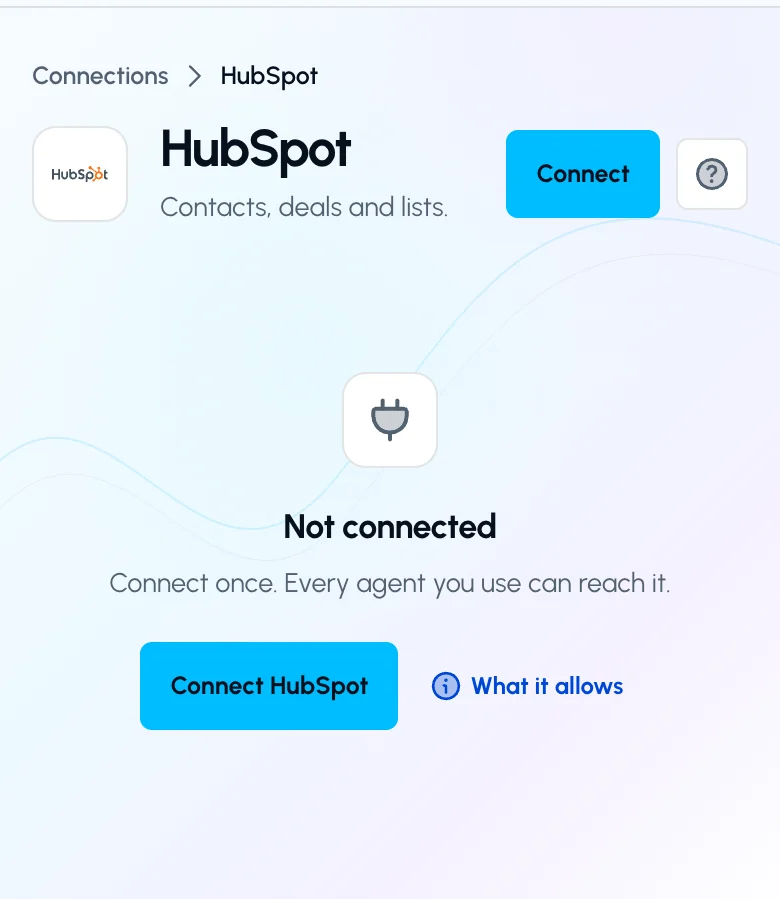
Open HubSpot in Connections and choose Connect. HubSpot then opens its own sign-in.Open full-size image (opens in a new tab) - Choose the account and review access. Choose Continue to HubSpot. On HubSpot’s own page, sign in to the intended account, choose the portal, and review the requested access before returning to ApexGenius.
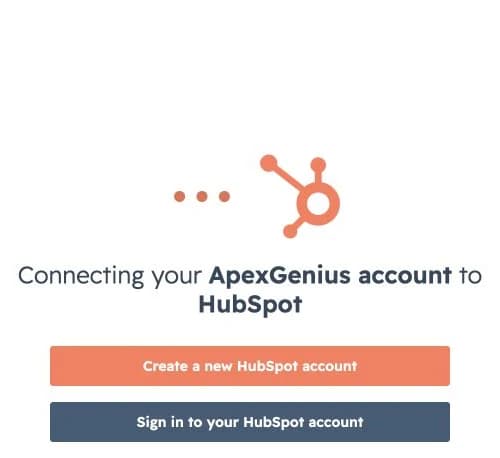
HubSpot opens its own sign-in screen. Sign in to the account with access to your intended portal.Open full-size image (opens in a new tab) - Review the connected account and resources. Check the saved portal and account identity. If you have more than one HubSpot connection, choose the intended account before reviewing its Tools tab.
- Check the connection. Use Test connection or Check again and read the reported status. Add an AI agent from the AI agents page, choose Read only for the first test, and try the question below.

2. Connect ApexGenius to Muse
Use this server address when adding the connection:
https://server.autom8.pro/mcpThe steps are above, under Add the ApexGenius connector to Muse. These notes apply to Muse only.
- Why the prompt is long. Muse’s custom connector asks for the sign-in addresses up front instead of reading them from the MCP address. The Muse setup prompt carries the authorize, token and registration addresses. No client ID or secret is needed.
- Access. When ApexGenius asks what Muse may use, choose Read only for the first test, or Custom to limit it to the tools you need.
3. Verify one safe read
Find the available HubSpot account identity read tool, then use it to show which HubSpot account is connected. Do not retrieve contacts or change anything.
Find the available HubSpot account identity read tool, then use it to show which HubSpot account is connected. Do not retrieve contacts or change anything.Compare the returned account and resource with HubSpot. Check the connection status separately from the result of the first read.
Full guide: the HubSpot setup guide.
What it looks like in Muse
Illustration of a task, not a recorded customer result. Your answers come from the account and dates you choose.
apex_search_toolsHubSpot account · Find HubSpot readsCompleteapex_call_read_toolget_user_details · Read the connected user and accessCompleteIllustrative example: the connected portal is Example Co. Contacts, companies, deals and tickets can be read and written. Nothing was changed.
Read-only routeWhat to ask Muse about HubSpot
- Check the account
Which HubSpot account is connected, and which objects can I read and write? Do not change anything.
Runs
get_user_details(read). - Open deals
Which deals are open this month, with their stage, amount and owner?
Runs
search_crm_objects(read), thensearch_owners(read). - Look up a contact
Find the contact with the email I give you and show their company and recent activity.
Runs
search_crm_objects(read), thenget_crm_objects(read).
These 3 questions use 4 of HubSpot’s 29 operations. The full list is below.
- Create a deal for the company I name with the amount and close date I give you. Show me the record first. (write)
What Muse can do in HubSpot
29 operations: 18 read, 11 write. Read looks things up and changes nothing. Writes change HubSpot and run only when you turn them on.
Account and schema
4 readget_user_detailsreadRead the connected user, account and object access. Start here.
get_organization_detailsreadRead teams, job titles, seat counts and account settings.
discover_hubspot_schemareadFind object types and whether each can be read or written.
tool_guidancereadRead HubSpot’s usage notes for one or more tools.
CRM records
4 read · 1 writesearch_crm_objectsreadSearch and filter CRM records, up to 200 a page.
get_crm_objectsreadRead up to 100 CRM records by id.
query_crm_datareadQuery CRM data with HubSpot’s SQL. No joins or subqueries.
search_ownersreadFind record owners by name, email or id.
manage_crm_objectswriteCreate or update CRM records and activities.
Properties, pipelines and segments
2 read · 3 writesearch_propertiesreadFind property definitions by keyword.
get_propertiesreadRead full property definitions, with types and options.
manage_custom_propertieswriteCreate custom properties on CRM objects.
manage_custom_pipelineswriteCreate and change pipelines.
manage_segmentwriteCreate segments, and add or remove records in static segments.
Conversations and intent
3 readsearch_conversationsreadSearch conversations and messages in the inboxes you can see.
get_conversation_channel_metadatareadList inboxes, channels and channel instances.
search_intent_signalsreadSearch buyer intent signals, grouped by company.
Campaigns and marketing email
3 read · 2 writeread_campaign_datareadRead campaign analytics, asset metrics and contacts.
get_campaign_attribution_reportsreadRead closed-won revenue and deal attribution by campaign.
get_marketing_email_analyticsreadRead marketing email results for a date range.
manage_campaign_objectswriteCreate or update campaigns and their assets.
manage_marketing_emailwriteManage marketing email templates, drafts, previews and A/B variants.
Content and AI search
2 read · 3 writeget_content_analytics_reportreadRead analytics for landing pages, website pages and blog posts.
get_aeo_metricsreadRead brand-level AI search metrics.
manage_aeo_promptswriteRead tracked AI search prompts and their answers, and add new ones.
manage_aeo_recommendationswriteReview AI search recommendations and start one.
manage_landing_pagewriteCreate, edit, clone and publish landing pages. Publishing makes a page public.
Onboarding and feedback
2 writemanage_onboardingwriteCheck CRM onboarding status and work through its steps.
submit_feedbackwriteSend feedback about the MCP server to HubSpot.
You choose the access. When you approve Muse, pick Full access, Read only, or Custom.
One connection covers one HubSpot portal and what your HubSpot user can see.
HubSpot decides which tools the portal gets, from its subscription and your user permissions. get_user_details shows yours.
Calls go only to mcp.hubspot.com. ApexGenius keeps the grant encrypted and refreshes it.
Enabled writes run immediately. Turn a tool off to block calls.
HubSpot’s MCP creates and updates records but does not delete them. Publishing a landing page makes it public.
Questions about connecting Muse to HubSpot
Updated November 12, 2026.
How do I connect Muse to HubSpot?
Sign in to ApexGenius and connect HubSpot. In Muse, ask it to connect ApexGenius, paste the Muse setup prompt from ApexGenius, and choose Connect on the connector card. Then ask Muse: “Find the available HubSpot account identity read tool, then use it to show which HubSpot account is connected. Do not retrieve contacts or change anything.” Start with a read, so nothing changes.
How do I check that Muse can use HubSpot?
Ask Muse which apps are connected through ApexGenius. It calls apex_search_tools and lists them, and HubSpot should be there. If Muse shows the ApexGenius connector card again, choose Connect and finish the browser sign-in. Then ask: “Find the available HubSpot account identity read tool, then use it to show which HubSpot account is connected. Do not retrieve contacts or change anything.”
Does this use the official HubSpot MCP server?
Yes. ApexGenius connects to HubSpot’s hosted MCP at mcp.hubspot.com and passes its tools to your AI agents through one governed connection.
Can my AI change HubSpot records?
Yes, when the write tool is on. It can create and update contacts, companies, deals, tickets and activities. HubSpot’s MCP does not delete records. Turn a tool off to block calls.
Why can’t I see every tool?
HubSpot decides which tools a portal gets from its subscription and your user permissions. AI search tools need Marketing Hub Professional or Enterprise. Ask your AI to run get_user_details to see your access.
Can I start with read-only access?
Yes. Choose Read only when you add your AI agent. Searches and reads still work, and every write is refused.
More connections like this one
Muse with other apps
 Attio
 Apollo
 Salesforce
 Supabase
 Mobbin
 Cal.com
 Slack
 Discord
All 48 apps Muse can use
 ChatGPT Ads
 GitHub
 Stripe
 Context.dev
 Semrush
 Notion
 Apify
 Linear
 Jira
 HQ Rental
 Google Ads
 Google Analytics
 Google Forms
 Google Meet
 Google Tasks
 Gmail
 Google Calendar
 Google Chat
 Google Docs
 Google Drive
 Google Sheets
 Google Slides
 Blotato
 Bing Webmaster
 Calendly
 ClickUp
 monday.com
 Atlassian Rovo
 Polymarket
 OP.GG
 YouTube
- YouTube Analytics
 n8n
 Confluence
 Google Search Console
 ElevenLabs
 FreshBooks
 Trello
 GitLab
 TypeSafe
Other agents with HubSpot
 Claude
 Grok Bot
Connect HubSpot to Muse today
Start free1,000 free credits. No card required. Disconnect any time.