


Connect Muse to FreshBooks
Connect Muse to FreshBooks in 3 steps: 1. Sign in to ApexGenius and connect FreshBooks. 2. Add the ApexGenius connector. 3. Start using FreshBooks in Muse.
1,000 free credits · No card required
How to connect FreshBooks to Muse
- 1Sign in to ApexGenius and connect FreshBooks
- 2Add the ApexGenius connector to Muse
- 3Start using FreshBooks in Muse
- 1
Connect FreshBooks to ApexGenius
FreshBooks connected
FreshBooks shows as connected in ApexGenius, with what your AI can reach.
- 2
Connect ApexGenius to Muse
Choose Muse
Back on Start, pick Muse and copy the prompt.
- 3
Add it in Muse
In Muse, ask it to connect ApexGenius. Choose Connect on the card.
- 4
Approve access
ApexGenius opens its approval page. Review the access, then approve.
Then ask Muse
Which FreshBooks business is connected? List its five most recent invoices with client, amount and status. Do not change anything.
Written setup, step by stepShow
Before you start
- An account with permission to use the FreshBooks resources you intend to connect.
1. Connect FreshBooks to ApexGenius
- Open FreshBooks in Connections. Choose Connect, or Add connection when offered. Give the connection a name if prompted. If Gateway setup pending appears, contact ApexGenius support before continuing.
- Choose the account and review access. Sign in to FreshBooks in the browser and allow access for ApexGenius. FreshBooks uses browser authorization; no API key is pasted into ApexGenius. ApexGenius asks for read scopes plus project and time-entry access.
- Review the connected account and resources. Find Allowed resources on the connection page. Each FreshBooks business your login keeps books for is listed. Turn on exactly one; every call goes to that business. A login with one business has it turned on already.
- Check the connection. Use Test connection or Check again and read the reported status. Add an AI agent from the AI agents page, choose Read only for the first test, and try the question below.
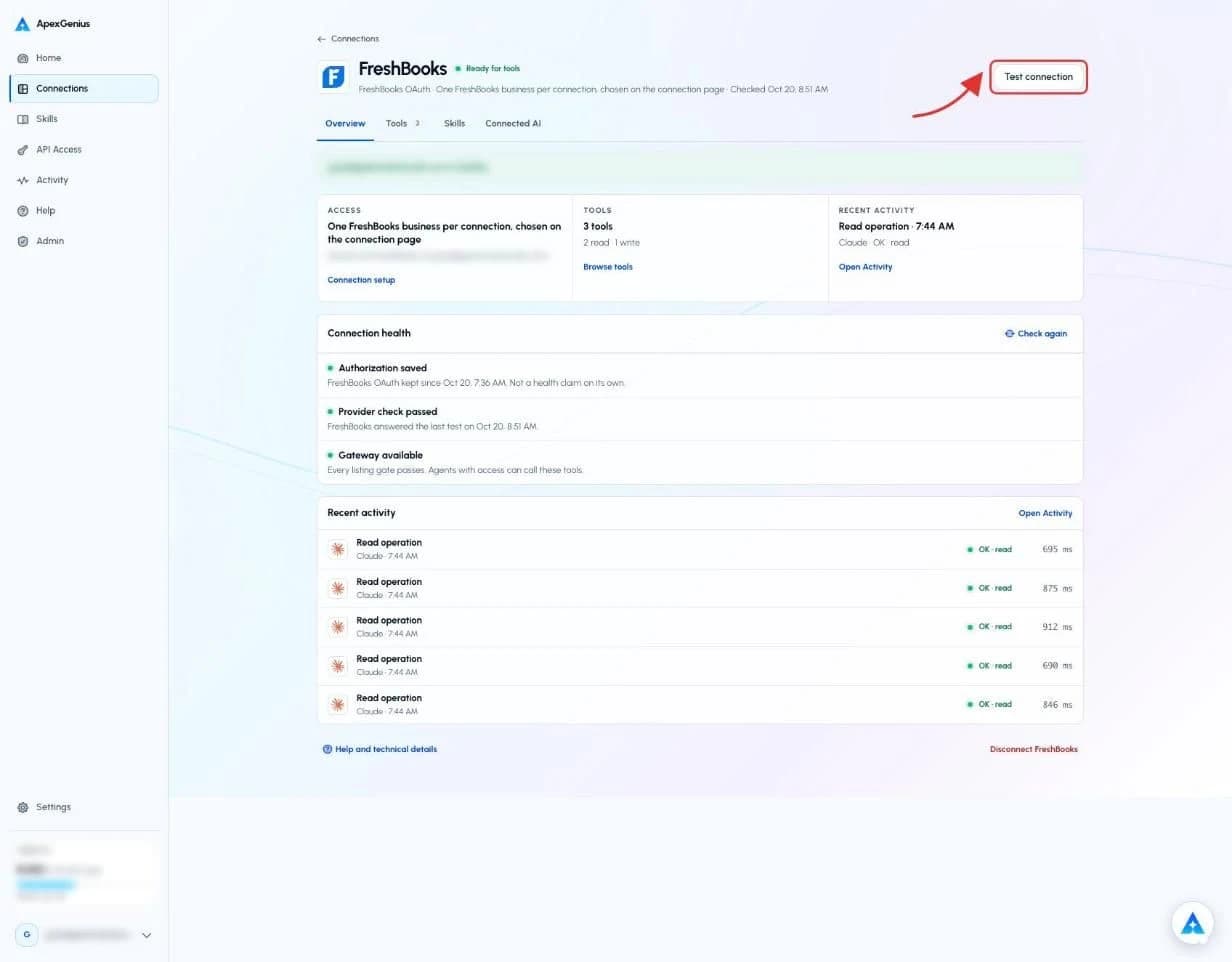
The FreshBooks connection page after you connect. Choose Test connection to check that FreshBooks answers. The account email and credits are blurred in this capture.Open full-size image (opens in a new tab)
2. Connect ApexGenius to Muse
Use this server address when adding the connection:
https://server.autom8.pro/mcp- In Muse, ask it to connect ApexGenius and paste the Muse setup prompt from ApexGenius. Muse shows an ApexGenius connector card. Choose Connect, then sign in to ApexGenius and approve access in your browser.
- When ApexGenius asks what this AI client may use, choose Read only for the first test, or Custom to limit it to the tools you need.
- Start a new conversation and select ApexGenius from the available tools before asking for live data.
3. Verify one safe read
Which FreshBooks business is connected? List its five most recent invoices with client, amount and status. Do not change anything.
Which FreshBooks business is connected? List its five most recent invoices with client, amount and status. Do not change anything.Compare the returned account and resource with FreshBooks. Check the connection status separately from the result of the first read.
Full guide: the FreshBooks setup guide.
What it looks like in Muse
Illustration of a task, not a recorded customer result. Your answers come from the account and dates you choose.
apex_search_toolsFreshBooks invoices · Find the FreshBooks read routeCompleteapex_call_read_toollist_invoices · List outstanding invoicesCompleteapex_call_read_toolget_client · Read the clients who oweCompleteIllustrative example: six invoices are unpaid across four clients, and two are past due. The amounts are listed with their currency code. Nothing was changed.
Read-only routeTry asking
Which FreshBooks invoices are still unpaid, who owes them, and how much is due in total? Do not change anything.
Run my FreshBooks profit and loss report for last quarter, month by month. Do not change anything.
List last month's FreshBooks expenses and total them by category. Do not change anything.
Log 2 hours to my website redesign project for today with the note "homepage review". Show me the entry first.
What Muse can do in FreshBooks
21 operations: 17 read, 4 write. Read looks things up and changes nothing. Writes change FreshBooks and run only when you turn them on.
Login and businesses
1 readget_identityreadRead the signed-in FreshBooks login and the businesses it belongs to.
Clients and invoices
4 readlist_clientsreadList clients. Filter by email, organization, or an outstanding or overdue balance.
get_clientreadRead one client.
list_invoicesreadList invoices. Filter by status, client, date, amount or what is still outstanding.
get_invoicereadRead one invoice, with its line items if asked.
Expenses and payments
4 readlist_expensesreadList expenses. Filter by date, vendor, category, client or project.
get_expensereadRead one expense.
list_paymentsreadList payments. Filter by invoice, client, date or amount.
get_paymentreadRead one payment.
Reports
4 readget_profit_and_loss_reportreadRead the profit and loss report, by month or quarter if asked.
get_invoice_details_reportreadRead the invoice details report.
get_payments_collected_reportreadRead the payments collected report.
get_tax_summary_reportreadRead the tax summary report.
Projects
2 read · 2 writelist_projectsreadList projects, with the time logged so far if asked.
get_projectreadRead one project.
create_projectwriteCreate a project for a client, billed hourly or at a fixed price.
update_projectwriteChange a project, such as its rate, or mark it complete.
Time tracking
2 read · 2 writelist_time_entriesreadList time entries. Filter by client, date, billable or billed.
get_time_entryreadRead one time entry.
create_time_entrywriteLog time to a client and project, with a note.
update_time_entrywriteFix a time entry, such as its hours, date or note.
You choose the access. When you approve Muse, pick Full access, Read only, or Custom.
One connection is one FreshBooks login. Every call goes to the one business that is turned on, and a call cannot name another.
Accounting is read only. The connector cannot create, send or change an invoice, record a payment, or delete anything.
The read route runs only reads. Creating and updating projects and time entries uses the write route.
Enabled writes run immediately. Turn a tool off to block calls.
A project or time entry made by mistake can be fixed with update_project or update_time_entry, or deleted by you in FreshBooks.
Questions about connecting Muse to FreshBooks
Updated October 20, 2026.
How do I connect FreshBooks?
Open FreshBooks in ApexGenius Connections, choose Connect, and sign in to FreshBooks in the browser. Allow access. You never paste an API key. If your login has more than one business, turn on the one your AI should use.
What can my AI read in FreshBooks?
Your login and its businesses, clients, invoices, expenses, payments, projects and time entries, and the profit and loss, tax summary, invoice details and payments collected reports. It reads only the one business you turned on.
Can my AI change anything in FreshBooks?
Only projects and time. It can create and update projects, and log and fix time entries. It cannot create, send or change an invoice, record a payment, or delete anything. Enabled writes run immediately. Turn a tool off to block calls.
Can I start with read-only access?
Yes. Choose Read only when you add your AI agent. It keeps every read and never sees the project and time-entry writes.
What if my login has more than one business?
Each business shows up as an account on the FreshBooks connection page. Turn on exactly one. Calls are refused until one is on, and they never reach a business that is off.
More connections like this one
Muse with other apps
 Supabase
 Cal.com
 GitHub
 Stripe
 Linear
 Jira
Jira HQ Rental
 Google Forms
All 44 apps Muse can use
 Google Tasks
 Google Calendar
 Google Sheets
 Calendly
 ClickUp
 monday.com
 ElevenLabs
 Mobbin
 Slack
Slack Discord
 ChatGPT Ads
 Context.dev
 Attio
Attio Semrush
 Notion
 Apify
Apify Google Ads
 Google Analytics
 Google Meet
 Gmail
Gmail Google Chat
 Google Docs
 Google Drive
 Google Slides
 Apollo
 Blotato
 Bing Webmaster
 Atlassian Rovo
 Polymarket
 OP.GG
OP.GG YouTube
- YouTube Analytics
 Salesforce
 n8n
n8n Confluence
 Google Search Console
Other agents with FreshBooks
 Claude
 Grok Bot
Connect FreshBooks to Muse today
Start free1,000 free credits. No card required. Disconnect any time.