


Connect Muse to Supabase
Connect Muse to Supabase in 3 steps: 1. Sign in to ApexGenius and connect Supabase. 2. Add the ApexGenius connector. 3. Start using Supabase in Muse.
1,000 free credits · No card required
How to connect Supabase to Muse
- 1Sign in to ApexGenius and connect Supabase
- 2Add the ApexGenius connector to Muse
- 3Start using Supabase in Muse
- 1
Connect Supabase to ApexGenius
Open Supabase in ApexGenius
Open Supabase in Connections and choose Connect.
- 2
Connect ApexGenius to Muse
Choose Muse
Back on Start, pick Muse and copy the prompt.
- 3
Add it in Muse
In Muse, ask it to connect ApexGenius. Choose Connect on the card.
- 4
Approve access
ApexGenius opens its approval page. Review the access, then approve.
Then ask Muse
List the tables in my Supabase project. Do not run SQL or change anything.
Written setup, step by stepShow
Before you start
- An account with permission to use the Supabase resources you intend to connect.
1. Connect Supabase to ApexGenius
- Open Supabase in Connections. Choose Connect, or Add connection when offered. Give the connection a name if prompted. If Gateway setup pending appears, contact ApexGenius support before continuing.
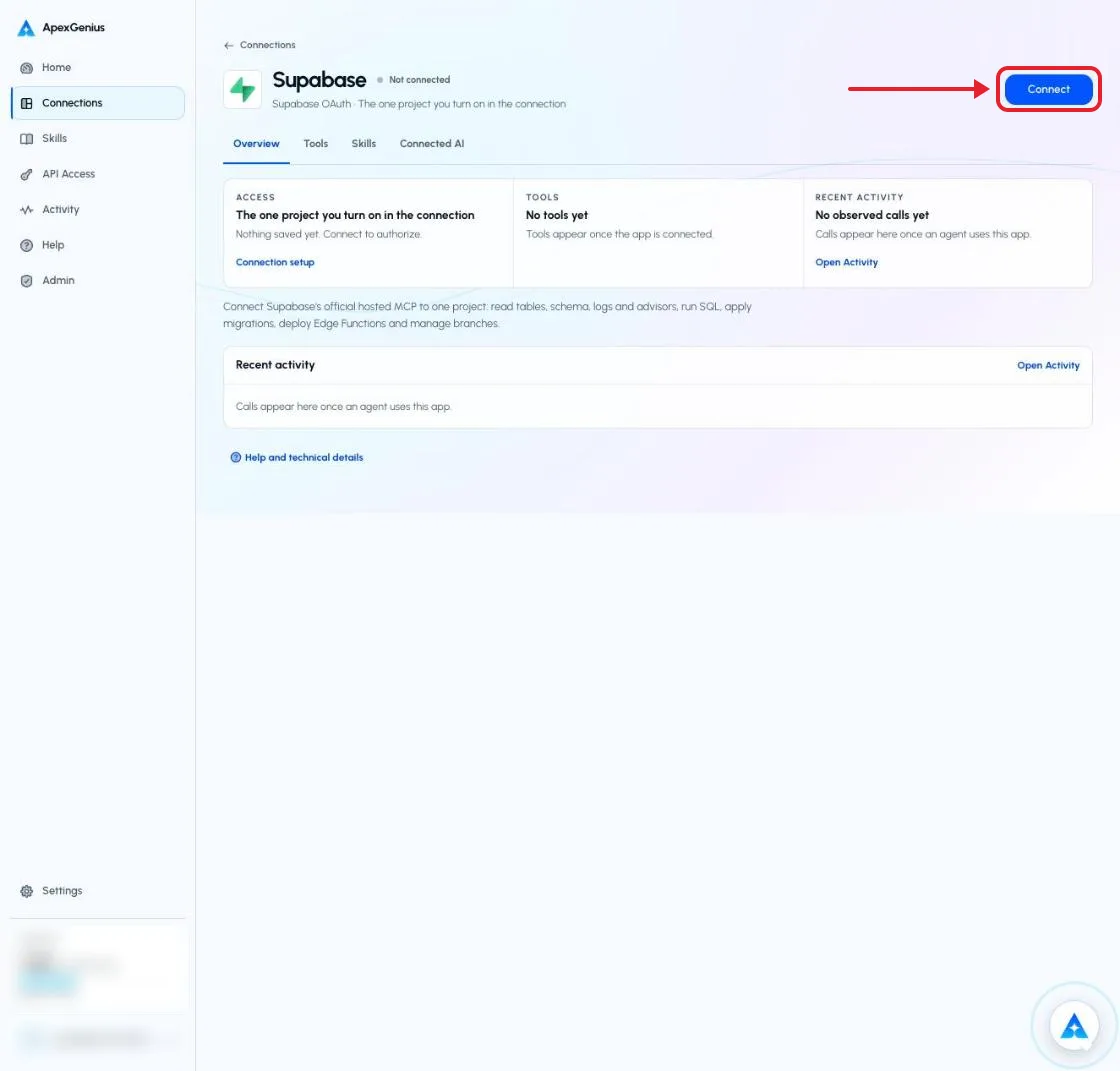
The Supabase connection page before you connect. Choose Connect to open Supabase's own sign-in. The account email and credits are blurred in this capture.Open full-size image (opens in a new tab) - Choose the account and review access. Sign in on Supabase’s page, choose the organization that owns your project, and approve the access ApexGenius asks for. Supabase uses browser authorization; no API key or database password.
- Review the connected account and resources. On the connection page Overview, turn on the one project your AI may use. Turning one on turns the others off, and with none on, Supabase tools do nothing. Enabled writes run when called: SQL and migrations can change or delete data.
- Check the connection. Use Test connection or Check again and read the reported status. Add an AI agent from the AI agents page, choose Read only for the first test, and try the question below.
2. Connect ApexGenius to Muse
Use this server address when adding the connection:
https://server.autom8.pro/mcp- In Muse, ask it to connect ApexGenius and paste the Muse setup prompt from ApexGenius. Muse shows an ApexGenius connector card. Choose Connect, then sign in to ApexGenius and approve access in your browser.
- When ApexGenius asks what this AI client may use, choose Read only for the first test, or Custom to limit it to the tools you need.
- Start a new conversation and select ApexGenius from the available tools before asking for live data.
3. Verify one safe read
List the tables in my Supabase project. Do not run SQL or change anything.
List the tables in my Supabase project. Do not run SQL or change anything.Compare the returned account and resource with Supabase. Check the connection status separately from the result of the first read.
Full guide: the Supabase setup guide.
What it looks like in Muse
Illustration of a task, not a recorded customer result. Your answers come from the account and dates you choose.

apex_call_read_toolsalesforce_read · Find matching recordsCompleteapex_call_read_toolsalesforce_read · Read related activityComplete
apex_call_read_tooln8n_get_workflow · Check workflow statusCompleteThree safe example reads returned results. Nothing was changed.
Read-only routeTry asking
Run the Supabase security advisor on my project and list every table that has row level security turned off.
Show the last hour of API errors in my Supabase logs, grouped by path.
Generate TypeScript types for the public schema of my Supabase project.
Write a migration that adds a created_at column with a default of now() to the orders table, show it to me, then apply it.
What Muse can do in Supabase
20 operations: 12 read, 8 write. Read looks things up and changes nothing. Writes change Supabase and run only when you turn them on.
Database
3 read · 2 writelist_tablesreadLists the tables in the chosen schemas, with their columns.
list_extensionsreadLists the Postgres extensions in the database.
list_migrationsreadLists the migrations applied to the database.
execute_sqlwriteRuns any SQL in the database, so it can change or delete rows. There is no undo.
apply_migrationwriteApplies a schema change and records it as a migration. Only another migration reverses it.
Logs and advisors
2 readquery_logsreadReads the project logs by service, such as the API, Postgres, Auth or Edge Functions.
get_advisorsreadReads the security and performance advice for the project.
Project details
3 readget_project_urlreadReads the project's API URL.
get_publishable_keysreadReads the project's publishable keys, which are safe to ship in an app.
generate_typescript_typesreadGenerates TypeScript types from the database schema.
Edge Functions
2 read · 1 writelist_edge_functionsreadLists the Edge Functions in the project.
get_edge_functionreadReads the code of one Edge Function.
deploy_edge_functionwritePublishes a new or changed Edge Function, which runs at once.
Branches
1 read · 5 writelist_branchesreadLists the project's branches and their status.
create_branchwriteStarts a branch with the project's migrations. Branches are billed by the hour.
rebase_branchwriteBrings the project's newer migrations into a branch.
merge_branchwriteApplies a branch's migrations and functions to the project.
reset_branchwriteThrows away a branch's changes since a migration.
delete_branchwriteDeletes a branch and everything in it.
Docs
1 readsearch_docsreadSearches the Supabase documentation for an answer.
You choose the access. When you approve Muse, pick Full access, Read only, or Custom.
Supabase uses browser authorization: you pick the organization on Supabase's page and approve. No API key, access token or database password is pasted into ApexGenius.
A connection reaches one project, the one you turn on. Turning one on turns the others off, and with none on, Supabase tools do nothing. Tools that list, create or pause projects are not exposed.
Writes run when called unless you set a tool to Ask me first. execute_sql, apply_migration, merge_branch, reset_branch and delete_branch can change or delete data with no undo, and create_branch is billed by the hour.
Questions about connecting Muse to Supabase
Updated October 16, 2026.
What do I need to connect Supabase?
A Supabase account that can open the project. Choose Connect, sign in on Supabase, pick the organization and approve. Then turn on the one project your AI may use.
Can my AI reach every project in my organization?
No. A connection reaches only the project you turn on, and nothing while none is on. To work in another project, turn that one on instead.
Can my AI change or delete data?
Yes, when the tool is enabled. execute_sql and apply_migration can change or delete rows and tables, and there is no undo. Set those tools to Ask me first, or give a Read only key to agents that should only look.
Does this use Supabase hosted MCP?
Yes. ApexGenius connects to Supabase's official hosted MCP server at mcp.supabase.com with Supabase's own sign-in. ApexGenius never sees your database password.
What should I test first?
Ask your AI to list the tables in your project. It is a read and changes nothing.
 Cal.com
 GitHub
 Stripe
 Linear
 Jira
Jira HQ Rental
 Google Forms
 Google Tasks
 Google Calendar
 Google Sheets
 Calendly
 ClickUp
 Mobbin
 Slack
Slack Discord
 ChatGPT Ads
 Context.dev
 Attio
Attio Semrush
 Notion
 Apify
Apify Google Ads
 Google Analytics
 Google Meet
 Gmail
Gmail Google Chat
 Google Docs
 Google Drive
 Google Slides
 Apollo
 Blotato
 Bing Webmaster
 YouTube
 Confluence
 Google Search Console
 Claude
 Grok Bot
Connect Supabase to Muse today
Start free1,000 free credits. No card required. Disconnect any time.