

Connect Muse to Attio
Connect Muse to Attio through ApexGenius. Search, read and update records, lists, notes and tasks with 41 operations in your connected workspace.
7 days free · No card required
How to connect Attio to Muse
Before you start
- An account with permission to use the Attio resources you intend to connect.
1. Connect Attio to ApexGenius
- Open Attio in Connections. Choose Connect, or Add connection when offered. Give the connection a name if prompted. If Gateway setup pending appears, contact ApexGenius support before continuing.
- Choose the account and review access. Sign in to Attio in the browser, choose the workspace, and allow access. Attio uses browser authorization; no API key is pasted into ApexGenius.
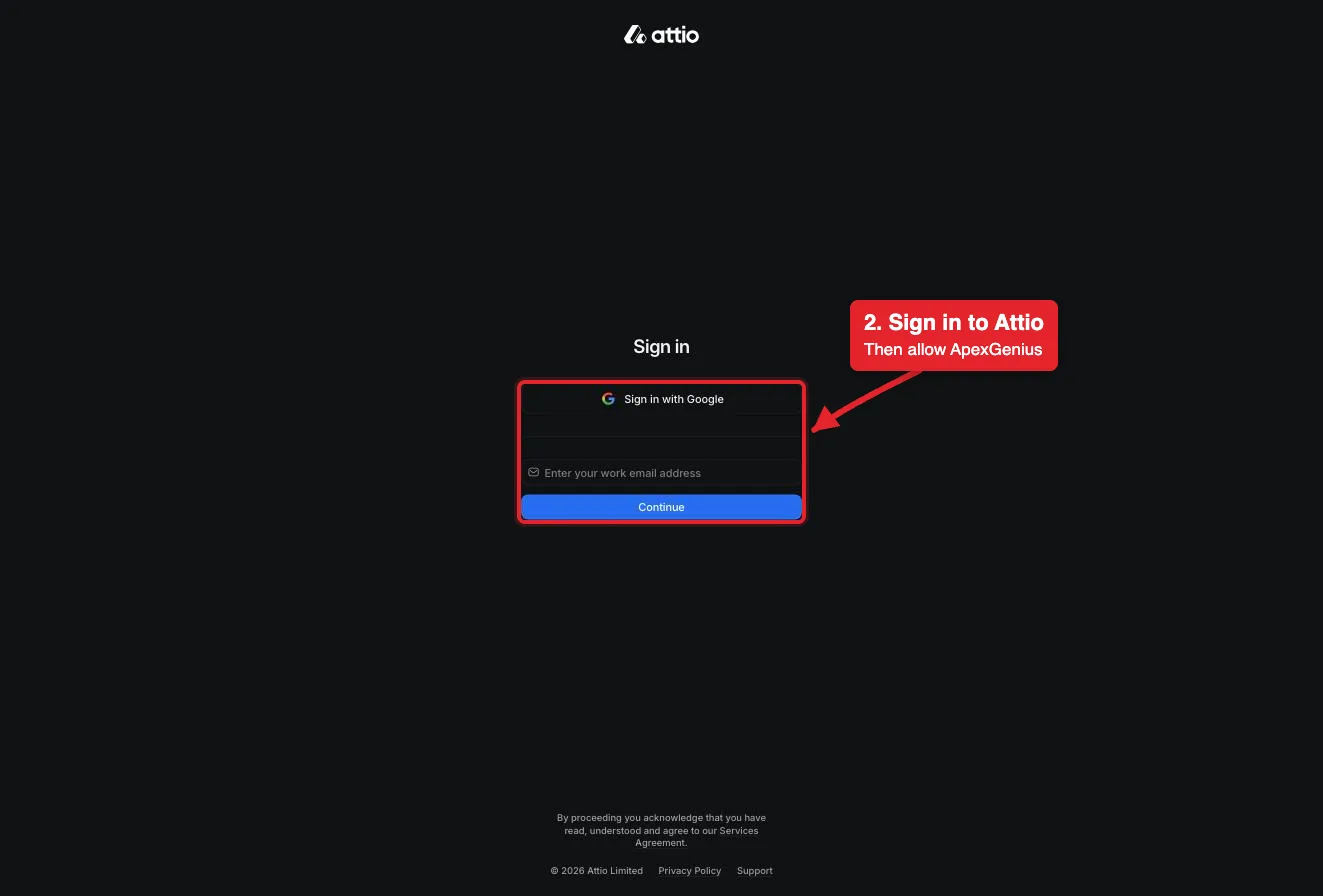
Connect opens Attio's sign-in. Sign in with Google or your work email, then allow ApexGenius.Open full-size image (opens in a new tab) - Review the connected account and resources. Confirm the connected Attio user and workspace. Open Tools to review the record, list, note and task actions. Your Attio permissions set what the connection can reach.
- Check the connection. Use Test connection or Check again and read the reported status. Add an AI agent from the AI agents page, choose Read only for the first test, and try the question below.
2. Add ApexGenius to Muse
Use this server address when adding the connection:
https://server.autom8.pro/mcp- In Muse, ask for a custom ApexGenius connector and paste the Muse setup prompt from ApexGenius API Access. Muse reads the OAuth details and shows an ApexGenius connector card. Choose Connect, then sign in to ApexGenius and approve access in your browser.
- When ApexGenius asks what this AI client may use, choose Read only for the first test, or Custom to limit it to the tools you need.
- Start a new conversation and select ApexGenius from the available tools before asking for live data.
3. Verify one safe read
Use whoami to show which Attio user and workspace are connected, then list the lists in my workspace. Do not change anything.
Use whoami to show which Attio user and workspace are connected, then list the lists in my workspace. Do not change anything.Compare the returned account and resource with Attio. Check the connection status separately from the result of the first read.
Additional reference: the Attio setup guide.
Start freeWhat it looks like in Muse
An illustrative read-only request and response. Your results come from the account and dates you choose.

apex_search_toolsAttio workspace · Find the Attio read routeCompleteapex_call_read_toolwhoami · Read the connected userCompleteIllustrative example: the connected user is Alex in the Northwind workspace. Compare this with the Attio account you authorized before reading records. Nothing was changed.
Read-only routeWhat you can ask once it is connected
“Who am I in Attio, and which workspace is connected? Do not change anything.”
“Find every contact at Acme in Attio and show their titles and emails.”
“Count open deals by stage in Attio. Do not change anything.”
“Log a note on the Acme company record that sums up today's call. Show me the note first.”
You choose what Muse is allowed to touch
Choose the saved accounts and tools this Muse connection may use. Its authorization carries that scope, and each app connection’s tool and resource restrictions still apply.
- Full accessEvery enabled tool on the connections you choose.
- Read onlyLooks things up, changes nothing.
- CustomPick apps and tools one by one.
- · The connection acts as the Attio user who signed in. Attio permissions set what it can reach; ApexGenius does not add a record-level allowlist.
- · The read route checks Attio's live tool labels and rejects writes or unlabeled operations.
- · Writes run right away. If the owner set a tool to Ask me first (approval mode always), the call returns approval_required; a person approves it in ApexGenius and you retry with the returned approval_request_id.
- · Merges and deleted comments cannot be undone here, and there is no delete for records, lists, notes or tasks. Remove those by hand in Attio.
- · query-particle-sql is not on every Attio plan, and Attio limits calls per workspace. Disconnecting stops future access; it does not undo a change that already ran.
The Attio operations Muse can run
41 operations: 26 Read and 15 Write. Available tools depend on your connection and permissions. Review any action that changes or removes data. Muse discovers these operations through the ApexGenius gateway.
list-objectsReadList the objects in the workspace, such as companies, people and deals.search-recordsReadFull-text search for records by name, email, domain or other indexed fields.list-recordsReadList records in one object with filters and sorting.get-records-by-idsReadRead full details for specific records by ID.list-attribute-definitionsReadList the fields on an object, with their types and valid options.list-listsReadList the lists in the workspace, filtered by name or slug.list-list-attribute-definitionsReadList the entry fields on one list, with their types and options.list-records-in-listReadList the entries in one list with filters and sorting, including their records.search-notes-by-metadataReadFind notes by record, author, meeting or creation time.semantic-search-notesReadFind notes by topic with AI search.get-note-bodyReadRead the full text of one note.list-tasksReadList tasks with filters, such as incomplete tasks due this week.list-commentsReadList comments on a record or list entry, with replies.list-comment-repliesReadLoad more replies in one comment thread.search-meetingsReadFind past and upcoming meetings by people, records or time.search-call-recordings-by-metadataReadFind call recordings by people, records, title or time.semantic-search-call-recordingsReadFind call recordings by topic with AI search.get-call-recordingReadRead one call recording with its transcript.search-emails-by-metadataReadFind emails by people, domain or time.semantic-search-emailsReadFind emails by topic with AI search.get-email-contentReadRead the full body of one email.whoamiReadRead the connected user and their workspace access. Start here.list-workspace-membersReadList workspace members and their teams.list-workspace-teamsReadList the teams in the workspace.run-basic-reportReadCount, sum or average records or list entries, grouped as you choose.query-particle-sqlReadRun a read-only SQL query on workspace data. Not on every Attio plan.create-recordWriteCreate a person, company, deal or custom object record.upsert-recordWriteCreate or update a record that matches on a field such as email or domain.update-recordWriteUpdate an existing record by its ID.create-listWriteCreate a list for records of one object type.add-record-to-listWriteAdd a record to a list as a new entry.update-listWriteChange a list's name, slug or permissions.update-list-entry-by-idWriteUpdate a list entry when you know its entry ID.update-list-entry-by-record-idWriteUpdate the one entry a record has in a list, found by the record ID.create-noteWriteCreate a note on a record.update-noteWriteAppend or prepend text to a note, or change its title.create-taskWriteCreate a task with a deadline, assignee and linked record.update-taskWriteChange a task's deadline, status, assignee or linked record.create-commentWriteComment on a record or list entry, or reply in a thread.merge-recordsWriteMerge two records of the same object into one. The primary record wins. Cannot be undone here.delete-commentWriteDelete a comment you created, with every reply under it.
Questions people ask first
How do I connect Attio?
Open Attio in ApexGenius Connections, choose Connect, and sign in to Attio in the browser. ApexGenius registers itself with Attio. You never paste an API key.
What can my AI read in Attio?
People, companies, deals and custom records, lists and their entries, notes, tasks, comments, synced meetings, call recordings and emails, plus reports. It sees only what your Attio user can see.
Can my AI change records?
Yes. It can create and update records, list entries, notes and tasks, and merge records. Writes run right away. If the owner set a tool to Ask me first (approval mode always), the call returns approval_required; a person approves it in ApexGenius and you retry with the returned approval_request_id.
Can it delete records?
No. Attio's MCP has no delete for records, lists, notes or tasks. The only delete is for a comment you created. Merges cannot be undone here.
Why did a SQL question fail?
query-particle-sql is not on every Attio plan. Ask the same question as a report instead; run-basic-report handles counts, sums and averages.
Connect Attio to Muse today
Start free7 days free. No card required. Disconnect any time.