


Connect Muse to GitLab
Connect Muse to GitLab in 3 steps: 1. Sign in to ApexGenius and connect GitLab. 2. Add the ApexGenius connector. 3. Start using GitLab in Muse.
1,000 free credits · No card required
How to connect GitLab to Muse
- 1Sign in to ApexGenius and connect GitLab
- 2Add the ApexGenius connector to Muse
- 3Start using GitLab in Muse
- 1
Connect GitLab to ApexGenius
Paste it into ApexGenius
Paste your GitLab key into ApexGenius once.
- 2
Connect ApexGenius to Muse
Choose Muse
Back on Start, pick Muse and copy the prompt.
- 3
Add it in Muse
In Muse, ask it to connect ApexGenius. Choose Connect on the card.
- 4
Approve access
ApexGenius opens its approval page. Review the access, then approve.
Add the ApexGenius connector to Muse
Muse adds ApexGenius as a custom connector from inside a chat. There is no config file and no terminal step.
- In ApexGenius, pick Muse on Start and copy the Muse setup prompt.
- In Muse, ask it to connect ApexGenius and paste the prompt. Muse shows an ApexGenius connector card. Choose Connect.
- Sign in to ApexGenius in your browser and approve access.
The MCP address
https://server.autom8.pro/mcp
Check it. Ask Muse which apps are connected. The setup prompt tells it to call apex_search_tools with an empty query and list them.
Then ask Muse
Using GitLab, tell me which GitLab user is connected, then list my five most recently updated open merge requests. Do not change anything.
Written setup, step by stepShow
Before you start
- A GitLab.com account that can see the projects you want your AI to read. Self-managed GitLab is not supported yet.
- A personal access token with only the read_api scope.
1. Connect GitLab to ApexGenius
- Create a token on GitLab.com. On GitLab.com open Edit profile, then Access, then Personal access tokens. Choose Generate token, then Legacy token. Name it, set an expiry date, pick only read_api, and choose Generate token. Copy the token once. The connect form links to a pre-filled token page.
- Open GitLab in Connections. Sign in to ApexGenius, open Connections, choose GitLab, and select Connect.
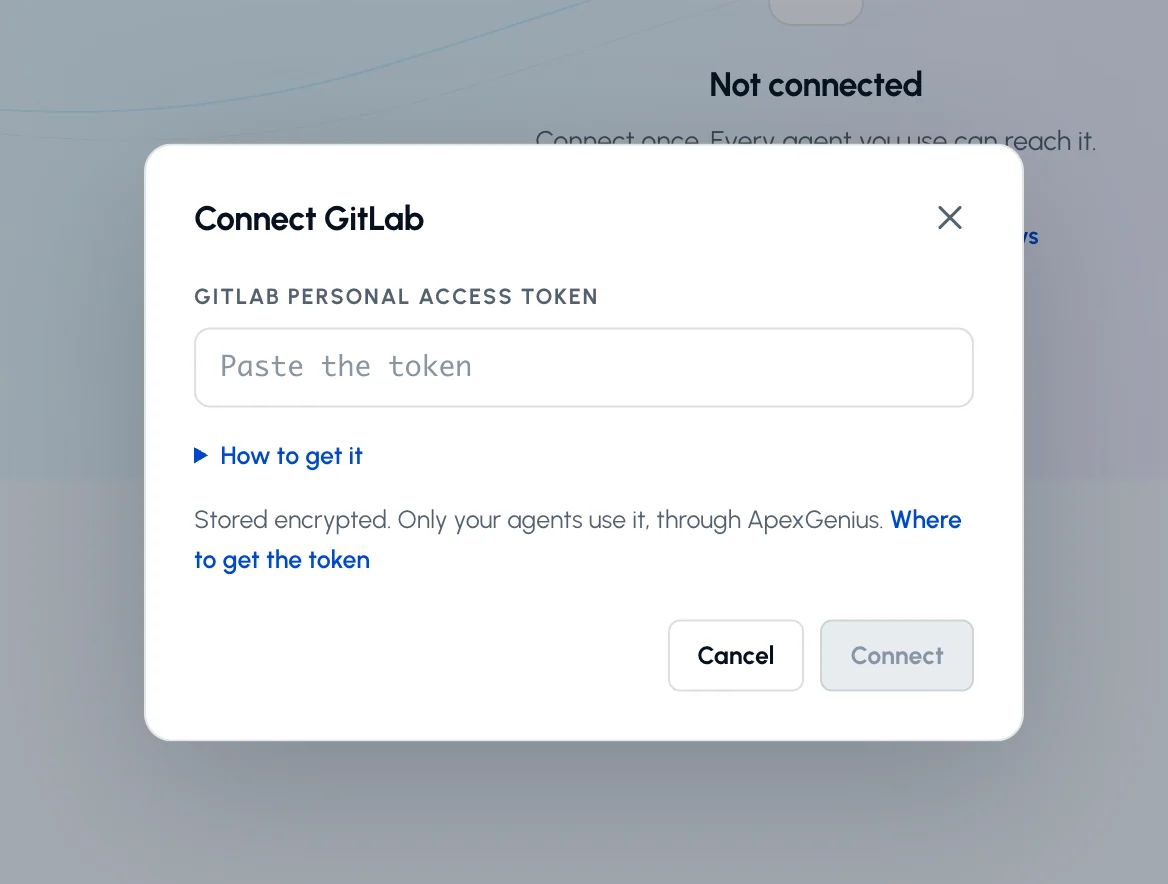
- Paste the token. Paste the token into the connection form. ApexGenius supplies the gitlab.com address, checks the token’s scopes and your GitLab user, and stores it encrypted. A token that can make changes is refused. Never paste the token into a chat.
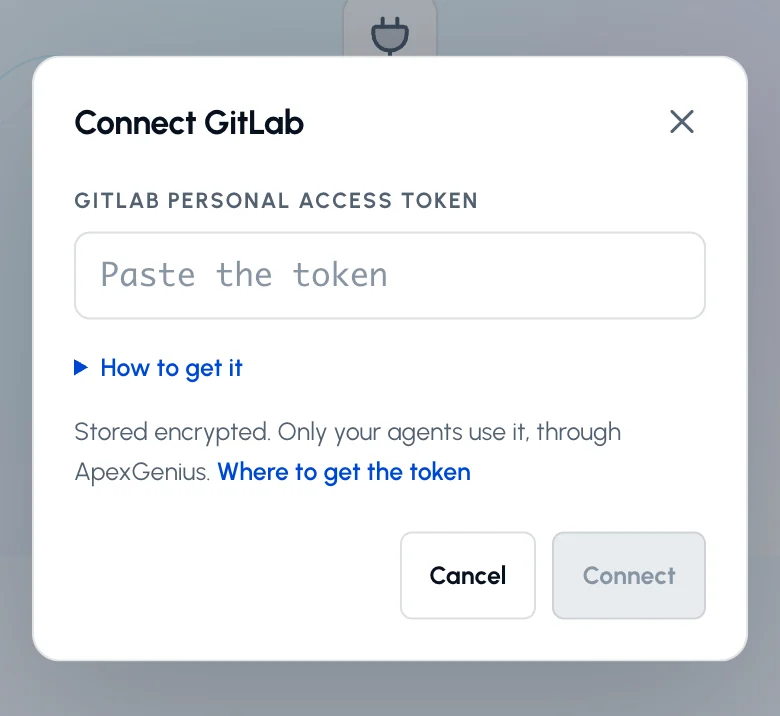
Paste a GitLab.com personal access token with only the read_api scope and choose Connect. How to get it opens the token steps.Open full-size image (opens in a new tab) - Check the connected user. Open Tools to see the GitLab reads, then ask your AI the question below. Compare the username with your GitLab.com account.
2. Connect ApexGenius to Muse
Use this server address when adding the connection:
https://server.autom8.pro/mcpThe steps are above, under Add the ApexGenius connector to Muse. These notes apply to Muse only.
- Why the prompt is long. Muse’s custom connector asks for the sign-in addresses up front instead of reading them from the MCP address. The Muse setup prompt carries the authorize, token and registration addresses. No client ID or secret is needed.
- Access. When ApexGenius asks what Muse may use, choose Read only for the first test, or Custom to limit it to the tools you need.
3. Verify one safe read
Using GitLab, tell me which GitLab user is connected, then list my five most recently updated open merge requests. Do not change anything.
Using GitLab, tell me which GitLab user is connected, then list my five most recently updated open merge requests. Do not change anything.Confirm the username matches your GitLab.com account and the merge requests match GitLab. The connection is read-only, so this check changes nothing.
Full guide: the GitLab setup guide.
What it looks like in Muse
Illustration of a task, not a recorded customer result. Your answers come from the account and dates you choose.
apex_search_toolsGitLab user · Find the GitLab read routeCompleteapex_call_read_toolget_current_user · Read the connected userCompleteIllustrative example: the token belongs to the username octo-dev. Compare it with the GitLab.com account you meant to connect. Nothing was changed.
Read-only routeWhat to ask Muse about GitLab
- Check the user
Which GitLab user is connected? Do not change anything.
Runs
get_current_user(read). - Open merge requests
Summarize the open merge requests in the project I name, with author, age and reviewers.
Runs
list_project_merge_requests(read), thenlist_merge_request_notes(read). - Failed pipeline
Why did the latest pipeline on the main branch fail in the project I name?
Runs
list_pipelines(read), thenlist_pipeline_jobs(read).
These 3 questions use 5 of GitLab’s 28 operations. The full list is below.
- List the issues labeled bug that were opened in the last 30 days in the project I name. (read)
- Why did the latest pipeline on the main branch fail in the project I name? List the failed jobs. (read)
- Read the README in the project I name and explain how to run it locally. (read)
What Muse can do in GitLab
28 operations: 28 read. Every operation looks things up and changes nothing, so Muse cannot change GitLab through ApexGenius.
Account and groups
4 readget_current_userreadRead the GitLab user the token belongs to.
list_groupsreadList the groups you can see.
get_groupreadRead one group.
list_group_projectsreadList the projects in a group.
Projects
4 readlist_projectsreadList or search the projects you are a member of.
get_projectreadRead one project.
list_project_labelsreadList a project’s labels.
list_project_milestonesreadList a project’s milestones.
Issues
4 readlist_issuesreadList issues across your projects.
list_project_issuesreadList the issues in one project.
get_project_issuereadRead one issue.
list_issue_notesreadRead the comments on an issue.
Merge requests
6 readlist_merge_requestsreadList merge requests across your projects.
list_project_merge_requestsreadList the merge requests in one project.
get_project_merge_requestreadRead one merge request.
list_merge_request_notesreadRead the comments on a merge request.
list_merge_request_diffsreadRead the file changes in a merge request.
list_merge_request_commitsreadList the commits in a merge request.
Repository
7 readlist_repository_treereadList the files and folders in a repository.
get_repository_blobreadRead one file from the repository.
list_branchesreadList the branches in a repository.
list_commitsreadList commits on a branch.
get_commitreadRead one commit.
list_tagsreadList the tags in a repository.
list_releasesreadList a project’s releases.
CI/CD pipelines
3 readlist_pipelinesreadList a project’s pipelines by status, branch or date.
get_pipelinereadRead one pipeline.
list_pipeline_jobsreadList the jobs in a pipeline and how each one ended.
You choose the access. When you approve Muse, pick Full access, Read only, or Custom.
GitLab checks the token on every call. Your AI sees only the projects and data your GitLab user can read.
Every operation is a read. ApexGenius has no GitLab write tool, so nothing in GitLab can change through this connection.
ApexGenius refuses a token that has any scope beyond read_api, read_user and read_repository, such as api.
GitLab.com only. Self-managed GitLab and GitLab Dedicated are not supported yet.
GitLab.com limits how many API calls each user can make each minute.
Disconnecting removes the token from ApexGenius. Revoke it on GitLab.com to stop it everywhere.
Questions about connecting Muse to GitLab
Updated November 12, 2026.
How do I connect Muse to GitLab?
Sign in to ApexGenius and connect GitLab. In Muse, ask it to connect ApexGenius, paste the Muse setup prompt from ApexGenius, and choose Connect on the connector card. Then ask Muse: “Using GitLab, tell me which GitLab user is connected, then list my five most recently updated open merge requests. Do not change anything.” Start with a read, so nothing changes.
How do I check that Muse can use GitLab?
Ask Muse which apps are connected through ApexGenius. It calls apex_search_tools and lists them, and GitLab should be there. If Muse shows the ApexGenius connector card again, choose Connect and finish the browser sign-in. Then ask: “Using GitLab, tell me which GitLab user is connected, then list my five most recently updated open merge requests. Do not change anything.”
Which token should I create?
A legacy personal access token with only the read_api scope. In GitLab.com open Edit profile, then Access, then Personal access tokens, and choose Generate token, then Legacy token. A token with api or another scope that can make changes is refused.
Can it change my projects?
No. Every operation is a read. It cannot create, edit, comment on, merge, close or delete anything. Make those changes on GitLab.com.
Can it read private projects?
Yes, the ones your GitLab user can see. Public projects are readable with any valid token.
Does it work with self-managed GitLab?
Not yet. The connector reaches gitlab.com only. Self-managed GitLab and GitLab Dedicated need a separate host check that is not built yet.
What happens when my token expires?
GitLab tokens expire within a year. When GitLab stops accepting it, reads fail. Create a new token on GitLab.com and paste it on the GitLab connection page in ApexGenius.
More connections like this one
Muse with other apps
 Supabase
 Cal.com
 GitHub
 Stripe
 Linear
 Jira
 HQ Rental
 Google Forms
All 48 apps Muse can use
 Google Tasks
 Google Calendar
 Google Sheets
 Calendly
 ClickUp
 monday.com
 ElevenLabs
 FreshBooks
 Trello
 Mobbin
 Slack
 Discord
 ChatGPT Ads
 Context.dev
 Attio
 Semrush
 Notion
 Apify
 Google Ads
 Google Analytics
 Google Meet
 Gmail
 Google Chat
 Google Docs
 Google Drive
 Google Slides
 Apollo
 Blotato
 Bing Webmaster
 Atlassian Rovo
 Polymarket
 OP.GG
 YouTube
- YouTube Analytics
 Salesforce
 n8n
 Confluence
 Google Search Console
 TypeSafe
 HubSpot
Other agents with GitLab
 Claude
 Grok Bot
Connect GitLab to Muse today
Start free1,000 free credits. No card required. Disconnect any time.