Slack gateway tools
slack_search_toolsDiscover what the selected Slack account can do: Slack's official tools and the Slack Web API methods ApexGenius runs.

Slack MCP connector
Slack user OAuth · Available
Connect Claude, ChatGPT and other AI agents to Slack over MCP: choose a Slack account, search threads, and send permitted messages in your connected workspace.
Keep each Slack login separate in ApexGenius. Choose the account for each task, or limit an AI client to one connection. Slack permissions and the tools you enable control what can run.
7 days free · No card required
Slack
App connector
Choose the Slack account your AI should use. Search conversations, read threads, and run permitted actions.
Reviewed Sep 30, 2026


Claude / ChatGPT
MCP client
ApexGenius route
Gateway context
Slack
Authorized session
Why the gateway is here
It keeps the Slack authorization, tools, and activity behind the same managed route you use for your other supported systems.
Ask it
These questions use the Slack tools below. Start with a read after connecting your channel or account.
Tools
The reviewed catalog contains these 3 Slack tools. Search by tool name, job, or access type.
Open the generated tool referenceSlack gateway tools
slack_search_toolsDiscover what the selected Slack account can do: Slack's official tools and the Slack Web API methods ApexGenius runs.
Slack gateway tools
slack_call_read_toolRun a discovered operation only when it is classified read-only.
Slack gateway tools
slack_call_toolRun an enabled Slack write for the selected user and workspace, such as sending, editing, pinning or managing a channel. Writes run when called.
Connection model
The Slack connection belongs to your signed-in account. Any Slack-native resources stay inside that provider.
Read connection details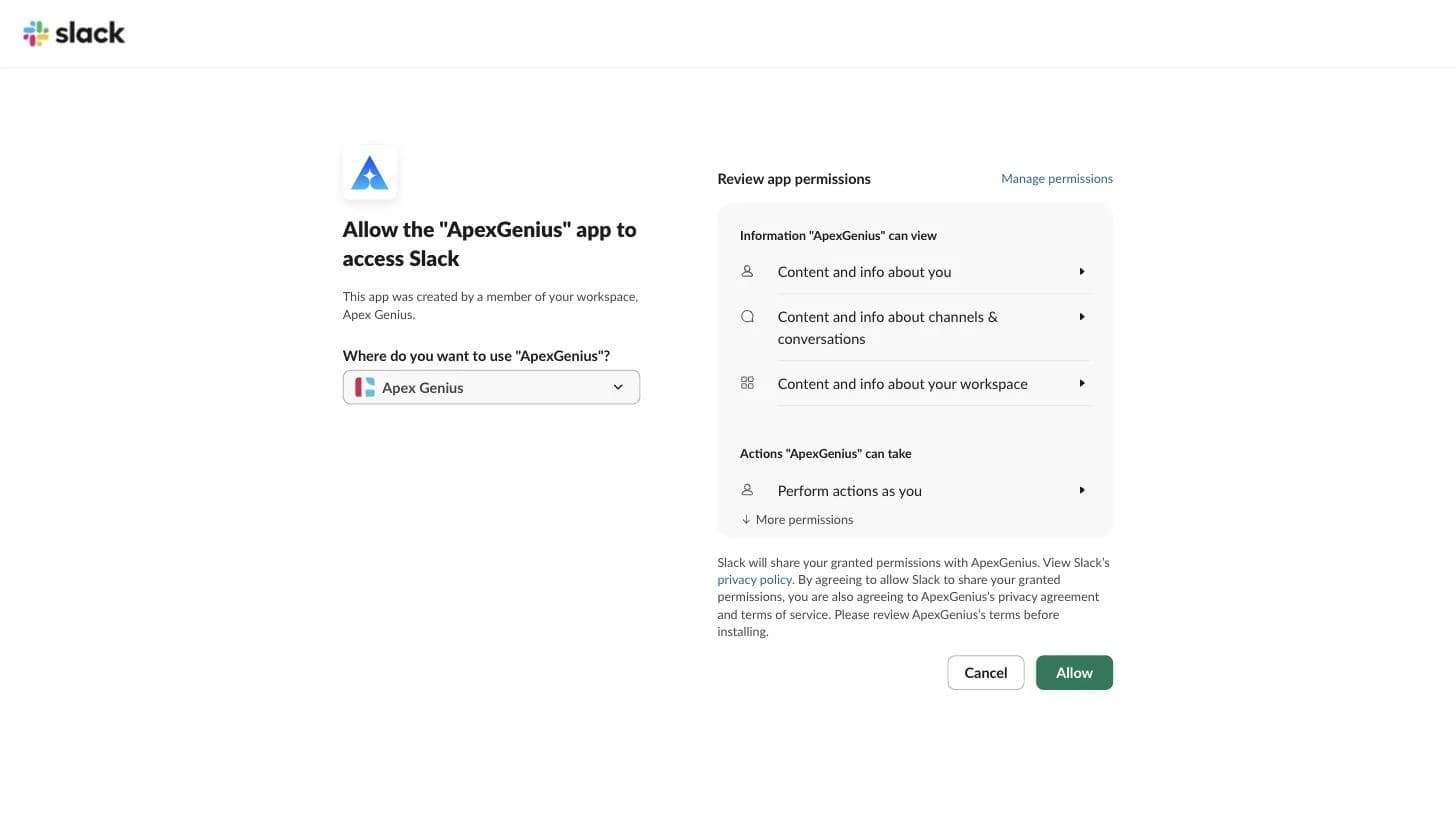
Each guide includes the AI setup and a first question for Slack.
Current governance
ApexGenius keeps the selected context and current tool surface visible, then records supported write activity for review.
Authorized context
Each connection identifies both the Slack user and workspace. Two users in one workspace remain separate.
Current tool surface
Private channels and DMs follow the connected user’s Slack access. ApexGenius does not add access to other users’ private conversations.
Reviewable activity
The read route refuses writes and anything not classified as a read. Enabled writes run when called.
ApexGenius uses Slack's official tools and Slack's Web API. Admin methods need a Slack org admin on Enterprise Grid. Sign-in, token and app-management methods are not available.
Why a gateway
Your AI starts with three ApexGenius gateway tools. It discovers the Slack operations available to its authorization when a task needs them, then runs the selected operation through the gateway.
Connect Slack to ApexGenius, then authorize each AI client to use the saved connection with its own tool permissions.
Give one client read-only and the write operations never appear in its tool list at all.
Which agent asked, what ran, and whether it succeeded, kept per connection for review.
Choose your AI client for setup steps and examples using Slack.
FAQ
More connectors
MCP-compatible AI agents


Codex starts in Plugins in the ChatGPT desktop app. ChatGPT Chat and Work also use Plugins, with personal setup where Developer Mode is permitted. Each AI client has its own guide and authorization requirements.
App connections



Salesforce keeps connection context. Other providers use your signed-in account.
Use the AI you already work in while ApexGenius keeps the app route visible.
Connect Slack7 days free · No card required
Compatibility does not imply partnership.