


Connect OpenClaw to Stripe
Connect OpenClaw to Stripe in 3 steps: 1. Sign in to ApexGenius and connect Stripe. 2. Add the ApexGenius MCP server. 3. Start using Stripe in OpenClaw.
1,000 free credits · No card required
How to connect Stripe to OpenClaw
- 1Sign in to ApexGenius and connect Stripe
- 2Add the ApexGenius MCP server to OpenClaw
- 3Start using Stripe in OpenClaw
- 1
Connect Stripe to ApexGenius
Connect Stripe
Stripe opens its own sign-in. Sign in and allow ApexGenius.
- 2
Connect ApexGenius to OpenClaw
Copy the MCP address
On Start, pick API key, open Manual setup, and copy the MCP address.
- 3
Approve access
ApexGenius opens its approval page. Review the access, then approve.
Add the ApexGenius MCP server to OpenClaw
OpenClaw saves outbound MCP servers under mcp.servers in its config. Add one from the terminal, or in the Control UI under Settings, then MCP.
- Run the command. To use the Control UI instead, open Settings, then MCP, then Add server, choose Streamable HTTP, enter the address, and set
authtooauthin the config editor on that page. - Sign in. In Settings, then MCP, choose Sign in for apexgenius and approve ApexGenius in your browser.
- From a terminal instead, stop the Gateway, run
openclaw mcp login apexgenius, follow the printed authorization URL, then start the Gateway again.
openclaw mcp add apexgenius \
  --url https://server.autom8.pro/mcp \
  --transport streamable-http \
  --auth oauth
Check it. Run openclaw mcp doctor apexgenius --probe. It opens a live connection and lists what the server offers. Saving a server does not prove it answers.
Steps follow OpenClaw documentation, Connect MCP servers (opens in a new tab), read November 12, 2026.
Then ask OpenClaw
Which Stripe account is connected, and is it live mode or a sandbox? Use the read-only route. Do not change anything.
Written setup, step by stepShow
Before you start
- An account with permission to use the Stripe resources you intend to connect.
1. Connect Stripe to ApexGenius
- Open Stripe in Connections. Choose Connect, or Add connection when offered. Give the connection a name if prompted. If Gateway setup pending appears, contact ApexGenius support before continuing.
- Choose the account and review access. On Stripe’s page, sign in and pick the live mode accounts or sandboxes to share, with the permissions for each. To test, pick only a sandbox. No Stripe API key is pasted into ApexGenius.
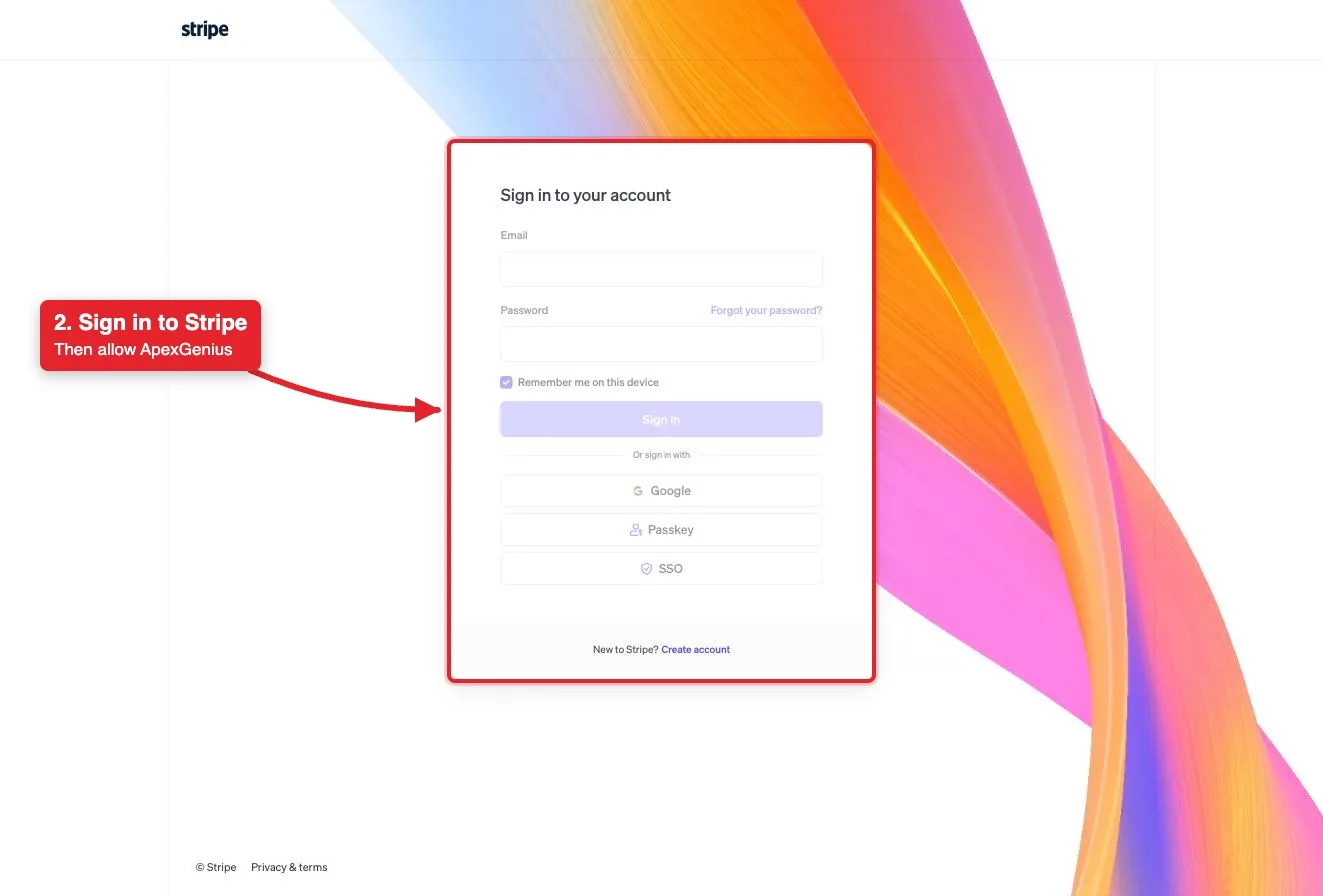
Connect opens Stripe's sign-in. Sign in with email, Google, a passkey or SSO, then allow ApexGenius.Open full-size image (opens in a new tab) - Review the connected account and resources. Confirm the connected Stripe account on the connection page, then open Tools. Refunds, invoices, payment links and subscription changes move real money and run right away when enabled.
- Check the connection. Use Test connection or Check again and read the reported status. Add an AI agent from the AI agents page, choose Read only for the first test, and try the question below.
2. Connect ApexGenius to OpenClaw
Use this server address when adding the connection:
https://server.autom8.pro/mcpThe steps are above, under Add the ApexGenius MCP server to OpenClaw. These notes apply to OpenClaw only.
- Set the transport. When transport is left out, OpenClaw uses SSE. ApexGenius serves Streamable HTTP, so keep
--transport streamable-http. - Browser on another machine. If the browser cannot reach the callback, copy the code it returns and run
openclaw mcp login apexgenius --codewith that code. - If sign-in is needed again.
openclaw mcp status --verboseshows whether a server needs authorization. Until it is signed in, OpenClaw leaves that one server out of the agent’s tools instead of failing the turn. - Reloading.
openclaw mcp reloadrefreshes only the current CLI process. A Gateway running elsewhere needs its own reload or restart. - Access. When ApexGenius asks what OpenClaw may use, choose Read only for the first test, or Custom to limit it to the tools you need.
3. Verify one safe read
Which Stripe account is connected, and is it live mode or a sandbox? Use the read-only route. Do not change anything.
Which Stripe account is connected, and is it live mode or a sandbox? Use the read-only route. Do not change anything.Compare the returned account and resource with Stripe. Check the connection status separately from the result of the first read.
Full guide: the Stripe setup guide.
What it looks like in OpenClaw
Illustration of a task, not a recorded customer result. Your answers come from the account and dates you choose.
apex_search_toolsStripe account · Find Stripe readsCompleteapex_call_read_toolget_stripe_account_info · Read the connected accountCompleteIllustrative example: the connected account is Example Studio, in a sandbox. Compare it with the account you picked on Stripe’s consent page. Nothing was changed.
Read-only routeWhat to ask OpenClaw about Stripe
- Check the account
Which Stripe account is connected, and is it live mode or a sandbox? Do not change anything.
Runs
get_stripe_account_info(read). - Recent payments
List my last five payments with amount, currency and customer. Do not refund anything.
Runs
stripe_api_search(read), thenstripe_api_read(read). - Open invoices
Which invoices are open or past due, and for which customers? Do not finalize, void or send anything.
Runs
stripe_api_read(read).
These 3 questions use 3 of Stripe’s 10 operations. The full list is below.
- Which Stripe account is connected, and is it live mode or a sandbox? (read)
- List my last ten payments with amount, currency and customer. Do not change anything. (read)
- Which invoices are open or past due, and for which customers? (read)
- Refund this payment in full. Show me the amount, currency and customer first. (write)
What OpenClaw can do in Stripe
10 operations: 8 read, 2 write. Read looks things up and changes nothing. Writes change Stripe and run only when you turn them on.
Account and balance
2 readget_stripe_account_inforeadRead the connected Stripe account. Start here.
get_balance_summaryreadShow the balance across the Stripe balance and Treasury accounts. Public preview.
Find the right API method
2 readstripe_api_searchreadSearch Stripe API methods by keyword.
stripe_api_detailsreadShow the parameters of one Stripe API method.
Read customers, payments, invoices and subscriptions
1 readstripe_api_readreadRun any Stripe API GET method. Returns data and changes nothing.
Refunds, invoices, payment links and subscriptions
1 writestripe_api_writewriteMoves money. Runs Stripe API POST, PATCH, PUT and DELETE methods: create refunds, create and finalize invoices, create payment links, and create, change or cancel subscriptions.
Reports
1 readstripe_analyticsreadQuery metrics, analyze subscriptions and billing, and run financial reports.
Docs, planning and feedback
2 read · 1 writesearch_stripe_documentationreadSearch Stripe’s documentation and support articles.
stripe_implementation_plannerreadPlan a Stripe integration: payments, online sales, billing and more.
send_stripe_feedbackwriteSend feedback about Stripe’s products to Stripe.
You choose the access. When you approve OpenClaw, pick Full access, Read only, or Custom.
Stripe’s consent page sets the reach: live mode accounts, sandboxes or both, with permissions for each. An administrator can turn MCP access on or off for live mode and sandboxes separately.
The connector acts only on the Stripe account you connect. It is separate from how ApexGenius bills you.
Reads use a route that checks Stripe’s live read-only label. stripe_api_write moves money and runs right away when enabled.
For some writes, such as refunds, Stripe returns its own confirmation link. Approve it on Stripe, then ask your AI to retry.
Disconnecting ends ApexGenius access and asks Stripe to revoke the grant. It does not undo a refund, invoice or subscription change that already ran.
Questions about connecting OpenClaw to Stripe
Updated November 12, 2026.
How do I connect OpenClaw to Stripe?
Connect OpenClaw to Stripe through ApexGenius in three steps. Sign in to ApexGenius and connect Stripe on the Stripe page, picking the accounts or sandboxes to share. In OpenClaw, run openclaw mcp add apexgenius --url https://server.autom8.pro/mcp --transport streamable-http --auth oauth, then sign in from Settings, then MCP. Then open a task in OpenClaw and ask a question about your Stripe. Start with a read, so nothing changes.
How do I check that OpenClaw can use Stripe?
Run openclaw mcp doctor apexgenius --probe. It opens a live connection and lists what the server offers. If openclaw mcp status --verbose reports that authorization is required, sign in again from Settings, then MCP, or with openclaw mcp login apexgenius. Then ask: “Which Stripe account is connected, and is it live mode or a sandbox? Use the read-only route. Do not change anything.”
Is there a Stripe MCP server for OpenClaw?
Yes. ApexGenius is an MCP server that OpenClaw connects to once. It carries your Stripe connection and 10 Stripe operations, so OpenClaw does not need a separate Stripe integration or plugin. You set it up one time and add each agent the same way.
What can OpenClaw do in Stripe once it is connected?
OpenClaw can run 10 Stripe operations through ApexGenius: 8 reads that confirm the account and balance, look up API methods, read customers, payments, invoices and subscriptions, and run reports, and 2 writes that create refunds, invoices and payment links or send feedback.
Can OpenClaw read my Stripe payments?
Only on the accounts or sandboxes you grant on Stripe’s consent page, with the permissions you set for each. To test, pick only a sandbox. The connector acts only on the Stripe account you connect and never reaches how ApexGenius bills you.
Can OpenClaw change my Stripe?
Not until you enable the write tool, and Stripe writes move real money. Test in a sandbox first. A write runs right away when enabled, and Stripe sends its own confirmation link for some, such as refunds. A refund cannot be undone.
Can I use the same Stripe connection with Claude, ChatGPT, Grok Bot or Muse?
Yes. One Stripe connection in ApexGenius works with every compatible agent you add, including Claude, ChatGPT, Grok Bot or Muse. Each agent gets its own access choice and its own short setup, so you can pick read only for one agent and more for another.
More connections like this one
OpenClaw with other apps
 Supabase
 Cal.com
 GitHub
 Linear
 Jira
 HQ Rental
 Google Forms
 Google Tasks
All 48 apps OpenClaw can use
 Google Calendar
 Google Sheets
 Calendly
 ClickUp
 monday.com
 ElevenLabs
 FreshBooks
 Trello
 GitLab
 Mobbin
 Slack
 Discord
 ChatGPT Ads
 Context.dev
 Attio
 Semrush
 Notion
 Apify
 Google Ads
 Google Analytics
 Google Meet
 Gmail
 Google Chat
 Google Docs
 Google Drive
 Google Slides
 Apollo
 Blotato
 Bing Webmaster
 Atlassian Rovo
 Polymarket
 OP.GG
 YouTube
- YouTube Analytics
 Salesforce
 n8n
 Confluence
 Google Search Console
 TypeSafe
 HubSpot
 Claude
 Grok Bot
 Muse
Connect Stripe to OpenClaw today
Start free1,000 free credits. No card required. Disconnect any time.