

Connect OpenClaw to Google Tasks
Connect OpenClaw to Google Tasks: 1. Sign in to ApexGenius and connect Google Tasks. 2. Add the ApexGenius MCP server. 3. Start using Google Tasks in OpenClaw.
1,000 free credits · No card required
How to connect Google Tasks to OpenClaw
- 1Sign in to ApexGenius and connect Google Tasks
- 2Add the ApexGenius MCP server to OpenClaw
- 3Start using Google Tasks in OpenClaw
FirstConnect Google Tasks to ApexGenius
ThenConnect ApexGenius to OpenClaw
Google Tasksapexgenius.ai/connections/google_tasks1 of 3Connect Google Tasks. Open Google Tasks in ApexGenius and choose Connect.
Then ask OpenClaw:
List my enabled Google Tasks lists. Do not create or change tasks.
Written setup, step by stepShow
Before you start
- An account with permission to use the Google Tasks resources you intend to connect.
1. Connect Google Tasks to ApexGenius
- Open Google Tasks in Connections. Choose Connect, or Add connection when offered. Give the connection a name if prompted. If Gateway setup pending appears, contact ApexGenius support before continuing.
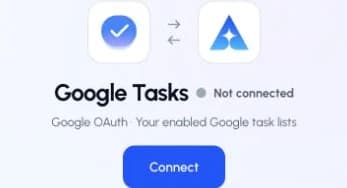
Open Google Tasks in Connections and choose Connect to start setup.Open full-size image (opens in a new tab) - Choose the account and review access. Sign in to the Google account that has access to the intended resources. Review the permissions Google requests, then return to ApexGenius.
- Review the connected account and resources. Find Allowed resources on the connection page or its Tools tab. Choose Refresh and enable only the task lists you want to use. Resource selection does not add permissions to the Google account.
- Check the connection. Use Test connection or Check again and read the reported status. Add an AI agent from the AI agents page, choose Read only for the first test, and try the question below.

2. Connect ApexGenius to OpenClaw
Use this server address when adding the connection:
https://server.autom8.pro/mcp- Add ApexGenius as a remote MCP server in your OpenClaw configuration using the hosted HTTP URL, then complete the authorization in your browser.
- When ApexGenius asks what this AI client may use, choose Read only for the first test, or Custom to limit it to the tools you need.
- Start a new conversation and select ApexGenius from the available tools before asking for live data.
3. Verify one safe read
List my enabled Google Tasks lists. Do not create or change tasks.
List my enabled Google Tasks lists. Do not create or change tasks.Compare the returned account and resource with Google Tasks. Check the connection status separately from the result of the first read.
What OpenClaw can do in Google Tasks
7 operations. Read looks things up and changes nothing. Write changes Google Tasks and runs only when that tool is enabled.
Read3 operations
Looks things up. Changes nothing.Read tasks
google_tasks_list_tasklistsList the task lists enabled for you in ApexGenius.google_tasks_list_tasksList the tasks in an enabled list.google_tasks_get_taskRead one task: title, notes, due date, status and when it was finished.
Write4 operations
Changes Google Tasks. Runs only when enabled.Add and update
google_tasks_create_taskAdd a task to an enabled list.google_tasks_update_taskChange a task’s title, notes, due date or status. Fields you leave out stay as they are.google_tasks_create_tasklistCreate a task list and add it to your enabled lists.
Full API
google_tasks_requestCall any Google Tasks API endpoint for an enabled list, including moving and deleting tasks.
You choose what OpenClaw can use
When you approve OpenClaw, pick Full access, Read only, or Custom. Read only allows the Read operations and nothing else. Custom picks apps and tools one by one.
Limits in Google Tasks
- · Only the task lists you enable can be reached, within the Google account’s own access.
- · Adding, changing and finishing tasks use the access Google granted to that account.
- · Enabled writes run immediately. Turn a tool off to block calls.
- · Disconnecting stops future access. It does not undo a task change.
What it looks like in OpenClaw
An illustrative read-only request and response. Your results come from the account and dates you choose.
apex_search_toolsGoogle Tasks lists · Find the Google Tasks read routeCompleteapex_call_read_toolgoogle_tasks_list_tasklists · List enabled task listsCompleteIllustrative example: two lists are enabled, Work and Home. Nothing was changed.
Read-only routeTry asking
“List my enabled Google Tasks lists. Do not create or change tasks.”
“What is due this week across my task lists?”
“Which tasks are past due, oldest first?”
“Add a task to follow up with the client on Friday.”
More connections like this one
One ApexGenius account covers every pair below. Connect an app once and each agent you allow can use it.
OpenClaw with other apps
 MobbinConnect OpenClaw to Mobbin
 Cal.comConnect OpenClaw to Cal.com
 SlackConnect OpenClaw to Slack
 DiscordConnect OpenClaw to Discord
 ChatGPT AdsConnect OpenClaw to ChatGPT Ads
 GitHubConnect OpenClaw to GitHub
 StripeConnect OpenClaw to Stripe
 Context.devConnect OpenClaw to Context.dev
 AttioConnect OpenClaw to Attio
 SemrushConnect OpenClaw to Semrush
 NotionConnect OpenClaw to Notion
 ApifyConnect OpenClaw to Apify
 LinearConnect OpenClaw to Linear
 JiraConnect OpenClaw to Jira
 HQ RentalConnect OpenClaw to HQ Rental
 Google AdsConnect OpenClaw to Google Ads
 Google AnalyticsConnect OpenClaw to Google Analytics
 Google FormsConnect OpenClaw to Google Forms
 Google MeetConnect OpenClaw to Google Meet
 GmailConnect OpenClaw to Gmail
 Google CalendarConnect OpenClaw to Google Calendar
 Google ChatConnect OpenClaw to Google Chat
 Google DocsConnect OpenClaw to Google Docs
 Google DriveConnect OpenClaw to Google Drive
 Google SheetsConnect OpenClaw to Google Sheets
 Google SlidesConnect OpenClaw to Google Slides
 ApolloConnect OpenClaw to Apollo
 BlotatoConnect OpenClaw to Blotato
 Bing WebmasterConnect OpenClaw to Bing Webmaster
 CalendlyConnect OpenClaw to Calendly
 ClickUpConnect OpenClaw to ClickUp
 YouTubeConnect OpenClaw to YouTube
- YouTube AnalyticsConnect OpenClaw to YouTube Analytics
 SalesforceConnect OpenClaw to Salesforce
 n8nConnect OpenClaw to n8n
 ConfluenceConnect OpenClaw to Confluence
 Google Search ConsoleConnect OpenClaw to Google Search Console



Questions people ask first
How do I connect Google Tasks?
Open Google Tasks in ApexGenius Connections, choose Connect, sign in with the Google account that holds your tasks, and enable the task lists you want.
Which task lists can my AI reach?
Only the lists you enable in ApexGenius. A new list your AI creates is added to that list.
Can my AI add and finish tasks?
Yes. Enabled writes run immediately. Turn a tool off to block calls.
Can my AI delete tasks?
Only through the full API tool, which is marked destructive. Turn it off unless you need it.
Can I start with read-only access?
Yes. Choose Read only when you add your AI agent, and the add and change tools never reach its tool list.
Connect Google Tasks to OpenClaw today
Start free1,000 free credits. No card required. Disconnect any time.