


Connect OpenClaw to Google Ads
Connect OpenClaw to Google Ads: 1. Sign in to ApexGenius and connect Google Ads. 2. Add the ApexGenius MCP server. 3. Start using Google Ads in OpenClaw.
1,000 free credits · No card required
How to connect Google Ads to OpenClaw
- 1Sign in to ApexGenius and connect Google Ads
- 2Add the ApexGenius MCP server to OpenClaw
- 3Start using Google Ads in OpenClaw
- 1
Connect Google Ads to ApexGenius
Open Google Ads in ApexGenius
Open Google Ads in Connections and choose Connect.
- 2
Connect ApexGenius to OpenClaw
Copy the MCP address
On Start, pick API key, open Manual setup, and copy the MCP address.
- 3
Approve access
ApexGenius opens its approval page. Review the access, then approve.
Add the ApexGenius MCP server to OpenClaw
OpenClaw saves outbound MCP servers under mcp.servers in its config. Add one from the terminal, or in the Control UI under Settings, then MCP.
- Run the command. To use the Control UI instead, open Settings, then MCP, then Add server, choose Streamable HTTP, enter the address, and set
authtooauthin the config editor on that page. - Sign in. In Settings, then MCP, choose Sign in for apexgenius and approve ApexGenius in your browser.
- From a terminal instead, stop the Gateway, run
openclaw mcp login apexgenius, follow the printed authorization URL, then start the Gateway again.
openclaw mcp add apexgenius \
  --url https://server.autom8.pro/mcp \
  --transport streamable-http \
  --auth oauth
Check it. Run openclaw mcp doctor apexgenius --probe. It opens a live connection and lists what the server offers. Saving a server does not prove it answers.
Steps follow OpenClaw documentation, Connect MCP servers (opens in a new tab), read November 12, 2026.
Then ask OpenClaw
List the Google Ads customer accounts enabled for me. Do not change campaigns or budgets.
Written setup, step by stepShow
Before you start
- An account with permission to use the Google Ads resources you intend to connect.
1. Connect Google Ads to ApexGenius
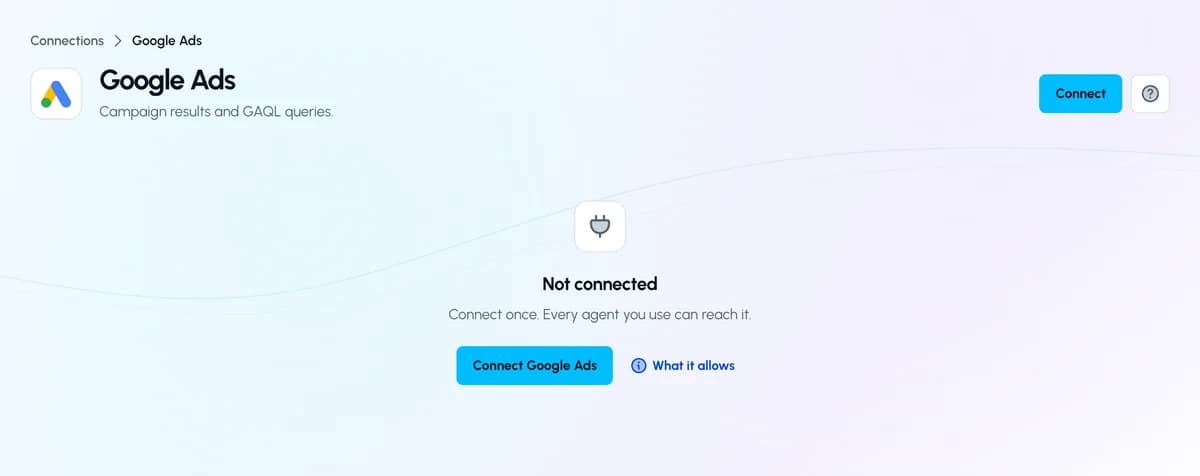
- Open Google Ads in Connections. Choose Connect, or Add connection when offered. Give the connection a name if prompted. If Gateway setup pending appears, contact ApexGenius support before continuing.
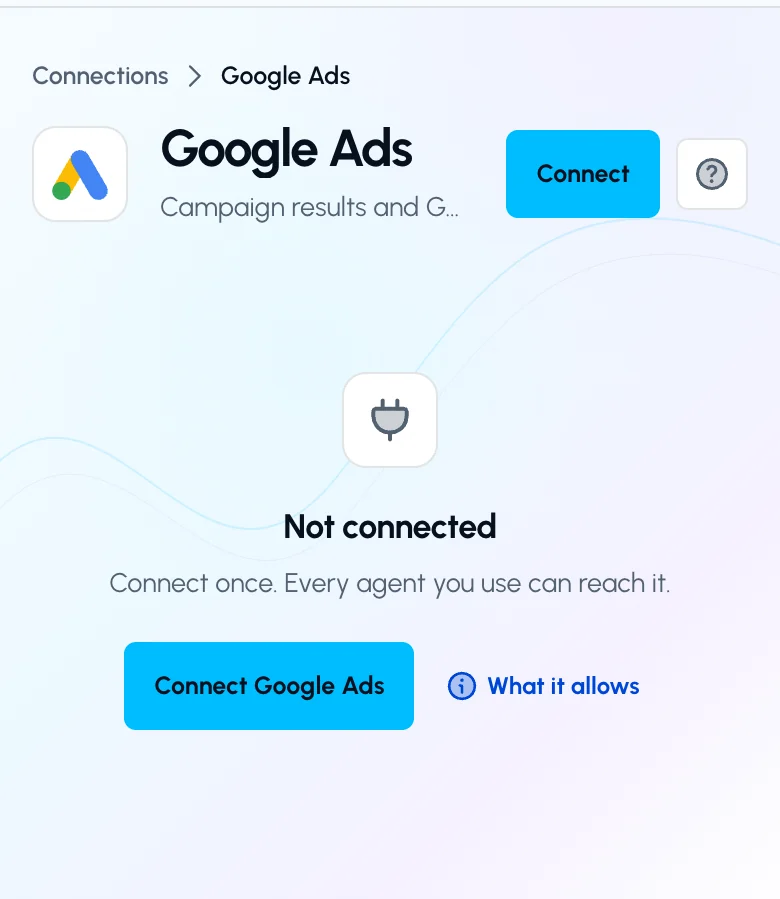
Open Google Ads in Connections and choose Connect. Google then asks you to sign in and allow access.Open full-size image (opens in a new tab) - Choose the account and review access. Sign in to the Google account that has access to the intended resources. Review the permissions Google requests, then return to ApexGenius.
- Review the connected account and resources. Find Allowed resources on the connection page or its Tools tab. Choose Refresh and enable only the Google Ads customer accounts you want to use. Resource selection does not add permissions to the Google account.
- Check the connection. Use Test connection or Check again and read the reported status. Add an AI agent from the AI agents page, choose Read only for the first test, and try the question below.
2. Connect ApexGenius to OpenClaw
Use this server address when adding the connection:
https://server.autom8.pro/mcpThe steps are above, under Add the ApexGenius MCP server to OpenClaw. These notes apply to OpenClaw only.
- Set the transport. When transport is left out, OpenClaw uses SSE. ApexGenius serves Streamable HTTP, so keep
--transport streamable-http. - Browser on another machine. If the browser cannot reach the callback, copy the code it returns and run
openclaw mcp login apexgenius --codewith that code. - If sign-in is needed again.
openclaw mcp status --verboseshows whether a server needs authorization. Until it is signed in, OpenClaw leaves that one server out of the agent’s tools instead of failing the turn. - Reloading.
openclaw mcp reloadrefreshes only the current CLI process. A Gateway running elsewhere needs its own reload or restart. - Access. When ApexGenius asks what OpenClaw may use, choose Read only for the first test, or Custom to limit it to the tools you need.
3. Verify one safe read
List the Google Ads customer accounts enabled for me. Do not change campaigns or budgets.
List the Google Ads customer accounts enabled for me. Do not change campaigns or budgets.Compare the returned account and resource with Google Ads. Check the connection status separately from the result of the first read.
Full guide: the Google Ads setup guide.
What it looks like in OpenClaw
Illustration of a task, not a recorded customer result. Your answers come from the account and dates you choose.
apex_search_toolsGoogle Ads accounts · Find the Google Ads read routeCompleteapex_call_read_toolgoogle_ads_list_customers · List enabled accountsCompleteIllustrative example: two accounts are enabled, the main brand account and one client account. Pick one before reading campaigns. Nothing was changed.
Read-only routeWhat to ask OpenClaw about Google Ads
- Check the accounts
List the Google Ads customer accounts enabled for me. Do not change campaigns or budgets.
Runs
google_ads_list_customers(read). - Campaign results
Show spend, clicks and conversions by campaign for the last 30 days.
Runs
google_ads_list_customers(read), thengoogle_ads_campaign_report(read). - Wasted search terms
Which search terms spent money last week without a conversion?
Runs
google_ads_query(read).
These 3 questions use 3 of Google Ads’s 5 operations. The full list is below.
- Pause the campaign I name. Show me the exact change first. (write)
What OpenClaw can do in Google Ads
5 operations: 4 read, 1 write. Read looks things up and changes nothing. Writes change Google Ads and run only when you turn them on.
Accounts
2 readgoogle_ads_list_customersreadList the Google Ads customer accounts enabled for you in ApexGenius.
google_ads_get_customerreadRead one account’s ID, name, currency, time zone and status.
Reports and queries
2 readgoogle_ads_campaign_reportreadRead each campaign’s status, impressions, clicks, cost and conversions over a date range.
google_ads_queryreadRun a GAQL query against an enabled account, such as search terms, ads or keywords.
Full API
1 writegoogle_ads_requestwriteCall any Google Ads API endpoint for an enabled account, including changes to campaigns, ads and budgets.
You choose the access. When you approve OpenClaw, pick Full access, Read only, or Custom.
Only the customer accounts you enable can be reached, and the Google account’s own Ads permissions still apply.
The full API tool can change campaigns, ads and budgets, which can spend money. Keep it off unless you need it.
Writes run immediately. Blocked hides a tool from agents.
Disconnecting stops future access. It does not undo a change already made in Google Ads.
Questions about connecting OpenClaw to Google Ads
Updated November 12, 2026.
How do I connect OpenClaw to Google Ads?
Sign in to ApexGenius and connect Google Ads. In OpenClaw, run openclaw mcp add apexgenius --url https://server.autom8.pro/mcp --transport streamable-http --auth oauth, then sign in from Settings, then MCP. Then ask OpenClaw: “List the Google Ads customer accounts enabled for me. Do not change campaigns or budgets.” Start with a read, so nothing changes.
How do I check that OpenClaw can use Google Ads?
Run openclaw mcp doctor apexgenius --probe. It opens a live connection and lists what the server offers. If openclaw mcp status --verbose reports that authorization is required, sign in again from Settings, then MCP, or with openclaw mcp login apexgenius. Then ask: “List the Google Ads customer accounts enabled for me. Do not change campaigns or budgets.”
Which ad accounts can my AI reach?
Only the customer accounts you enable in ApexGenius, within the Google account’s own Google Ads permissions.
Can my AI change campaigns or budgets?
Yes, through the full API tool, which is marked destructive because changes can spend money. Writes run immediately. Blocked hides a tool from agents.
Can I start with read-only access?
Yes. Choose Read only when you add your AI agent. It keeps the account, report and GAQL reads and never sees the full API tool.
Does it work with a manager account?
Yes. Enable the client accounts under your manager account that your AI should reach. Each call names the account it reads.
More connections like this one
OpenClaw with other apps
 ChatGPT Ads
 Semrush
 Google Analytics
 Blotato
 Bing Webmaster
 YouTube
- YouTube Analytics
 Google Search Console
All 48 apps OpenClaw can use
 TypeSafe
 Supabase
 Mobbin
 Cal.com
 Slack
 Discord
 GitHub
 Stripe
 Context.dev
 Attio
 Notion
 Apify
 Linear
 Jira
 HQ Rental
 Google Forms
 Google Meet
 Google Tasks
 Gmail
 Google Calendar
 Google Chat
 Google Docs
 Google Drive
 Google Sheets
 Google Slides
 Apollo
 Calendly
 ClickUp
 monday.com
 Atlassian Rovo
 Polymarket
 OP.GG
 Salesforce
 n8n
 Confluence
 ElevenLabs
 FreshBooks
 Trello
 GitLab
 HubSpot
Other agents with Google Ads
 Claude
 Grok Bot
 Muse
Connect Google Ads to OpenClaw today
Start free1,000 free credits. No card required. Disconnect any time.