


Add OpenClaw to Your Discord Server
Add the ApexGenius bot to your Discord servers. OpenClaw can then post, @mention people and roles, read channels and run Discord tools there when you ask.
1,000 free credits · No card required
How to connect Discord to OpenClaw
- 1Sign in to ApexGenius and connect Discord
- 2Add the ApexGenius MCP server to OpenClaw
- 3Start using Discord in OpenClaw
- 1
Connect Discord to ApexGenius
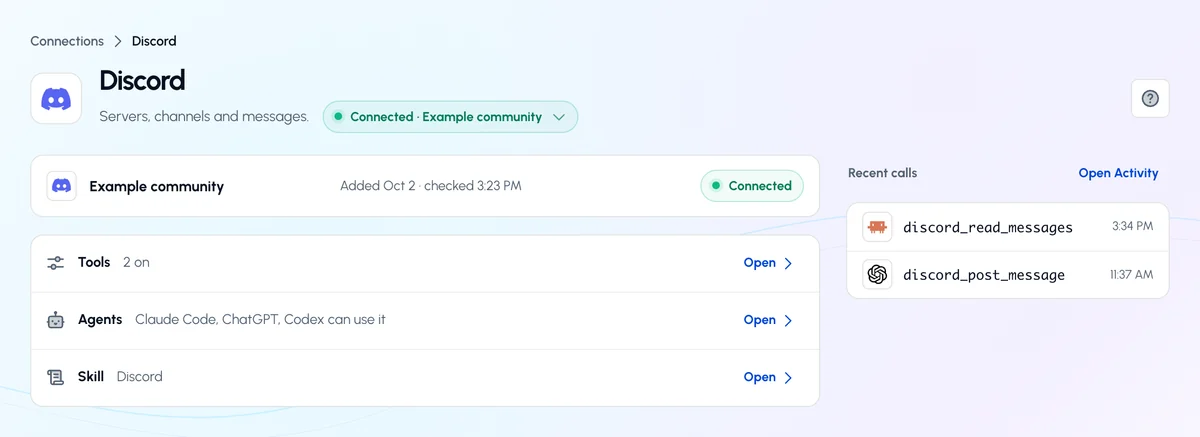
Discord connected
Discord shows as connected in ApexGenius, with what your AI can reach.
- 2
Connect ApexGenius to OpenClaw
Copy the MCP address
On Start, pick API key, open Manual setup, and copy the MCP address.
- 3
Approve access
ApexGenius opens its approval page. Review the access, then approve.
Then ask OpenClaw
List the names of channels enabled for my Discord connection. Do not read or send messages.
Written setup, step by stepShow
Before you start
- An account with permission to use the Discord resources you intend to connect.
1. Connect Discord to ApexGenius
- Open Discord in Connections. Choose Connect, or Add connection when offered. Give the connection a name if prompted. If Gateway setup pending appears, contact ApexGenius support before continuing.
- Choose the account and review access. On Discord, choose the intended server and review the permissions ApexGenius asks for. Full access is the default; untick any permission you do not want the bot to have.
- Review the connected account and resources. Check the Servers list on the connection page Overview. Turn on each server you want; Discord opens with that server already picked. Turn off any channel your AI should not use.
- Check the connection. Use Test connection or Check again and read the reported status. Add an AI agent from the AI agents page, choose Read only for the first test, and try the question below.
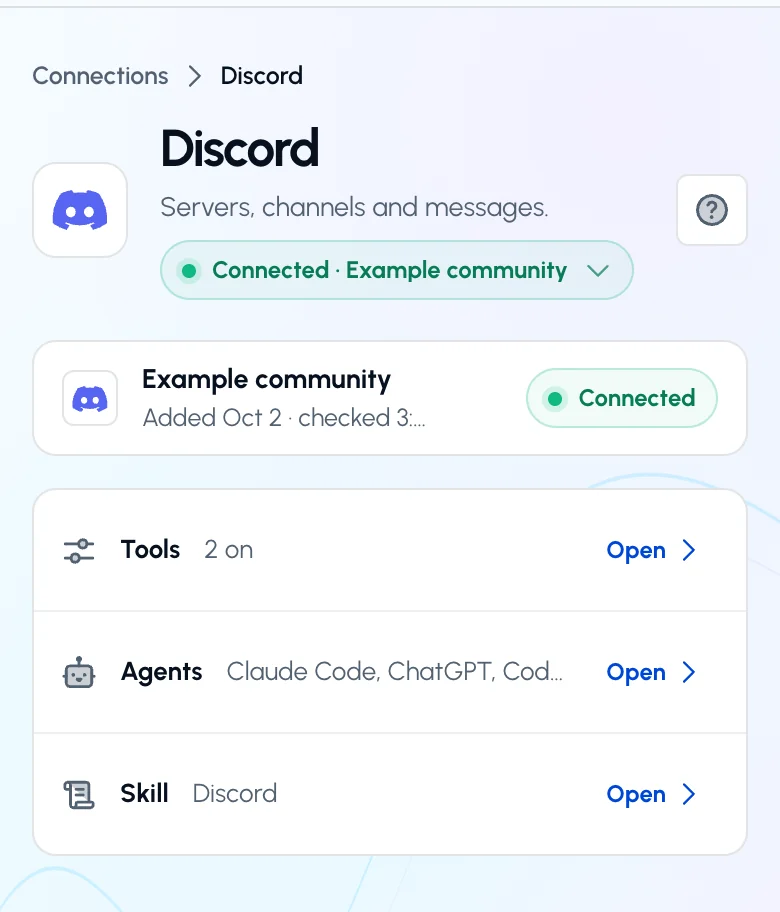
The Discord page after you connect. The status control reads Connected and the account row shows when it was last checked. Open the status control for Check again.Open full-size image (opens in a new tab)
2. Connect ApexGenius to OpenClaw
Use this server address when adding the connection:
https://server.autom8.pro/mcp- Add ApexGenius as a remote MCP server in your OpenClaw configuration using the hosted HTTP URL, then complete the authorization in your browser.
- When ApexGenius asks what this AI client may use, choose Read only for the first test, or Custom to limit it to the tools you need.
- Start a new conversation and select ApexGenius from the available tools before asking for live data.
3. Verify one safe read
List the names of channels enabled for my Discord connection. Do not read or send messages.
List the names of channels enabled for my Discord connection. Do not read or send messages.Compare the returned account and resource with Discord. Check the connection status separately from the result of the first read.
Full guide: the Discord setup guide.
What it looks like in OpenClaw
Illustration of a task, not a recorded customer result. Your answers come from the account and dates you choose.
apex_search_toolsDiscord server · Find Discord readsCompleteapex_call_read_tooldiscord_list_servers · Read the connected serverCompleteIllustrative example: the connected server is Project Team. Compare it with the server you authorized before asking about a channel.
Read-only routeTry asking
Show the Discord server connected to ApexGenius. Do not read or send messages.
List the names of channels enabled for my Discord connection.
Read recent messages in this enabled channel. State any missing content or access limits.
Read this permitted transcript attachment and summarize the decisions. Do not change anything.
What OpenClaw can do in Discord
14 operations: 8 read, 6 write. Read looks things up and changes nothing. Writes change Discord and run only when you turn them on.
Server and channels
4 readdiscord_list_serversreadList the one installed Discord server when it is enabled.
discord_list_channelsreadList enabled text channels without message bodies or channel topics.
discord_get_channelreadRead live channel metadata and the bot permissions that apply there.
discord_list_active_threadsreadList active public threads under an enabled parent channel without message bodies.
Message history
4 readdiscord_list_messagesreadRead a bounded message page in an explicitly authorized channel.
discord_list_history_threadsreadFind active and archived public threads in an explicitly authorized channel.
discord_read_transcript_attachmentreadRead a complete bounded text transcript attached to an authorized message.
discord_get_own_messagereadRead back one message created and recorded by this ApexGenius connection.
Messages ApexGenius sends
6 writediscord_send_messagewriteSend one text-only bot message when enabled. It can @mention people and roles.
discord_send_rich_messagewriteSend a card, one file up to 1 MiB, or a message in an allowed public thread.
discord_edit_own_messagewriteEdit only a message created and audited by this ApexGenius connection.
discord_delete_own_messagewriteDelete only a message created and audited by this ApexGenius connection.
discord_add_reaction_to_own_messagewriteAdd one Unicode reaction to an ApexGenius-owned message.
discord_remove_own_reactionwriteRemove only the ApexGenius bot's own reaction from its own message.
You choose the access. When you approve OpenClaw, pick Full access, Read only, or Custom.
The connected server, enabled channels, Discord permissions and explicit tool grants set the access boundary.
Choose Read-only transcripts for history and transcript reads without message-write access. Explicit tool and channel grants still apply. Discord may return incomplete content; the result must state that limit.
Existing message actions keep their separate access and tool controls. Edit, delete and reaction actions are limited to messages owned by the same connection.
Full access turns on the reviewed Discord catalog: 128 tools for channels, threads, messages, roles, members, events, webhooks, AutoMod and more, limited by the bot's Discord role.
Questions about connecting OpenClaw to Discord
Updated September 19, 2026.
Can I add OpenClaw to my Discord server?
Yes, through the ApexGenius bot. Connect Discord in ApexGenius and turn on each server you manage; Discord adds the bot with one Authorize. OpenClaw can then post, @mention people and roles, read the channels you enable, and run reviewed Discord tools there when you ask it. The bot does not reply to members on its own.
How do I connect OpenClaw to Discord?
Connect OpenClaw to Discord through ApexGenius in three steps. Sign in to ApexGenius and connect Discord with Discord OAuth, then pick a server; add more servers from the Servers list later. Add ApexGenius to OpenClaw. Then open a task in OpenClaw and ask a question about your Discord. Start with a read, so nothing changes.
Is there a Discord MCP server for OpenClaw?
Yes. ApexGenius is an MCP server that OpenClaw connects to once. It carries your Discord connection and 14 Discord operations, so OpenClaw does not need a separate Discord integration or plugin. You set it up one time and add each agent the same way.
What can OpenClaw do in Discord once it is connected?
OpenClaw can run 14 Discord operations through ApexGenius: 8 reads that list your servers, their channels and public threads, and read enabled channel history and transcript attachments, and 6 writes that send messages and rich messages that @mention people and roles, and edit, delete or react to messages ApexGenius sent. Full access adds the reviewed catalog of 128 Discord tools for channels, threads, roles, members, events, webhooks and AutoMod, limited by the bot's Discord role.
Can OpenClaw change my Discord?
Yes, when you ask it. Full access is the default, so OpenClaw can send messages that @mention people and roles and run the reviewed Discord tools on the servers you turn on. Choose Read-only transcripts or Minimum access on the Access page to narrow it, and turn off any server, channel or tool. Edits, deletes and reactions apply only to messages this connection sent.
Can I use the same Discord connection with Claude, ChatGPT, Grok Bot or Muse?
Yes. One Discord connection in ApexGenius works with every compatible agent you add, including Claude, ChatGPT, Grok Bot or Muse. Each agent gets its own access choice and its own short setup. The Discord skill loads in all of them, so it travels with the connection.
More connections like this one
OpenClaw with other apps
 Mobbin
 Slack
Slack Context.dev
 Notion
 Google Meet
 Gmail
Gmail Google Chat
 Google Docs
All 48 apps OpenClaw can use
 Google Drive
 Google Slides
 Atlassian Rovo
 Polymarket
 OP.GG
OP.GG Confluence
 Supabase
 Cal.com
 ChatGPT Ads
 GitHub
 Stripe
 Attio
Attio Semrush
 Apify
Apify Linear
 Jira
Jira HQ Rental
 Google Ads
 Google Analytics
 Google Forms
 Google Tasks
 Google Calendar
 Google Sheets
 Apollo
 Blotato
 Bing Webmaster
 Calendly
 ClickUp
 monday.com
 YouTube
- YouTube Analytics
 Salesforce
 n8n
n8n Google Search Console
 ElevenLabs
 FreshBooks
 Trello
 GitLab
 TypeSafe
 HubSpot
 Claude
 Grok Bot
 Muse
MuseConnect Discord to OpenClaw today
Start free1,000 free credits. No card required. Disconnect any time.