


Connect OpenClaw to TypeSafe
Connect OpenClaw to TypeSafe in 3 steps: 1. Sign in to ApexGenius and connect TypeSafe. 2. Add the ApexGenius MCP server. 3. Start using TypeSafe in OpenClaw.
1,000 free credits · No card required
How to connect TypeSafe to OpenClaw
- 1Sign in to ApexGenius and connect TypeSafe
- 2Add the ApexGenius MCP server to OpenClaw
- 3Start using TypeSafe in OpenClaw
- 1
Connect TypeSafe to ApexGenius
Paste it into ApexGenius
Paste your TypeSafe key into ApexGenius once.
- 2
Connect ApexGenius to OpenClaw
Copy the MCP address
On Start, pick API key, open Manual setup, and copy the MCP address.
- 3
Approve access
ApexGenius opens its approval page. Review the access, then approve.
Then ask OpenClaw
List the TypeSafe models available to my connection. Do not evaluate anything yet.
Written setup, step by stepShow
Before you start
- A TypeSafe account at console.typesafe.ai.
- An API key created in the TypeSafe console.
1. Connect TypeSafe to ApexGenius
- Open TypeSafe in Connections. Choose Connect or Add connection.
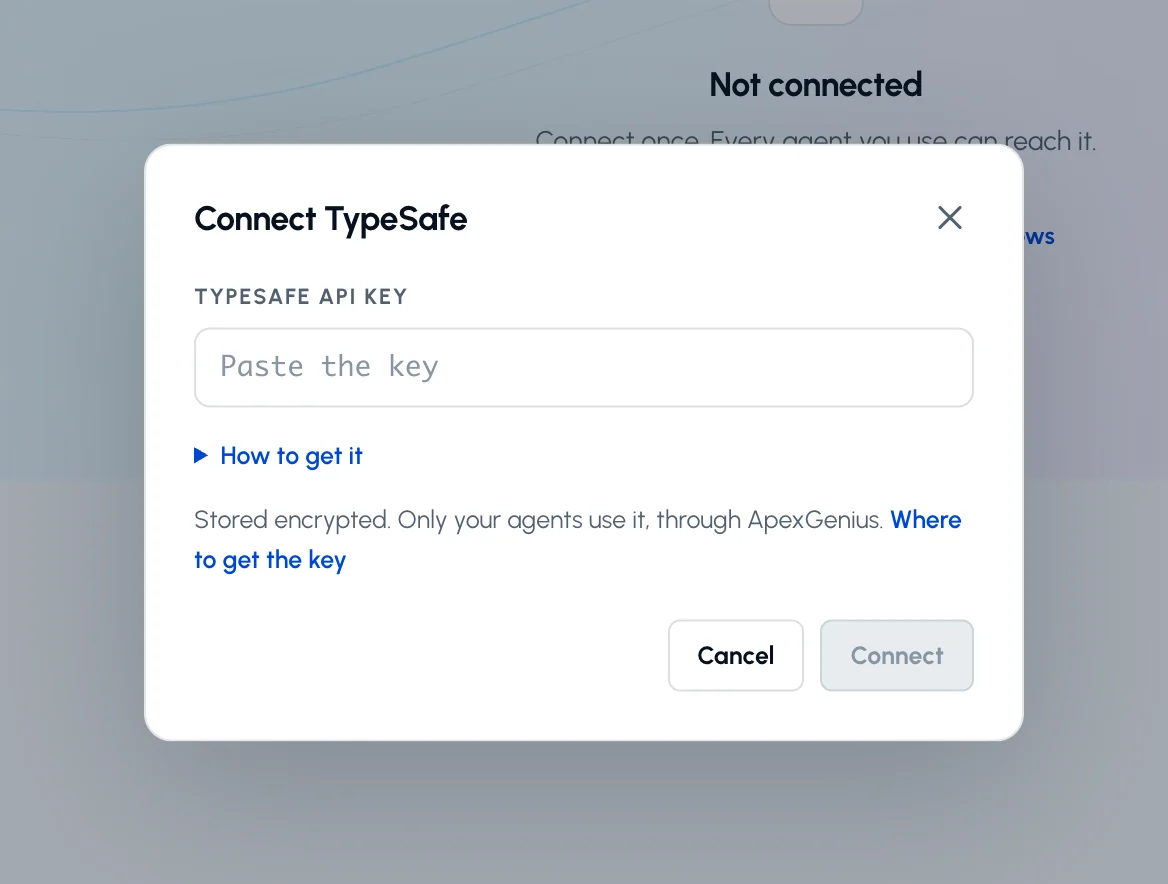
- Enter the API key. Paste the key from console.typesafe.ai. ApexGenius supplies the API address and checks the key against the model list.
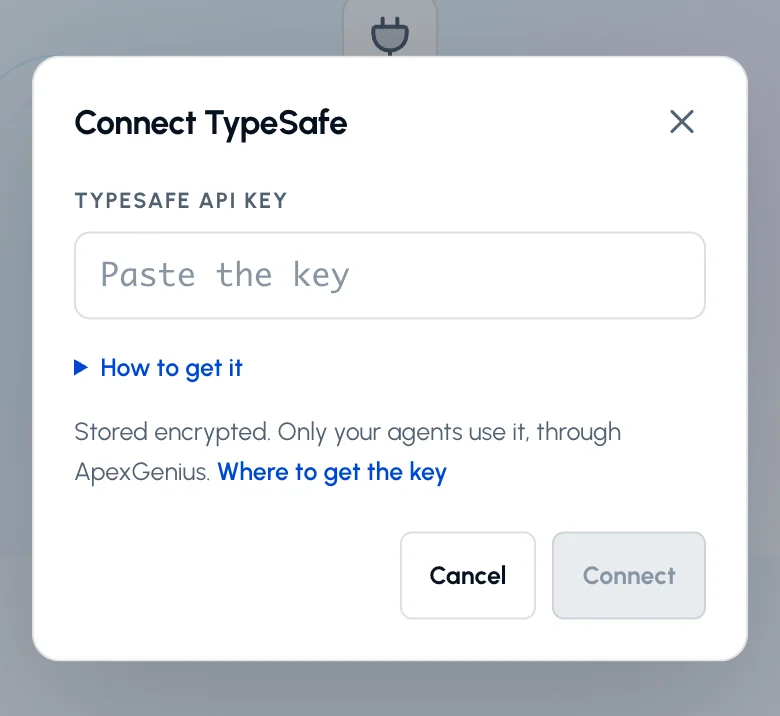
Paste the API key from console.typesafe.ai and choose Connect. ApexGenius checks it against the model list before saving.Open full-size image (opens in a new tab) - Check the saved connection. Save after validation succeeds. Review the Tools tab. Evaluations are reads that bill input tokens to your account.
2. Connect ApexGenius to OpenClaw
Use this server address when adding the connection:
https://server.autom8.pro/mcp- Add ApexGenius as a remote MCP server in your OpenClaw configuration using the hosted HTTP URL, then complete the authorization in your browser.
- When ApexGenius asks what this AI client may use, choose Read only for the first test, or Custom to limit it to the tools you need.
- Start a new conversation and select ApexGenius from the available tools before asking for live data.
3. Verify one safe read
List the TypeSafe models available to my connection. Do not evaluate anything yet.
List the TypeSafe models available to my connection. Do not evaluate anything yet.Confirm jev-latest appears in the list. Listing models bills nothing; evaluations bill input tokens.
Full guide: the TypeSafe setup guide.
What it looks like in OpenClaw
Illustration of a task, not a recorded customer result. Your answers come from the account and dates you choose.
apex_search_toolsTypeSafe models · Find the TypeSafe read routeCompleteapex_call_read_toollist_models · List the modelsCompleteIllustrative example: the key can use jev-latest, the default. Listing models bills nothing. Nothing was changed.
Read-only routeTry asking
List the TypeSafe models available to my connection. Do not evaluate anything yet.
Score these ten search terms for whether the searcher wants to hire a Salesforce consultant, and tell me which ones to add as negatives.
Is this inbound lead a fit for a Salesforce consulting engagement? Give me a yes or no with the probability.
Rate each of these three headlines from weak to strong for a paid search ad, and pick the best one.
What OpenClaw can do in TypeSafe
2 operations: 2 read. Every operation looks things up and changes nothing, so OpenClaw cannot change TypeSafe through ApexGenius.
Models
1 readlist_modelsreadList the Jev models your key can use. jev-latest is the default. Bills nothing.
Typed answers
1 readevaluatereadAsk yes/no, score or choice questions about a text or record and get typed answers with probabilities.
You choose the access. When you approve OpenClaw, pick Full access, Read only, or Custom.
One connection covers one TypeSafe account and its API key.
Both operations are reads. Nothing at TypeSafe changes, so an AI agent set to Read only can use them.
Each evaluation bills input tokens to the connected TypeSafe account. Listing models bills nothing.
The key goes only to api.typesafe.ai, as a bearer token. ApexGenius encrypts it.
Questions about connecting OpenClaw to TypeSafe
Updated October 26, 2026.
How do I connect TypeSafe?
Create an API key in the TypeSafe console at console.typesafe.ai and paste it into the TypeSafe connection in ApexGenius. ApexGenius checks the key against the model list before saving.
What does Jev return?
Typed answers, not text. A yes/no question returns a probability, a score returns a number with confidence, and a choice returns the pick with confidence and probabilities.
Does it cost anything?
Each evaluation bills input tokens to your TypeSafe account. Listing models bills nothing. ApexGenius does not add a TypeSafe charge.
Can my AI change anything at TypeSafe?
No. Both operations are reads. Evaluations compute and return answers, and nothing at TypeSafe changes.
What can I score with it?
Any text or record: search terms, ad copy, inbound leads or support tickets. Put the business definition inside the question so Jev knows who counts as a fit.
More connections like this one
OpenClaw with other apps
 ChatGPT Ads
 Semrush
 Google Ads
 Google Analytics
 Blotato
 Bing Webmaster
 YouTube
All 48 apps OpenClaw can use
 Google Search Console
 Supabase
 Mobbin
 Cal.com
 Slack
Slack Discord
 GitHub
 Stripe
 Context.dev
 Attio
Attio Notion
 Apify
Apify Linear
 Jira
Jira HQ Rental
 Google Forms
 Google Meet
 Google Tasks
 Gmail
Gmail Google Calendar
 Google Chat
 Google Docs
 Google Drive
 Google Sheets
 Google Slides
 Apollo
 Calendly
 ClickUp
 monday.com
 Atlassian Rovo
 Polymarket
 OP.GG
OP.GG Salesforce
 n8n
n8n Confluence
 ElevenLabs
 FreshBooks
 Trello
 GitLab
 HubSpot
 Claude
 Grok Bot
 Muse
MuseConnect TypeSafe to OpenClaw today
Start free1,000 free credits. No card required. Disconnect any time.