

Connect Cursor to Notion
Connect Cursor to Notion in 3 steps: 1. Sign in to ApexGenius and connect Notion. 2. Add the ApexGenius MCP server. 3. Start using Notion in Cursor.
7 days free · No card required
How to connect Notion to Cursor
- 1Sign in to ApexGenius and connect Notion
- 2Add the ApexGenius MCP server to Cursor
- 3Start using Notion in Cursor
FirstConnect Notion to ApexGenius
ThenConnect ApexGenius to Cursor
Notionapexgenius.ai/connections/notion1 of 3Connect Notion. Open Notion in ApexGenius and choose Connect.
Then ask Cursor:
Show the name of the Notion user connected to ApexGenius. Discover the current-user read operation first, then use the read-only route. Do not open or change workspace content.
Written setup, step by stepShow
Before you start
- A Notion account with access to the workspace you want to connect.
- Permission from your workspace owner if your organization limits MCP connections.
1. Connect Notion to ApexGenius
- Open Notion in Connections. Sign in to ApexGenius, open Connections, choose Notion, and select Connect.
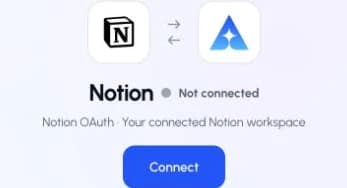
Open Notion in Connections and choose Connect to start setup.Open full-size image (opens in a new tab) - Choose the account and review access. Sign in to the intended Notion account. Choose your workspace and review Notion’s requested access. Return to ApexGenius after authorization.
- Check the workspace and tools. Open Tools and enable the intended workspace resource. Your existing Notion permissions set the content boundary. Choose Read only when adding your AI agent for the first test.
- Verify the connected account. Use Test connection, then ask your AI the question below. Compare the returned user with the account you authorized and check Tool Activity.

2. Connect ApexGenius to Cursor
Use this server address when adding the connection:
https://server.autom8.pro/mcp- In Cursor, open Customize to manage MCP servers and add an apexgenius entry to mcpServers in ~/.cursor/mcp.json with the hosted HTTP URL. Choose Connect, then approve ApexGenius in your browser.
- When ApexGenius asks what this AI client may use, choose Read only for the first test, or Custom to limit it to the tools you need.
- Start a new conversation and select ApexGenius from the available tools before asking for live data.
3. Verify one safe read
Show the name of the Notion user connected to ApexGenius. Discover the current-user read operation first, then use the read-only route. Do not open or change workspace content.
Show the name of the Notion user connected to ApexGenius. Discover the current-user read operation first, then use the read-only route. Do not open or change workspace content.Confirm the returned user matches your intended Notion account. This account read verifies the connection path; it does not test every page, write action, or Notion plan feature.
What Cursor can do in Notion
3 operations. Read looks things up and changes nothing. Write changes Notion and runs only when that tool is enabled.
Read2 operations
Looks things up. Changes nothing.notion_search_toolsSearch the live tool catalog published by Notion's official hosted MCP. Returns matching names, descriptions, and schemas.notion_call_read_toolRun a discovered Notion operation only when its live catalog marks it read-only. Writes and unclassified operations are rejected.
Write1 operation
Changes Notion. Runs only when enabled.notion_call_toolRun a reviewed Notion change when enabled, including destructive actions when the live tool permits them. Review the target and undo limits first.
You choose what Cursor can use
When you approve Cursor, pick Full access, Read only, or Custom. Read only allows the Read operations and nothing else. Custom picks apps and tools one by one.
Limits in Notion
- · Notion controls the OAuth grant and the content your user can access. Workspace access can be broad; ApexGenius does not promise a separate page-level allowlist.
- · The read route checks Notion’s live tool annotation and rejects writes or unclassified operations.
- · The mutation tool must be enabled. Available operations and plan limits come from the current Notion catalog.
- · Disconnecting stops future gateway access. It does not undo a page edit, comment, upload, or other completed action.
What it looks like in Cursor
An illustrative read-only request and response. Your results come from the account and dates you choose.

apex_search_toolsNotion account · Find the Notion read routeCompleteapex_call_read_toolnotion_search_tools · Discover the current-user operationCompleteapex_call_read_toolnotion_call_read_tool · Read the current userCompleteIllustrative example: the connected user is Alex. Compare this name with the Notion account you authorized before asking about a page.
Read-only routeTry asking
“Show the name of my connected Notion user without opening workspace content.”
“Find the project page I name in my connected workspace and show its link.”
“Read this Notion page and summarize its open decisions. Do not change it.”
“Update this page. Show the exact change and undo limits first.”
Questions people ask first
How do I connect Notion?
Open Notion in ApexGenius Connections, choose Connect, and authorize the intended workspace in Notion. No Notion API key is pasted into ApexGenius.
Which pages can my AI read?
Your connected Notion user’s permissions set the content boundary. Enable the intended workspace resource in ApexGenius and select the tools your AI agent can use. This does not create a page-level allowlist.
Can I start with read-only access?
Yes. Choose Read only for your AI agent and use the dedicated Notion read route. This limits gateway calls; it does not change Notion’s underlying OAuth grant.
Can my agent update a page?
When the live Notion catalog and your access permit it, the existing mutation route can request the change. The tool must be enabled. Review the exact page, proposed change, and undo limits first.
Are all Notion features included?
The tools available to your connected account depend on Notion’s live catalog, your permissions, and your plan. A successful account read does not certify every feature.
Connect Notion to Cursor today
Start free7 days free. No card required. Disconnect any time.