


Connect Cursor to Discord
Connect Cursor to Discord in 3 steps: 1. Sign in to ApexGenius and connect Discord. 2. Add the ApexGenius MCP server. 3. Start using Discord in Cursor.
7 days free · No card required
How to connect Discord to Cursor
- 1Sign in to ApexGenius and connect Discord
- 2Add the ApexGenius MCP server to Cursor
- 3Start using Discord in Cursor
FirstConnect Discord to ApexGenius
ThenConnect ApexGenius to Cursor
Discordapexgenius.ai/connections/discord1 of 3Connect Discord. Discord shows as connected in ApexGenius.
Then ask Cursor:
List the names of channels enabled for my Discord connection. Do not read or send messages.
Written setup, step by stepShow
Before you start
- An account with permission to use the Discord resources you intend to connect.
1. Connect Discord to ApexGenius
- Open Discord in Connections. Choose Connect, or Add connection when offered. Give the connection a name if prompted. If Gateway setup pending appears, contact ApexGenius support before continuing.
- Choose the account and review access. On Discord, choose the intended server and review the ApexGenius app installation. Initial access starts with View Channels. Message actions require additional access.
- Review the connected account and resources. Check the server, access mode, and enabled channels on the connection page. Enable only the channels you intend your AI to use.
- Check the connection. Use Test connection or Check again and read the reported status. Add an AI agent from the AI agents page, choose Read only for the first test, and try the question below.
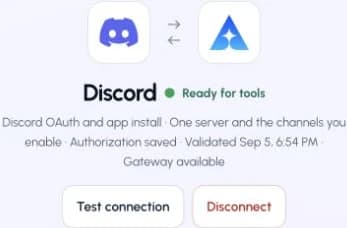
This captured Discord connection reports ready. Check your own connection and its latest validation before using tools.Open full-size image (opens in a new tab)
2. Connect ApexGenius to Cursor
Use this server address when adding the connection:
https://server.autom8.pro/mcp- In Cursor, open Customize to manage MCP servers and add an apexgenius entry to mcpServers in ~/.cursor/mcp.json with the hosted HTTP URL. Choose Connect, then approve ApexGenius in your browser.
- When ApexGenius asks what this AI client may use, choose Read only for the first test, or Custom to limit it to the tools you need.
- Start a new conversation and select ApexGenius from the available tools before asking for live data.
3. Verify one safe read
List the names of channels enabled for my Discord connection. Do not read or send messages.
List the names of channels enabled for my Discord connection. Do not read or send messages.Compare the returned account and resource with Discord. Check the connection status separately from the result of the first read.
What Cursor can do in Discord
14 operations. Read looks things up and changes nothing. Write changes Discord and runs only when that tool is enabled.
Read8 operations
Looks things up. Changes nothing.Server and channels
discord_list_serversList the one installed Discord server when it is enabled.discord_list_channelsList enabled text channels without message bodies or channel topics.discord_get_channelRead live channel metadata and the bot permissions that apply there.discord_list_active_threadsList active public threads under an enabled parent channel without message bodies.
Message history
discord_list_messagesRead a bounded message page in an explicitly authorized channel.discord_list_history_threadsFind active and archived public threads in an explicitly authorized channel.discord_read_transcript_attachmentRead a complete bounded text transcript attached to an authorized message.discord_get_own_messageRead back one message created and recorded by this ApexGenius connection.
Write6 operations
Changes Discord. Runs only when enabled.Messages ApexGenius sends
discord_send_messageSend one text-only bot message when enabled. Mentions are blocked.discord_send_rich_messageSend a card, one file up to 1 MiB, or a message in an allowed public thread.discord_edit_own_messageEdit only a message created and audited by this ApexGenius connection.discord_delete_own_messageDelete only a message created and audited by this ApexGenius connection.discord_add_reaction_to_own_messageAdd one Unicode reaction to an ApexGenius-owned message.discord_remove_own_reactionRemove only the ApexGenius bot's own reaction from its own message.
You choose what Cursor can use
When you approve Cursor, pick Full access, Read only, or Custom. Read only allows the Read operations and nothing else. Custom picks apps and tools one by one.
Limits in Discord
- · The connected server, enabled channels, Discord permissions and explicit tool grants set the access boundary.
- · Choose Read-only transcripts for history and transcript reads without message-write access. Explicit tool and channel grants still apply. Discord may return incomplete content; the result must state that limit.
- · Existing message actions keep their separate access and tool controls. Edit, delete and reaction actions are limited to messages owned by the same connection.
- · The larger Discord MCP catalog remains separately staged. This release does not turn its worker or additional categories on.
What it looks like in Cursor
An illustrative read-only request and response. Your results come from the account and dates you choose.

apex_search_toolsDiscord server · Find Discord readsCompleteapex_call_read_tooldiscord_list_servers · Read the connected serverCompleteIllustrative example: the connected server is Project Team. Compare it with the server you authorized before asking about a channel.
Read-only routeTry asking
“Show the Discord server connected to ApexGenius. Do not read or send messages.”
“List the names of channels enabled for my Discord connection.”
“Read recent messages in this enabled channel. State any missing content or access limits.”
“Read this permitted transcript attachment and summarize the decisions. Do not change anything.”
Questions people ask first
How do I connect Discord?
Choose Discord in ApexGenius Connections, select Connect, sign in on Discord and pick one server. You need the right to install the app there. Review the server and enabled channels when you return.
Can I start with channel names only?
Yes. Minimum access starts with channel visibility. Enable only the channels your agent needs and choose Read only for the first test.
Can my agent read channel history?
Choose Read-only transcripts and explicitly enable the history tool and intended channels to read permitted messages. Discord content restrictions still apply, and a response can report incomplete content.
Does this give my agent every Discord action?
No. Account permissions, access mode, enabled resources and tool grants determine the available actions. Writes run when their tools are enabled. The larger MCP worker remains separately staged.
Can I take this setup to another AI agent?
Add ApexGenius to another compatible agent using the same ApexGenius account. It can use the allowed connection and load the Discord skill. Each agent needs its own setup and access choices.
Connect Discord to Cursor today
Start free7 days free. No card required. Disconnect any time.