


Connect Cursor to YouTube Analytics
Connect Cursor to YouTube Analytics: 1. Connect YouTube Analytics in ApexGenius. 2. Add the ApexGenius MCP server. 3. Start using YouTube Analytics in Cursor.
Read-only performance and existing daily reports. Recent data may be delayed.
7 days free · No card required
How to connect YouTube Analytics to Cursor
- 1Sign in to ApexGenius and connect YouTube Analytics
- 2Add the ApexGenius MCP server to Cursor
- 3Start using YouTube Analytics in Cursor
FirstConnect YouTube Analytics to ApexGenius
ThenConnect ApexGenius to Cursor
YouTube Analyticsaccounts.google.com1 of 3Connect YouTube Analytics. YouTube Analytics opens its own sign-in. Sign in and allow ApexGenius.
Then ask Cursor:
Show views and watch time for my connected YouTube channel over the last 28 complete days. Include the channel and returned date range.
Written setup, step by stepShow
Read the steps Follow along at your own pace
1. Open Analytics & Reporting
In Connections, find the YouTube group and open YouTube Analytics & Reporting.
2. Choose performance access
Keep Read performance and daily reports selected, then choose Connect.
3. Review Google permissions
Choose the Google account that can access your channel. Review View your YouTube account and View YouTube Analytics reports for your YouTube content, then choose Allow.
4. Test the connection
Back in ApexGenius, choose Test connection. Check that the intended channel is healthy.
5. Enable your channel
Open Tools. In Allowed resources, turn on the intended channel, then follow the AI setup guide below.
Recorded with the ApexGeniusAI channel. Open the video
Read-only performance and existing daily reports. Recent data may be delayed.
Before you start
- A Google account with access to the YouTube channel you intend to connect. Check the channel in YouTube first, especially if you use a Brand Account.
- An ApexGenius account with this module available. If setup is pending or the module is missing, contact support.
- YouTube channel access and YouTube Analytics access are separate connections. Reporting is included in YouTube Analytics.
1. Connect YouTube Analytics to ApexGenius
- Open YouTube Analytics in Connections. Find the YouTube group and open YouTube Analytics. Each module has its own channel and access selection.
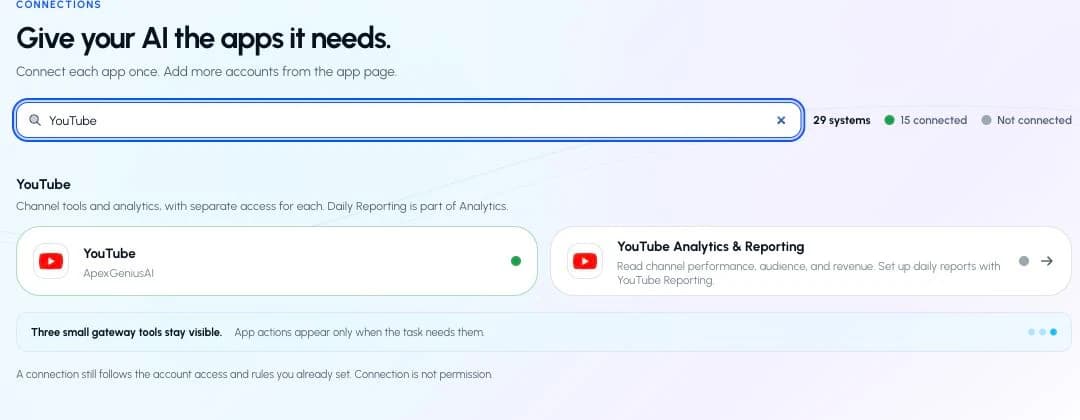
Open YouTube Analytics & Reporting from the YouTube group.Open full-size image (opens in a new tab) 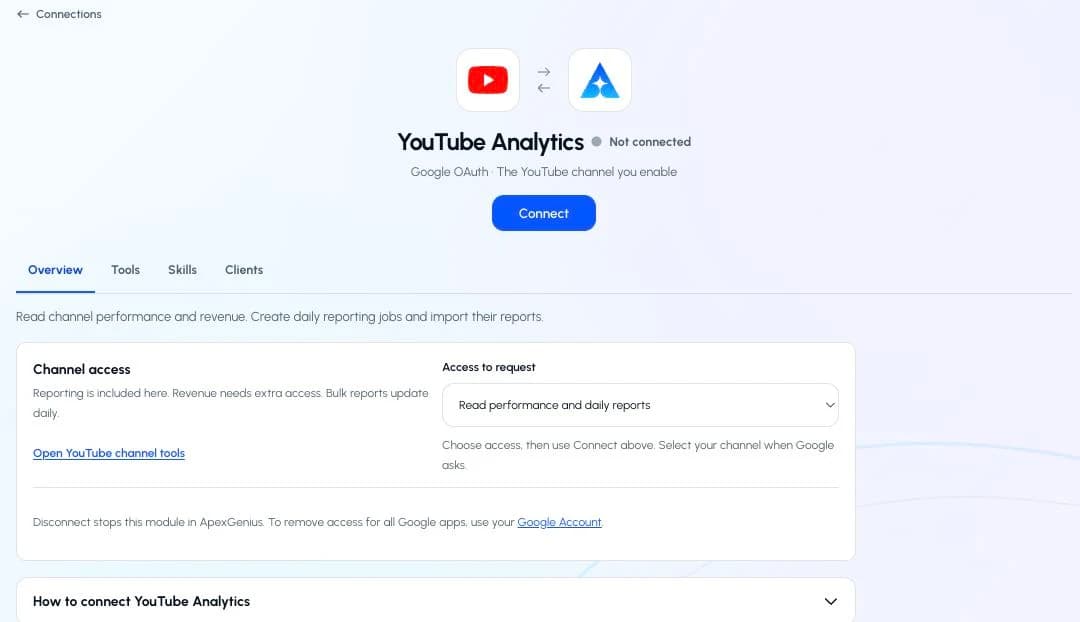
The Analytics module has its own Connect button and channel access.Open full-size image (opens in a new tab) - Review read-only access. Read performance and existing daily reports. Revenue and writes are not included. Use Connect only when setting up this module.
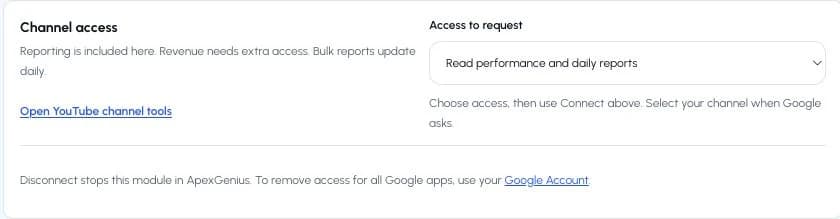
Start with Read performance and daily reports, then choose Connect.Open full-size image (opens in a new tab) - Select your Google account and YouTube channel. On Google’s own page, select the account with access to your intended channel. If Google offers a channel or Brand Account choice, select the intended channel. Review the requested permissions before continuing. Already granted permissions may make these screens look different. Return to ApexGenius when Google finishes.
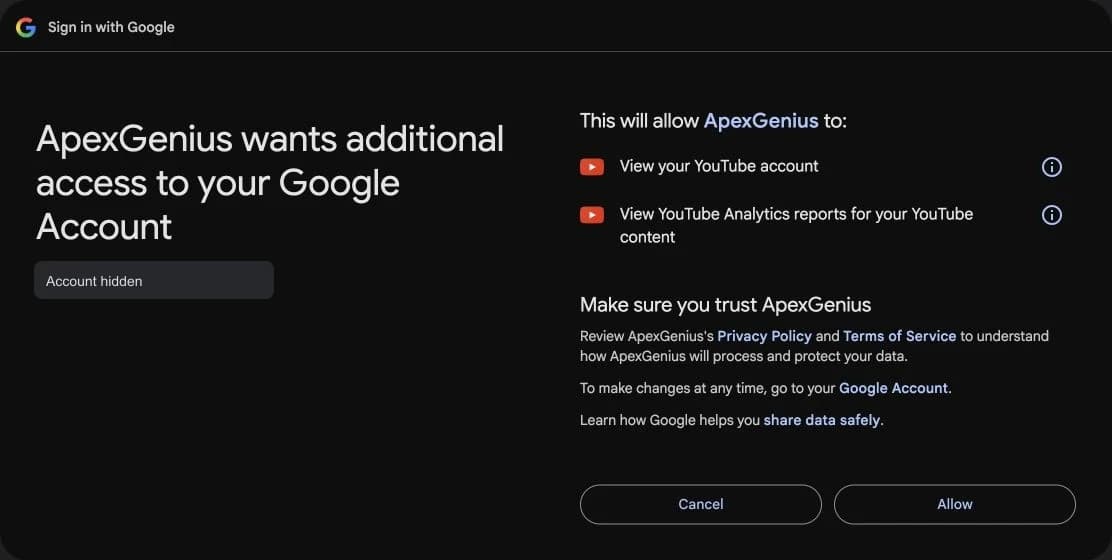
Review both read permissions on Google, then choose Allow.Open full-size image (opens in a new tab) - Enable the connected channel. Confirm the saved channel name. Open Tools, find Allowed resources, and choose Refresh if needed. Enable the intended channel. Enabling it allows ApexGenius to use existing access; it does not grant new YouTube permissions. If the channel is wrong, stop and connect the intended channel.

Check the channel name and turn on its access.Open full-size image (opens in a new tab) - Check the connection status. Use Test connection or Check again when offered. Read the returned status and confirm the saved channel. A healthy connection does not yet prove that a tool read will work.
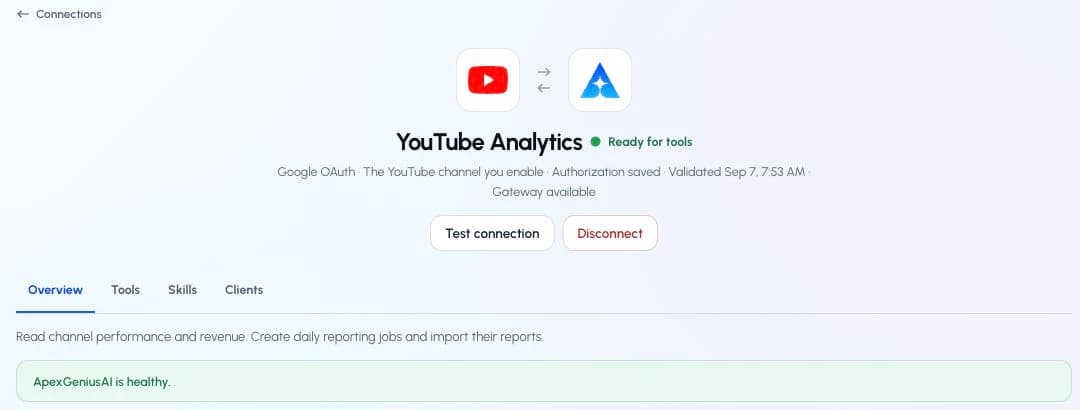
Choose Test connection and check the returned channel and status.Open full-size image (opens in a new tab) - Run your first read with an AI agent. Open AI agents and add or select your AI client. Allow this connection with Read only for the first test. Use the question below, then compare the returned channel and data with YouTube Studio. Empty recent analytics can mean data is not available yet.AI agents · First readGuide frame
- Connection
- YouTube Analytics
- Access for first test
- Read only
Copy the first question below into your connected AI client. Check the returned channel and result.
Illustrated setup guidance. Follow the controls shown in your own account. Drawn by ApexGenius, not a screenshot, so your screen may differ by version. - Optional: read existing daily reports. List existing report jobs and available reports for your channel. If no jobs or reports exist, say so. Reading a report saves its rows in ApexGenius for later queries. This does not create a job or start a background sync. Check the report dates and any missing data.YouTube Analytics · Daily ReportingGuide frame
- Choose report typeUse the report types available to your channel
- List existing jobsRead jobs that already exist
- Read available reportsCheck the returned date range
- Read saved rowsQuery data already imported into ApexGenius
Targeted Analytics queries do not require a Reporting job.
Illustrated setup guidance. Follow the controls shown in your own account. Drawn by ApexGenius, not a screenshot, so your screen may differ by version.
2. Connect ApexGenius to Cursor
Use this server address when adding the connection:
https://server.autom8.pro/mcp- In Cursor, open Customize to manage MCP servers and add an apexgenius entry to mcpServers in ~/.cursor/mcp.json with the hosted HTTP URL. Choose Connect, then approve ApexGenius in your browser.
- When ApexGenius asks what this AI client may use, choose Read only for the first test, or Custom to limit it to the tools you need.
- Start a new conversation and select ApexGenius from the available tools before asking for live data.
3. Verify one safe read
Show views and watch time for my connected YouTube channel over the last 28 complete days. Include the channel and returned date range.
Show views and watch time for my connected YouTube channel over the last 28 complete days. Include the channel and returned date range.Check connection status, the first tool result, and the channel identity separately. If access is missing, review the connection status and enabled channel. Do not assume a new grant is needed. Disconnect stops this module in ApexGenius; Google Account access removal can affect other Google apps.
What Cursor can do in YouTube Analytics
12 operations. Read looks things up and changes nothing. There are no write tools, so Cursor cannot change YouTube Analytics through ApexGenius.
Read12 operations
Looks things up. Changes nothing.youtube_analytics_group_items_listList items in an existing Analytics group. Read only. Uses your enabled channel and current Google access.youtube_analytics_groups_listList existing Analytics groups for this connection. Read only. Uses your enabled channel and current Google access.youtube_analytics_reports_queryRead views, watch time, and other nonmonetary metrics for your enabled channel. Read only. Uses your enabled channel and current Google access.youtube_reporting_jobs_getRead the details of an existing daily Reporting job. Read only. Uses your enabled channel and current Google access.youtube_reporting_jobs_listList existing daily Reporting jobs. This does not create jobs. Read only. Uses your enabled channel and current Google access.youtube_reporting_jobs_reports_getRead the date range and details of an existing daily report. Read only. Uses your enabled channel and current Google access.youtube_reporting_jobs_reports_listList available daily reports for an existing job. Read only. Uses your enabled channel and current Google access.youtube_reporting_media_downloadRead an existing daily report and store its rows in ApexGenius for later queries. Read only. Uses your enabled channel and current Google access.youtube_reporting_report_types_listList the available daily report types. Read only. Uses your enabled channel and current Google access.youtube_analytics_describe_reportsSee supported report examples, metrics, and data freshness limits. Read only. Uses your enabled channel and current Google access.youtube_reporting_sync_statusCheck the status of an existing report import without starting one. Read only. Uses your enabled channel and current Google access.youtube_reporting_query_importedQuery report rows already imported into ApexGenius for this channel. Read only. Uses your enabled channel and current Google access.
You choose what Cursor can use
When you approve Cursor, pick Full access, Read only, or Custom. Read only allows the Read operations and nothing else. Custom picks apps and tools one by one.
Limits in YouTube Analytics
- · Use the Google account that can access the intended YouTube channel. Check the saved channel before enabling it.
- · These modules expose read-only tools. Listing a tool does not prove that it has run successfully for your account.
- · Compare dates and metrics with YouTube Studio. Recent or low-volume data may be absent; an empty result is not proof of a broken connection.
- · Reading a daily report saves its rows in ApexGenius for later queries. Each report is capped at 16 MiB and 100,000 rows; saved copies expire after 30 days.
What it looks like in Cursor
An illustrative read-only request and response. Your results come from the account and dates you choose.


apex_call_read_toolsalesforce_read · Find matching recordsCompleteapex_call_read_toolsalesforce_read · Read related activityComplete
apex_call_read_tooln8n_get_workflow · Check workflow statusCompleteThree safe example reads returned results. Nothing was changed.
Read-only routeTry asking
“Show views and watch time for my connected YouTube channel over the last 28 complete days. Include the channel and returned date range.”
“Which videos had the most watch time in my connected channel over the last 28 complete days? Show the dates and any missing data.”
“Compare traffic sources for my connected channel over two complete date ranges.”
“List the daily report types available for my connected channel.”
Questions people ask first
How do I connect YouTube Analytics?
Sign in to ApexGenius, open the YouTube group and select the module. Choose the minimum access, continue through Google, check the saved channel and enable its resource. Then add your AI client and run the first read. If Connect is missing, your account is not enabled for this module yet; contact support.
Do I need my own Google Cloud project or API key?
No. You sign in with the Google account that can access the channel, and ApexGenius holds the authorization. You never paste a password or a verification code into ApexGenius.
Are YouTube and YouTube Analytics one connection?
They are two modules in the YouTube group. Each has its own access selection and saved channel identity. Reporting is included in Analytics, so it does not require a third connector.
Are daily reports immediate, and is revenue included?
Analytics queries and daily Reporting are different paths. Read existing jobs and available reports here. This connection does not create jobs or read revenue metrics. Recent or low-volume data may be missing.
Which YouTube channel will my AI use?
Your AI uses the channel you select during Google setup and enable in ApexGenius. Check its name on the connection page. Brand Accounts may appear as a separate choice in Google.
What happens when I disconnect?
ApexGenius stops this module’s access. Removing the app from your Google Account can also affect other Google products that use the same app. Review that wider effect before removing Google-wide access.
Connect YouTube Analytics to Cursor today
Start free7 days free. No card required. Disconnect any time.