


Connect Cursor to Bing Webmaster
Connect Cursor to Bing Webmaster: 1. Connect Bing Webmaster in ApexGenius. 2. Add the ApexGenius MCP server. 3. Start using Bing Webmaster in Cursor.
1,000 free credits · No card required
How to connect Bing Webmaster to Cursor
- 1Sign in to ApexGenius and connect Bing Webmaster
- 2Add the ApexGenius MCP server to Cursor
- 3Start using Bing Webmaster in Cursor
- 1
Connect Bing Webmaster to ApexGenius
Bing Webmaster connected
Bing Webmaster shows as connected in ApexGenius, with what your AI can reach.
- 2
Connect ApexGenius to Cursor
Choose Cursor
Back on Start, pick Cursor and copy the prompt.
- 3
Approve access
ApexGenius opens its approval page. Review the access, then approve.
Add the ApexGenius MCP server to Cursor
Cursor reads MCP servers from ~/.cursor/mcp.json for every project, or from .cursor/mcp.json inside one project. The Customize page manages the same servers.
- Add the apexgenius entry to
mcpServers. Keep any servers already there. - Open Customize in Cursor, find apexgenius and choose Connect.
- Approve ApexGenius in your browser.
{
  "mcpServers": {
    "apexgenius": {
      "url": "https://server.autom8.pro/mcp"
    }
  }
}
Check it. Cursor lists a connected server’s tools under Available Tools. By default it asks for your approval before it runs one.
Steps follow Cursor documentation, Model Context Protocol (MCP) (opens in a new tab), read November 12, 2026.
Then ask Cursor
List my verified Bing Webmaster sites. Do not submit URLs or change anything.
Written setup, step by stepShow
Before you start
- A Bing Webmaster account with access to your verified sites.
- A Bing Webmaster API key from Settings, API access, API Key.
1. Connect Bing Webmaster to ApexGenius
- Open Bing Webmaster in Connections. Choose Connect or Add connection.
- Enter the API key. Paste the Bing Webmaster API key into the connection form. ApexGenius supplies the Bing API address.
- Check the verified sites. Save the connection after validation succeeds. Review the Tools tab and enabled site resources before making requests.
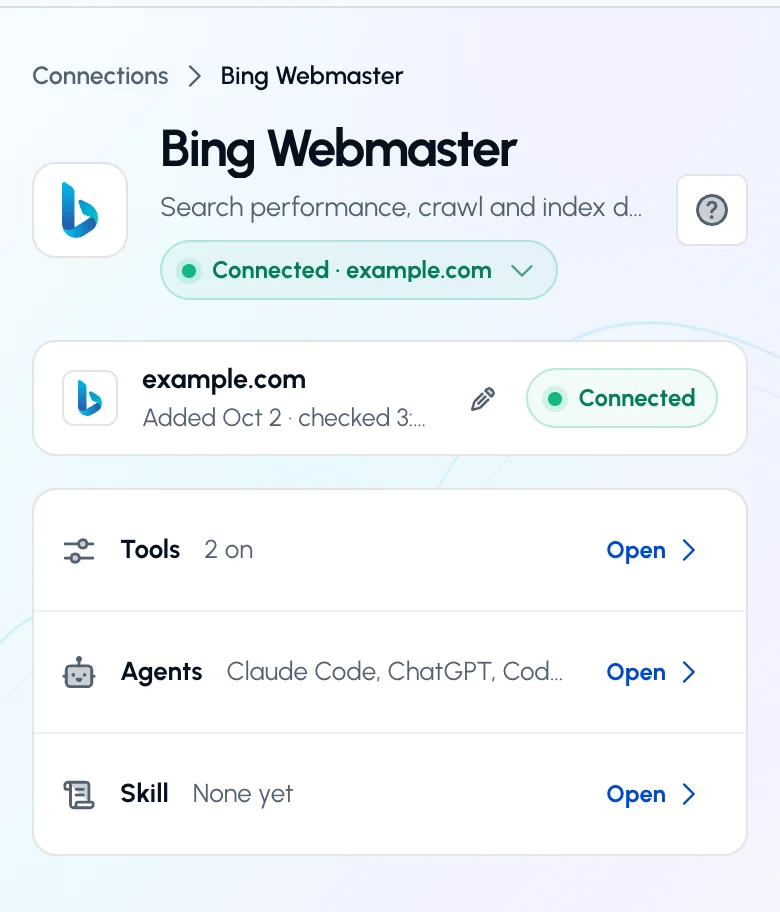
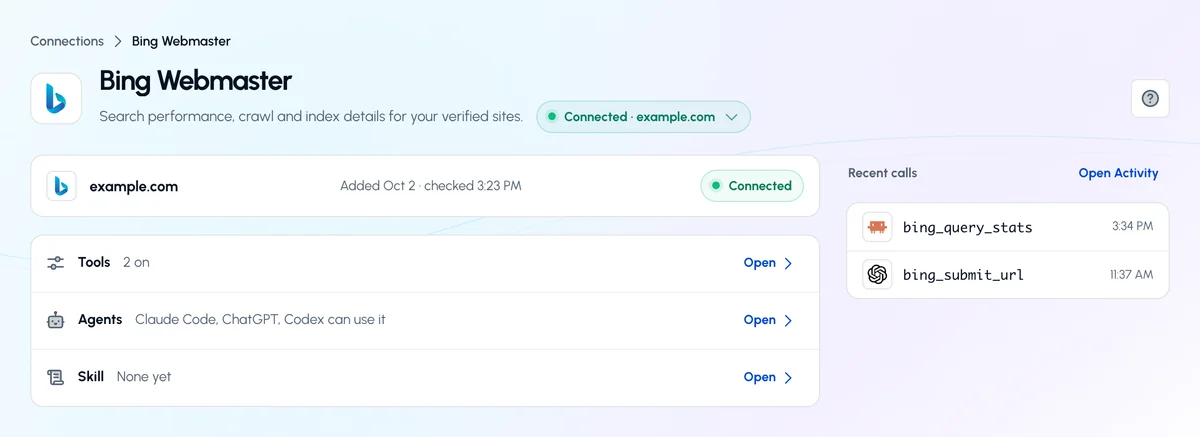
The Bing Webmaster page after you connect. The status control reads Connected and the account row shows when it was last checked. Open the status control for Check again.Open full-size image (opens in a new tab)
2. Connect ApexGenius to Cursor
Use this server address when adding the connection:
https://server.autom8.pro/mcpThe steps are above, under Add the ApexGenius MCP server to Cursor. These notes apply to Cursor only.
- No client ID or secret. Cursor signs in with OAuth and registers itself with ApexGenius, so
mcp.jsonneeds only the address. - Enterprise teams. An MCP allowlist can limit which server addresses run. If apexgenius does not connect on a team account, ask your Cursor admin to allow the ApexGenius address.
- Turning it off. Enable or disable the server from Customize in the sidebar.
- Access. When ApexGenius asks what Cursor may use, choose Read only for the first test, or Custom to limit it to the tools you need.
3. Verify one safe read
List my verified Bing Webmaster sites. Do not submit URLs or change anything.
List my verified Bing Webmaster sites. Do not submit URLs or change anything.Compare the site list with Bing Webmaster Tools. Listing sites does not submit URLs for indexing.
Full guide: the Bing Webmaster setup guide.
What it looks like in Cursor
Illustration of a task, not a recorded customer result. Your answers come from the account and dates you choose.

apex_search_toolsBing Webmaster sites · Find the Bing Webmaster read routeCompleteapex_call_read_toolget_user_sites · List verified sitesCompleteIllustrative example: two verified sites, the main site and the docs site. Nothing was submitted or changed.
Read-only routeWhat to ask Cursor about Bing Webmaster
- Check the sites
List my verified sites in Bing Webmaster. Do not submit anything.
Runs
get_user_sites(read). - Top searches
What are the top search queries for my site in Bing this month?
Runs
get_query_stats(read). - Crawl issues
Which crawl issues does Bing report for my site?
Runs
get_crawl_issues(read).
These 3 questions use 3 of Bing Webmaster’s 24 operations. The full list is below.
- Submit the new page I name for indexing after checking today’s quota. (write)
What Cursor can do in Bing Webmaster
24 operations: 21 read, 3 write. Read looks things up and changes nothing. Writes change Bing Webmaster and run only when you turn them on.
Sites and quota
2 readget_user_sitesreadList your verified sites.
get_url_submission_quotareadRead a site’s URL submission quota.
Search performance
7 readget_query_statsreadRead the top search queries for a site.
get_rank_and_traffic_statsreadRead a site’s rank and traffic over time.
get_page_statsreadRead the top pages for a site.
get_page_query_statsreadRead the search queries for one page.
get_query_page_statsreadRead the pages for one search query.
get_query_page_detail_statsreadRead the numbers for one query and page.
get_query_traffic_statsreadRead one query’s traffic history.
Crawl and index
7 readget_crawl_statsreadRead a site’s crawl stats.
get_crawl_issuesreadRead a site’s crawl issues.
get_crawl_settingsreadRead a site’s crawl settings.
get_url_inforeadRead a URL’s index details.
get_url_traffic_inforeadRead a URL’s traffic.
get_fetched_urlsreadList URLs you asked Bing to fetch.
get_fetched_url_detailsreadRead the result of one fetch.
Backlinks and sitemaps
4 readget_link_countsreadList pages with their backlink counts.
get_url_linksreadList the backlinks to one URL.
get_feedsreadList your sitemaps and feeds.
get_feed_detailsreadRead one sitemap index.
Keyword research
1 readget_keyword_statsreadRead keyword research history for a phrase.
Submit URLs and sitemaps
3 writesubmit_urlwriteSubmit one URL for indexing.
submit_url_batchwriteSubmit up to 500 URLs for indexing.
submit_feedwriteResubmit a sitemap so Bing rereads it. Uses no URL quota.
You choose the access. When you approve Cursor, pick Full access, Read only, or Custom.
The API key reaches the sites verified in your Bing Webmaster account.
Each URL submission uses the site’s daily quota. Check the quota before submitting.
Writes run immediately. Blocked hides a tool from agents.
Disconnecting stops future access. It does not withdraw a URL already submitted.
Questions about connecting Cursor to Bing Webmaster
Updated November 12, 2026.
How do I connect Cursor to Bing Webmaster?
Sign in to ApexGenius and connect Bing Webmaster. In Cursor, add an apexgenius entry with the ApexGenius MCP address to mcpServers in ~/.cursor/mcp.json, then choose Connect on the Customize page. Then ask Cursor: “List my verified Bing Webmaster sites. Do not submit URLs or change anything.” Start with a read, so nothing changes.
How do I check that Cursor can use Bing Webmaster?
Open Customize in Cursor and find apexgenius among the MCP servers. Its tools should appear under Available Tools. If it is listed but not connected, choose Connect and finish the browser sign-in. On an Enterprise team, the MCP allowlist may need the ApexGenius address. Then ask: “List my verified Bing Webmaster sites. Do not submit URLs or change anything.”
Which sites can my AI read?
The sites verified in the Bing Webmaster account the key belongs to.
Can my AI submit URLs?
Yes, one at a time or up to 500 at once. Each submission uses the site’s daily quota. Writes run immediately. Blocked hides a tool from agents.
Can I start with read-only access?
Yes. Choose Read only when you add your AI agent. It keeps every read and never sees the submit tools.
More connections like this one
Cursor with other apps
 ChatGPT Ads
 Semrush
 Google Ads
 Google Analytics
 Blotato
 YouTube
 Google Search Console
All 48 apps Cursor can use
 TypeSafe
 Supabase
 Mobbin
 Cal.com
 Slack
 Discord
 GitHub
 Stripe
 Context.dev
 Attio
 Notion
 Apify
 Linear
 Jira
 HQ Rental
 Google Forms
 Google Meet
 Google Tasks
 Gmail
 Google Calendar
 Google Chat
 Google Docs
 Google Drive
 Google Sheets
 Google Slides
 Apollo
 Calendly
 ClickUp
 monday.com
 Atlassian Rovo
 Polymarket
 OP.GG
 Salesforce
 n8n
 Confluence
 ElevenLabs
 FreshBooks
 Trello
 GitLab
 HubSpot
Other agents with Bing Webmaster
 Claude
 Grok Bot
 Muse
Connect Bing Webmaster to Cursor today
Start free1,000 free credits. No card required. Disconnect any time.