


Connect Cursor to Mobbin
Connect Cursor to Mobbin in 3 steps: 1. Sign in to ApexGenius and connect Mobbin. 2. Add the ApexGenius MCP server. 3. Start using Mobbin in Cursor.
7 days free · No card required
How to connect Mobbin to Cursor
- 1Sign in to ApexGenius and connect Mobbin
- 2Add the ApexGenius MCP server to Cursor
- 3Start using Mobbin in Cursor
FirstConnect Mobbin to ApexGenius
ThenConnect ApexGenius to Cursor
Mobbinmobbin.com/oauth/consent1 of 3Connect Mobbin. Mobbin opens its own sign-in. Sign in and allow ApexGenius.
Then ask Cursor:
Search Mobbin for five mobile screens that show an empty state on search results, and name the product behind each. Do not change anything.
Written setup, step by stepShow
Before you start
- An account with permission to use the Mobbin resources you intend to connect.
1. Connect Mobbin to ApexGenius
- Open Mobbin in Connections. Choose Connect, or Add connection when offered. Give the connection a name if prompted. If Gateway setup pending appears, contact ApexGenius support before continuing.
- Choose the account and review access. Sign in to Mobbin in the browser and grant the assistant access. Mobbin uses browser authorization; no API key. A paid Mobbin plan (Pro, Team or Enterprise) is required, and Mobbin allows 60 requests a minute.
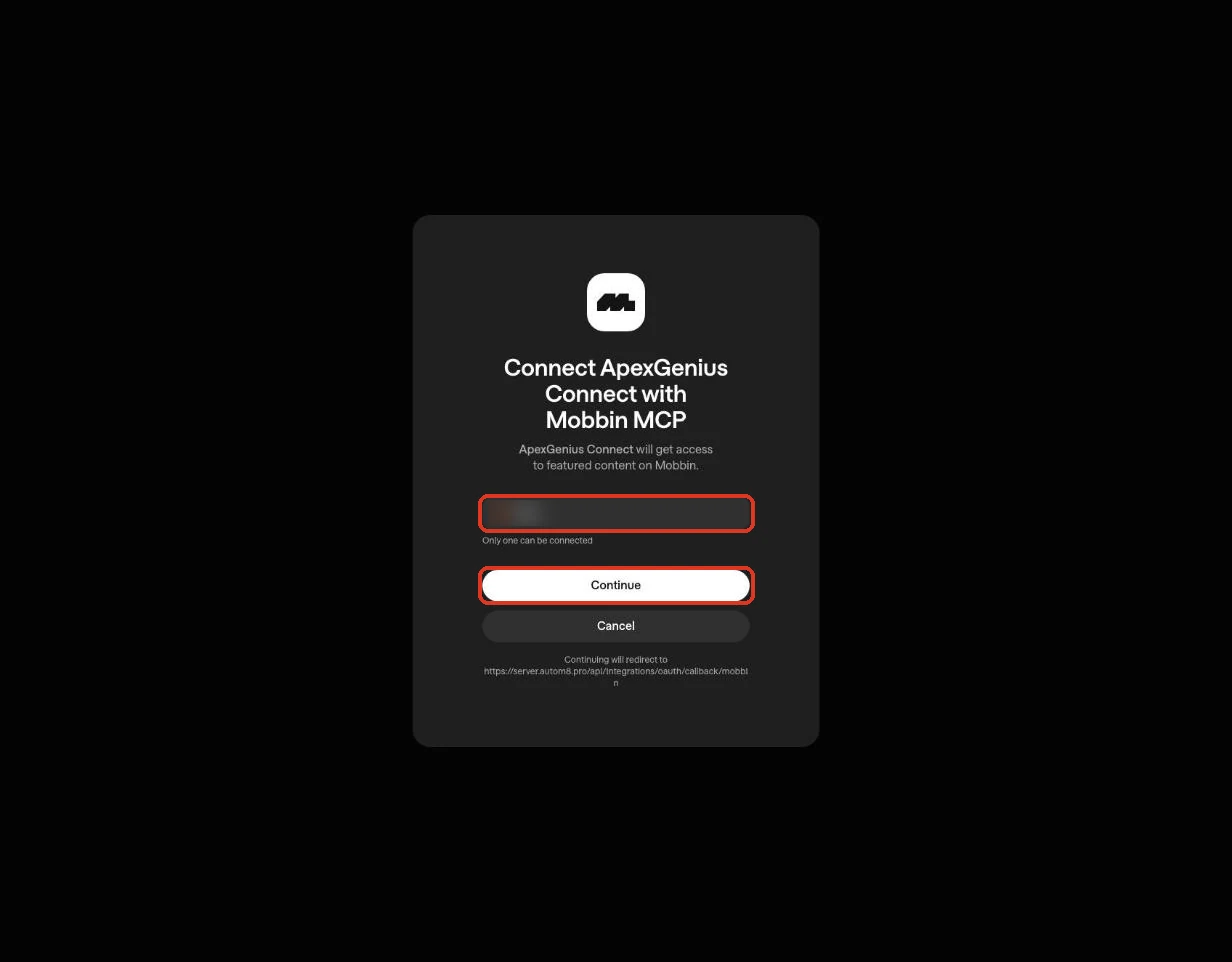
Mobbin names the ApexGenius client, the signed-in Mobbin account and the callback address. Continue connects your account. Cancel stops without connecting. The account name is blurred in this capture.Open full-size image (opens in a new tab) - Review the connected account and resources. Confirm the connected Mobbin account. Open Tools to review the three search tools: screens, user flows and website sections. Results are references from shipped products, not assets to copy.
- Check the connection. Use Test connection or Check again and read the reported status. Add an AI agent from the AI agents page, choose Read only for the first test, and try the question below.
2. Connect ApexGenius to Cursor
Use this server address when adding the connection:
https://server.autom8.pro/mcp- In Cursor, open Customize to manage MCP servers and add an apexgenius entry to mcpServers in ~/.cursor/mcp.json with the hosted HTTP URL. Choose Connect, then approve ApexGenius in your browser.
- When ApexGenius asks what this AI client may use, choose Read only for the first test, or Custom to limit it to the tools you need.
- Start a new conversation and select ApexGenius from the available tools before asking for live data.
3. Verify one safe read
Search Mobbin for five mobile screens that show an empty state on search results, and name the product behind each. Do not change anything.
Search Mobbin for five mobile screens that show an empty state on search results, and name the product behind each. Do not change anything.Compare the returned account and resource with Mobbin. Check the connection status separately from the result of the first read.
What Cursor can do in Mobbin
3 operations. Read looks things up and changes nothing. There are no write tools, so Cursor cannot change Mobbin through ApexGenius.
Read3 operations
Looks things up. Changes nothing.search_screensIndividual mobile and web UI screens: a login screen, paywall, empty state, dialog, form or navigation treatment.search_flowsOrdered, multi-step user flows: onboarding, checkout, account setup, identity verification, subscription, cancellation.search_sectionsWebsite sections: heroes, pricing sections, testimonials, navigation, footers.
You choose what Cursor can use
When you approve Cursor, pick Full access, Read only, or Custom. Read only allows the Read operations and nothing else. Custom picks apps and tools one by one.
Limits in Mobbin
- · Mobbin uses browser authorization; no API key is pasted into ApexGenius. A free Mobbin account cannot authorize: Pro, Team or Enterprise is required.
- · Every documented Mobbin tool is a read. Nothing here changes Mobbin or any other system.
- · Mobbin allows 60 requests a minute per user. Results are references from shipped products, not assets to copy.
What it looks like in Cursor
An illustrative read-only request and response. Your results come from the account and dates you choose.


apex_call_read_toolsalesforce_read · Find matching recordsCompleteapex_call_read_toolsalesforce_read · Read related activityComplete
apex_call_read_tooln8n_get_workflow · Check workflow statusCompleteThree safe example reads returned results. Nothing was changed.
Read-only routeTry asking
“Search Mobbin for five mobile screens that show an empty state on search results, and name the product behind each.”
“Find onboarding flows on Mobbin for fintech apps and summarize the steps they share.”
“Show me pricing sections on Mobbin from B2B SaaS websites, with the product behind each.”
More connections like this one
One ApexGenius account covers every pair below. Connect an app once and each agent you allow can use it.
Cursor with other apps
- Connect Cursor to Cal.com
- Connect Cursor to Slack
- Connect Cursor to Discord
- Connect Cursor to ChatGPT Ads
- Connect Cursor to GitHub
- Connect Cursor to Stripe
- Connect Cursor to Context.dev
- Connect Cursor to Attio
- Connect Cursor to Semrush
- Connect Cursor to Notion
- Connect Cursor to Apify
- Connect Cursor to Linear
- Connect Cursor to Calendly
- Connect Cursor to ClickUp
- Connect Cursor to YouTube
- Connect Cursor to YouTube Analytics
- Connect Cursor to Salesforce
- Connect Cursor to n8n
- Connect Cursor to Confluence
- Connect Cursor to Google Search Console
Questions people ask first
What do I need to connect Mobbin?
A Mobbin account on a paid plan (Pro, Team or Enterprise). Choose Connect, sign in to Mobbin in the browser, and approve. A free account gets through sign-in and then fails to authorize.
Can my AI change anything in Mobbin?
No. Mobbin publishes three search tools and no writes, and ApexGenius routes them through its read path.
Does this use Mobbin hosted MCP?
Yes. ApexGenius connects to Mobbin's official hosted MCP server and registers itself with Mobbin's authorization server. No shared client secret is involved.
What should I test first?
Ask for five screens of one UI pattern and check the results open on mobbin.com. Reads change nothing.
Connect Mobbin to Cursor today
Start free7 days free. No card required. Disconnect any time.