YouTube

YouTube Analytics MCP connector

Google OAuth · Expanded tools in testing

YouTube Analytics tools for the AI you already use.

Ask about channel performance without copying each report into a chat. Connect the intended channel, choose access and ask for views and watch time over a clear date range. Daily Reporting lives in this module.

Available to enabled accounts. Expanded tools in testing.

7 days free · No card required

YouTube

YouTube Analytics

Business-system connector

Set up YouTube Analytics and daily Reporting for your AI. Review channel access, performance queries, optional revenue access and reporting limits.

20
Operations
12
Read
8
Write
3
In context
Authorization
Google OAuth
Cataloged tools
20 discoverable
Connection scope
The YouTube channel you enable
Accounts
Connected account

Reviewed Sep 7, 2026

ClaudeChatGPT

Claude / ChatGPT

MCP client

ApexGenius route

Gateway context

YouTube

YouTube Analytics

Authorized session

Why the gateway is here

It keeps the YouTube Analytics authorization, tools, and activity behind the same managed route you use for your other supported systems.

Ask it

What people ask Codex.

Ask Codex about views, watch time and daily reports. ApexGenius connects each question to your YouTube Analytics tools.

  • Show views and watch time for my connected YouTube channel over the last 28 complete days. Include the channel and returned date range.Read
  • Which videos had the most watch time in my connected channel over the last 28 complete days? Show the dates and any missing data.Read
  • Compare traffic sources for my connected channel over two complete date ranges.Read
  • List the daily report types available for my connected channel.Read

Tools

What YouTube Analytics can do through ApexGenius.

This reviewed catalog lists 20 tools. Availability depends on the released connector, your account, channel access and enabled tools.

Open the generated tool reference

Analytics and Reporting tools

youtube_analytics_group_items_delete
Write

groupItems · delete using youtubeAnalytics. Treat as a write even when upstream accepts a readonly-named analytics scope. Enable the channel and grant the required access first.

Analytics and Reporting tools

youtube_analytics_group_items_insert
Write

groupItems · insert using youtubeAnalytics. Treat as a write even when upstream accepts a readonly-named analytics scope. Enable the channel and grant the required access first.

Analytics and Reporting tools

youtube_analytics_group_items_list
Read

groupItems · list using youtubeAnalytics. Enable the channel and grant the required access first.

Analytics and Reporting tools

youtube_analytics_groups_delete
Write

groups · delete using youtubeAnalytics. Treat as a write even when upstream accepts a readonly-named analytics scope. Enable the channel and grant the required access first.

Analytics and Reporting tools

youtube_analytics_groups_insert
Write

groups · insert using youtubeAnalytics. Treat as a write even when upstream accepts a readonly-named analytics scope. Enable the channel and grant the required access first.

Analytics and Reporting tools

youtube_analytics_groups_list
Read

groups · list using youtubeAnalytics. Enable the channel and grant the required access first.

Analytics and Reporting tools

youtube_analytics_groups_update
Write

groups · update using youtubeAnalytics. Treat as a write even when upstream accepts a readonly-named analytics scope. Enable the channel and grant the required access first.

Analytics and Reporting tools

youtube_analytics_reports_query
Read

reports · query using youtubeAnalytics. Enable the channel and grant the required access first.

Analytics and Reporting tools

youtube_reporting_jobs_create
Write

jobs · create using youtubereporting. Persistent reporting-job change; write policy applies despite readonly OAuth scope. Enable the channel and grant the required access first.

Analytics and Reporting tools

youtube_reporting_jobs_delete
Write

jobs · delete using youtubereporting. Persistent reporting-job change; write policy applies despite readonly OAuth scope. Enable the channel and grant the required access first.

Analytics and Reporting tools

youtube_reporting_jobs_get
Read

jobs · get using youtubereporting. Enable the channel and grant the required access first.

Analytics and Reporting tools

youtube_reporting_jobs_list
Read

jobs · list using youtubereporting. Enable the channel and grant the required access first.

Analytics and Reporting tools

youtube_reporting_jobs_reports_get
Read

jobs · reports · get using youtubereporting. Enable the channel and grant the required access first.

Analytics and Reporting tools

youtube_reporting_jobs_reports_list
Read

jobs · reports · list using youtubereporting. Enable the channel and grant the required access first.

Analytics and Reporting tools

youtube_reporting_media_download
Read

media · download using youtubereporting. Resolve report-owned downloadUrl server-side; do not accept arbitrary URLs. Enable the channel and grant the required access first.

Analytics and Reporting tools

youtube_reporting_report_types_list
Read

reportTypes · list using youtubereporting. Enable the channel and grant the required access first.

Analytics and Reporting tools

youtube_analytics_describe_reports
Read

youtube analytics describe reports. Uses only this enabled channel. Reporting reads return available daily data, not real-time data.

Analytics and Reporting tools

youtube_reporting_sync_start
Write

youtube reporting sync start. Uses only this enabled channel. Reporting reads return available daily data, not real-time data.

Analytics and Reporting tools

youtube_reporting_sync_status
Read

youtube reporting sync status. Uses only this enabled channel. Reporting reads return available daily data, not real-time data.

Analytics and Reporting tools

youtube_reporting_query_imported
Read

youtube reporting query imported. Uses only this enabled channel. Reporting reads return available daily data, not real-time data.

Connection model

How to connect YouTube Analytics.

The YouTube Analytics connection belongs to your signed-in account. Any YouTube Analytics-native resources stay inside that provider.

Read connection details

Watch the connection

21-second loop · Silent, with captions

Read the steps Follow along at your own pace

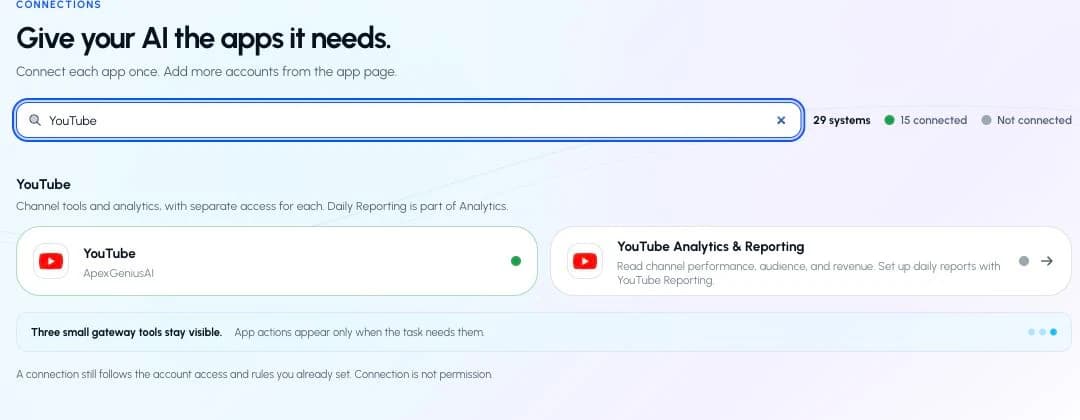
1. Open Analytics & Reporting

In Connections, find the YouTube group and open YouTube Analytics & Reporting.

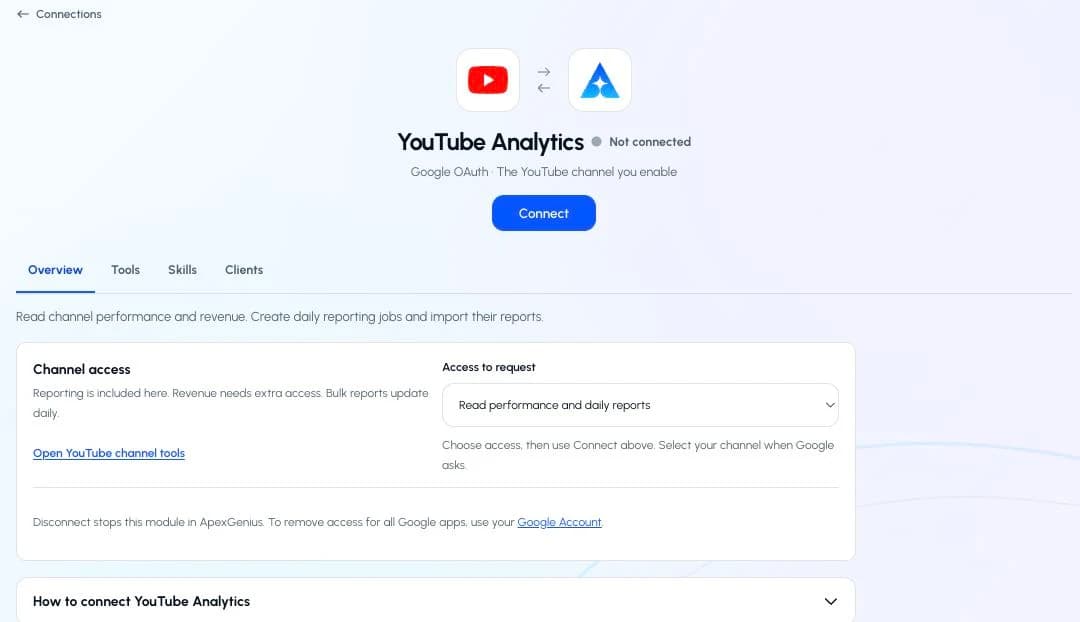
2. Choose performance access

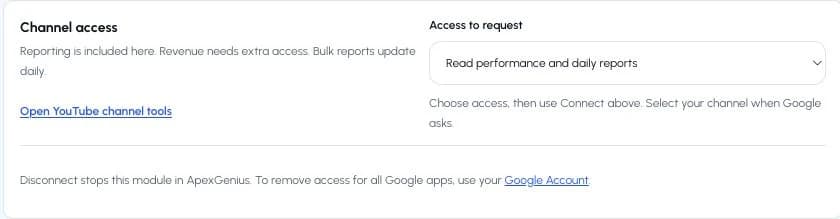
Keep Read performance and daily reports selected, then choose Connect.

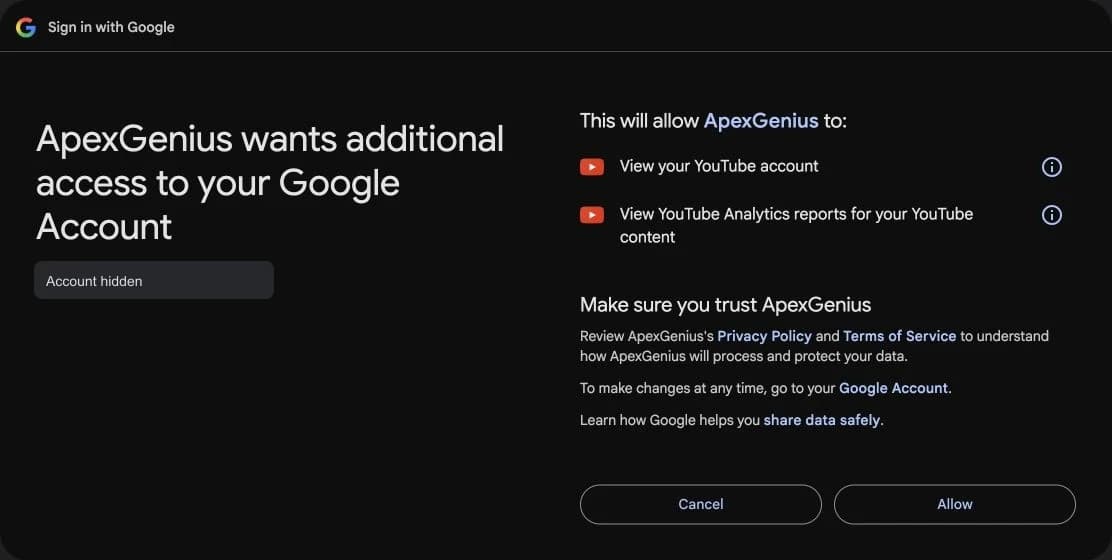
3. Review Google permissions

Choose the Google account that can access your channel. Review View your YouTube account and View YouTube Analytics reports for your YouTube content, then choose Allow.

4. Test the connection

Back in ApexGenius, choose Test connection. Check that the intended channel is healthy.

5. Enable your channel

Open Tools. In Allowed resources, turn on the intended channel, then follow the AI setup guide below.

Recorded with the ApexGeniusAI channel. Open the video

Available to enabled accounts. Expanded tools in testing.

Before you start

  • A Google account with access to the YouTube channel you intend to connect. Check the channel in YouTube first, especially if you use a Brand Account.
  • An ApexGenius account with this module available. If setup is pending or the module is missing, contact support.
  • YouTube channel access and YouTube Analytics access are separate connections. Reporting is included in YouTube Analytics.

1. Connect YouTube Analytics to ApexGenius

  1. Open YouTube Analytics in Connections. Find the YouTube group and open YouTube Analytics. Each module has its own channel and access selection.
    The real YouTube group with separate YouTube and YouTube Analytics & Reporting connections.
    Open YouTube Analytics & Reporting from the YouTube group.Open full-size image (opens in a new tab)
    The real YouTube Analytics module with its Connect button and performance access selected.
    The Analytics module has its own Connect button and channel access.Open full-size image (opens in a new tab)
  2. Choose the access you need. Under Channel access, start with Read performance and daily reports. Choose Include revenue reports only if you need monetary data and the channel is eligible. Then choose Connect. For an existing connection, choose Apply access with Google.
    Channel access with Read performance and daily reports selected.
    Start with Read performance and daily reports, then choose Connect.Open full-size image (opens in a new tab)
  3. Select your Google account and YouTube channel. On Google’s own page, select the account with access to your intended channel. If Google offers a channel or Brand Account choice, select the intended channel. Review the requested permissions before continuing. Already granted permissions may make these screens look different. Return to ApexGenius when Google finishes.
    Google requesting View your YouTube account and View YouTube Analytics reports for your YouTube content. The account identity is hidden.
    Review both read permissions on Google, then choose Allow.Open full-size image (opens in a new tab)
  4. Enable the connected channel. Confirm the saved channel name. Open Tools, find Allowed resources, and choose Refresh if needed. Enable the intended channel. Enabling it allows ApexGenius to use existing access; it does not grant new YouTube permissions. If the channel is wrong, stop and connect the intended channel.
    The ApexGeniusAI channel enabled for Analytics under Allowed resources, showing one of one enabled.
    Check the channel name and turn on its access.Open full-size image (opens in a new tab)
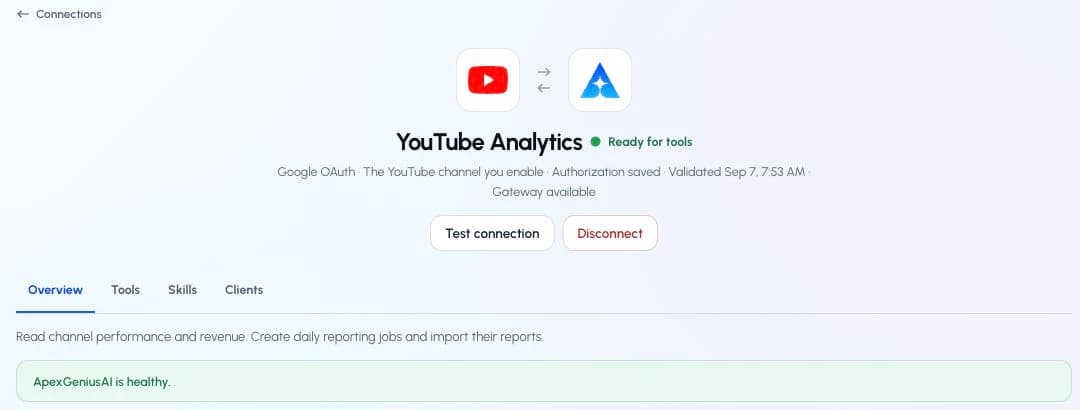
  5. Check the connection status. Use Test connection or Check again when offered. Read the returned status and confirm the saved channel. A healthy connection does not yet prove that a report query or publishing action will work.
    The real Analytics connection returning ApexGeniusAI is healthy, with authorization saved and a validation time.
    Choose Test connection and check the returned channel and status.Open full-size image (opens in a new tab)
  6. Run your first read with an AI agent. Open AI agents and add or select your AI client. Allow this connection with Read only for the first test. Use the question below, then compare the returned channel and data with YouTube Studio. Empty recent analytics can mean data is not available yet.
    AI agents · First readGuide frame
    Connection
    YouTube Analytics
    Access for first test
    Read only

    Copy the first question below into your connected AI client. Check the returned channel and result.

    Illustrated setup guidance. Follow the controls shown in your own account. Drawn by ApexGenius, not a screenshot, so your screen may differ by version.
  7. Optional: start daily Reporting. Discover the available channel report types. Ask your AI to create the chosen Reporting job and review its approval request. Creating a job changes the account’s reporting configuration. First output can take about 48 hours. After output appears, approve starting a sync to import daily files. Check sync status and the report dates before using imported data.
    YouTube Analytics · Daily ReportingGuide frame
    • Choose report typeUse the report types available to your channel
    • Create jobReview and approve the write
    • Wait for outputFirst files can take about 48 hours
    • Start syncApprove the import, then inspect its status and dates

    Targeted Analytics queries do not require a Reporting job.

    Illustrated setup guidance. Follow the controls shown in your own account. Drawn by ApexGenius, not a screenshot, so your screen may differ by version.
Connect YouTube Analytics

2. Choose your AI and finish setup

Each guide includes the AI setup and a first question for YouTube Analytics.

Current governance

Know the account, tools, and result.

ApexGenius keeps the selected context and current tool surface visible, then records supported write activity for review.

Authorized context

Use the Google account that can access the intended YouTube channel. Check the saved channel before enabling it.

Current tool surface

Choose Read only for your AI client’s first test. More provider access requires Google consent and enabled tools.

Reviewable activity

Compare dates and metrics with YouTube Studio. Recent or low-volume data may be absent; an empty result is not proof of a broken connection.

Daily imports need the background worker. Each report is capped at 16 MiB and 100,000 rows; local copies expire after 30 days.

Why a gateway

20 operations. Three tool definitions.

Your AI starts with three ApexGenius gateway tools. It discovers the YouTube Analytics operations available to its authorization when a task needs them, then runs the selected operation through the gateway.

One saved provider connection

Connect YouTube Analytics to ApexGenius, then authorize each AI client to use the saved connection with its own tool permissions.

Scoped per agent

Give one client read-only and the write operations never appear in its tool list at all.

Every call on the record

Which agent asked, what ran, and whether it succeeded, kept per connection for review.

FAQ

Questions people ask before connecting YouTube Analytics.

How do I connect YouTube Analytics?
Sign in to ApexGenius, open the YouTube group and select the module. Choose the minimum access, continue through Google, check the saved channel and enable its resource. Then add your AI client and run the first read. If Connect is missing, your account is not enabled for this module yet; contact support.
Do I need my own Google Cloud project or API key?
No. You sign in with the Google account that can access the channel, and ApexGenius holds the authorization. You never paste a password or a verification code into ApexGenius.
Are YouTube and YouTube Analytics one connection?
They are two modules in the YouTube group. Each has its own access selection and saved channel identity. Reporting is included in Analytics, so it does not require a third connector.
Are daily reports immediate, and is revenue included?
Analytics queries and daily Reporting are different paths. The first daily report can take about 48 hours. Revenue needs the separate revenue access option and an eligible channel. Create a Reporting job only when you intend to keep it running.
Which YouTube channel will my AI use?
Your AI uses the channel you select during Google setup and enable in ApexGenius. Check its name on the connection page. Brand Accounts may appear as a separate choice in Google.
What happens when I disconnect?
ApexGenius stops this module’s access. Removing the app from your Google Account can also affect other Google products that use the same app. Review that wider effect before removing Google-wide access.

MCP-compatible AI agents

ClaudeChatGPTCursorVS Code

Codex starts in Plugins in the ChatGPT desktop app. ChatGPT Chat and Work also use Plugins, with personal setup where Developer Mode is permitted. Each AI client has its own guide and authorization requirements.

Business-system connections

Salesforcen8nConfluence

Salesforce keeps connection context. Other providers use your signed-in account.

Connect YouTube Analytics. Start with a safe read.

Use the AI you already work in while ApexGenius keeps the business-system route visible.

Connect YouTube Analytics

7 days free · No card required

Compatibility does not imply partnership.