


Connect Claude Code to FreshBooks
Connect Claude Code to FreshBooks: 1. Sign in to ApexGenius and connect FreshBooks. 2. Add the ApexGenius MCP server. 3. Start using FreshBooks in Claude Code.
1,000 free credits · No card required
How to connect FreshBooks to Claude Code
- 1Sign in to ApexGenius and connect FreshBooks
- 2Add the ApexGenius MCP server to Claude Code
- 3Start using FreshBooks in Claude Code
- 1
Connect FreshBooks to ApexGenius
FreshBooks connected
FreshBooks shows as connected in ApexGenius, with what your AI can reach.
- 2
Connect ApexGenius to Claude Code
Copy the MCP address
On Start, pick API key, open Manual setup, and copy the MCP address.
- 3
Approve access
ApexGenius opens its approval page. Review the access, then approve.
Add the ApexGenius MCP server to Claude Code
Claude Code stores MCP servers in ~/.claude.json. With --scope user the server is available in every project. Without it, only in the project where you ran the command.
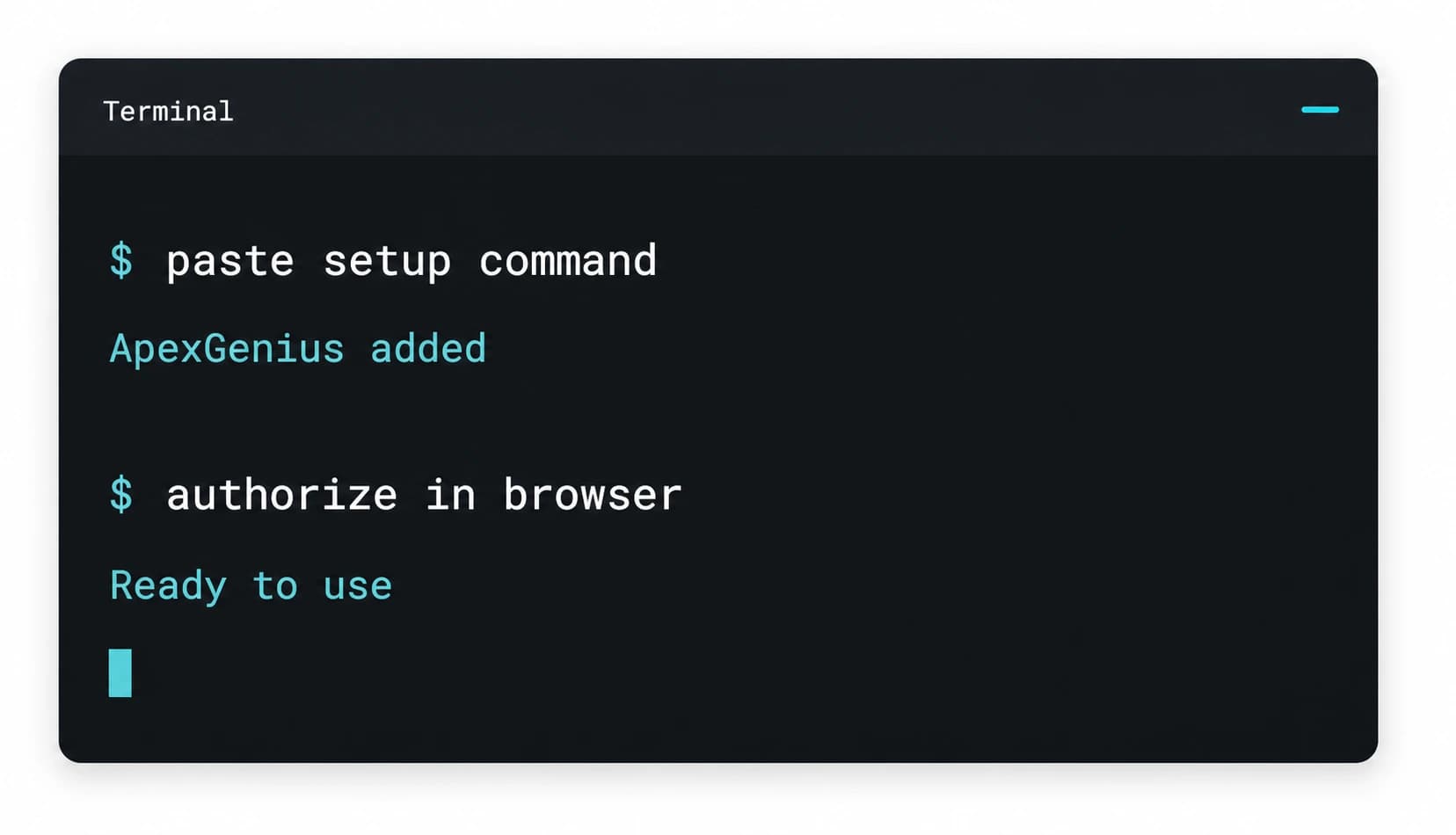
- Run the command. Claude Code prints an Added line.
- Start Claude Code, run
/mcp, choose apexgenius and follow the sign-in in your browser. From a shell,claude mcp login apexgeniusdoes the same. - Approve access on the ApexGenius page.
claude mcp add --transport http --scope user apexgenius https://server.autom8.pro/mcpCheck it. Run claude mcp list. Each server shows a status, such as Connected or Needs authentication. claude mcp get apexgenius shows the detail.
Steps follow Claude Code documentation, Connect Claude Code to tools via MCP (opens in a new tab), read November 12, 2026.
Then ask Claude Code
Which FreshBooks business is connected? List its five most recent invoices with client, amount and status. Do not change anything.
Written setup, step by stepShow
Before you start
- An account with permission to use the FreshBooks resources you intend to connect.
1. Connect FreshBooks to ApexGenius
- Open FreshBooks in Connections. Choose Connect, or Add connection when offered. Give the connection a name if prompted. If Gateway setup pending appears, contact ApexGenius support before continuing.
- Choose the account and review access. Sign in to FreshBooks in the browser and allow access for ApexGenius. FreshBooks uses browser authorization; no API key is pasted into ApexGenius. ApexGenius asks for read scopes plus project and time-entry access.
- Review the connected account and resources. Find Allowed resources on the connection page. Each FreshBooks business your login keeps books for is listed. Turn on exactly one; every call goes to that business. A login with one business has it turned on already.
- Check the connection. Use Test connection or Check again and read the reported status. Add an AI agent from the AI agents page, choose Read only for the first test, and try the question below.
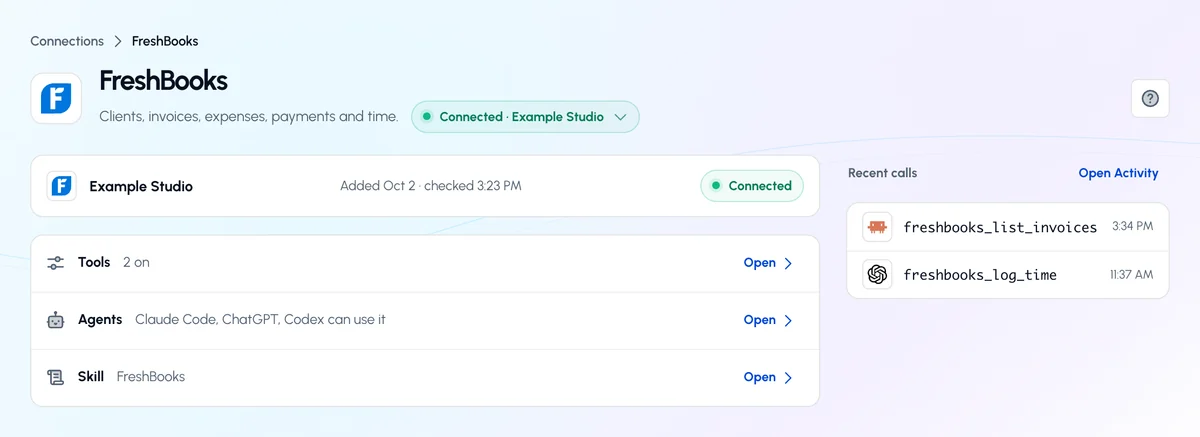
The FreshBooks page after you connect. The status control reads Connected; open it and choose Check again to confirm FreshBooks answers.Open full-size image (opens in a new tab)
2. Connect ApexGenius to Claude Code
Use this server address when adding the connection:
https://server.autom8.pro/mcpThe steps are above, under Add the ApexGenius MCP server to Claude Code. These notes apply to Claude Code only.
- Over SSH or without a browser.
claude mcp login apexgeniusprints the authorization URL when it finds no local browser. Open it on your own machine, then paste the full redirect URL from the address bar back at the prompt. Add--no-browserto force that. - Headless runs. A
claude -prun has no/mcppanel and cannot run the sign-in. Sign in once from an interactive session, or withclaude mcp login, first. - Signing out. Clear authentication in the
/mcpmenu, orclaude mcp logout apexgenius, removes the stored sign-in. - Access. When ApexGenius asks what Claude Code may use, choose Read only for the first test, or Custom to limit it to the tools you need.
3. Verify one safe read
Which FreshBooks business is connected? List its five most recent invoices with client, amount and status. Do not change anything.
Which FreshBooks business is connected? List its five most recent invoices with client, amount and status. Do not change anything.Compare the returned account and resource with FreshBooks. Check the connection status separately from the result of the first read.
Full guide: the FreshBooks setup guide.
What it looks like in Claude Code
Illustration of a task, not a recorded customer result. Your answers come from the account and dates you choose.
apex_search_toolsFreshBooks invoices · Find the FreshBooks read routeCompleteapex_call_read_toollist_invoices · List outstanding invoicesCompleteapex_call_read_toolget_client · Read the clients who oweCompleteIllustrative example: six invoices are unpaid across four clients, and two are past due. The amounts are listed with their currency code. Nothing was changed.
Read-only routeWhat to ask Claude Code about FreshBooks
- Unpaid invoices
Which FreshBooks invoices are still unpaid, who owes them, and how much is due in total? Do not change anything.
Runs
list_invoices(read), thenget_client(read). - Profit and loss
Run my FreshBooks profit and loss report for last quarter, month by month. Do not change anything.
Runs
get_identity(read), thenget_profit_and_loss_report(read). - Hours this week
How many hours did I log in FreshBooks this week, by project? Do not change anything.
Runs
list_time_entries(read), thenlist_projects(read).
These 3 questions use 6 of FreshBooks’s 21 operations. The full list is below.
- List last month's FreshBooks expenses and total them by category. Do not change anything. (read)
- Log 2 hours to my website redesign project for today with the note "homepage review". Show me the entry first. (write)
What Claude Code can do in FreshBooks
21 operations: 17 read, 4 write. Read looks things up and changes nothing. Writes change FreshBooks and run only when you turn them on.
Login and businesses
1 readget_identityreadRead the signed-in FreshBooks login and the businesses it belongs to.
Clients and invoices
4 readlist_clientsreadList clients. Filter by email, organization, or an outstanding or overdue balance.
get_clientreadRead one client.
list_invoicesreadList invoices. Filter by status, client, date, amount or what is still outstanding.
get_invoicereadRead one invoice, with its line items if asked.
Expenses and payments
4 readlist_expensesreadList expenses. Filter by date, vendor, category, client or project.
get_expensereadRead one expense.
list_paymentsreadList payments. Filter by invoice, client, date or amount.
get_paymentreadRead one payment.
Reports
4 readget_profit_and_loss_reportreadRead the profit and loss report, by month or quarter if asked.
get_invoice_details_reportreadRead the invoice details report.
get_payments_collected_reportreadRead the payments collected report.
get_tax_summary_reportreadRead the tax summary report.
Projects
2 read · 2 writelist_projectsreadList projects, with the time logged so far if asked.
get_projectreadRead one project.
create_projectwriteCreate a project for a client, billed hourly or at a fixed price.
update_projectwriteChange a project, such as its rate, or mark it complete.
Time tracking
2 read · 2 writelist_time_entriesreadList time entries. Filter by client, date, billable or billed.
get_time_entryreadRead one time entry.
create_time_entrywriteLog time to a client and project, with a note.
update_time_entrywriteFix a time entry, such as its hours, date or note.
You choose the access. When you approve Claude Code, pick Full access, Read only, or Custom.
One connection is one FreshBooks login. Every call goes to the one business that is turned on, and a call cannot name another.
Accounting is read only. The connector cannot create, send or change an invoice, record a payment, or delete anything.
The read route runs only reads. Creating and updating projects and time entries uses the write route.
Writes run immediately. Blocked hides a tool from agents.
A project or time entry made by mistake can be fixed with update_project or update_time_entry, or deleted by you in FreshBooks.
Questions about connecting Claude Code to FreshBooks
Updated November 12, 2026.
How do I connect Claude Code to FreshBooks?
Sign in to ApexGenius and connect FreshBooks. In Claude Code, run claude mcp add --transport http --scope user apexgenius https://server.autom8.pro/mcp, then run /mcp and sign in. Then ask Claude Code: “Which FreshBooks business is connected? List its five most recent invoices with client, amount and status. Do not change anything.” Start with a read, so nothing changes.
How do I check that Claude Code can use FreshBooks?
Run claude mcp list in your terminal. apexgenius should show Connected. If it shows Needs authentication, run /mcp inside Claude Code, or claude mcp login apexgenius in your shell, and finish the browser sign-in. Then ask: “Which FreshBooks business is connected? List its five most recent invoices with client, amount and status. Do not change anything.”
What can my AI read in FreshBooks?
Your login and its businesses, clients, invoices, expenses, payments, projects and time entries, and the profit and loss, tax summary, invoice details and payments collected reports. It reads only the one business you turned on.
Can my AI change anything in FreshBooks?
Only projects and time. It can create and update projects, and log and fix time entries. It cannot create, send or change an invoice, record a payment, or delete anything. Writes run immediately. Blocked hides a tool from agents.
Can I start with read-only access?
Yes. Choose Read only when you add your AI agent. It keeps every read and never sees the project and time-entry writes.
What if my login has more than one business?
Each business shows up as an account on the FreshBooks connection page. Turn on exactly one. Calls are refused until one is on, and they never reach a business that is off.
More connections like this one
Claude Code with other apps
 Supabase
 Cal.com
 GitHub
 Stripe
 Linear
 Jira
 HQ Rental
 Google Forms
All 48 apps Claude Code can use
 Google Tasks
 Google Calendar
 Google Sheets
 Calendly
 ClickUp
 monday.com
 ElevenLabs
 Trello
 GitLab
 Mobbin
 Slack
 Discord
 ChatGPT Ads
 Context.dev
 Attio
 Semrush
 Notion
 Apify
 Google Ads
 Google Analytics
 Google Meet
 Gmail
 Google Chat
 Google Docs
 Google Drive
 Google Slides
 Apollo
 Blotato
 Bing Webmaster
 Atlassian Rovo
 Polymarket
 OP.GG
 YouTube
- YouTube Analytics
 Salesforce
 n8n
 Confluence
 Google Search Console
 TypeSafe
 HubSpot
Other agents with FreshBooks
 Claude
 Grok Bot
 Muse
Connect FreshBooks to Claude Code today
Start free1,000 free credits. No card required. Disconnect any time.