


Connect Claude Code to HQ Rental
Connect Claude Code to HQ Rental: 1. Sign in to ApexGenius and connect HQ Rental. 2. Add the ApexGenius MCP server. 3. Start using HQ Rental in Claude Code.
1,000 free credits · No card required
How to connect HQ Rental to Claude Code
- 1Sign in to ApexGenius and connect HQ Rental
- 2Add the ApexGenius MCP server to Claude Code
- 3Start using HQ Rental in Claude Code
FirstConnect HQ Rental to ApexGenius
ThenConnect ApexGenius to Claude Code
HQ Rentalapexgenius.ai/connections/hq_rental1 of 3Connect HQ Rental. HQ Rental shows as connected in ApexGenius.
Then ask Claude Code:
List the locations available in my connected HQ Rental tenant. Do not create or change a reservation.
Written setup, step by stepShow
Before you start
- HQ Rental API access enabled by an administrator.
- The tenant label, API region, tenant token, and user token for the intended tenant.
1. Connect HQ Rental to ApexGenius
- Open HQ Rental in Connections. Choose Connect or Add connection to open the HQ Rental form.
- Enter the tenant and user credentials. Choose the assigned API region. Enter the tenant label, tenant token, and user token supplied by your HQ administrator.
- Verify and connect. Choose Verify and connect. ApexGenius checks a location search before saving. Confirm the tenant and reported status after the form closes.
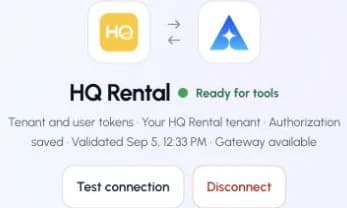
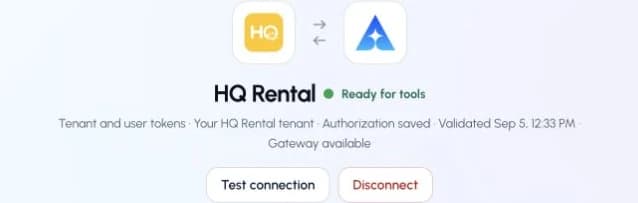
This captured HQ Rental connection reports ready. Check your own connection and its latest validation before using tools.Open full-size image (opens in a new tab)
2. Connect ApexGenius to Claude Code
Use this server address when adding the connection:
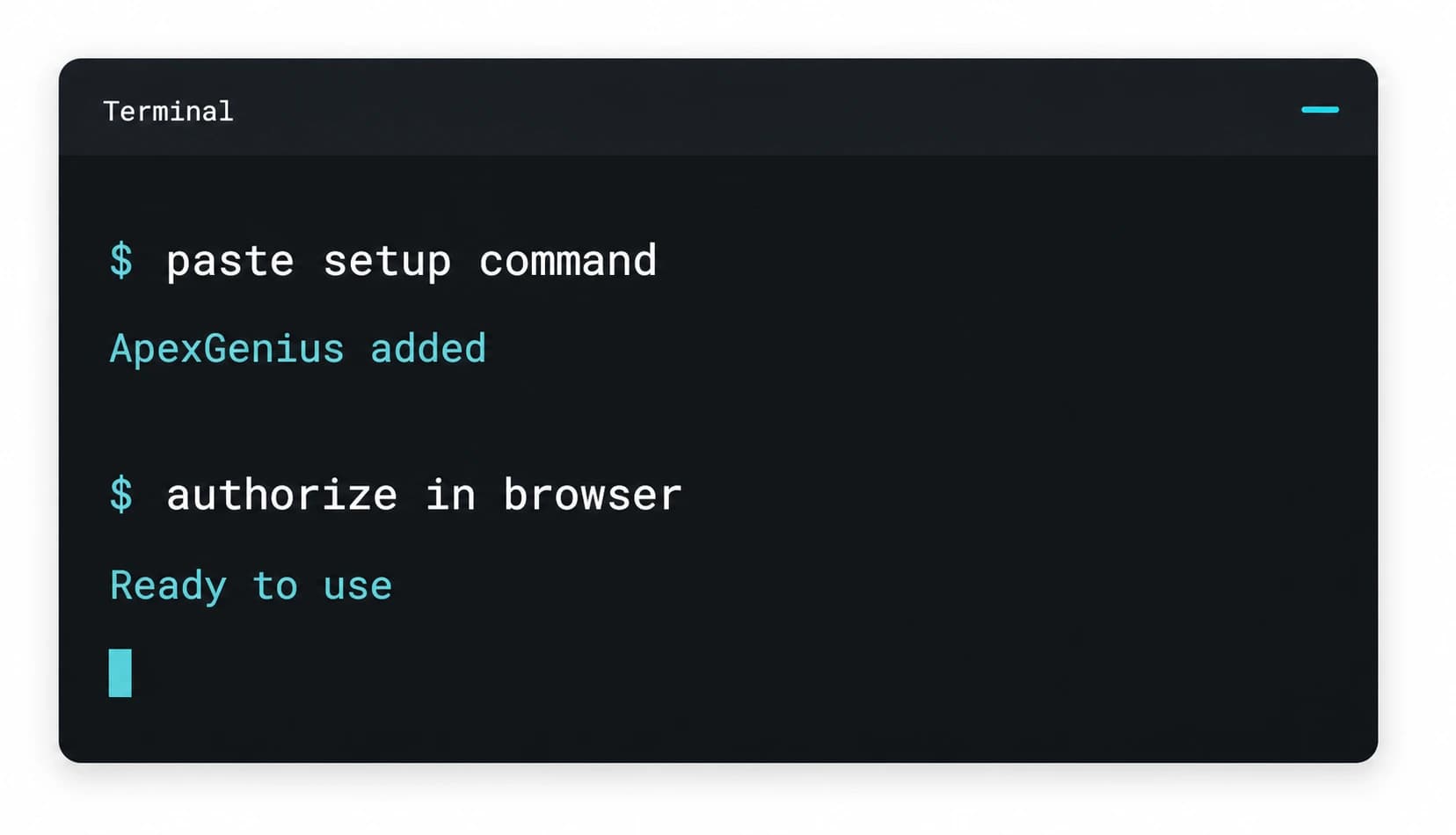
https://server.autom8.pro/mcp- Run claude mcp add --transport http apexgenius followed by the MCP URL above.
- Open /mcp and choose ApexGenius.
- Approve ApexGenius in your browser.
- When ApexGenius asks what this AI client may use, choose Read only for the first test, or Custom to limit it to the tools you need.
- Start a new conversation and select ApexGenius from the available tools before asking for live data.
3. Verify one safe read
List the locations available in my connected HQ Rental tenant. Do not create or change a reservation.
List the locations available in my connected HQ Rental tenant. Do not create or change a reservation.Compare the returned locations with the intended HQ Rental tenant.
What Claude Code can do in HQ Rental
114 operations. Read looks things up and changes nothing. Write changes HQ Rental and runs only when that tool is enabled.
Read60 operations
Looks things up. Changes nothing.Reservations
hqrental_get_reservationGet a reservation by IDhqrental_search_reservationsSearch reservationshqrental_calculate_quoteCalculate a rental quote (price + applicable charges) without creating a reservationhqrental_list_available_vehicles_for_reservationList vehicles available for a specific reservationhqrental_list_free_upgradesList free vehicle-class upgrades available for a reservationhqrental_get_extensionsList extensions for a reservationhqrental_list_agentsList rental agents (staff)
Charges, agreements and comments
hqrental_get_external_chargesList external charges (tolls, parking, damages) on a reservationhqrental_get_adjustmentsList price adjustments on a reservationhqrental_get_rental_agreementFetch the rental agreement document for a reservationhqrental_list_reservation_commentsList the comments people added to a reservation. Broker and system comments appear on the reservation itself.
Fleet
hqrental_get_vehicleGet a vehicle by IDhqrental_search_vehiclesSearch vehicles in the fleethqrental_check_vehicle_availabilityValidate a date range and return available vehicle classeshqrental_list_vehicle_damagesList damages recorded on a vehiclehqrental_get_vehicle_damageGet a vehicle damage recordhqrental_list_blocked_periodsList blocked periods for a vehiclehqrental_list_relocationsList vehicle relocations
Maintenance and telematics
hqrental_get_maintenance_historyGet maintenance history for a vehiclehqrental_list_repair_ordersList repair orders (optionally filtered by vehicle)hqrental_get_repair_orderGet a repair order by IDhqrental_get_obd_historyGet OBD telematics events for a vehiclehqrental_get_obd_history_allGet telematics events across all vehicles, a page at a time.hqrental_get_vehicle_tripsGet telematics trips for a vehiclehqrental_get_vehicle_alertsGet telematics alerts for a vehicle in a date range
Customers
hqrental_get_customerGet a customer by ID within its contact category.hqrental_search_customersSearch customers (contacts)hqrental_list_customer_creditsList credit transactions for a customerhqrental_list_contact_categoriesList contact categories. Most customer reads and writes need one.hqrental_get_contact_categoryGet a single contact category by ID
Payments and refunds
hqrental_get_paymentGet a payment-gateway transaction by IDhqrental_search_paymentsSearch payment-gateway transactionshqrental_get_refundsList refunds on a reservation
Rates and pricing
hqrental_get_rateGet a rate by IDhqrental_search_ratesSearch rateshqrental_list_seasonsList rate seasonshqrental_get_seasonGet a season by IDhqrental_list_rate_typesList rate typeshqrental_get_rate_typeGet a rate type by IDhqrental_list_packagesList bundle packageshqrental_get_packageGet a package by IDhqrental_list_package_itemsList items inside packageshqrental_list_additional_chargesList configured additional charges (insurance, equipment, fees)hqrental_get_additional_chargeGet an additional charge by ID
Locations and vehicle catalog
hqrental_get_locationGet a location by IDhqrental_search_locationsSearch locationshqrental_daily_manifestDaily operations dashboard (pickups, returns, manifests)hqrental_list_featuresList vehicle featureshqrental_get_featureGet a vehicle feature by IDhqrental_list_vehicle_typesList vehicle types/classeshqrental_get_vehicle_typeGet a vehicle type by IDhqrental_list_vehicle_modelsList vehicle modelshqrental_get_vehicle_modelGet a vehicle model by IDhqrental_list_vehicle_brandsList vehicle brands, which HQ calls branches.hqrental_get_vehicle_brandGet a vehicle brand by ID
Traffic fines
hqrental_list_finesList traffic fineshqrental_get_fineGet a fine by ID
Email, files and webhooks
hqrental_list_email_templatesList configured email templateshqrental_get_email_templateGet an email template by IDhqrental_list_filesList files (optionally filtered by attached item)
Write54 operations
Changes HQ Rental. Runs only when enabled.Reservations
hqrental_create_reservationCreate and confirm a reservationhqrental_update_reservationUpdate a reservation: dates, location, vehicle class, customer or charges.hqrental_set_reservation_statusChange a reservation status: open, cancelled, pending, quote, no show or ready for pickup.hqrental_send_quoteStore a quote and email it to a customerhqrental_assign_vehicleAssign a vehicle to a reservation (check-in)hqrental_detach_vehicleDetach the vehicle from a reservation (check-out)hqrental_apply_free_upgradeApply a free vehicle-class upgrade to a reservationhqrental_create_extensionExtend a reservation to a new return date/timehqrental_delete_extensionDelete a reservation extensionhqrental_assign_agentAssign primary or return agent to a reservation
Charges, agreements and comments
hqrental_create_external_chargeAdd an external charge to a reservationhqrental_delete_external_chargeDelete an external charge from a reservationhqrental_create_adjustmentCreate a price adjustment on a reservationhqrental_delete_adjustmentDelete a reservation adjustmenthqrental_mark_reservation_signedSet the signed date on a reservation.hqrental_upload_signatureUpload the primary driver signature image to a reservationhqrental_create_reservation_commentAdd a comment to a reservationhqrental_delete_reservation_commentDelete a reservation commenthqrental_send_reservation_emailSend a reservation confirmation or contract email
Fleet
hqrental_reserve_vehicleReserve a vehicle, or cancel that hold.hqrental_update_vehicleUpdate vehicle fields. Tenant fields such as registration expiry go in custom fields.hqrental_create_vehicle_damageRecord a damage on a vehiclehqrental_update_vehicle_damageUpdate a vehicle damage recordhqrental_create_blocked_periodBlock a vehicle for a date/time rangehqrental_update_blocked_periodUpdate a blocked periodhqrental_delete_blocked_periodDelete a blocked periodhqrental_create_relocationCreate a vehicle relocationhqrental_update_relocationUpdate a vehicle relocationhqrental_delete_relocationDelete a vehicle relocation
Customers
hqrental_create_customerCreate a customer through the booking flow. Tenant fields go in custom fields.hqrental_create_customer_creditCreate a customer credit transactionhqrental_update_customer_creditUpdate a customer credit transactionhqrental_delete_customer_creditDelete a customer credit transactionhqrental_merge_customersMerge one or more contacts into a target contact
Payments and refunds
hqrental_create_paymentRecord an offline payment on a reservationhqrental_update_paymentUpdate a payment on a reservationhqrental_charge_credit_cardCharge a credit card on a reservation (uses saved card or sends a payment request)hqrental_refund_security_depositRefund a security deposit, offline against a payment or online through the payment gateway.hqrental_create_refundCreate a refund on a reservationhqrental_update_refundUpdate a refund on a reservationhqrental_delete_refundDelete a refund from a reservation
Rates and pricing
hqrental_create_seasonCreate a seasonhqrental_update_seasonUpdate a seasonhqrental_delete_seasonDelete a seasonhqrental_create_rate_typeCreate a rate typehqrental_update_rate_typeUpdate a rate typehqrental_delete_rate_typeDelete a rate type
Traffic fines
hqrental_create_fineRecord a traffic finehqrental_update_fineUpdate a finehqrental_delete_fineDelete a fine
Email, files and webhooks
hqrental_trigger_email_templateSend an email template against any record (reservation, contact, etc.)hqrental_upload_fileUpload a file (e.g. attach a toll receipt PDF to an external charge)hqrental_delete_fileDelete a file by IDhqrental_register_webhookRegister a webhook receiver URL
You choose what Claude Code can use
When you approve Claude Code, pick Full access, Read only, or Custom. Read only allows the Read operations and nothing else. Custom picks apps and tools one by one.
Limits in HQ Rental
- · The tenant and the permissions on its user token decide what can be read and changed.
- · Payments, card charges, refunds and sent emails reach real customers and money. Keep those tools off unless you need them.
- · Enabled writes run immediately. Turn a tool off to block calls.
- · Disconnecting stops future access. It does not undo a booking, charge, refund or sent email.
What it looks like in Claude Code
An illustrative read-only request and response. Your results come from the account and dates you choose.
apex_search_toolsHQ Rental locations · Find the HQ Rental read routeCompleteapex_call_read_toolhqrental_search_locations · Search locationsCompleteIllustrative example: three locations, the airport, downtown and the harbor office. Compare them with the tenant you meant to connect. Nothing was changed.
Read-only routeTry asking
“List the locations available in my connected HQ Rental tenant. Do not create or change a reservation.”
“Show today’s pickups and returns at the location I name.”
“Which vehicle classes are free at the airport location next Friday through Sunday, and what would a quote cost?”
“Extend reservation 4821 to return on Monday at noon. Show me the new total first.”
More connections like this one
One ApexGenius account covers every pair below. Connect an app once and each agent you allow can use it.
Claude Code with other apps
 MobbinConnect Claude Code to Mobbin
 Cal.comConnect Claude Code to Cal.com
 SlackConnect Claude Code to Slack
 DiscordConnect Claude Code to Discord
 ChatGPT AdsConnect Claude Code to ChatGPT Ads
 GitHubConnect Claude Code to GitHub
 StripeConnect Claude Code to Stripe
 Context.devConnect Claude Code to Context.dev
 AttioConnect Claude Code to Attio
 SemrushConnect Claude Code to Semrush
 NotionConnect Claude Code to Notion
 ApifyConnect Claude Code to Apify
 LinearConnect Claude Code to Linear
 JiraConnect Claude Code to Jira
 Google AdsConnect Claude Code to Google Ads
 Google AnalyticsConnect Claude Code to Google Analytics
 Google FormsConnect Claude Code to Google Forms
 Google MeetConnect Claude Code to Google Meet
 Google TasksConnect Claude Code to Google Tasks
 GmailConnect Claude Code to Gmail
 Google CalendarConnect Claude Code to Google Calendar
 Google ChatConnect Claude Code to Google Chat
 Google DocsConnect Claude Code to Google Docs
 Google DriveConnect Claude Code to Google Drive
 Google SheetsConnect Claude Code to Google Sheets
 Google SlidesConnect Claude Code to Google Slides
 ApolloConnect Claude Code to Apollo
 BlotatoConnect Claude Code to Blotato
 Bing WebmasterConnect Claude Code to Bing Webmaster
 CalendlyConnect Claude Code to Calendly
 ClickUpConnect Claude Code to ClickUp
 YouTubeConnect Claude Code to YouTube
- YouTube AnalyticsConnect Claude Code to YouTube Analytics
 SalesforceConnect Claude Code to Salesforce
 n8nConnect Claude Code to n8n
 ConfluenceConnect Claude Code to Confluence
 Google Search ConsoleConnect Claude Code to Google Search Console



Questions people ask first
How do I connect HQ Rental?
Ask your HQ administrator to enable Custom Integration, then open HQ Rental in ApexGenius Connections and enter the API region, tenant label, tenant token and user token. ApexGenius checks a location search before it saves the connection.
What can my AI read?
Reservations, vehicles, customers, rates, payments, maintenance, telematics, fines and files, within the permissions of the user token you entered.
Can my AI book or change rentals?
Yes. It can create and change reservations, charges, fleet records and customers. Enabled writes run immediately. Turn a tool off to block calls.
Can my AI move money?
Card charges, payments, deposits and refunds are on the tool list and marked destructive where they move money. Turn those tools off unless you want your AI to use them.
Can I start with read-only access?
Yes. Choose Read only when you add your AI agent, and the write tools never reach its tool list.
Connect HQ Rental to Claude Code today
Start free1,000 free credits. No card required. Disconnect any time.